

Calendar connections don’t crawl data and can’t be added to a domain.
Prerequisites
- Admin access to your WisdomAI Organization.
- An OAuth app for the calendar provider. The requirements are listed in each section below.
Add the connection
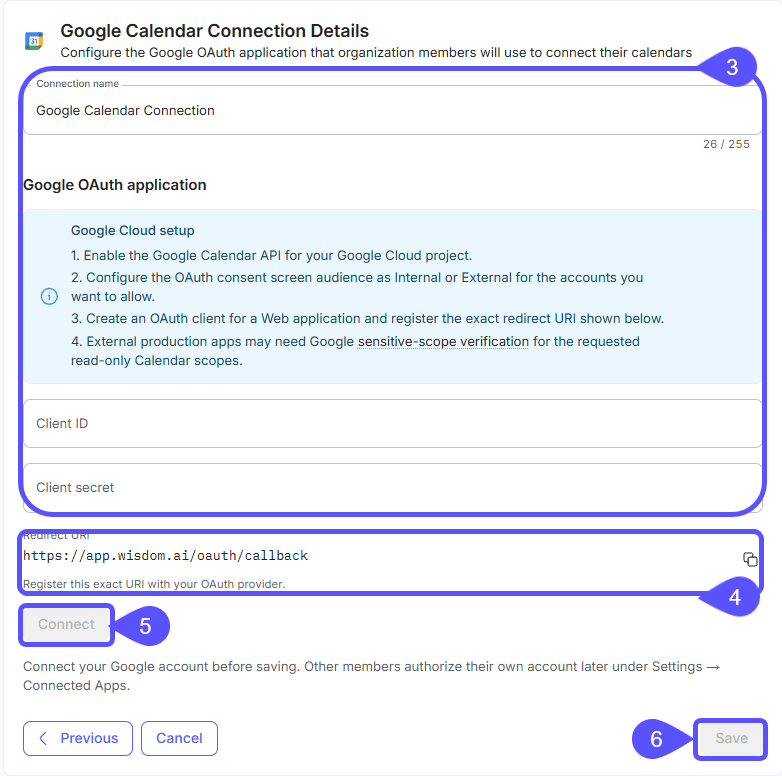
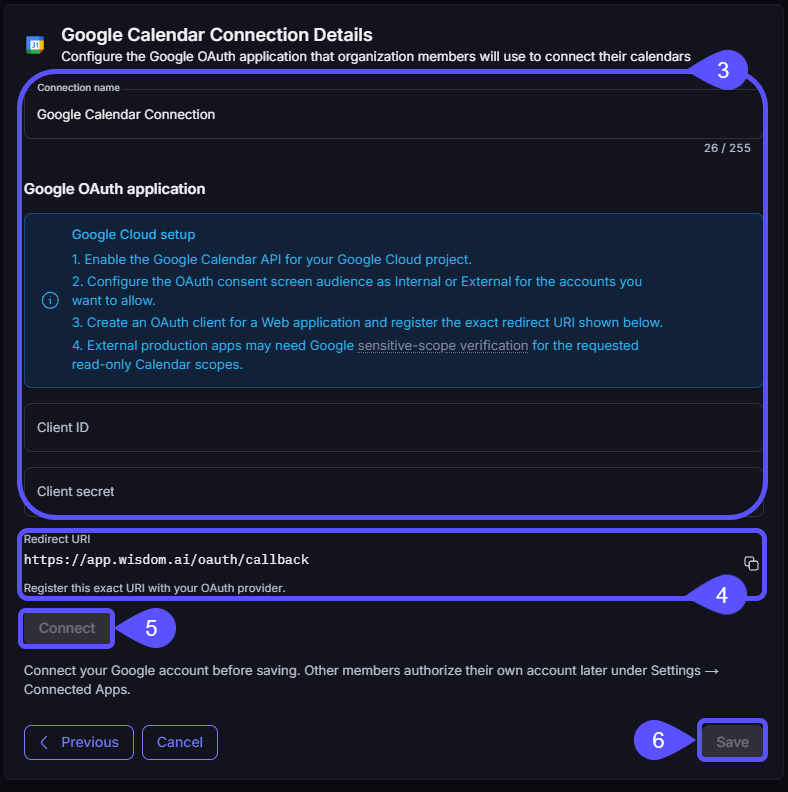
Both providers follow the same flow: enter the details, click Connect to authorize your account, then click Save.Connect your account before you save. Other members authorize their own accounts later under Settings → Connected Apps.
Google Calendar
- Go to Connections and click Add connection.
- Select Google Calendar from the list of sources.
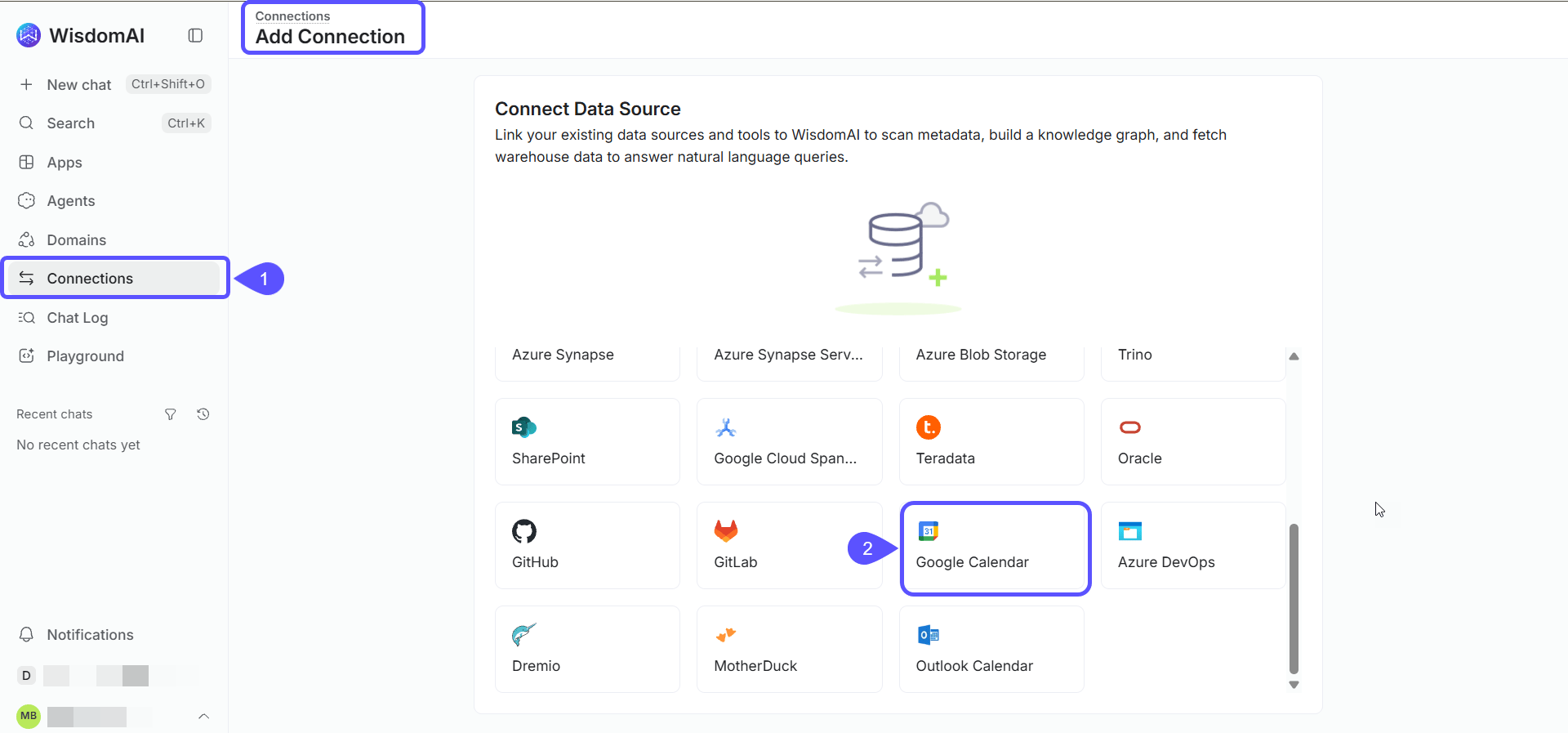
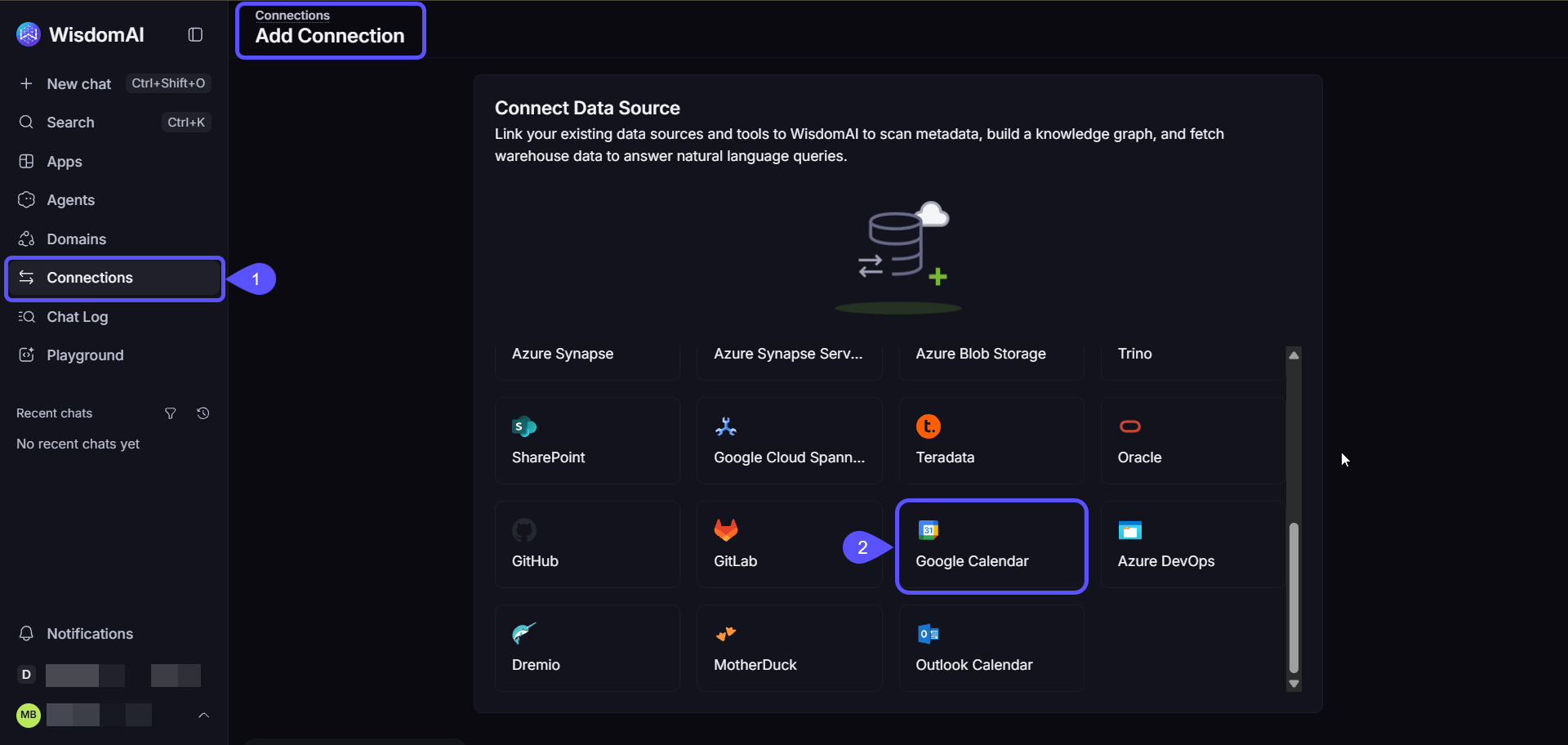
- Enter a Connection name and the details of your OAuth app. The Calendar API must be turned on.
- Register the redirect URI shown on the form in your OAuth app.
- Click Connect and authorize your Google account.
- Click Save.
Outlook Calendar
- Go to Connections and click Add connection.
- Select Outlook Calendar from the list of sources.
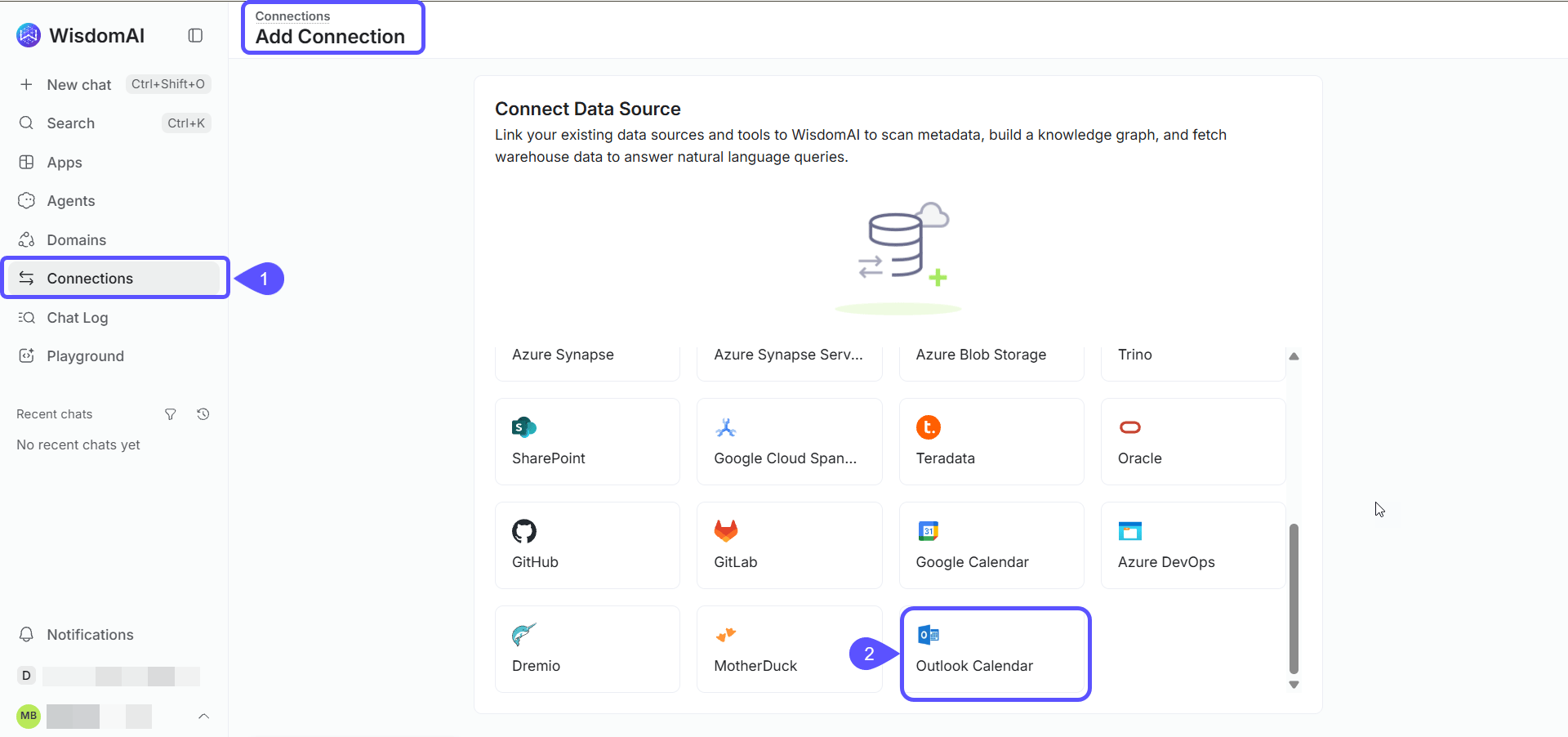
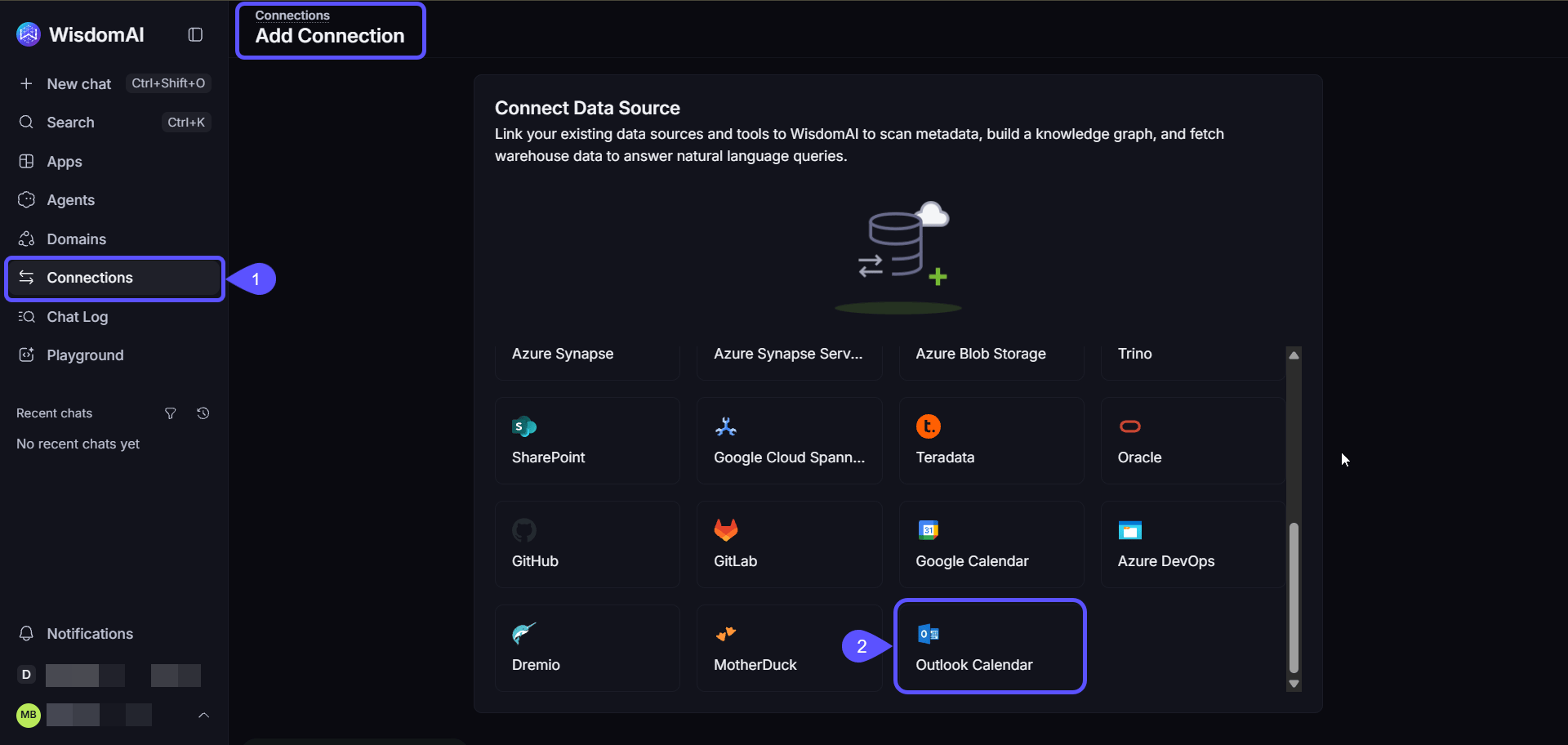
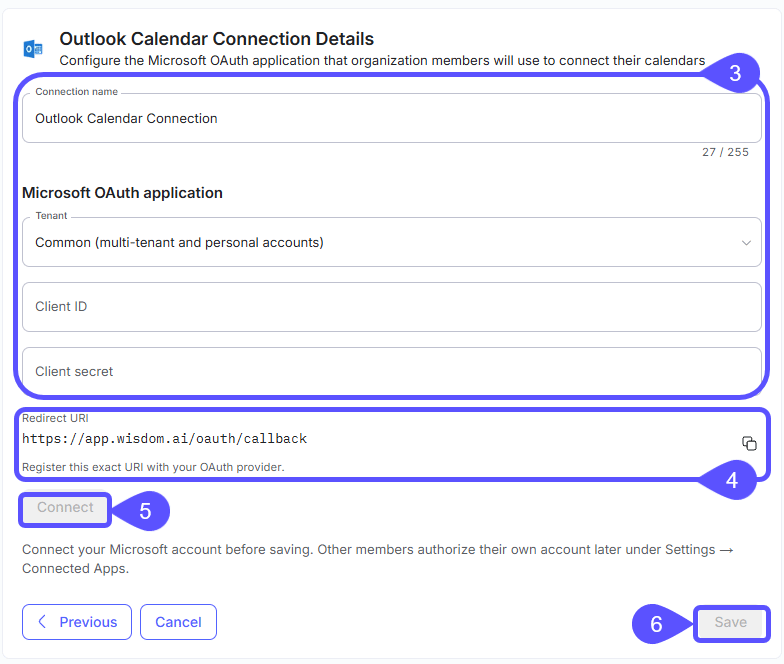
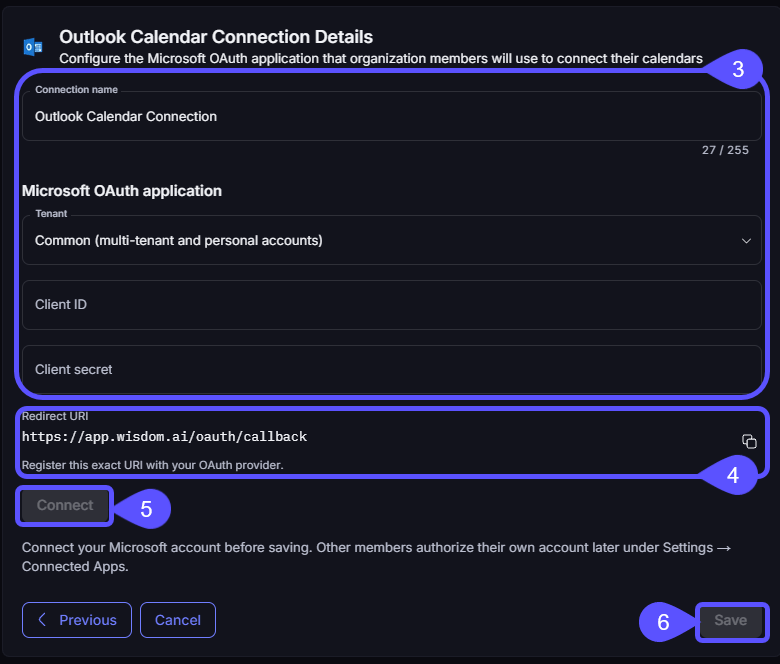
- Enter a Connection name and the details of your Microsoft OAuth app.
- Register the redirect URI shown on the form in your OAuth app.
- Click Connect and authorize your Microsoft account.
- Click Save.
Connect your calendar
Other members connect their own calendar:- In the left-hand navigation, click the Settings icon.
- Select Connected Apps.
- Connect your calendar.
Use a calendar in an agent
Add the Calendar trigger to an agent to start a run from calendar events. See the trigger nodes in the Nodes Reference.Next steps
Connected Apps
Sign in to the OAuth-secured apps your administrator has set up.
Nodes Reference
See every agent node type, including the Calendar trigger.