

The Jobs page is available to Site Administrators. Other users don’t see it in the menu.
Open the Jobs page
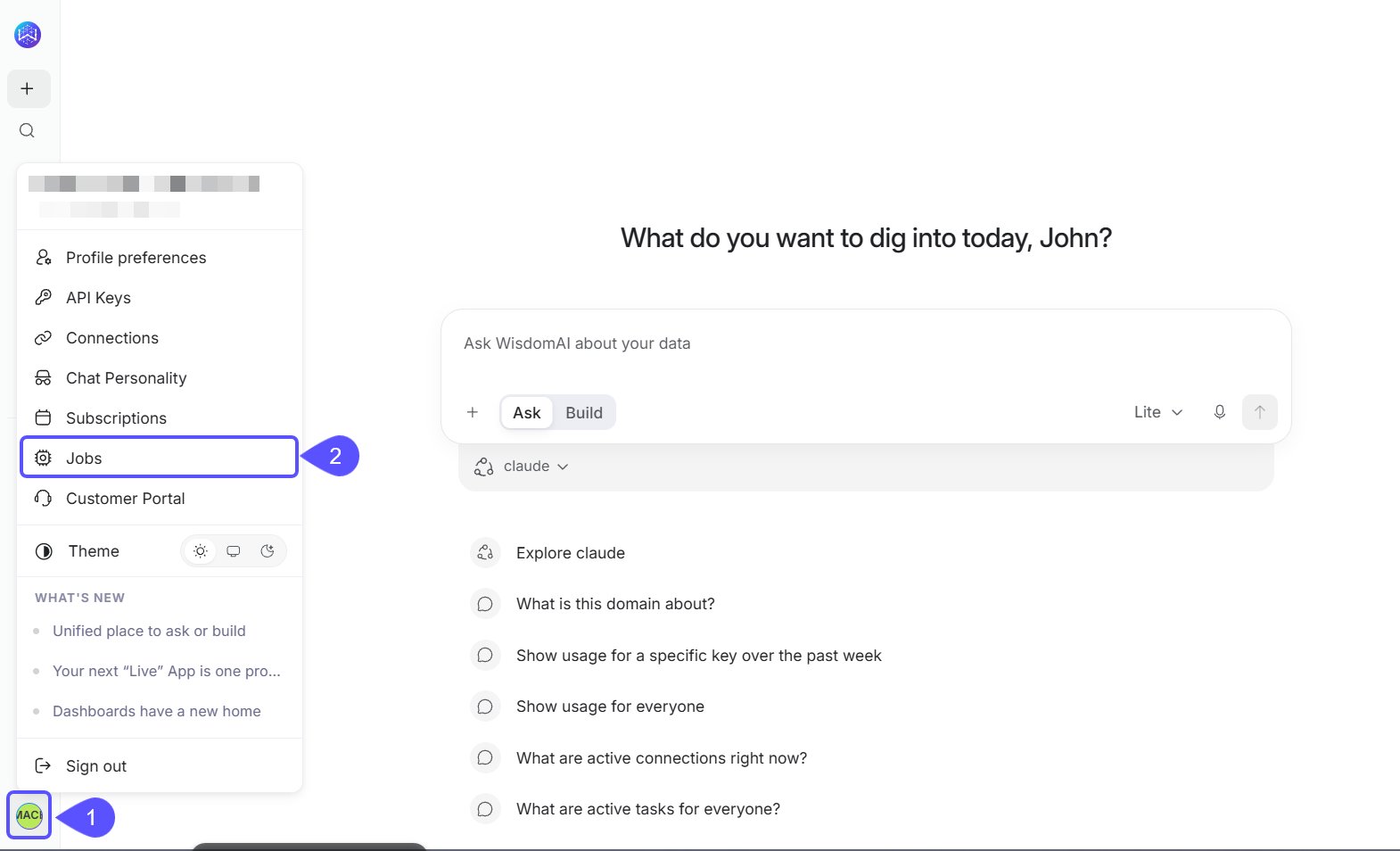
To open the Jobs page:- Click your name at the bottom of the left sidebar to open the user menu.
- Click Jobs.
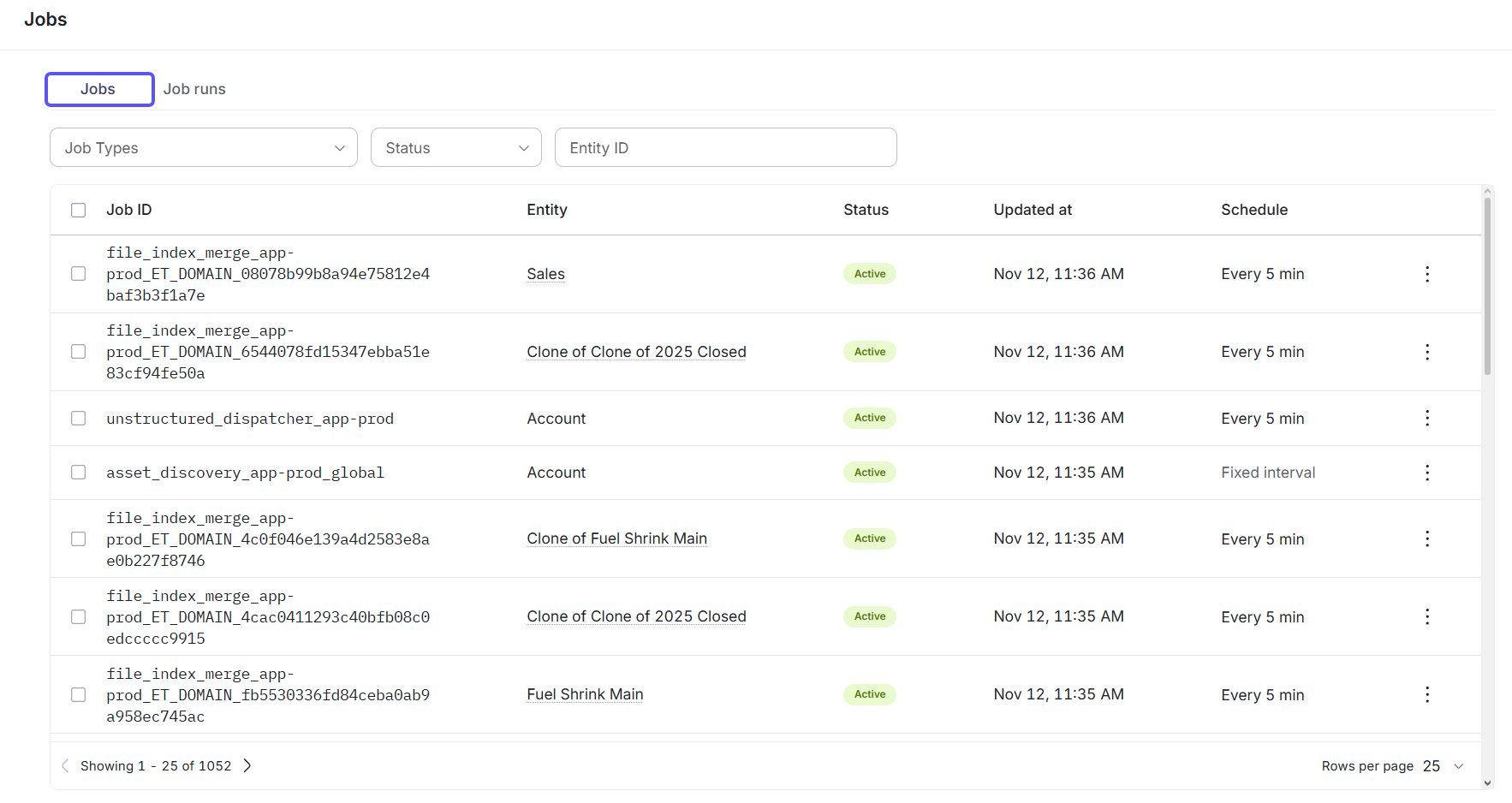
The Jobs tab
Each row is one job. A job belongs to one item in your account, such as a domain, a connection, or a dashboard, and runs on a schedule.
The hover text on a schedule names its source:
Two other values can appear in the Schedule column. Off means a schedule override switched the job off. For example, turning off a dashboard’s automatic refresh shows Off here while the Status stays Active. Fixed interval means the job repeats every few minutes or hours instead of running at set times.
Find jobs
Use the filters above the table:
Click Clear filters to reset them. The table shows 25 jobs per page by default.
Change several jobs at once
Follow these steps to set schedules, clear overrides, pause, or resume many jobs in one action:-
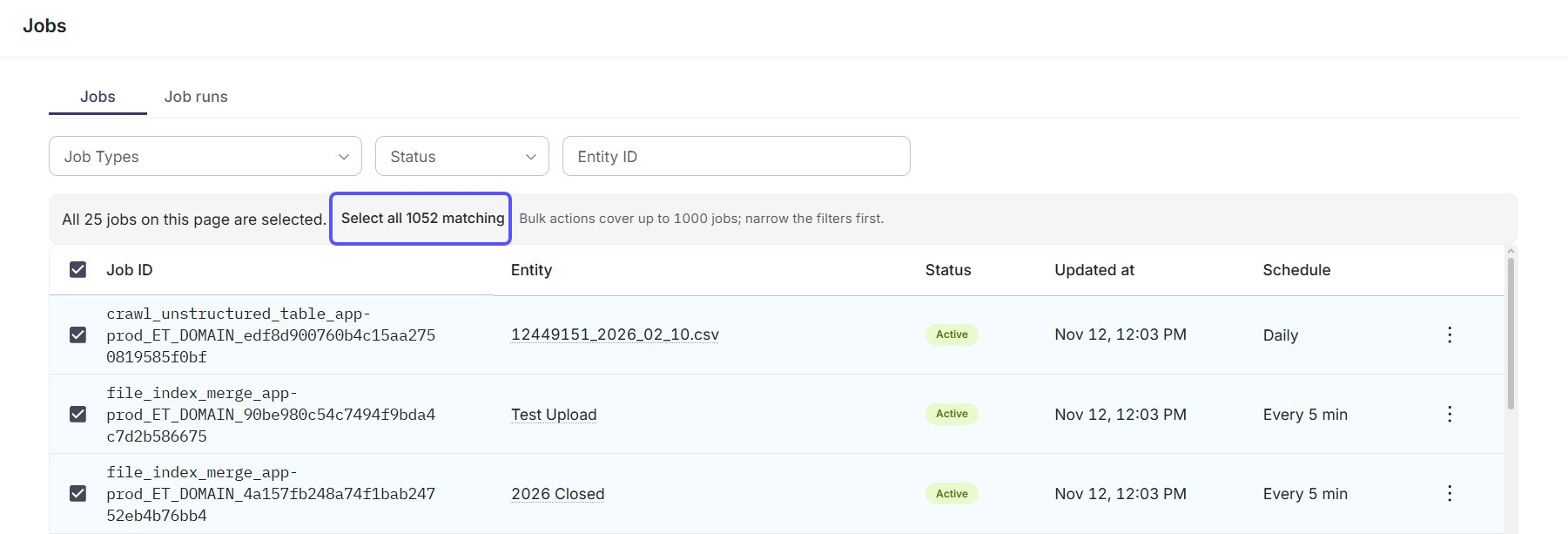
Select jobs with the checkboxes. The checkbox in the header selects every job on the current page.
To select every job that matches your filters, click Select all N matching in the banner above the table. One action can change up to 1,000 jobs, so narrow the filters if more match.
-
In the action bar at the bottom of the page, choose an action:
- Set schedule gives the selected jobs their own schedule. See Set a schedule.
- Clear override removes the selected jobs’ own schedule. They go back to the schedule they inherit from their job type, the account, or the default.
- Pause stops the selected jobs from running on their schedule until they’re resumed.
- Resume puts the selected jobs back on their schedule.
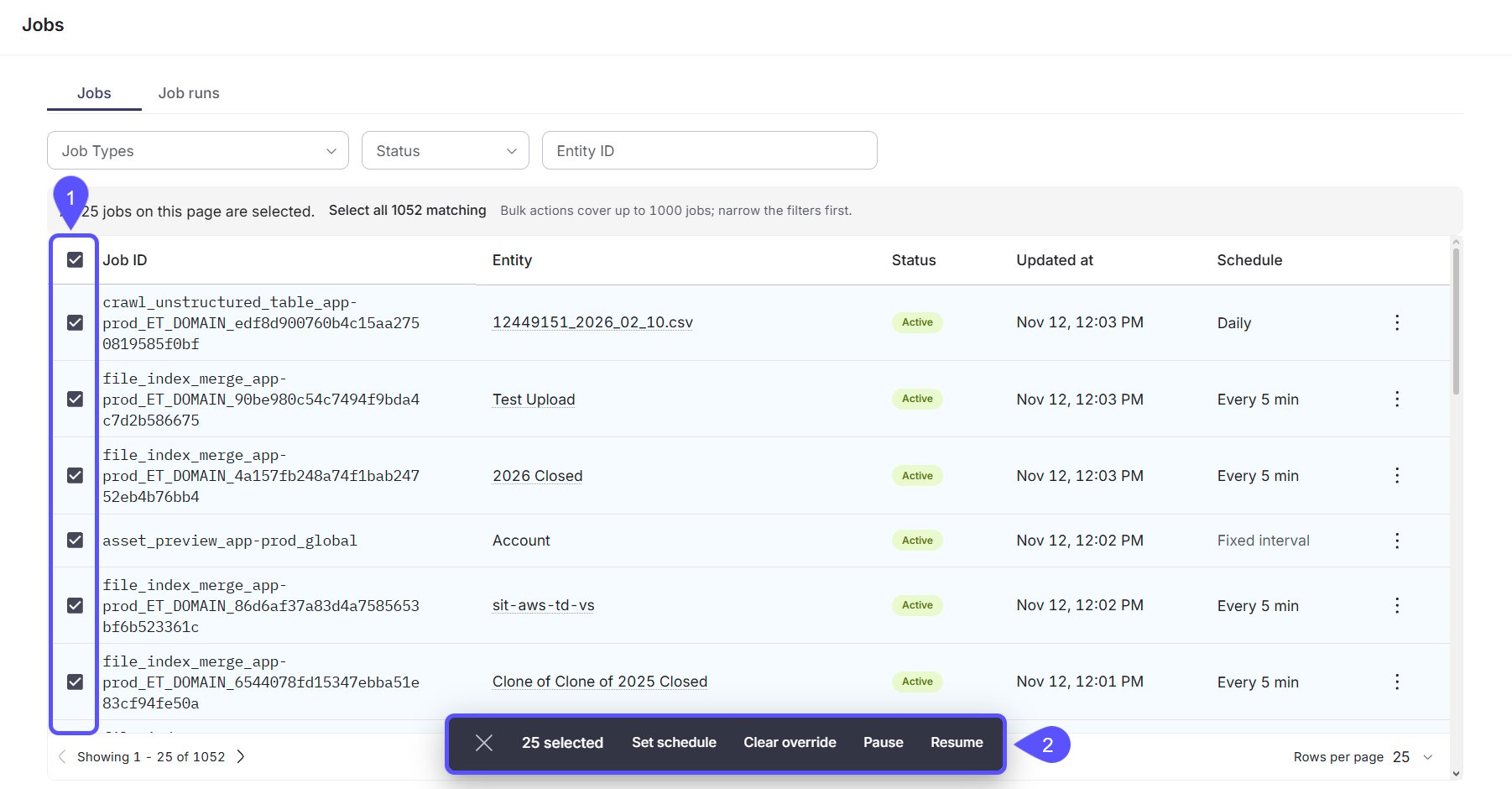
- Confirm. A message tells you how many jobs changed. If some couldn’t be changed, the message lists each one with the reason.
Set a schedule
Set schedule opens a dialog. If all the selected jobs share a schedule, the dialog opens with that schedule filled in. To set a schedule, follow these steps:-
Choose how often the jobs run:
- Hourly: every hour, or every 2, 3, 4, 6, 8, or 12 hours, at the minute you choose.
- Daily: every day at the time you choose.
- Weekly: on the days you pick, or Weekdays, Weekends, or Every day, at the time you choose.
- Monthly: on one day of the month (1st to 31st) at the time you choose.
- Choose a time zone.
- Optional: select Start within a time range and set the end of the range in Start time until. Each run then starts at a random moment in that range, so jobs on the same schedule don’t all hit your warehouse in the same minute. The range starts at 1 hour, or 30 minutes for hourly schedules. An end time earlier than the start time runs into the next day. A line under the controls sums up the result, for example “Starts every day between 9:00 AM and 10:00 AM (1 hour, UTC).”
-
Click Apply.
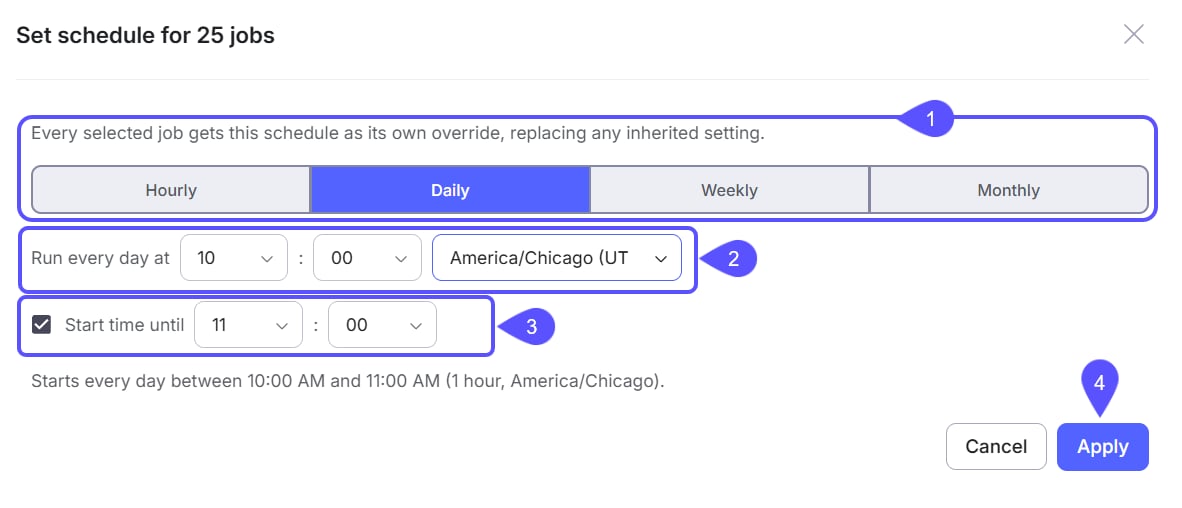
A new schedule shows on the Jobs tab right away. WisdomAI applies it to the jobs within about 10 minutes. Pause and Resume take effect immediately.
How a job’s schedule is decided
A job follows the most specific schedule that applies to it, in this order:- Its own schedule (Own override). You can set it on this page, in a domain’s Crawl jobs settings, or in a dashboard’s Background refresh settings.
- A schedule for every job of its type (Job-type override).
- A schedule for the whole account (Account-wide override).
- WisdomAI’s default for the job type (Default schedule).
- Domain → Advanced → Crawl jobs sets the domain’s column value crawl. A schedule saved there shows as Own override on the domain’s Crawl Column Values job, and the Scheduled crawl switch does the same thing as Pause and Resume here.
- A dashboard’s Background refresh settings set its Refresh Dashboard job. Disable automatic refresh shows as Off here.
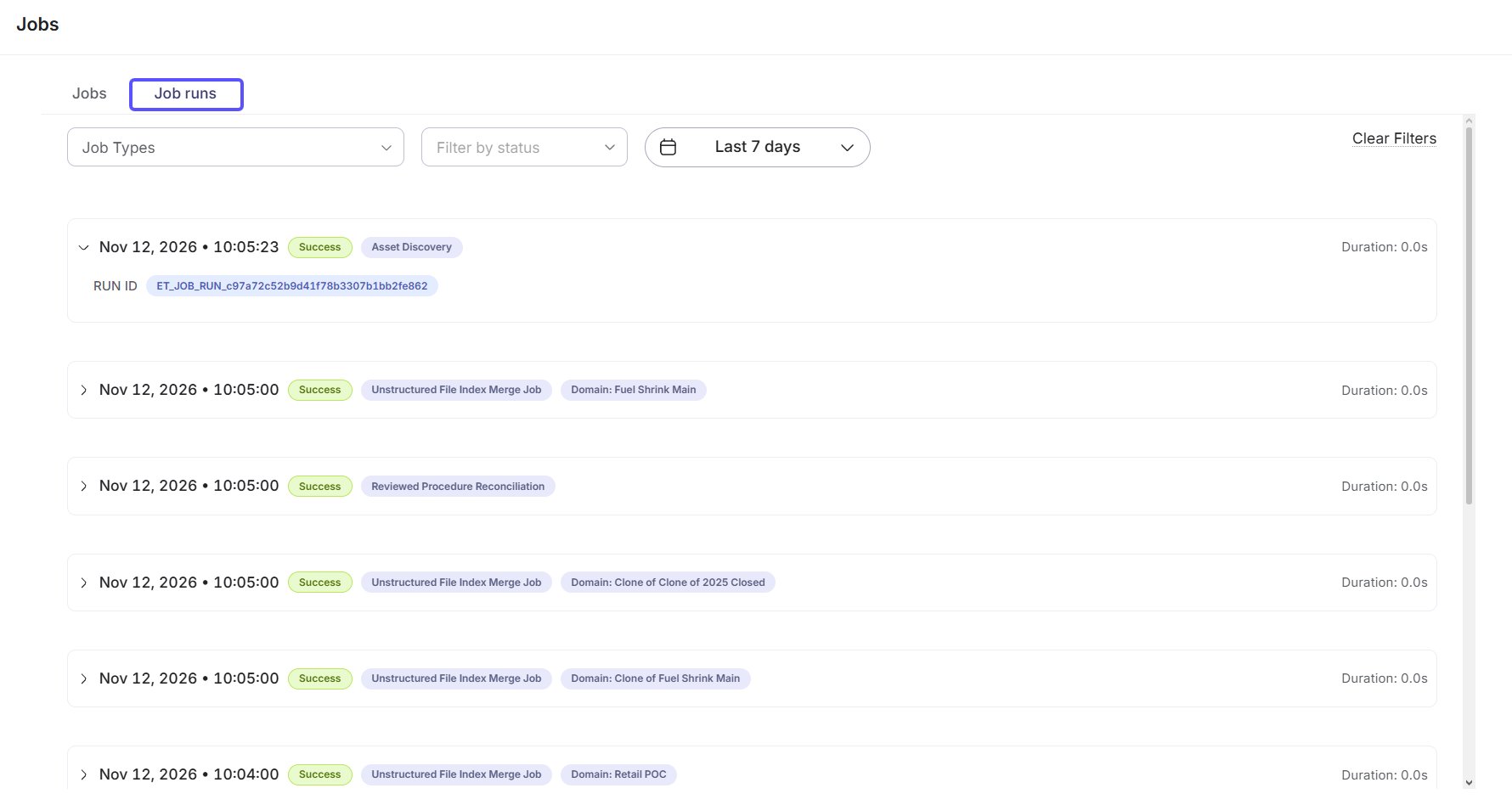
The Job runs tab
Job runs lists every job run in your account, newest first, including runs started on demand. Each run is a card with the time the run was created, its status, its job type, the item it ran for, and, once it finishes, how long it took. Expand a card to see the run ID, the steps the run went through, and the error message if it failed. Copy error message copies the error. Filter the list by Job Types, by status (Success, Failed, Running, Queued, Canceled, or Skipped), and by date. The date filter starts at Last 7 days. You can switch to the last 30 or 90 days or all time, or pick a From and To date. The list refreshes every 10 seconds.To see the runs of a single job, open the job’s ⋮ menu on the Jobs tab and click View runs.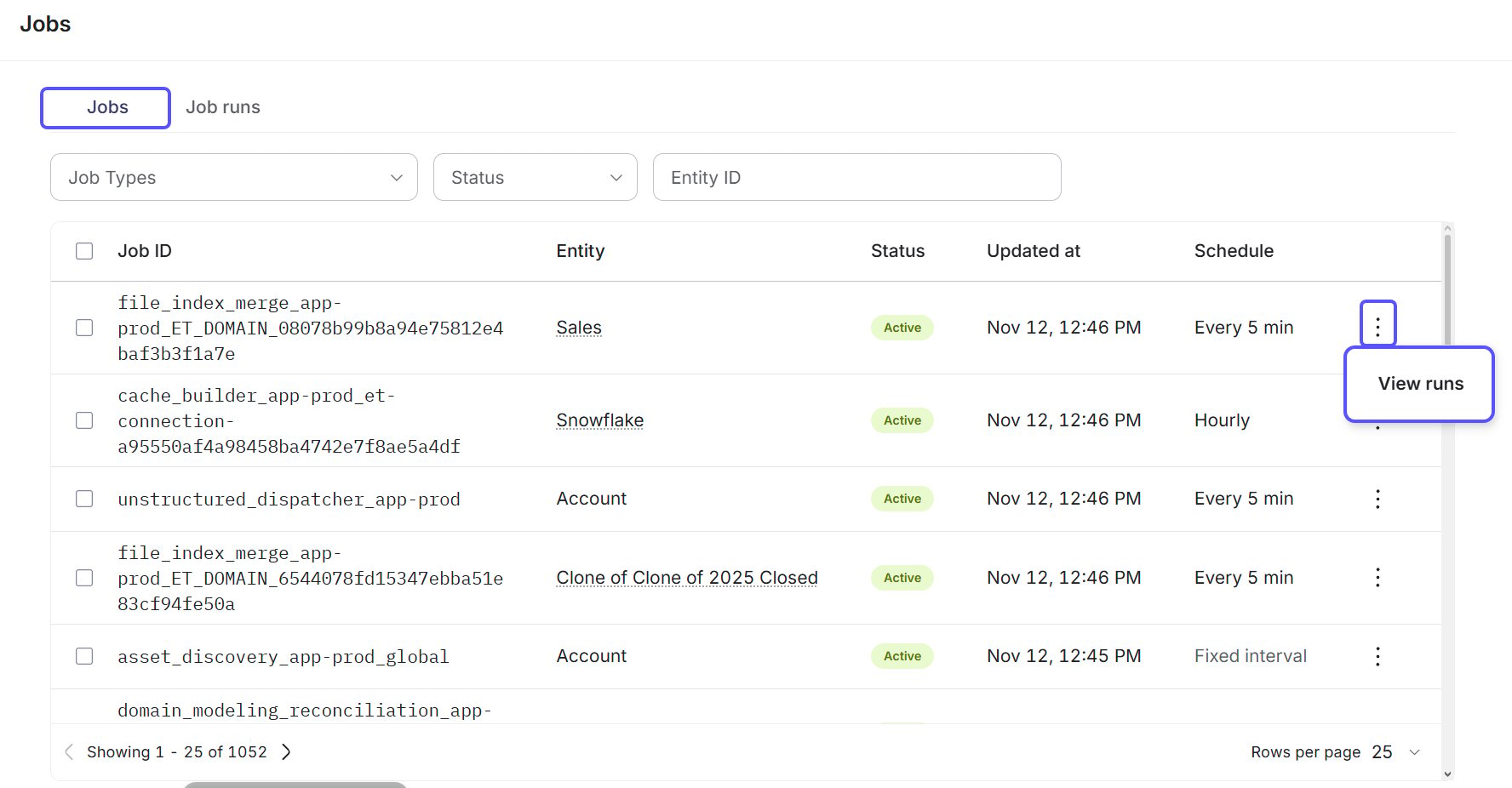
Cancel a run
Runs that are Running or Queued show Cancel run. You can’t undo a cancellation. You can cancel a run you started, or any run for an item you can edit.Who can do what
Access to the Jobs page, to changing jobs, and to canceling runs depends on your role and your edit access.Job types
The main job types you’ll see:Subscriptions, agents, and domain evaluations are scheduled from their own pages, so they don’t appear on the Jobs tab. Their runs do appear on the Job runs tab.
Next steps
Advanced Tab
Set the column value crawl schedule for a domain in its Crawl jobs settings.
JobHistory
Read the last run and last successful run of a connection job in the API.