

Before you begin
- Prepare the source domain or dashboard in your authoring organization.
- Ask a Site Administrator to create the customer organizations, or create them yourself if you are one.
- Make sure the administrator who sets up mirroring has permission to manage mirrors and target access, in both the source and destination organizations.
If you do not see Mirror, ask your administrator to check your permissions and whether your account has mirroring enabled.
Onboard a customer
To onboard a customer, you create their organization, add their users, mirror the domain and dashboard, and test access as a customer user.Create the customer’s organization
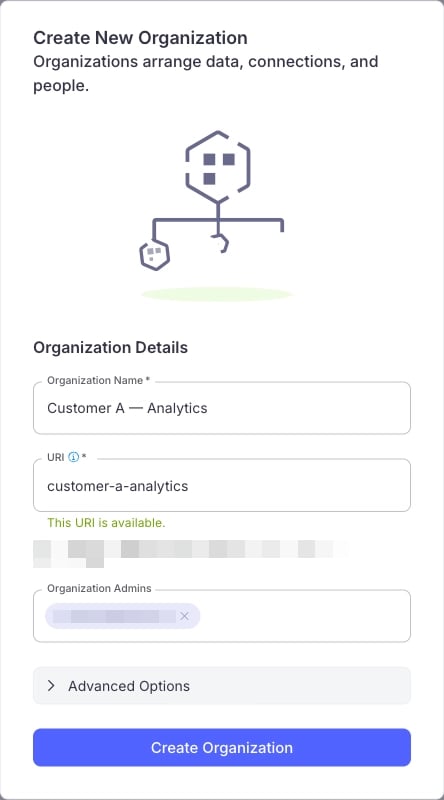
Follow these steps to create a separate organization for the customer and choose its administrators.- Open Organizations from the navigation.
- Select Add Organization.
- Enter an organization name, such as “Customer A”, and a unique URL identifier in URI.
- Choose the Organization Admins who manage this customer.
- Select Create Organization.
Add users to the customer organization
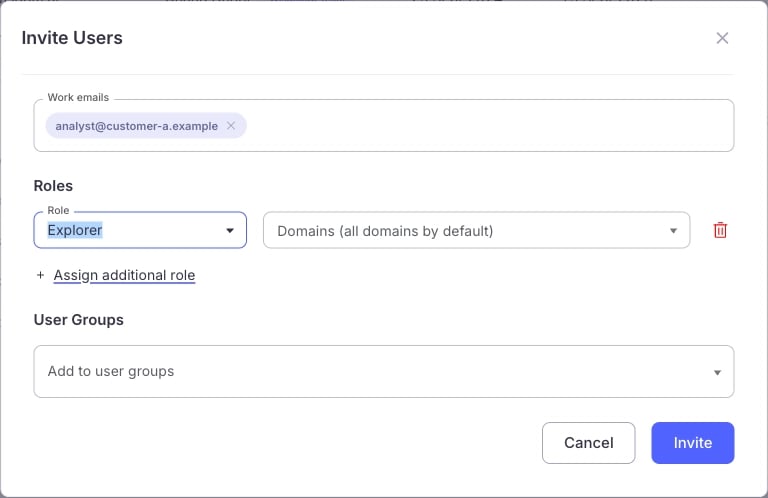
Follow these steps to invite the customer’s users and assign their roles.- Open the customer’s organization.
- Select Users, then Invite Users.
- Enter the users’ work email addresses.
- Choose a role. Explorer lets users ask questions and create analyses. Observer provides viewing access.
- Review domain restrictions and user groups. The form defaults to all domains. Restrict it to specific domains if needed.
- Select Invite to send the invitations.
Mirror the domain
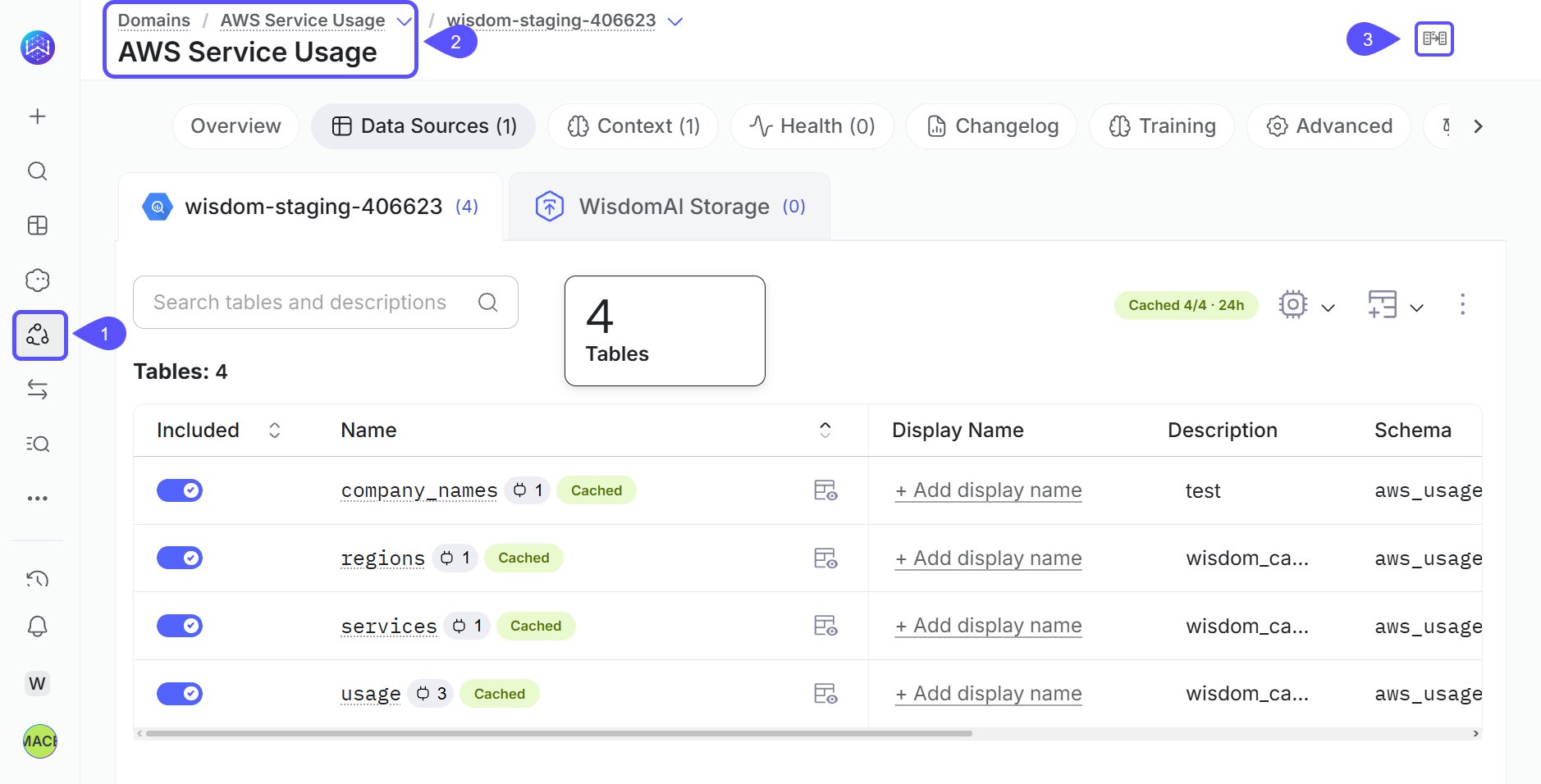
Mirror a domain so customers can ask questions using the data context your team maintains.- Switch to the authoring organization and open Domains.
- Open the source domain.
-
Select the Mirror domain icon at the top right.
- Select the destination customer organization or organizations.
- Choose Target access using the table below.
- Select Save.
-
Reopen the dialog and confirm the destination appears under Existing mirrors. Then open the customer’s organization and confirm the domain appears in Domains.
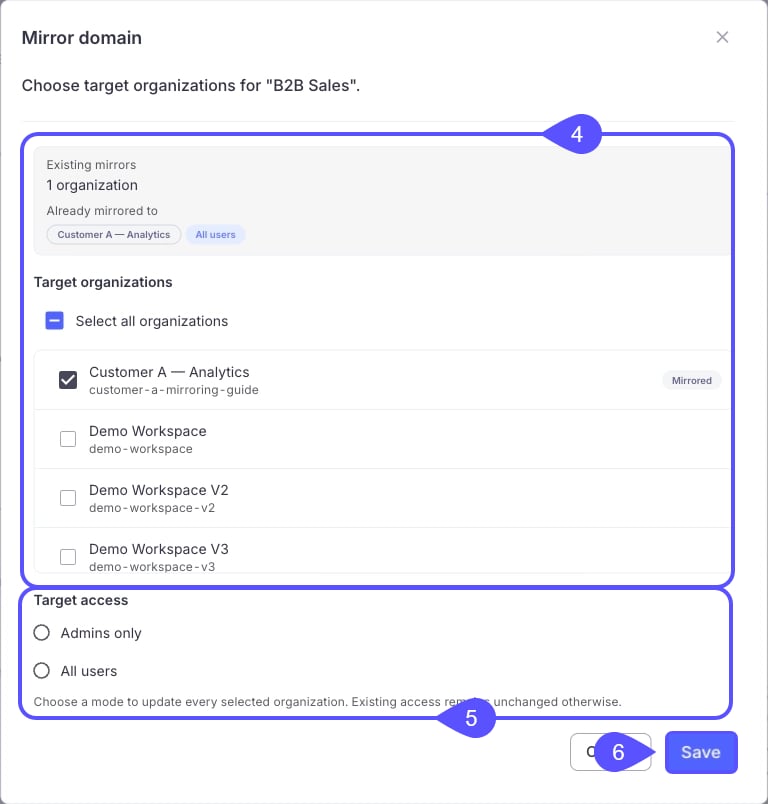
All users applies to the selected organizations. It does not make the mirror public or give every account user access.
Mirror the dashboard
Follow these steps to mirror a dashboard so customers can view prepared reports.- In the authoring organization, open Apps and select the source dashboard. Some interfaces label this area Dashboards.
- Finish saving any pending dashboard edits.
-
Open the dashboard’s More menu in the top right and select Mirror dashboard.
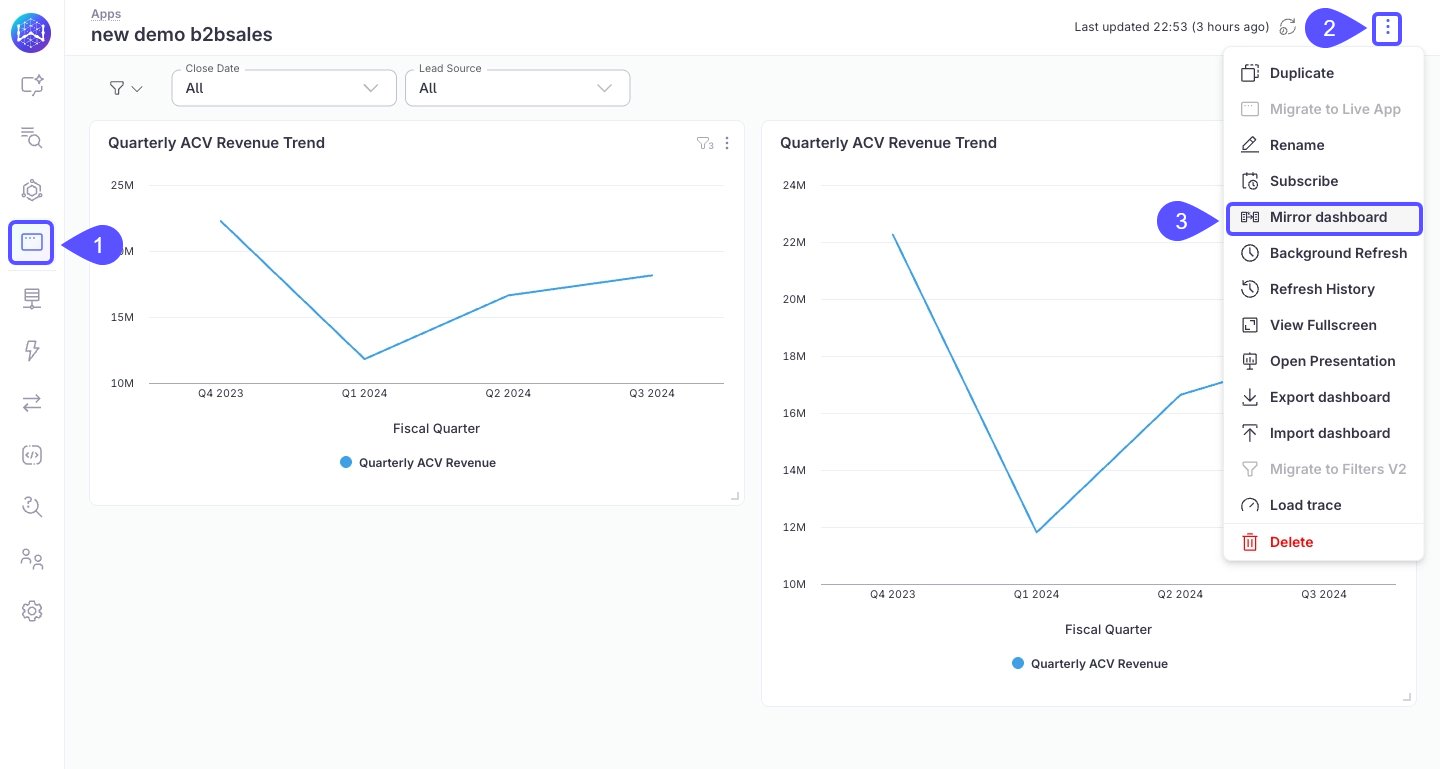
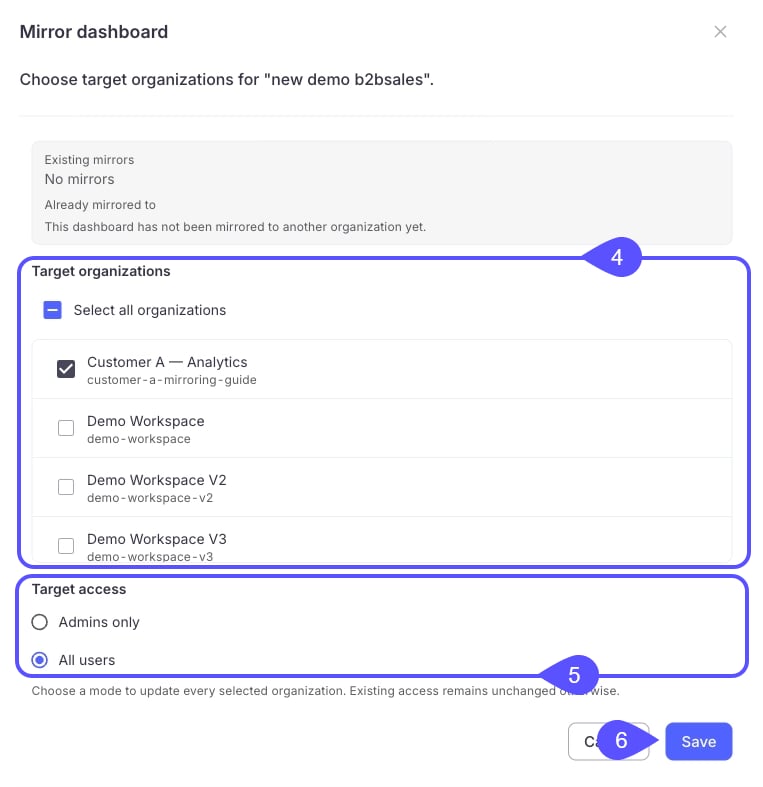
- Select the customer organization or organizations.
- Choose Admins only for administrator review or All users to give the selected organizations’ users access.
-
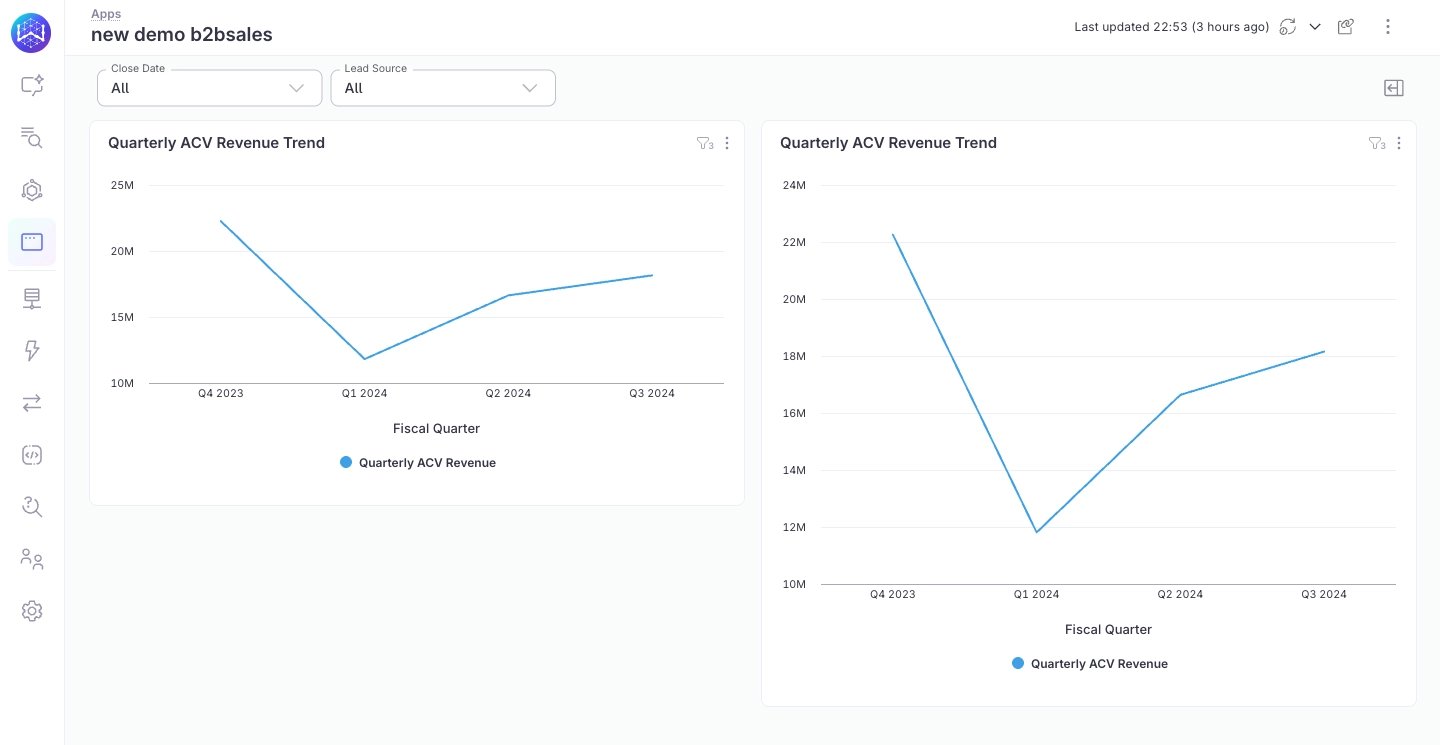
Select Save.
Test access as a customer user
Sign in as a representative customer user before you invite the wider audience. An administrator preview cannot confirm that user’s access.- Confirm the user lands in the intended organization and can find the mirrored content.
- Open the dashboard. Check that the user sees only the customer data, rows, and columns they may access.
- If you mirrored a domain for exploration, ask a representative question and check the result.
- Confirm the user cannot edit the shared source content and cannot access another customer’s organization.
- If you use All users, check the experience of a newly added user too.
Manage content and access after setup
- Update the original: Edit the source domain or dashboard in the authoring organization. Mirrors refer to it, so you do not need to republish a copy for each customer. Mirroring does not change warehouse refresh schedules. It also does not guarantee that an open browser redraws immediately.
- Add each new customer: Create their organization, add their users, and select the organization in the relevant mirror dialogs. Select all organizations selects the available choices. It does not include organizations created later.
- Review access from the source: Open Mirror domain or Mirror dashboard to see destinations and access settings. A target-access change applies to every selected organization when you save. Check the selected destinations first. If organizations need different access settings, ask an administrator to manage each mirror’s grants.
- Remove a mirror: In the source object’s Mirror dialog, clear the destination organization’s checkbox and select Save. This removes that mirror and its access grants. It leaves the source and other mirrors unchanged.
Common questions
Does mirroring a dashboard also give my users its domain for asking new questions?
Does mirroring a dashboard also give my users its domain for asking new questions?
No. Set these up separately. Mirror the domain for exploration and each dashboard you want the customer to use.
Can I mirror an existing mirror into another organization?
Can I mirror an existing mirror into another organization?
No. Create each mirror from the original object.
Why is the destination organization missing from the dialog?
Why is the destination organization missing from the dialog?
Check that the organization is active and differs from the source organization. You also need permission to manage mirroring there. The dialog loads up to 100 eligible organizations. For larger rollouts, ask your administrator to provision mirrors through the API. See Set up tenant organizations and mirrors with the API.
Why can't my customer see a mirror that exists?
Why can't my customer see a mirror that exists?
Check the user’s membership and roles in the customer organization. Then check the mirror’s access setting and the organization used by the link or embedded session.
Why are the results in a mirrored dashboard or domain unexpected?
Why are the results in a mirrored dashboard or domain unexpected?
Check the viewer’s identity and user attributes against your data policies and connection parameters. Check the dashboard’s filters and refresh state too.
What happens to a mirror if I delete the original?
What happens to a mirror if I delete the original?
The mirror depends on the original. Keep the original and its organization active while customers need the mirror.
Related articles
Object mirroring
Learn how mirrors, organizations, and data access fit together.
Manage Organizations
Create, edit, and archive organizations as a Site Administrator.
Set up tenant organizations and mirrors with the API
Provision organizations, users, and mirrors with GraphQL.