

Before you begin
Make sure you have a Slack workspace integrated with your account. See the Connect to Slack page.Configure the Admin Help Channel
Configuration is managed at the Organization level. This allows you to route help requests from different workspaces to different Slack channels.- In the sidebar, click Settings.
- Select Notifications from the settings menu.
- In the text field, configure the Slack channel where you want to receive requests and click Save.
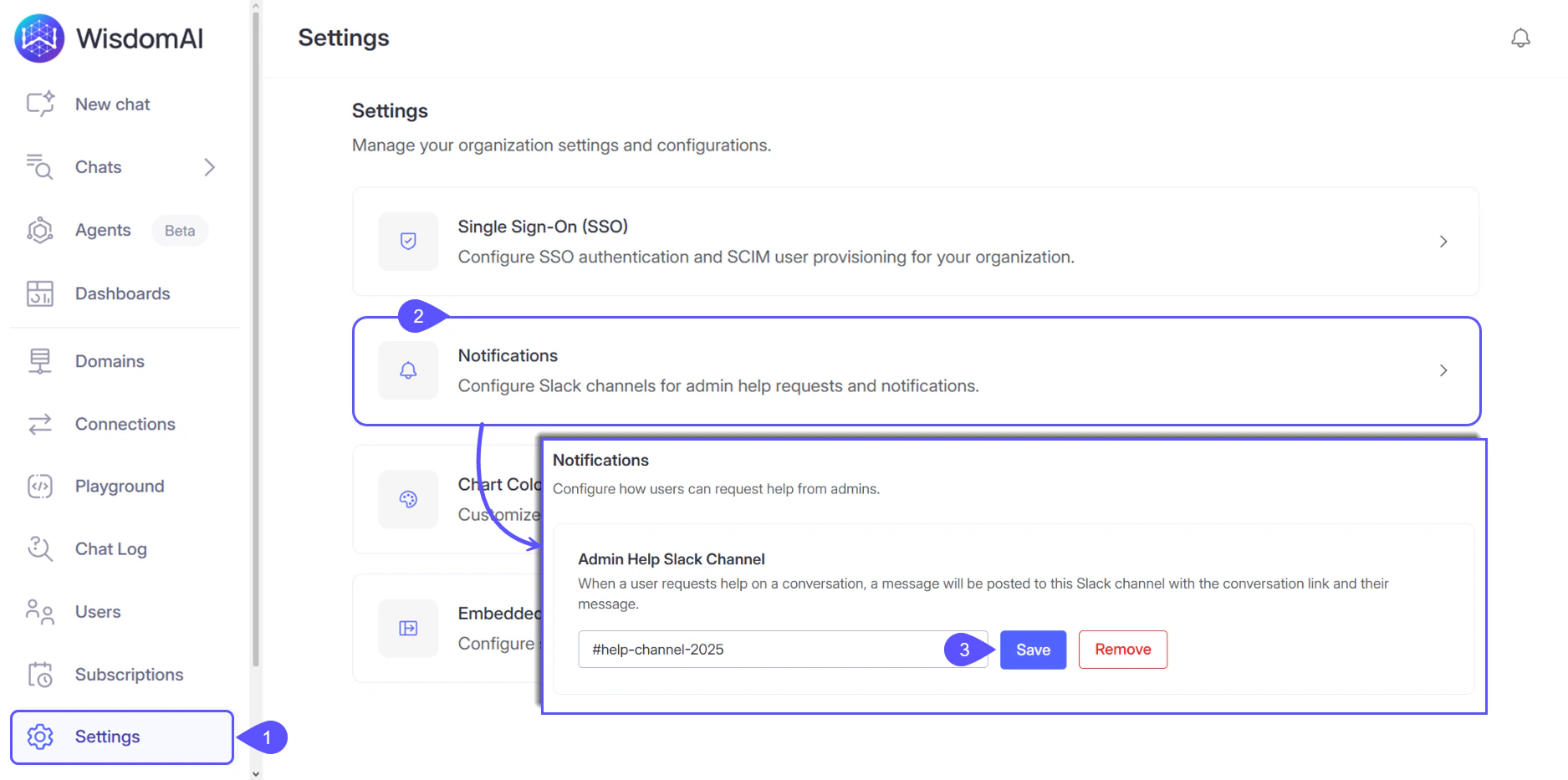
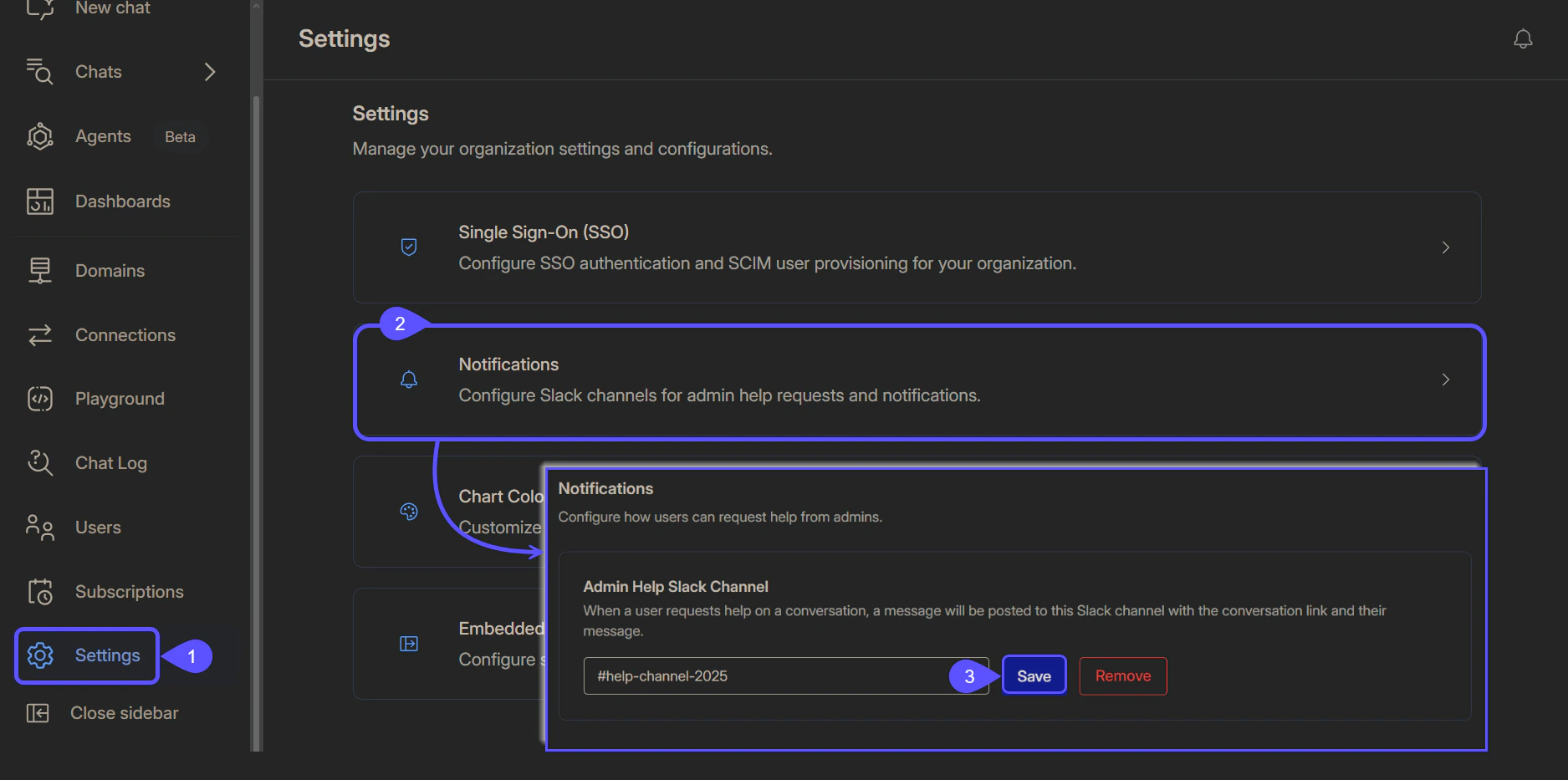
- A confirmation message, “Slack notification channel saved” will appear in the top-right corner of the screen.
How to request help
If you received an incorrect or incomplete response from the AI, you can trigger a help request directly from the chat interface.- Below the AI response, you can click the “Ask for Help” headset icon.
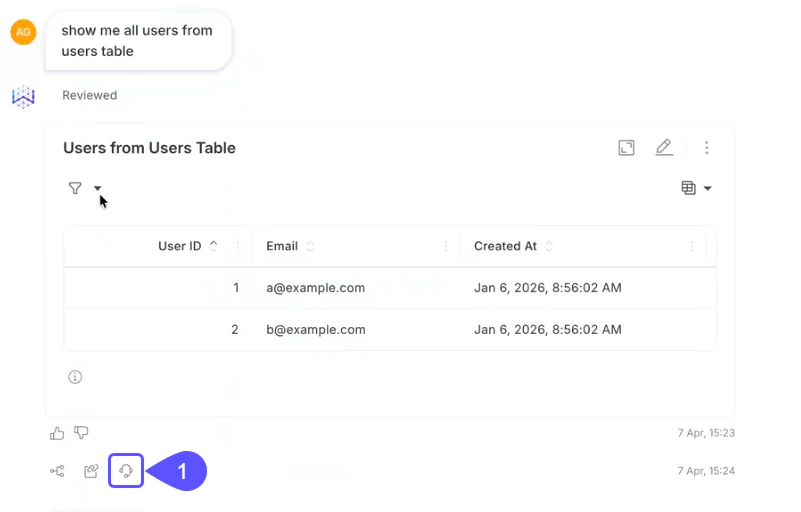
- A modal titled Ask Admin for Help will appear. You can describe what went wrong (e.g., “This was answered incorrectly”).
- Click Send Help Request, and the Admin receives it on the configured channel.
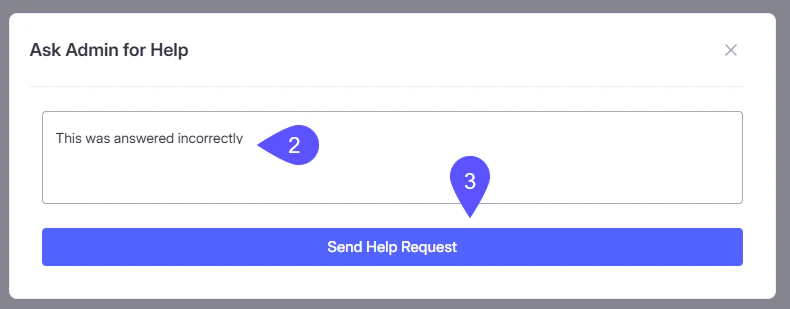
- A confirmation message, “Help request sent to admin” will appear in the top-right corner of the screen.
Admin notification
Once submitted, the Slack notification appears in the configured channel as follows:Next steps
Connect to Slack
Learn how to connect WisdomAI to Slack.
Validate and Test Answers
Learn how to improve WisdomAI responses.