

Get started
Before you begin, ensure you have the API Credentials: Email support@askwisdom.ai to request API keys for the Google Sheets integration, along with the use case. The WisdomAI team will reply with your API token and the wrapper script.Set up the integration
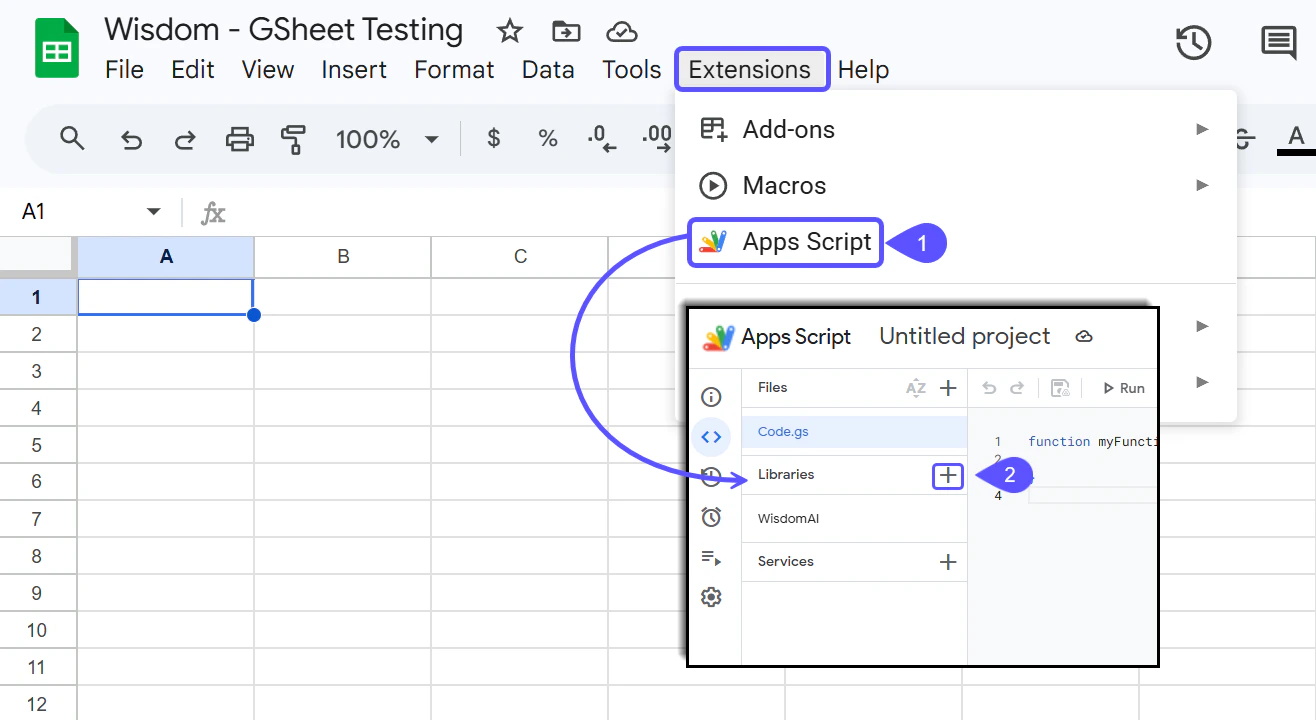
Follow these steps to integrate your Google Sheets with WisdomAI:- Open your Google Sheet and go to Extensions > Apps Script.
- In the script editor, click the + icon next to Libraries.
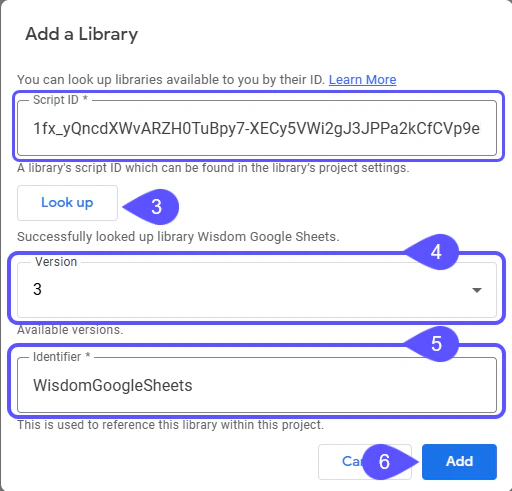
- Enter the Script ID:
1fx_yQncdXWvARZH0TuBpy7-XECy5VWi2gJ3JPPa2kCfCVp9elsyHPZK8and click Look up. - Select the latest version.
- Set the identifier as WisdomGoogleSheets.
- Click Add.
- Paste the wrapper script shared by support@askwisdom.ai into Code.gs, replacing any existing code.
- Save and reload your spreadsheet. Once synced, a WisdomAI menu will appear in the menu bar.
Set up your account
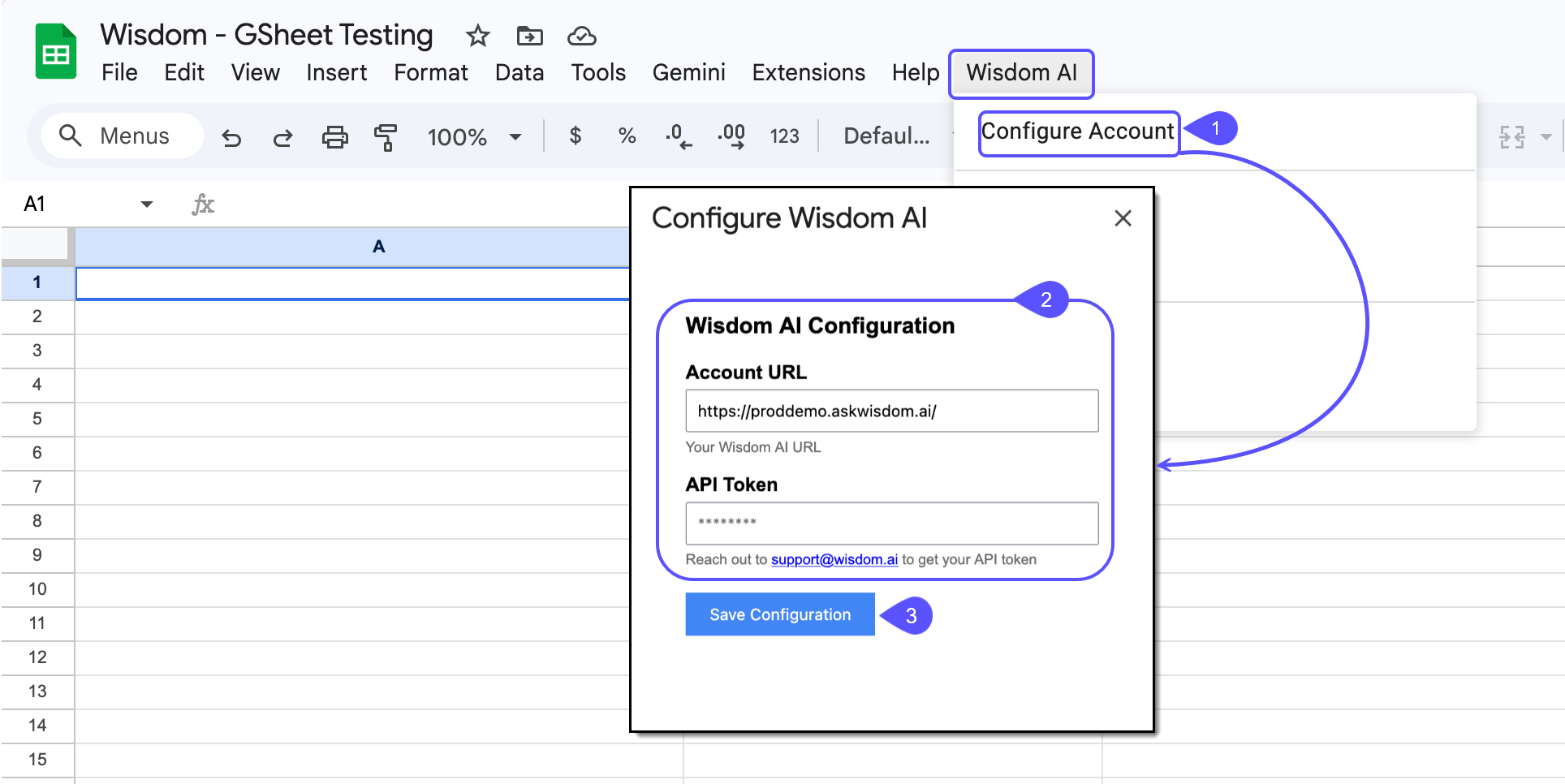
To configure your account, follow these steps:- In your Google Sheet, go to Wisdom AI > Configure Account from the menu bar.
- Enter your Account URL and the API Token you received.
- Click Save Configuration.
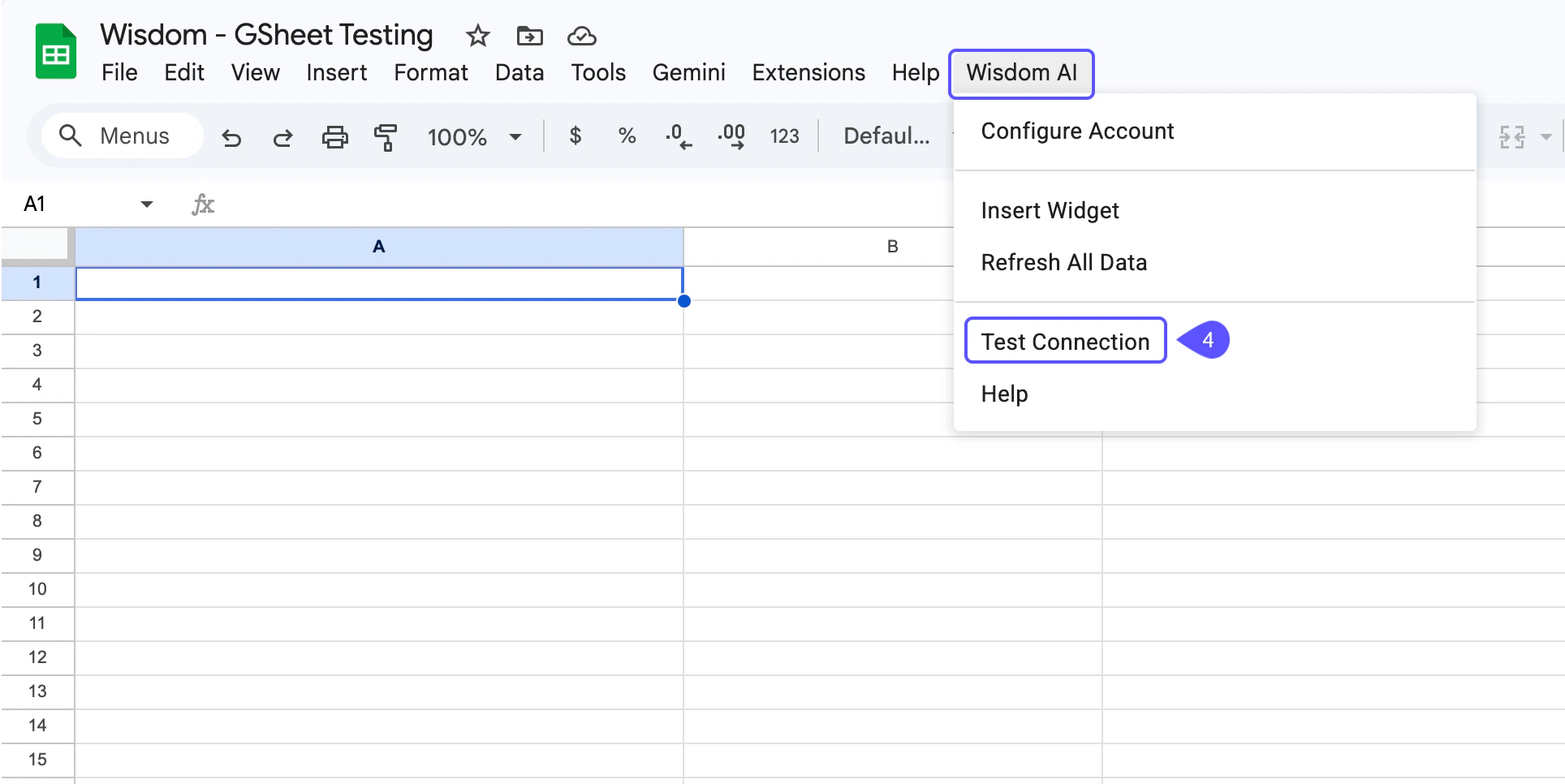
- Go to Wisdom AI > Test Connection to verify that everything works.
Visual widget
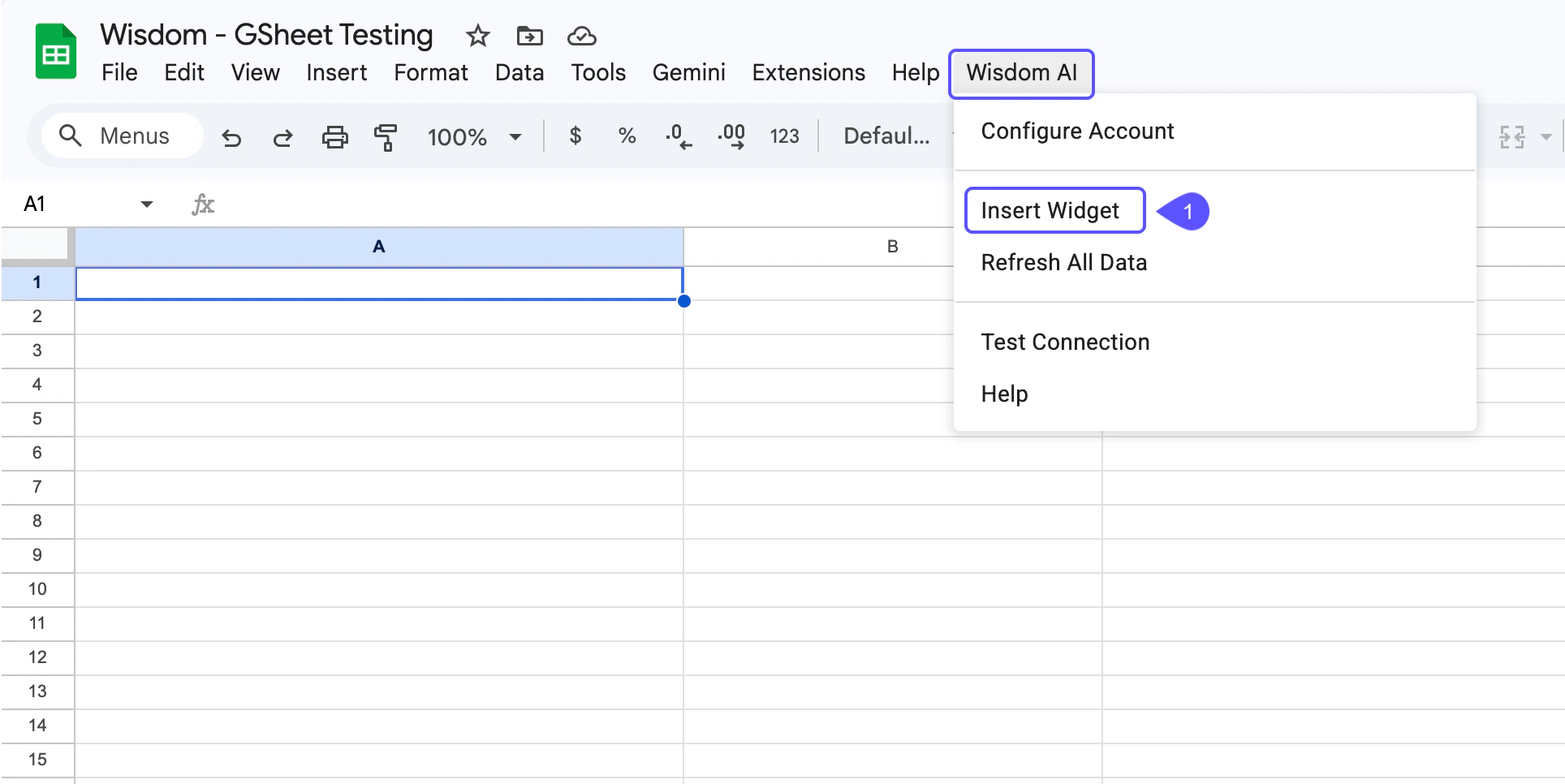
To insert a visual widget, follow these steps:- Go to Wisdom AI > Insert Widget.
- Paste the widget URL from your Wisdom dashboard
- On any widget, click the menu and select Copy link to visualization. You can choose which rows and columns to import and whether to include headers.
Custom formulas
You can also use these formulas directly in cells:Refreshing data
To update everything, go to Wisdom AI > Refresh All Data. This re-fetches every WisdomAI formula in the active sheet.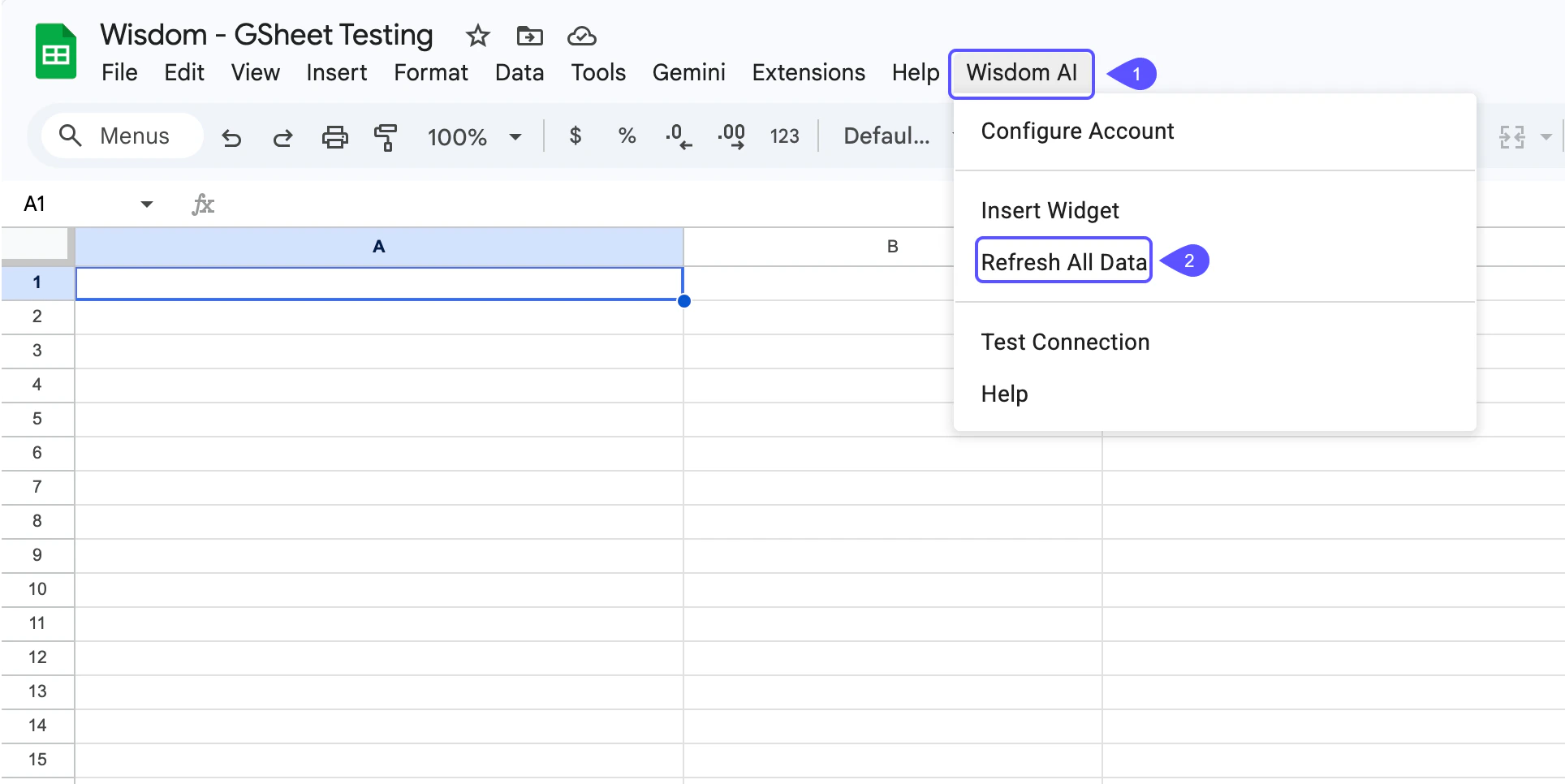
Next Steps
Embed Chat
Discover how to embed conversational AI chat interfaces
Connect to Slack
Learn how to connect WisdomAI to Slack.