

Before you start
Every user can manage their own connected apps. No special role is required. The apps you can sign in to are the OAuth-secured MCP server connections that an administrator has added on the Connections page. If no apps are listed, ask your workspace admin to add one.How connected apps work
When an administrator adds an MCP server connection that uses OAuth authentication, each user must individually authorize WisdomAI to access it. WisdomAI never stores a single shared credential for these apps. The Connected Apps page is where you grant that authorization ahead of time. Once you sign in, your chat agents can use the app’s tools during chat without interrupting you to authenticate. You can also sign in on demand. If you ask a question that needs an app you haven’t connected, WisdomAI prompts you to connect during the chat session.Open Connected Apps
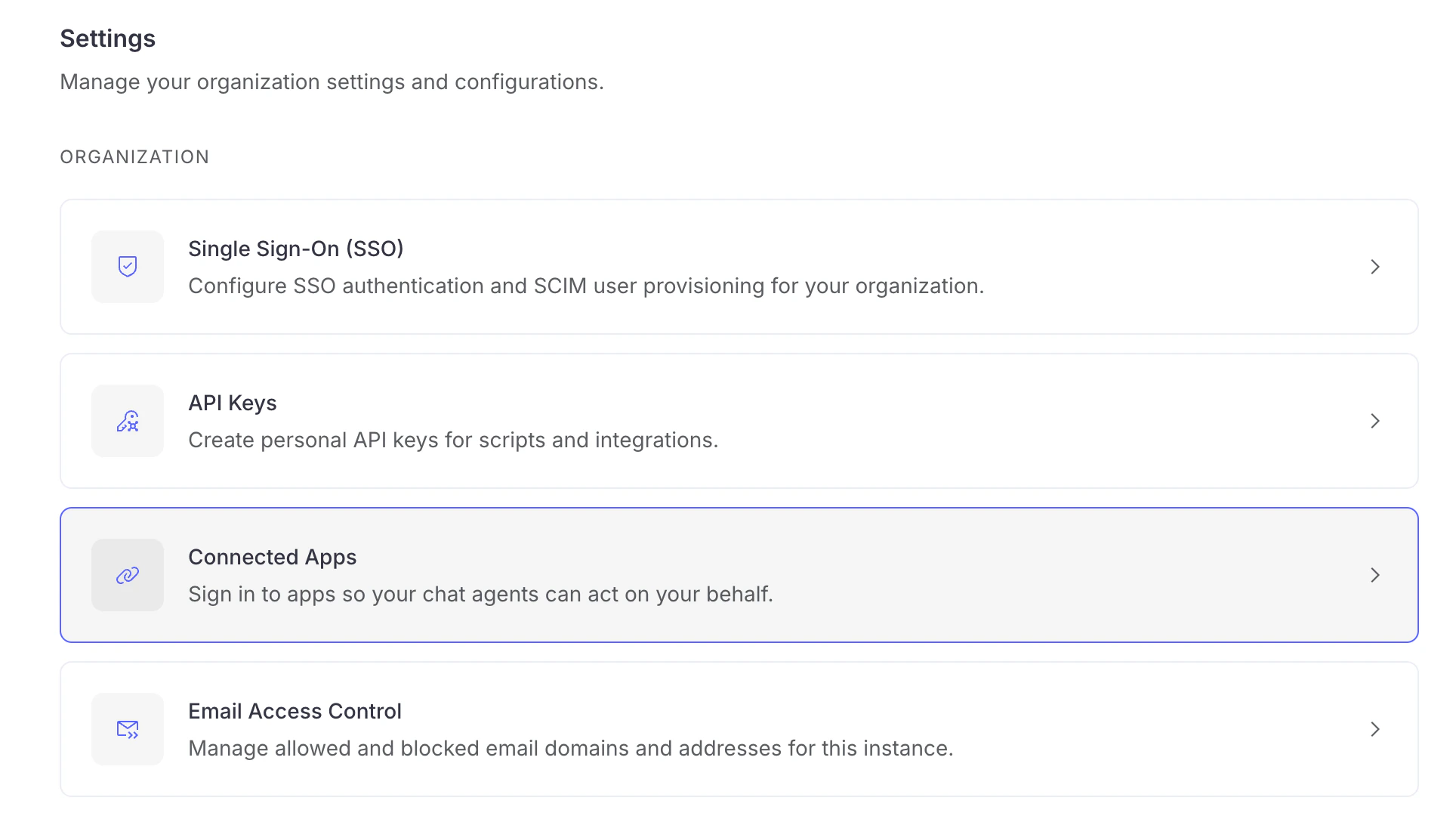
- In the left-hand navigation, click the Settings icon.
- On the Settings page, select Connected Apps.
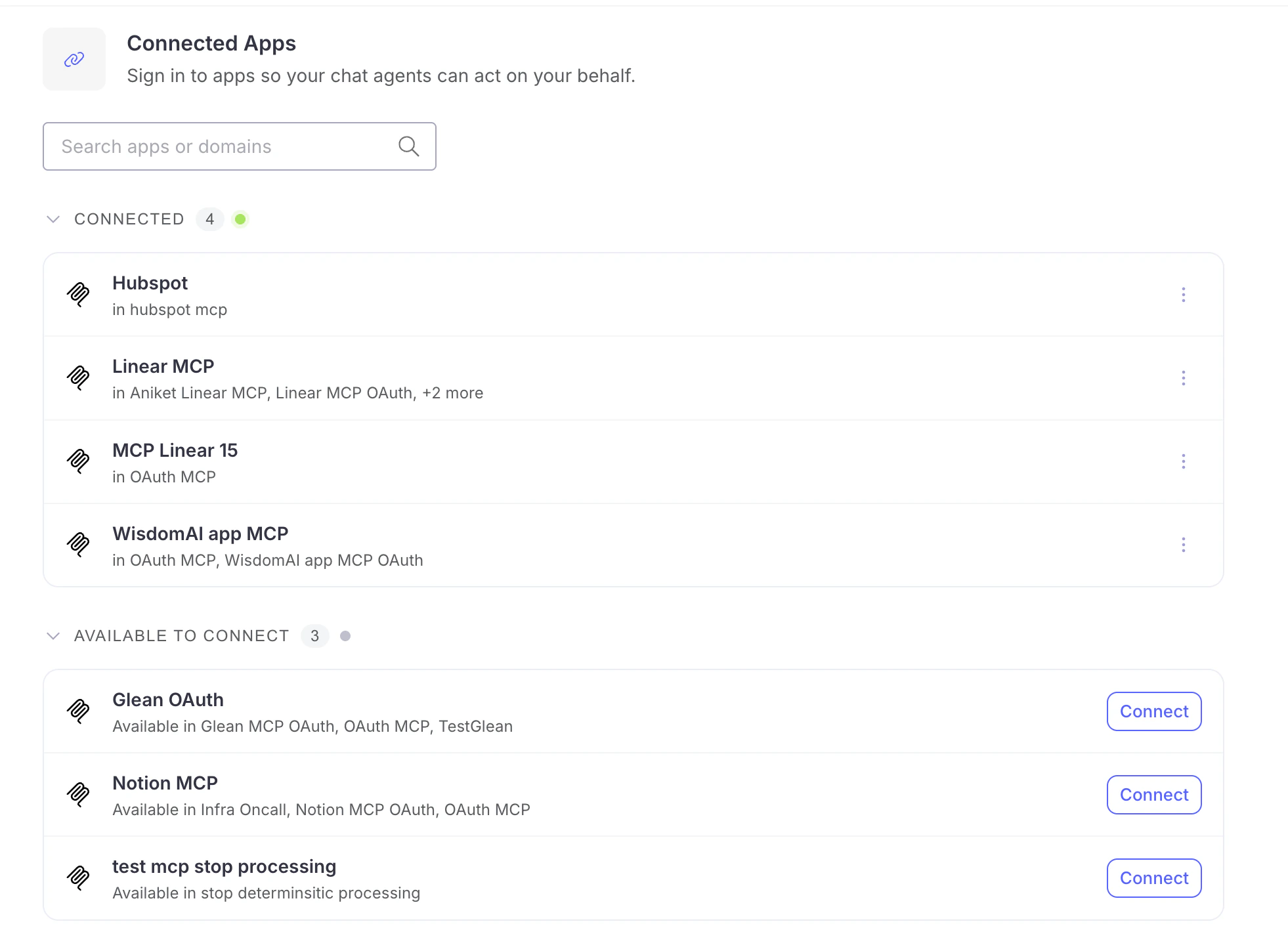
- Connected: Apps you have signed in to.
- Available to connect: Apps you can sign in to but haven’t yet.
Connect an app
- Find the app under Available to connect.
- Click Connect.
- A secure popup opens. Authorize WisdomAI to access the app.
- On success, the app moves to the Connected section.
Reconnect an app
Use Reconnect if your access has stopped working or you need to authorize again — for example, to approve updated permissions or if you accidentally authenticated via a different account.- In the Connected section, open the ⋮ (more) menu on the app’s row.
- Select Reconnect.
- Authorize WisdomAI again in the popup.
Reconnecting first revokes your existing access token for the app, then runs the sign-in flow again.
Disconnect an app
- In the Connected section, open the ⋮ (more) menu on the app’s row.
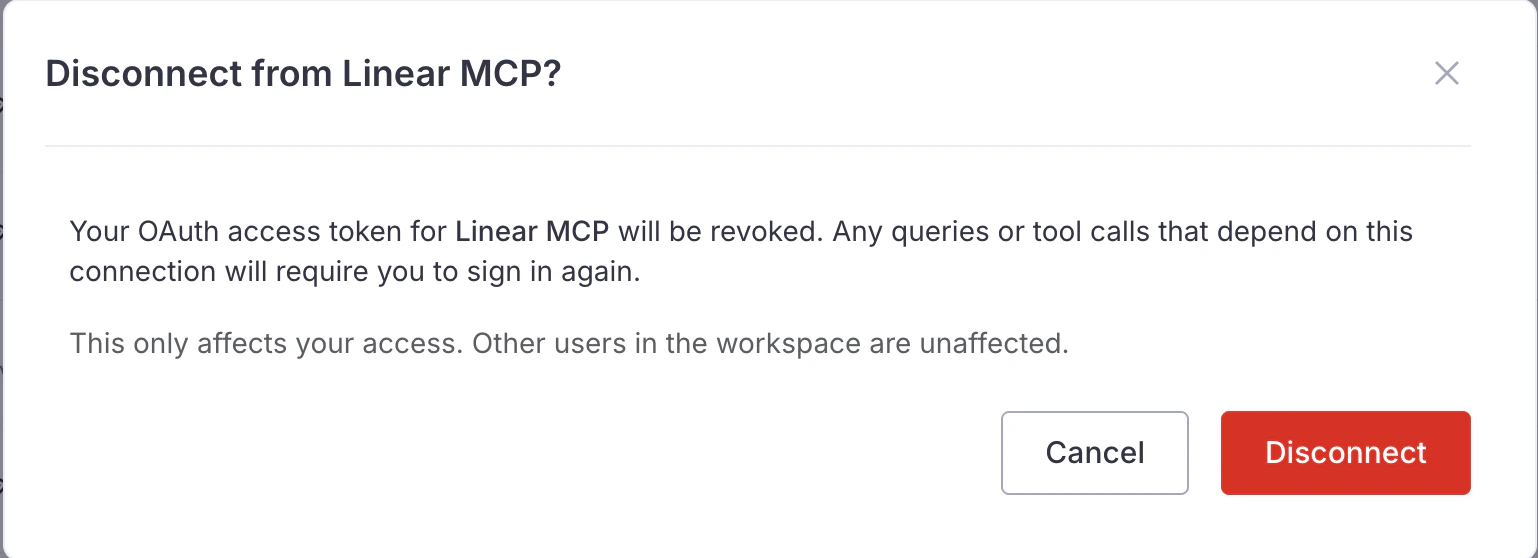
- Select Disconnect.
- In the Disconnect from <app>? dialog, click Disconnect.
No apps available
If the page shows Nothing to sign in to yet, no OAuth-secured apps have been set up for your workspace.- If you can add connections, add an OAuth-secured MCP server from the Connections page so your chat agents can act on your behalf.
- Otherwise, ask your workspace admin to add one.
Next steps
Connect to any MCP server from WisdomAI
Add an OAuth-secured MCP server that users can sign in to.
WisdomAI MCP Server
Learn how WisdomAI works with the Model Context Protocol.
API Keys
Create personal bearer tokens for programmatic access.
RBAC for Users
Control which users and roles can access which apps and permissions.