

Learning objectives
By the end of this tutorial, you will be able to:- Connect to your Database.
- Start querying your data to test WisdomAI.
- Provide feedback so the system can refine its context based on your input.
Before you begin
To follow this tutorial, you should:- Have Admin access to your WisdomAI account.
- Know the credentials to access your data source.
1. Connect to data sources
To get started, you first need to connect your existing data source to WisdomAI so the system can access and prepare your data for use and create reports:- Go to the left sidebar and select Connections.
- Click on the Add Connection button to start.
This action lets you link your existing data sources to WisdomAI. Doing so enables the system to scan metadata. For data warehouse connections, it also enables WisdomAI to fetch data when users ask natural-language questions.
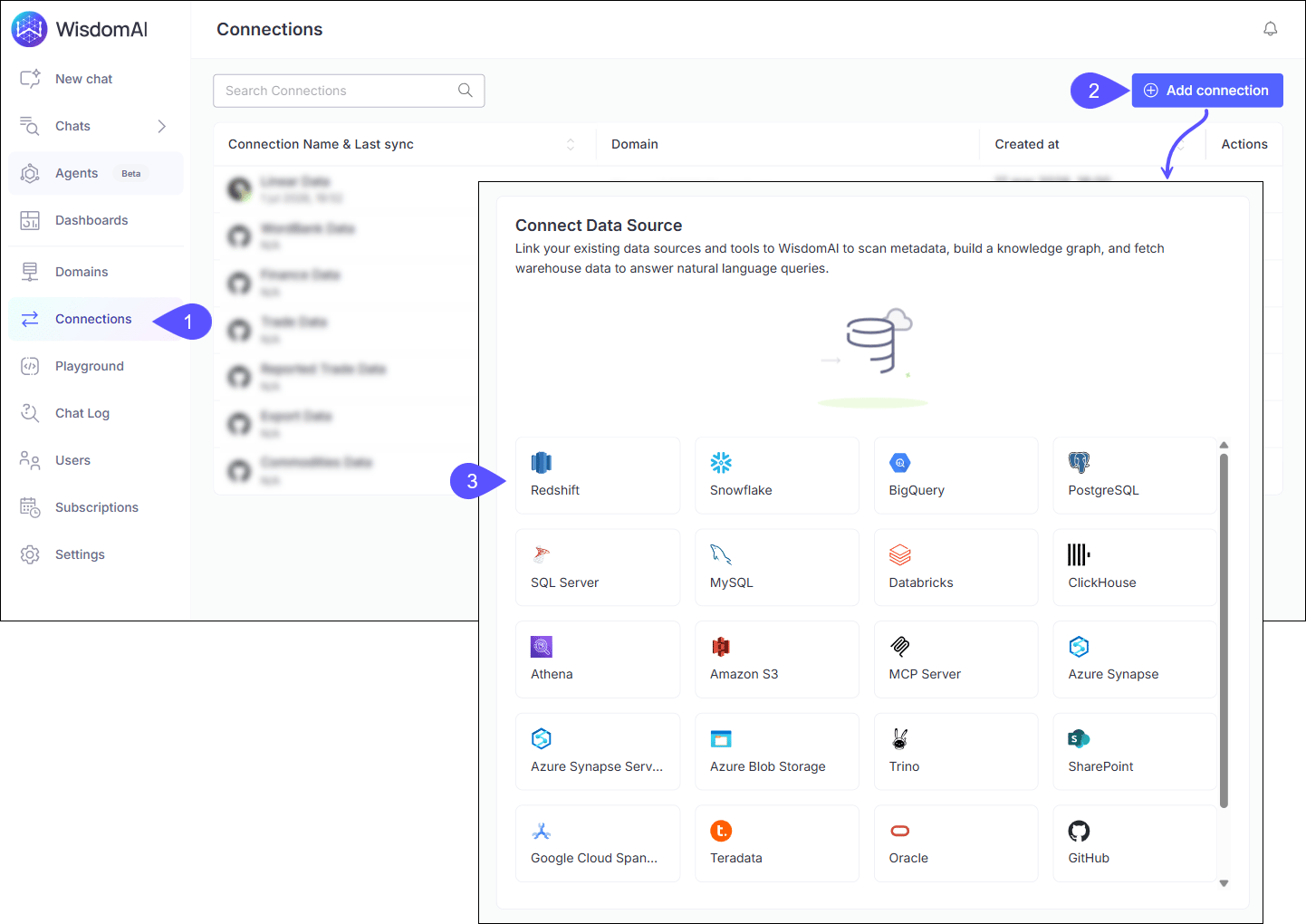
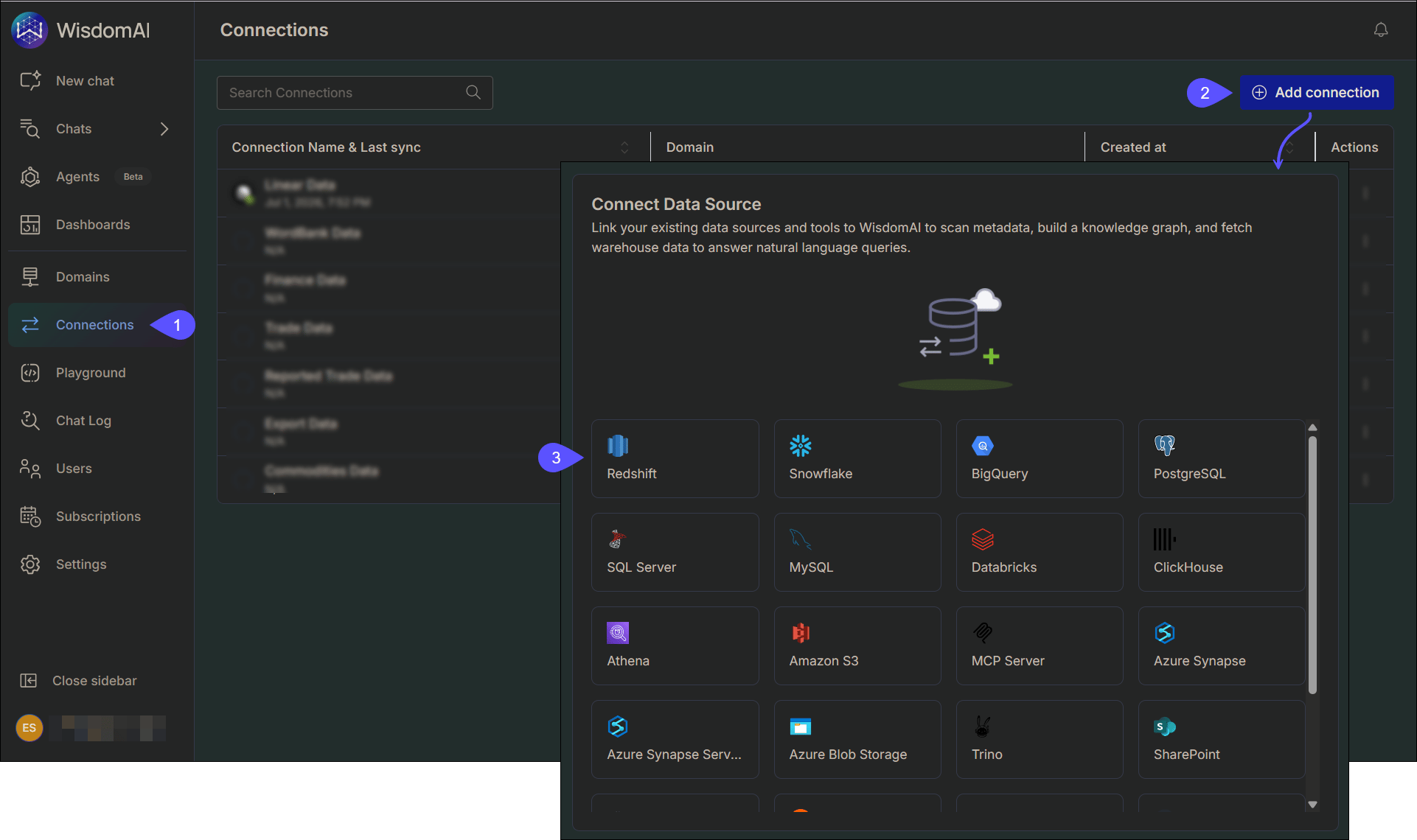
- Select your data source type from the list (for example, Snowflake, BigQuery, PostgreSQL, or MCP Server).
Access Supported Data Sources to see the complete list of supported data sources by WisdomAI.
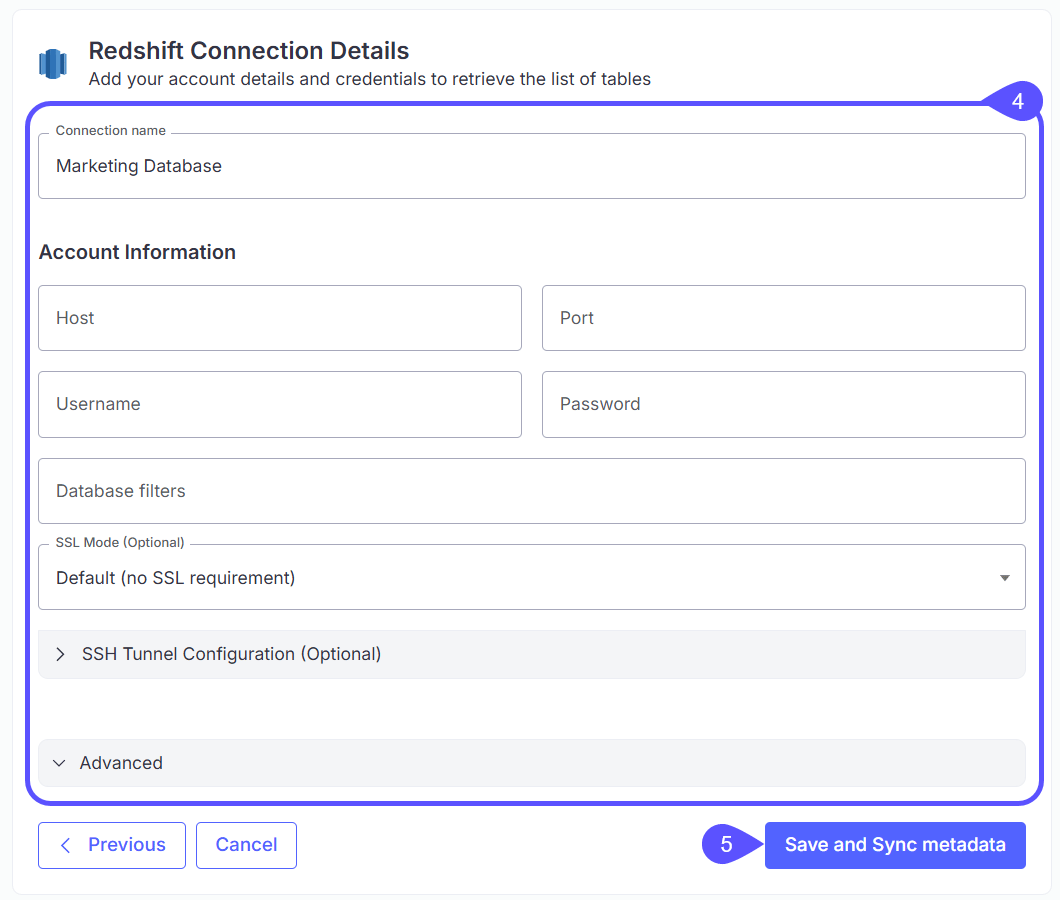
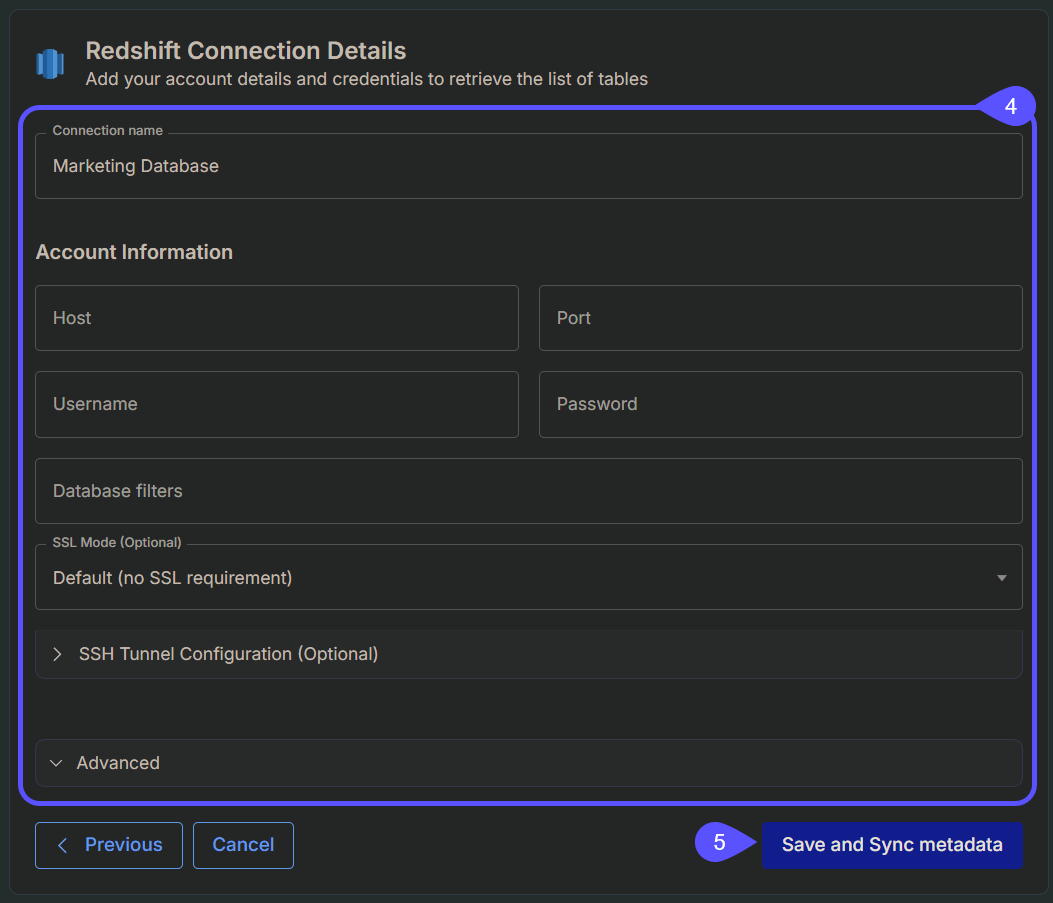
- Add a Connection name and fill in the connection details for your selected data source, such as account information, authentication method, and any relevant filters.
The fields and authentication options shown depend on the data source you selected in step 3. See Supported Data Sources for source-specific setup guides.
- Click on the Save and Sync metadata button.
2. Select the data
After you add your data source, select the data you want to use in your project. For this, you will need to create a Domain.- Go to Domains in the left sidebar.
A Domain represents a logical business area or function, such as Sales, Marketing, or Finance. Creating well-defined domains makes data more accessible and relevant to business users.
- Click on the Add Domain button. A new window will open.
- Enter the Domain name and select the data source from the dropdown menu.
- Click Create Domain to continue.
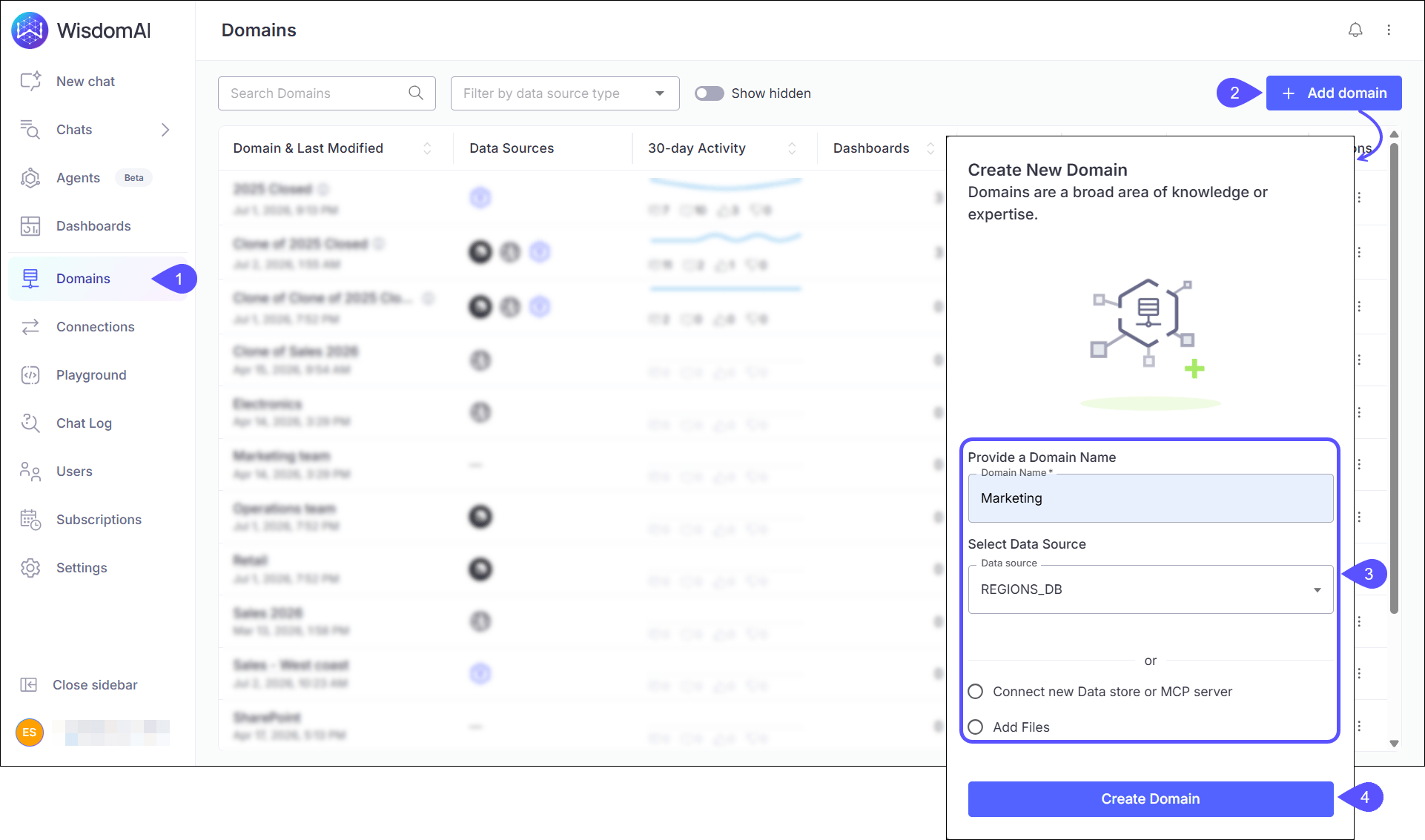
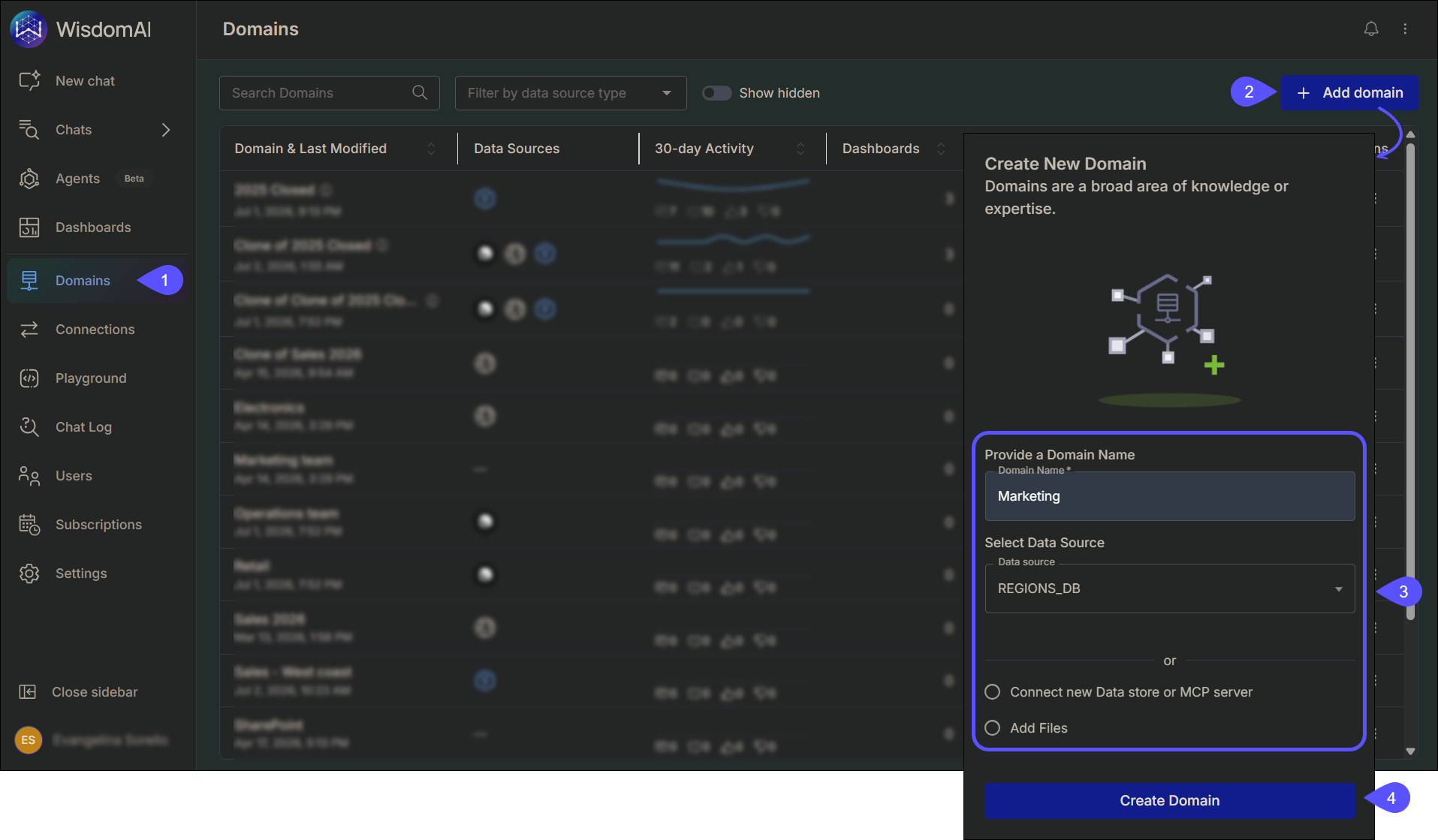
- The next window will vary depending on what you selected in step 3:
- If you selected an existing Data source, choose the tables you would like to use, then click Add Table.
- If you selected Add Files, upload your CSV, TSV, PDF, Word, PowerPoint, or other files, then click Upload.
- If you selected Connect new Data store or MCP server, configure the connection as prompted, then follow the applicable step to finish adding it (this varies by source type).
- Click Add Table or the corresponding option (e.g., Upload), depending on your selection.
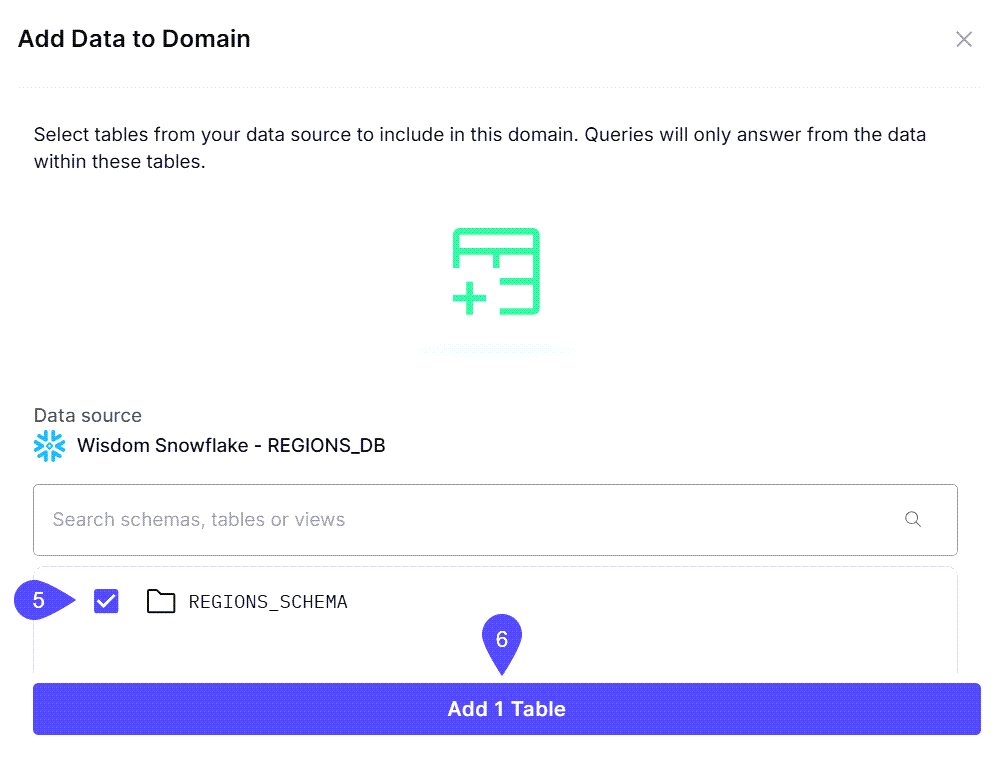
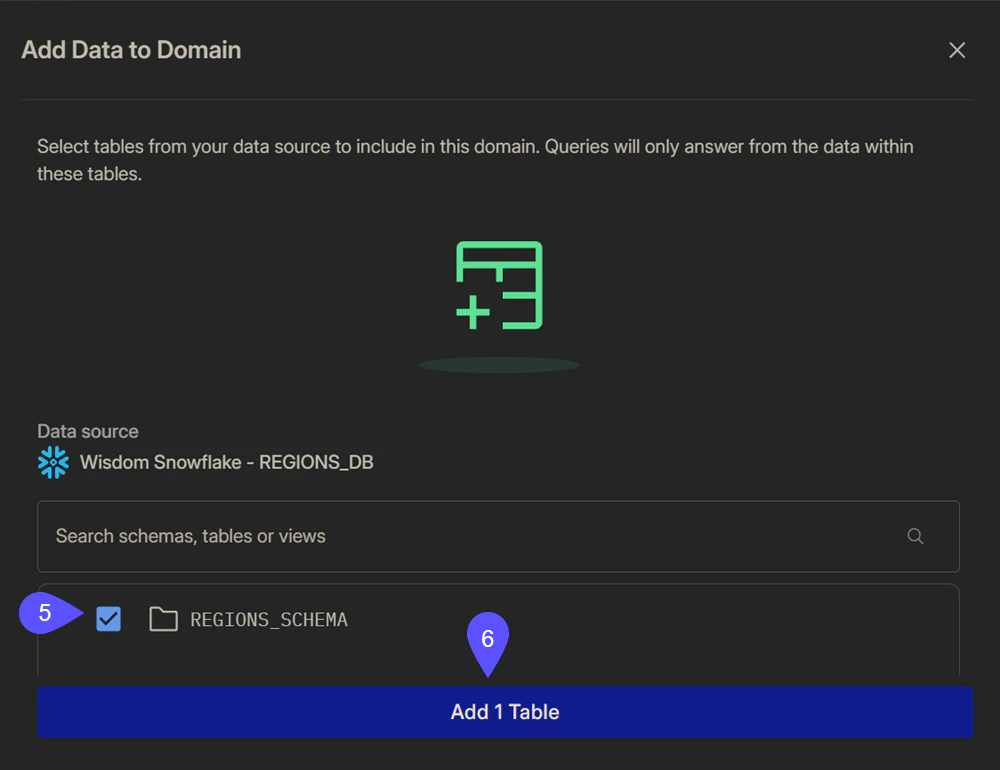
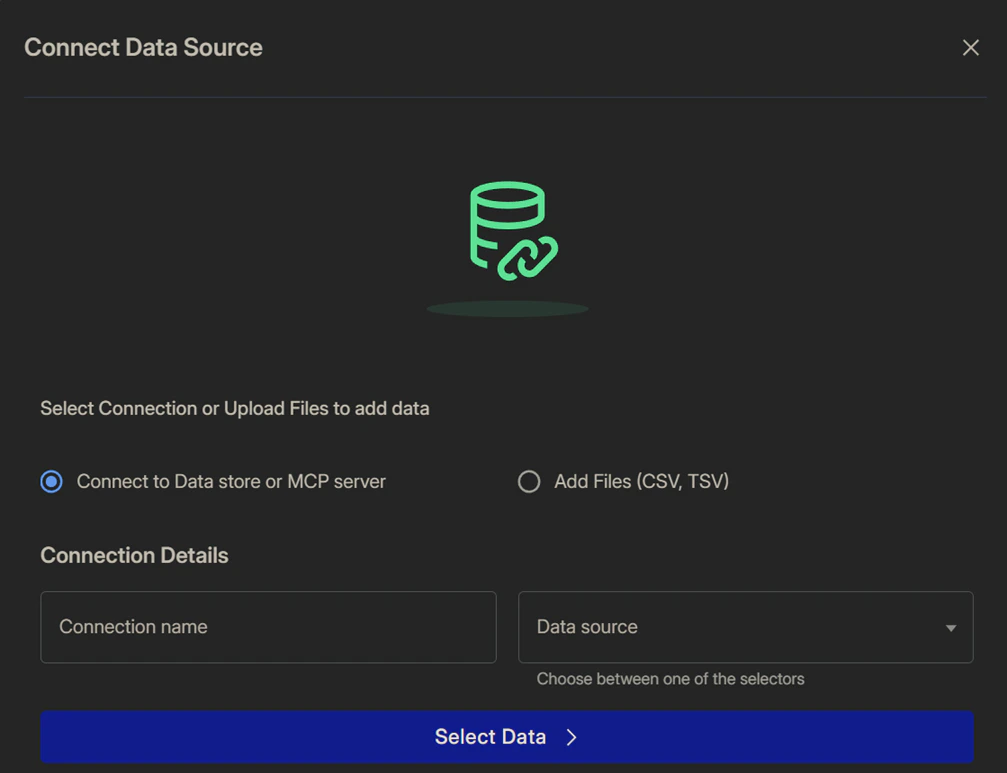
If you want to connect a new source, select this option in step 3. In the same window, you can choose to connect a new Data store or MCP server, or add files (CSV, TSV, or Excel).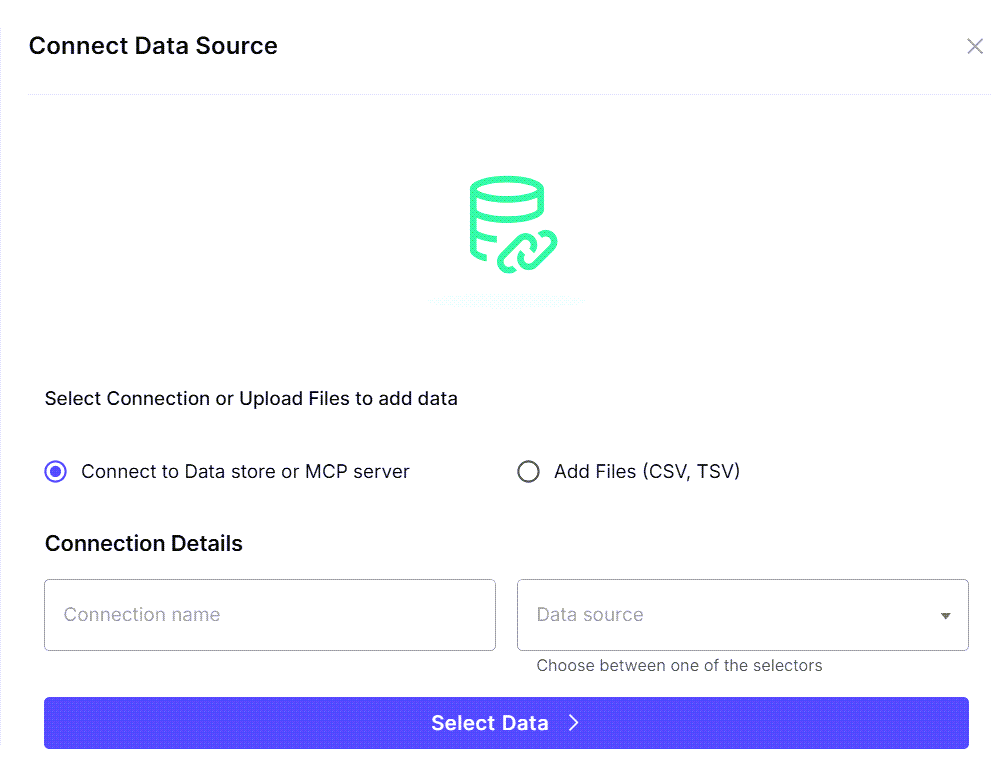
3. Upload CSV files (Optional)
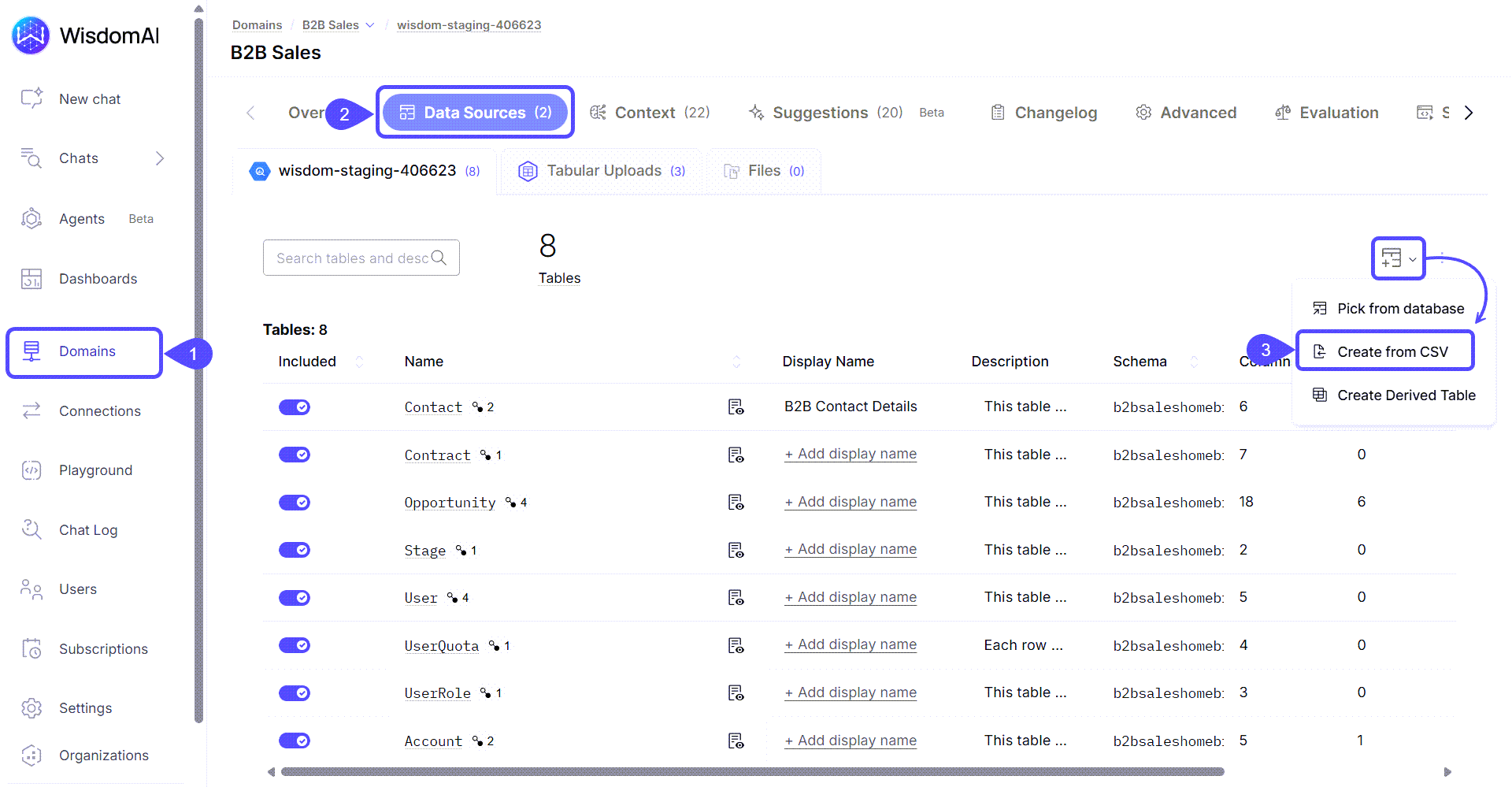
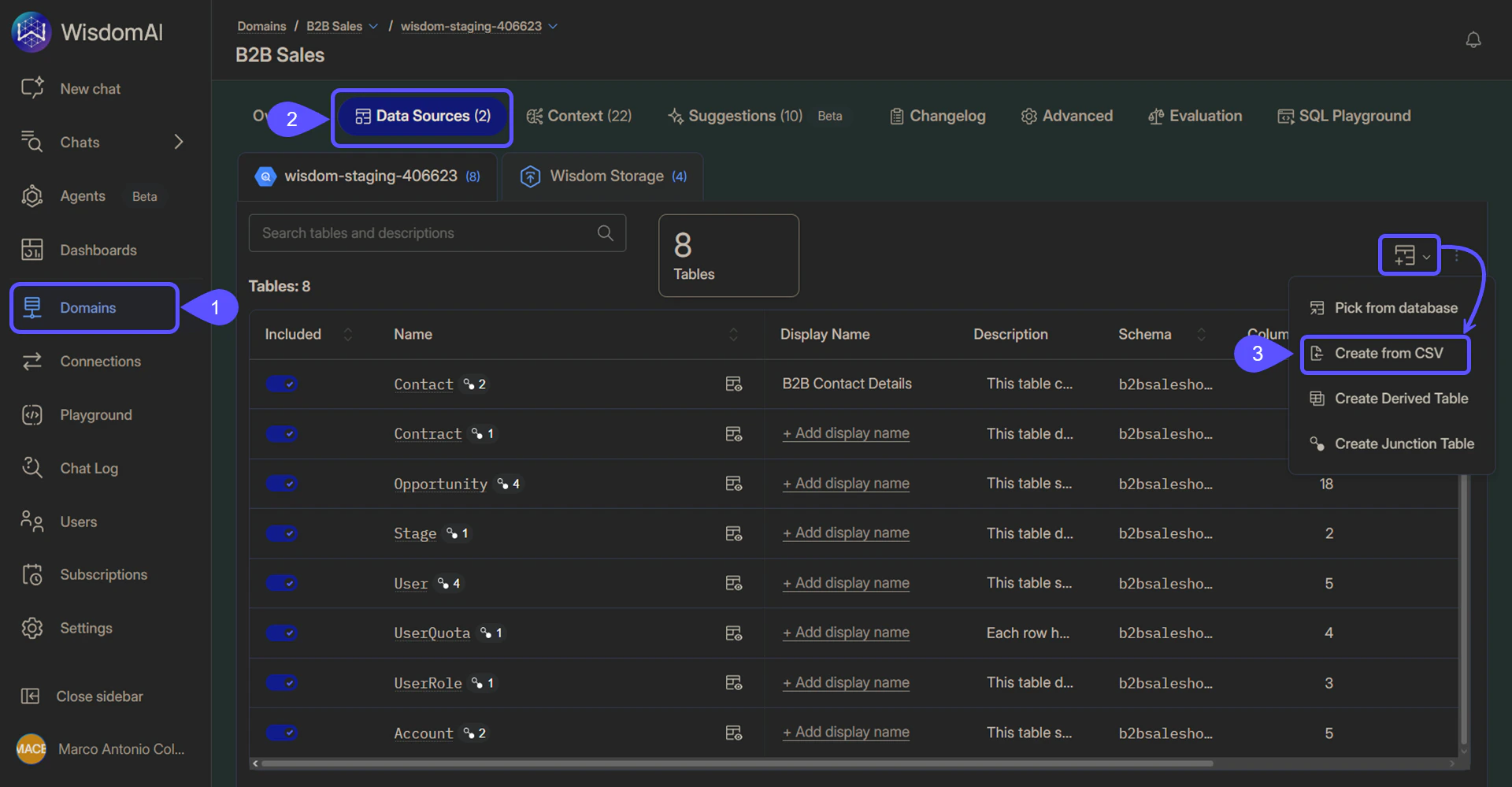
In addition to database connections, Admins can add data directly to a Domain using CSV, TSV, or Excel files. When an Admin adds a file this way, the data becomes a permanent part of the Domain and is available to all users with access to that Domain.- Navigate to Domains in the left sidebar and select your Domain.
- Go to the Data Sources tab.
- Click Add Table and select Create from CSV.
- Upload your file and configure the column types.
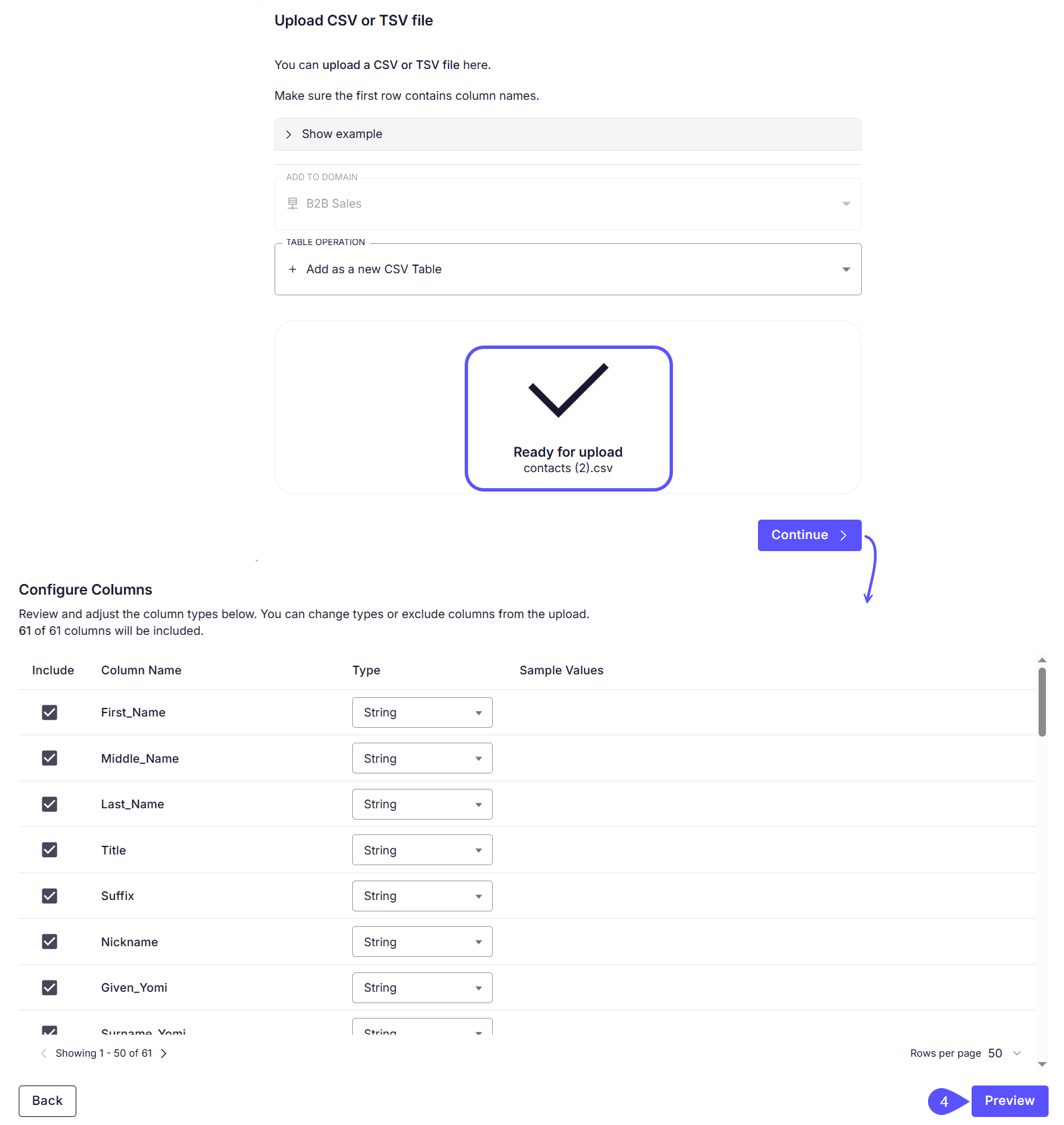
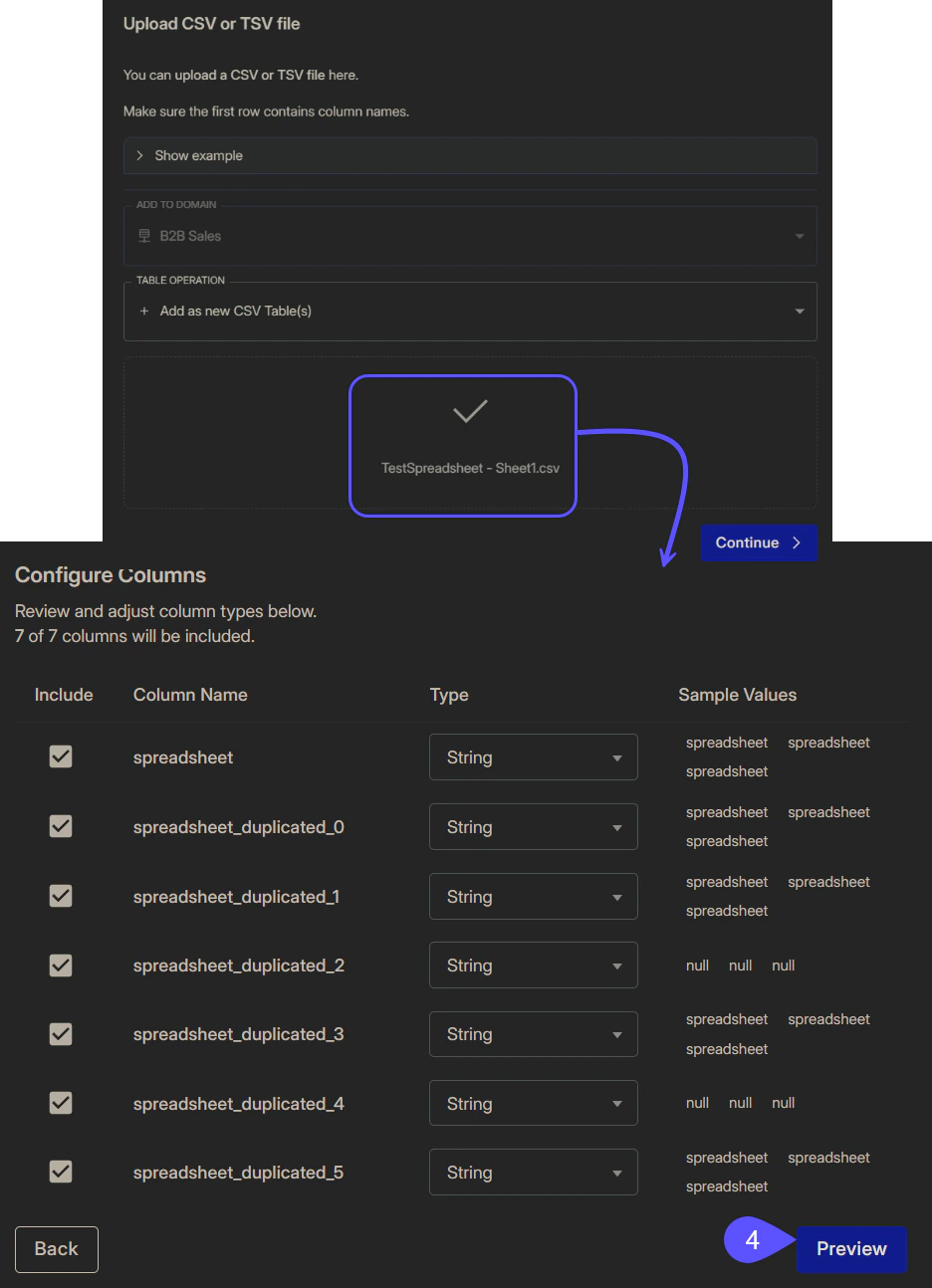
Replace an Existing TableYou can also replace an existing CSV table instead of uploading a new one. This allows you to update the underlying data while preserving all existing column descriptions, settings, and domain configurations. To learn how to do it, see our Work with CSV Files guide.
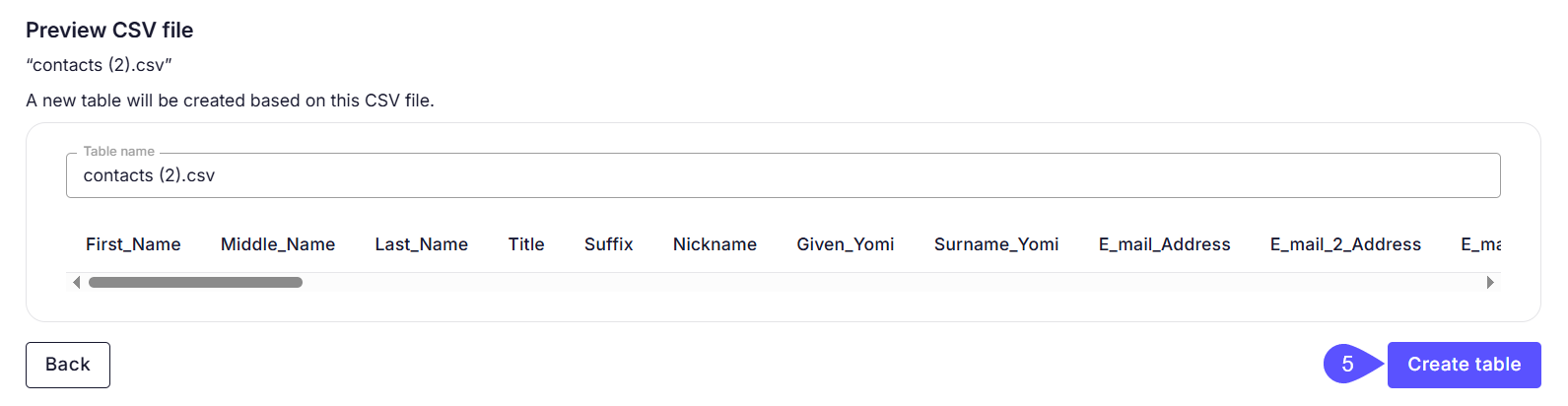
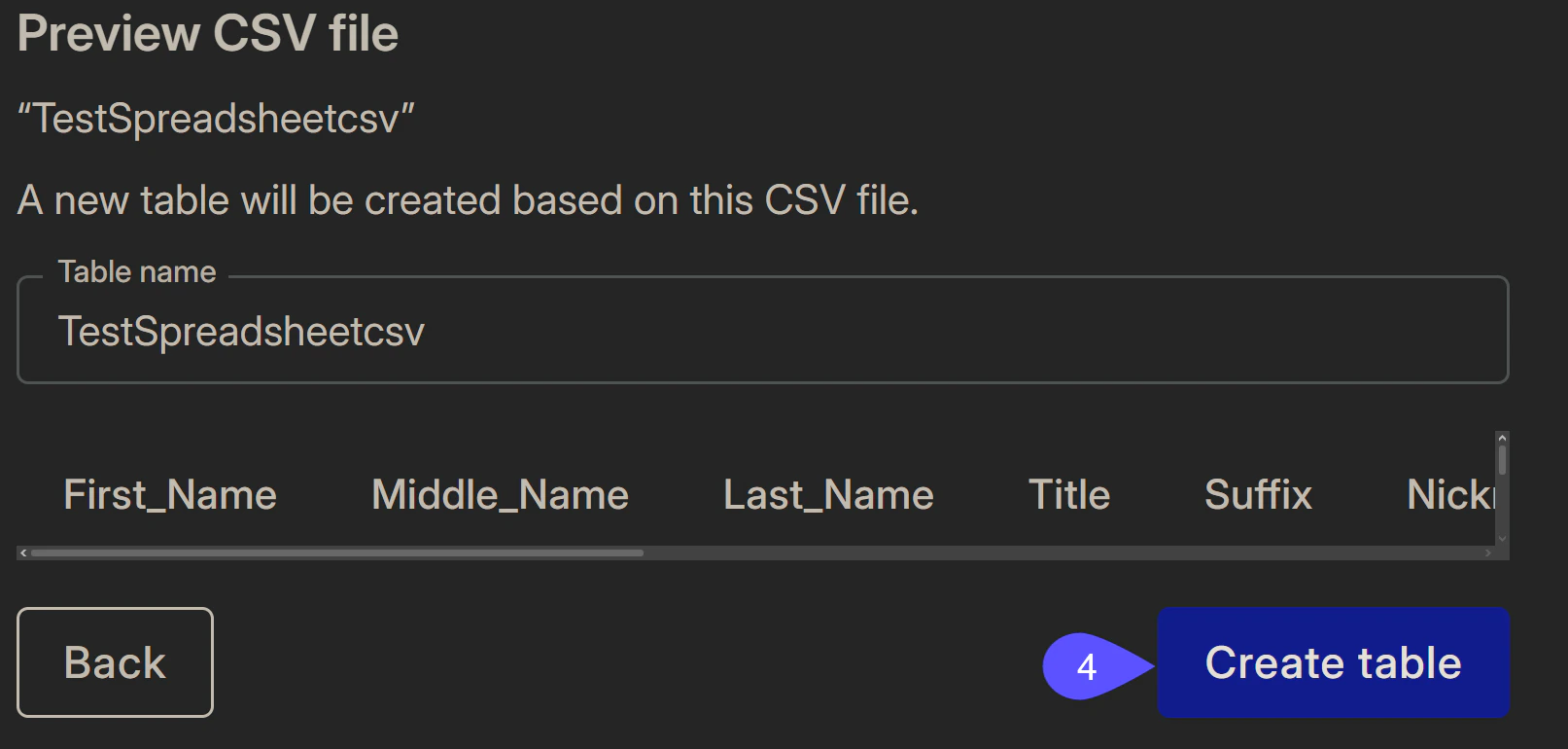
- Click Create table.
4. Start testing
Once your data is set up and selected, you can start querying your data to see WisdomAI in action and test its data analysis capabilities. Here are some example questions you may ask:- “What was our revenue by region last quarter?”
- “Show me customer retention by month.”
- “Which products had the highest growth rate compared to last year?”
- Using the thumbs up/down icons. If your feedback was thumbs down, a new window opens so you can adjust the query accordingly. The more thumbs up/down you provide, the more you will train the tool to get high-quality, correct answers.
- By changing the SQL Code.
- By Fine-tuning the Knowledge.
Think about the following scenario: you tell the system that the Report it created is incorrect, so you provide the accurate data in the chat. If this additional context has not been added to the database tables, you can add it directly in the chat.
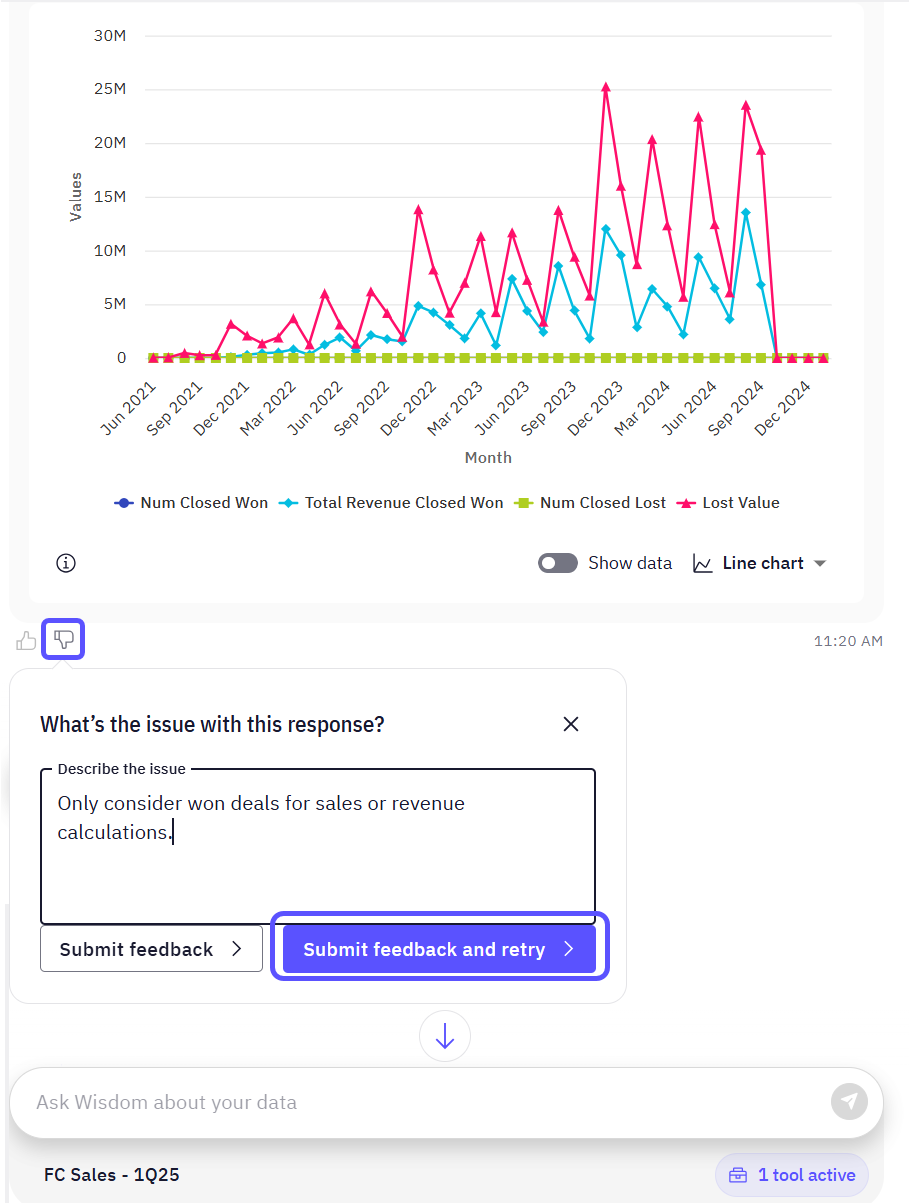
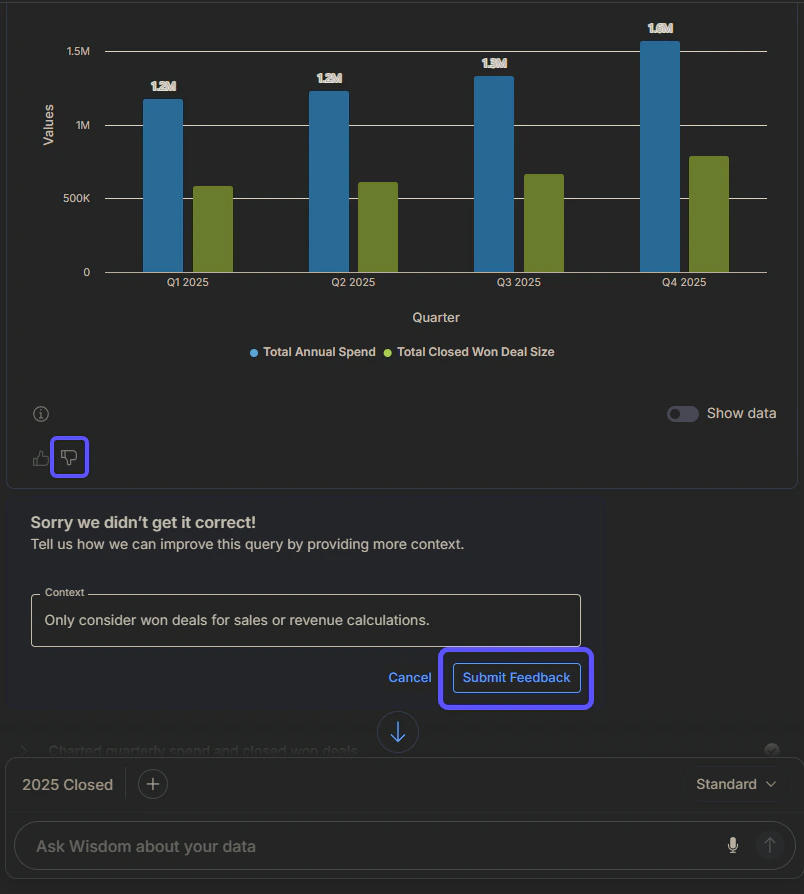
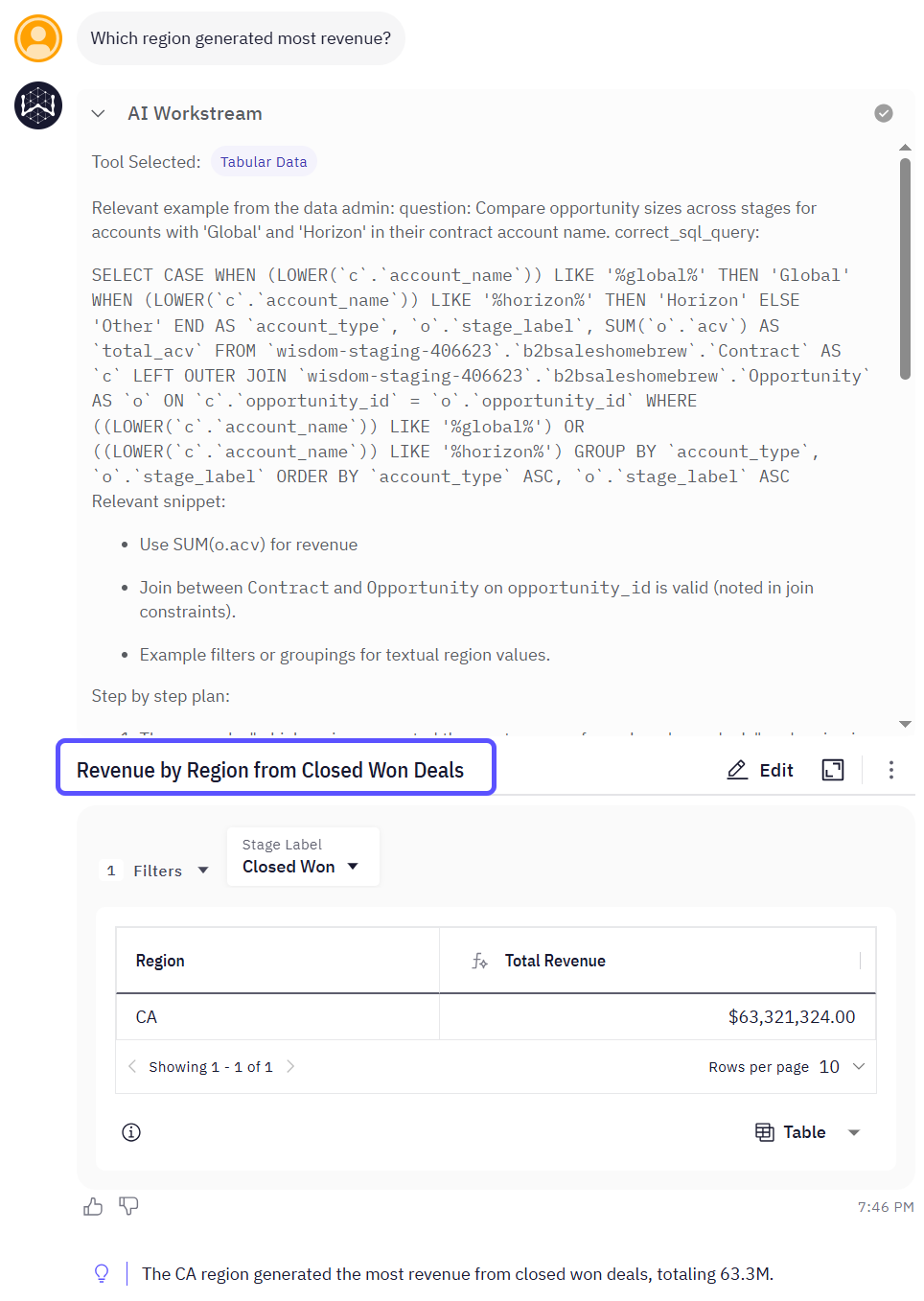
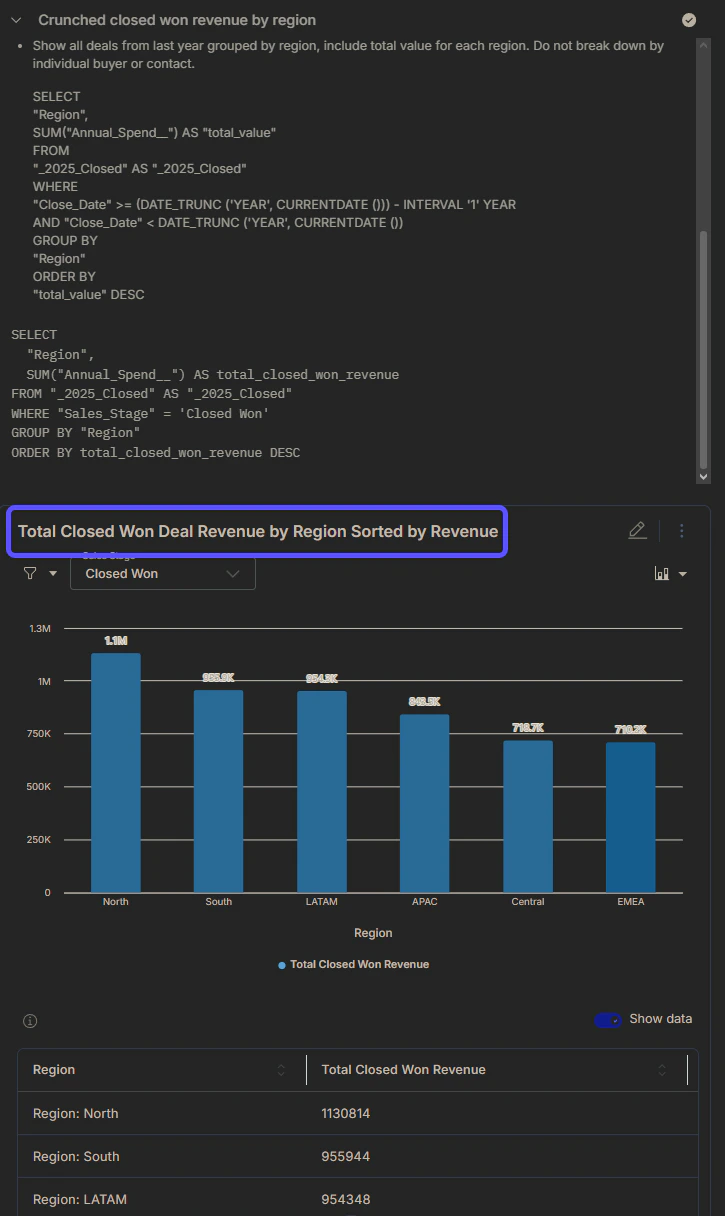
Currently, feedback icons (thumbs-up and thumbs-down) appear only for responses containing charts or structured data. Feedback for text-only responses is not yet supported, but will be available in a future update.
Next steps
Supported Data Sources
Explore the full list of databases and platforms you can connect to the system.
Advanced Data Modeling
Define relationships and context in your data to enable more powerful analysis.
Provide Feedback to the System
Learn how to rate answers and provide corrections to improve the system’s accuracy.