

- Select the relevant Domain from your Domains dashboard.
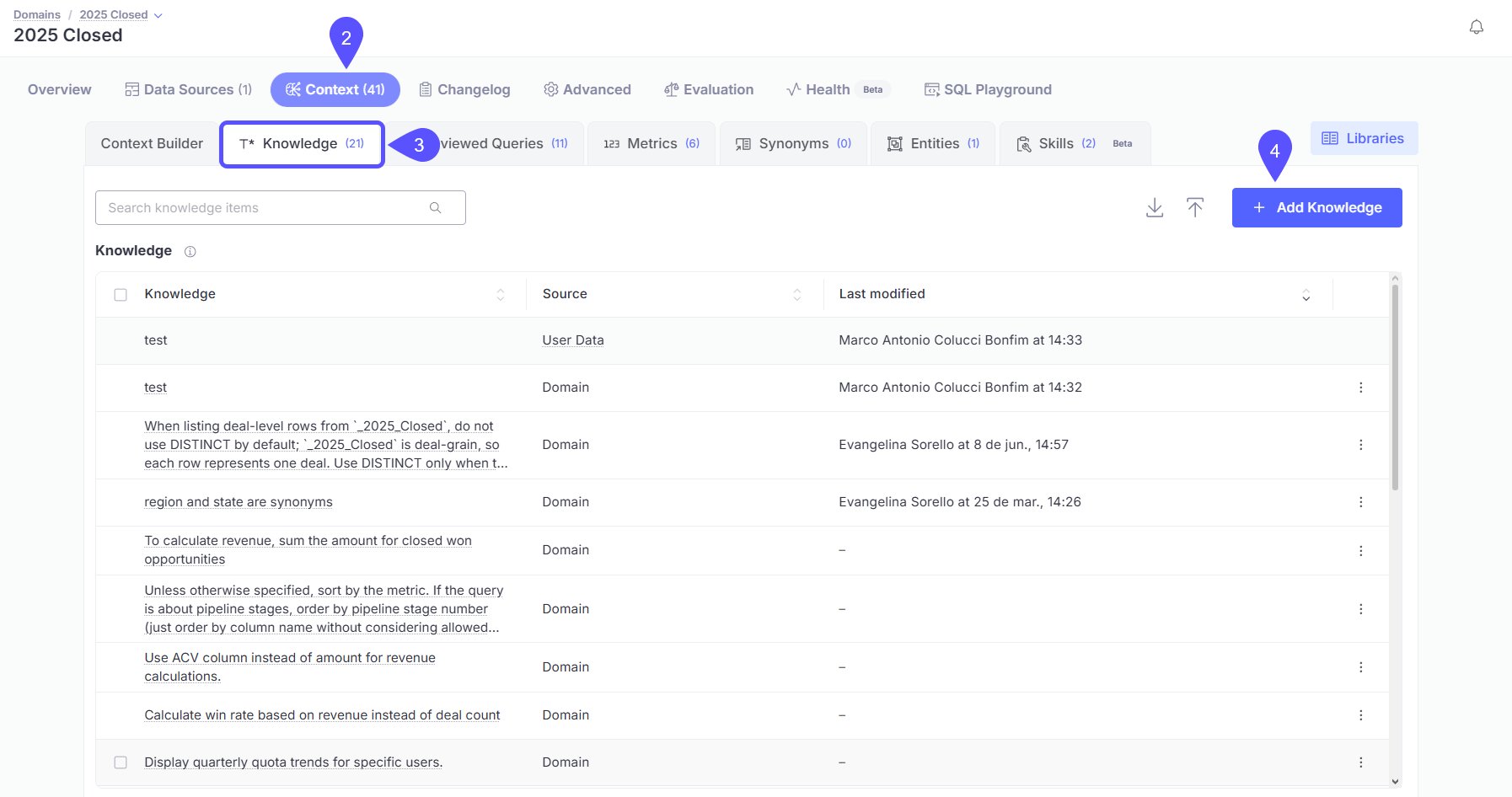
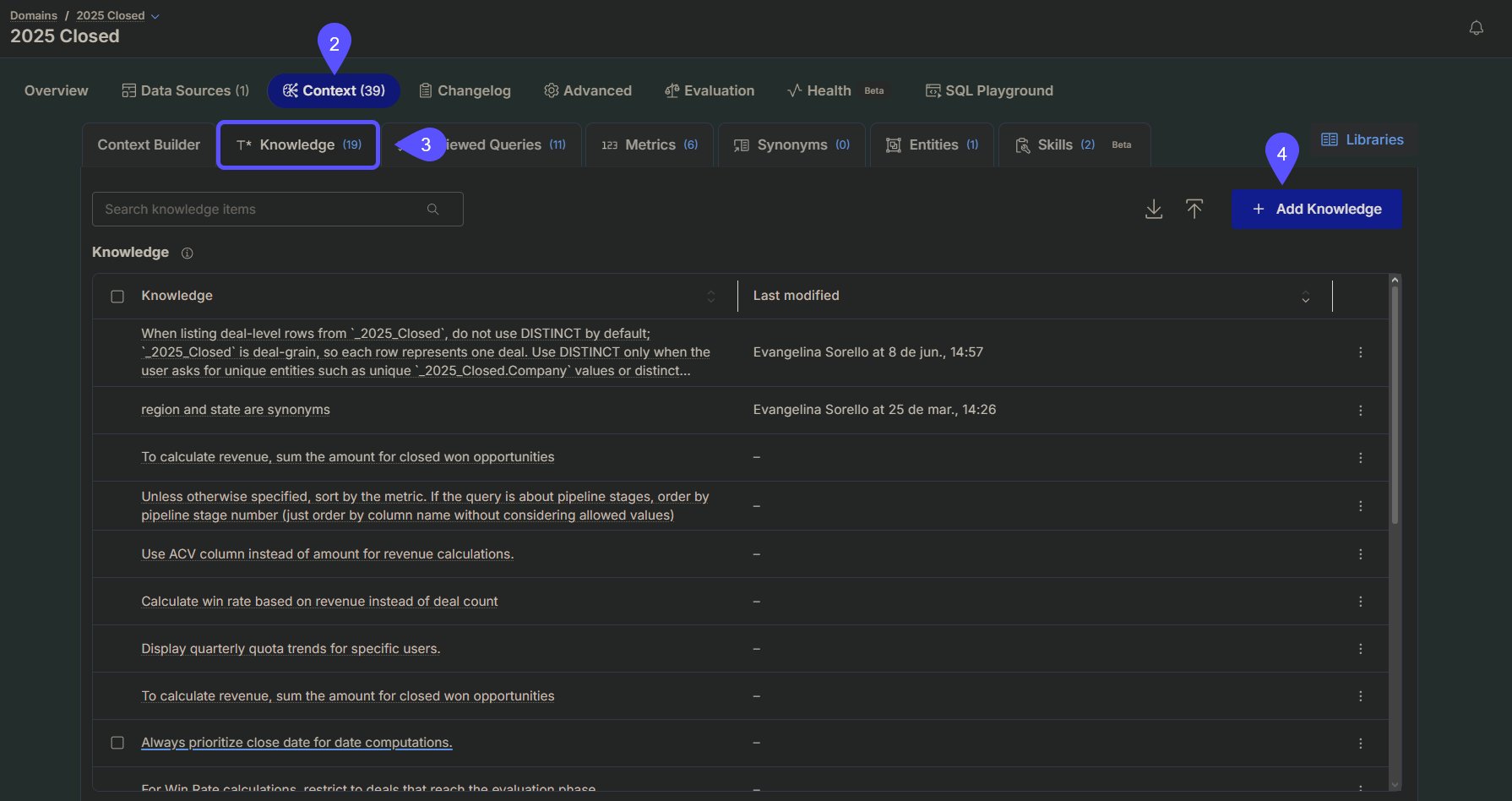
- Navigate to the Context tab.
- Select the Knowledge tab inside the Context section.
- Click the + Add Knowledge button to begin a new entry and add natural language context.
- Alternatively, upload a file containing domain-specific information.
- Here, you can also download the context entries in a CSV-format file.
Further Knowledge configuration
Other key features within the Domain section help you define and refine contextual information for accurate AI responses.- Data Sources: This tab is where you manage and model the raw data structure to make it queryable and insightful within the platform. To enhance Knowledge from the Data Sources tab, you can:
- Document Tables and Columns: Write clear, natural language descriptions for tables and columns to help the AI interpret schema elements accurately.
- Define Metrics with SQL: Use SQL formulas to define key metrics and calculations, ensuring consistent, precise responses.
Next steps
Auditing
Organize insights by tagging chats, navigating history, and sharing vetted answers with your team.
Provide Feedback to the System
Learn how to rate answers and provide corrections to improve the system’s accuracy.
Validate and Test Answers
Understand the methods for verifying the correctness and reliability of generated answers.
Advanced Data Modeling
Define relationships and Knowledge in your data to enable more powerful analysis.