

Why it matters
WisdomAI enforces data access permissions at the Domain level. Business context you create, such as metric definitions or business rules, lives inside the specific Domain where you create it. Teams working in a different Domain can’t see or reuse that context, even when they’re asking questions about the same underlying data. That isolation protects your access boundaries, but it also means shared definitions get rebuilt in every Domain that needs them. When a definition changes, you have to update every copy, and the copies can drift out of sync with each other. Context Libraries remove that trade-off. A Library holds context outside any single Domain, so you define a metric or business rule once and reuse it everywhere it applies. You still control which Domains can use it: linking a Library to a Domain is a separate, explicit step, so shared context never crosses a Domain’s access boundary without your say.Access Context Libraries
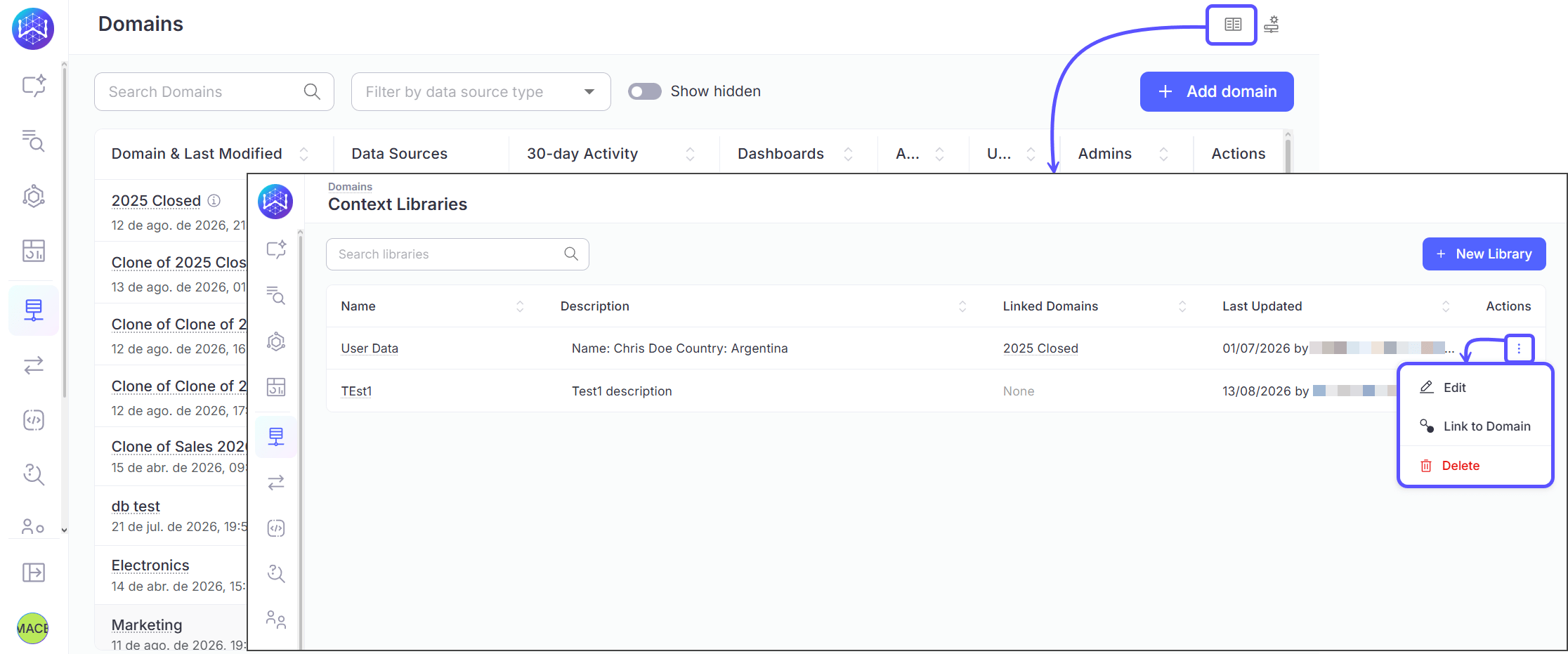
To access Context Libraries, follow these steps:- From the Domains page, click the Context Libraries icon in the top right corner.
- This opens the Context Libraries page, listing every Library along with its Name, Description, Linked Domains, and Last Updated date. Click the ⋮ icon next to a Library to Edit it, Link to Domain, or Delete it.
Move Knowledge to a Library
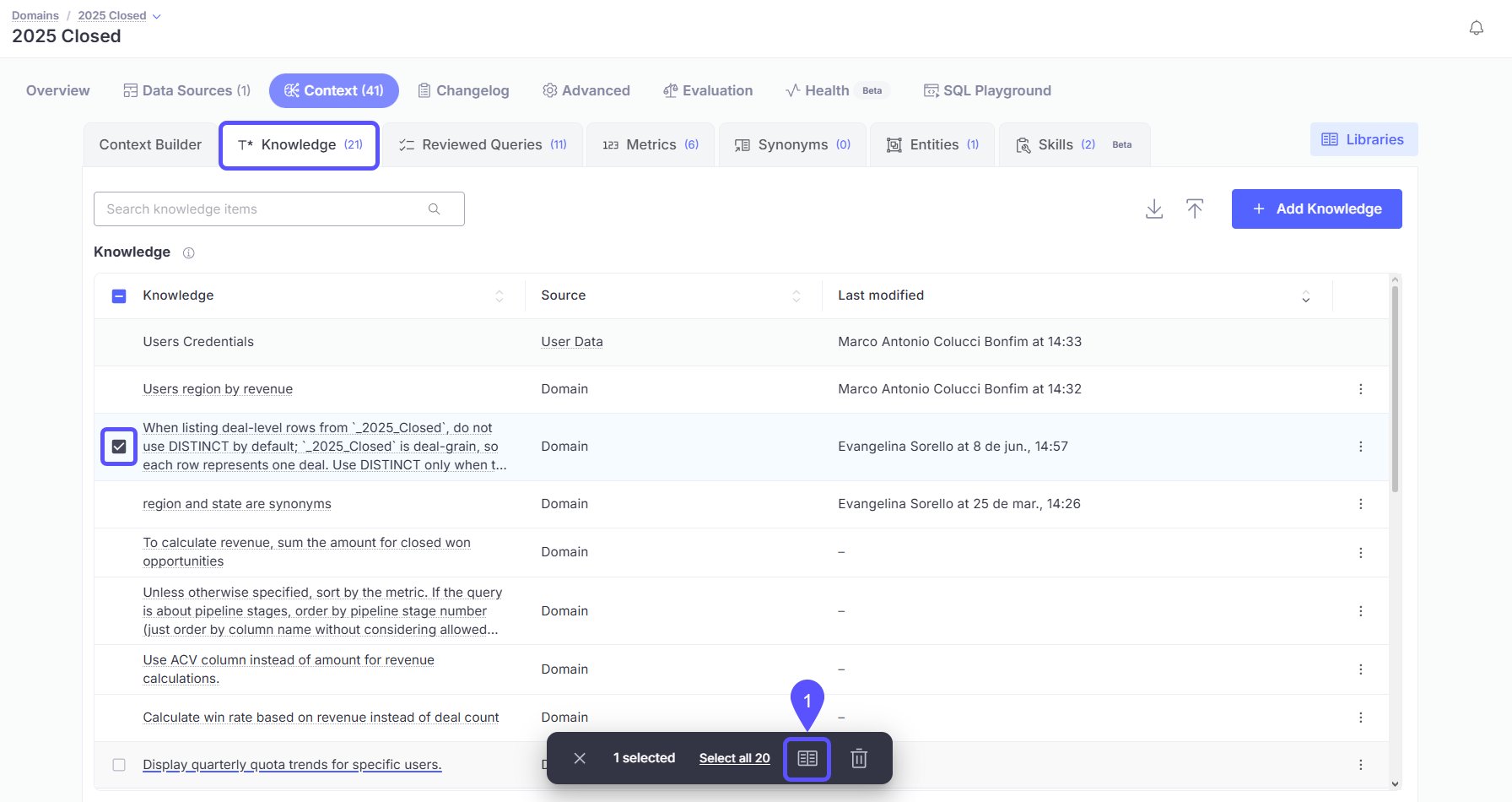
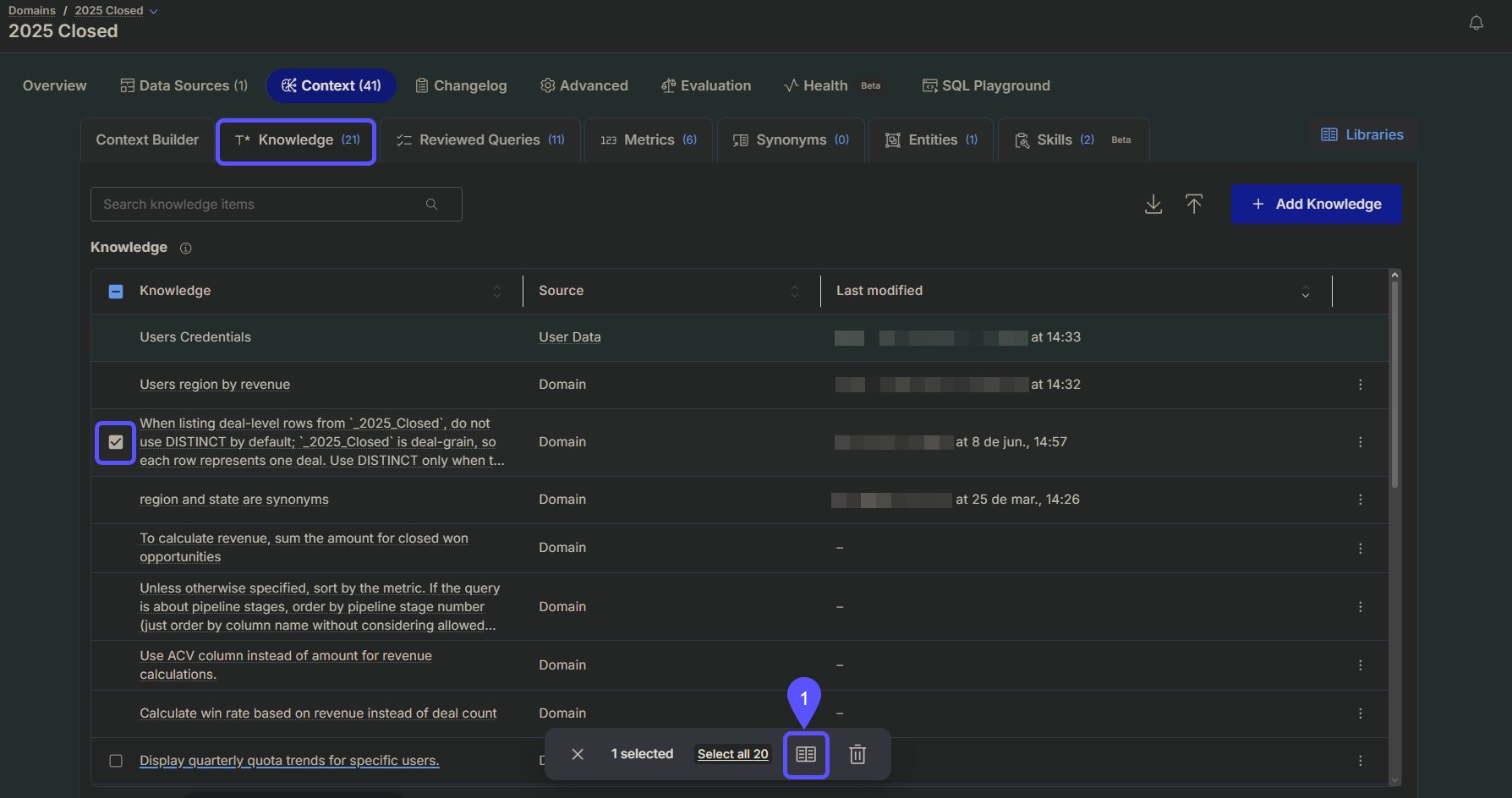
You can build a Library either by creating assets outside a Domain or by taking existing context items originally built inside a Domain and moving them into a Library so they become available elsewhere.- From the Knowledge tab, select the item you want to reuse and click the Move to Library icon.
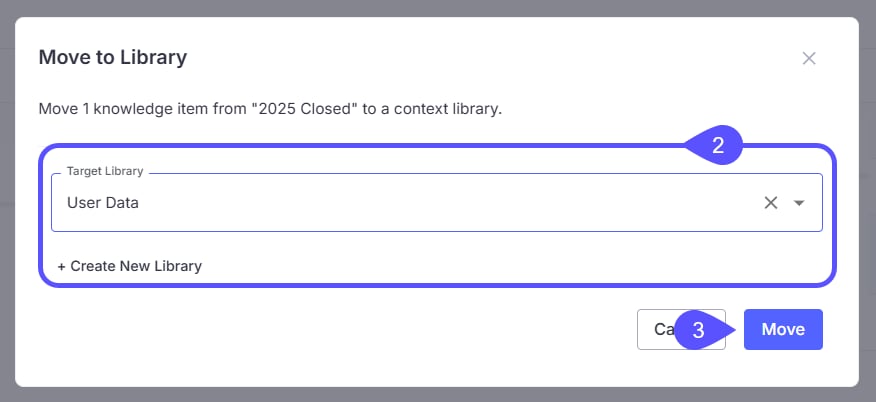
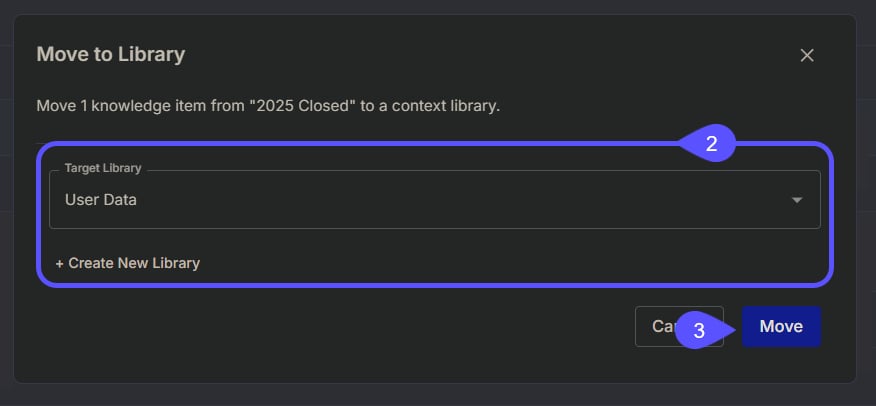
- In the Move to Library window, open the Target Library dropdown and select an existing Library, or click + Create New Library to create one.
- Click Move to confirm.
Link a Library to a Domain
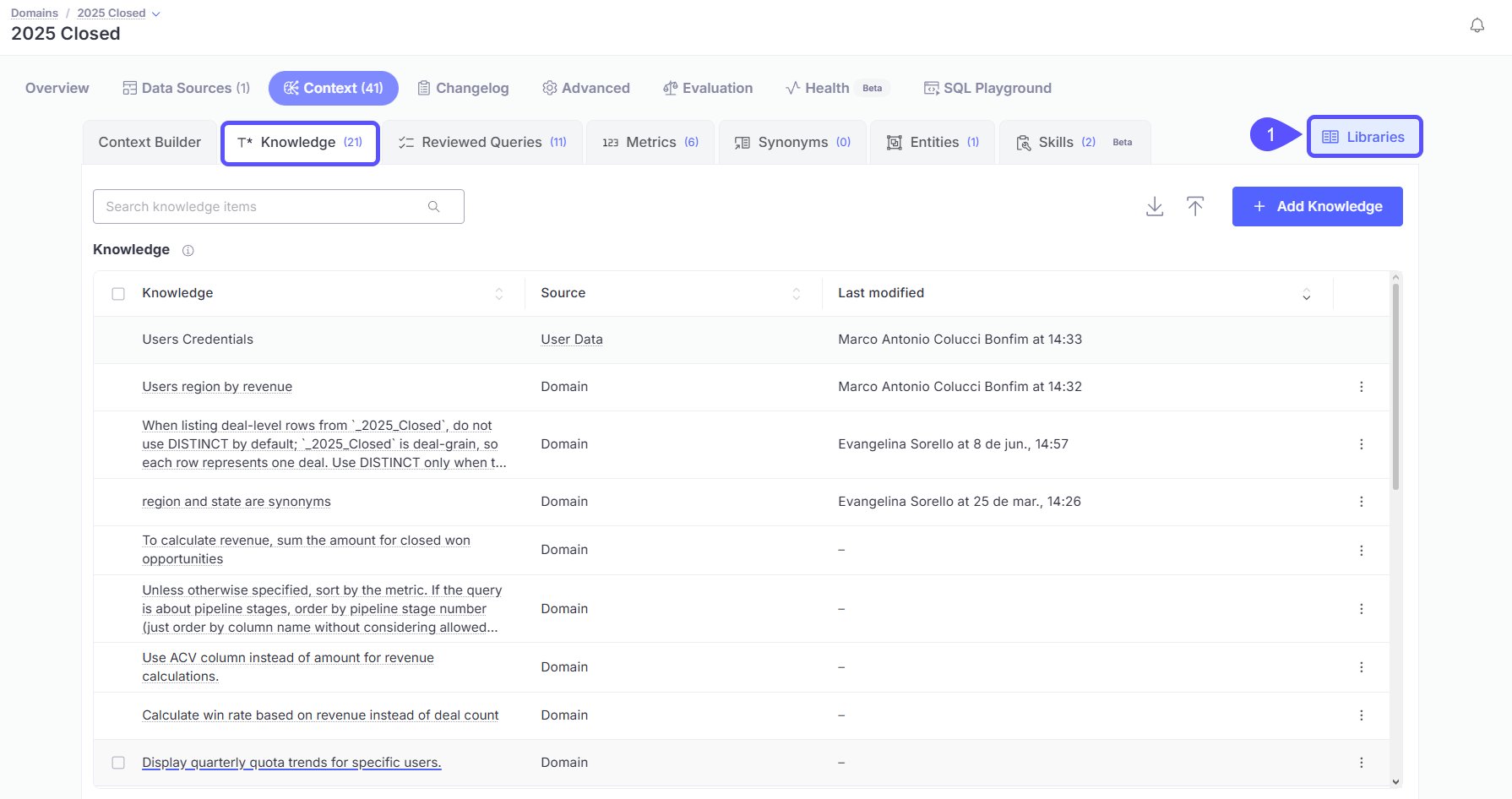
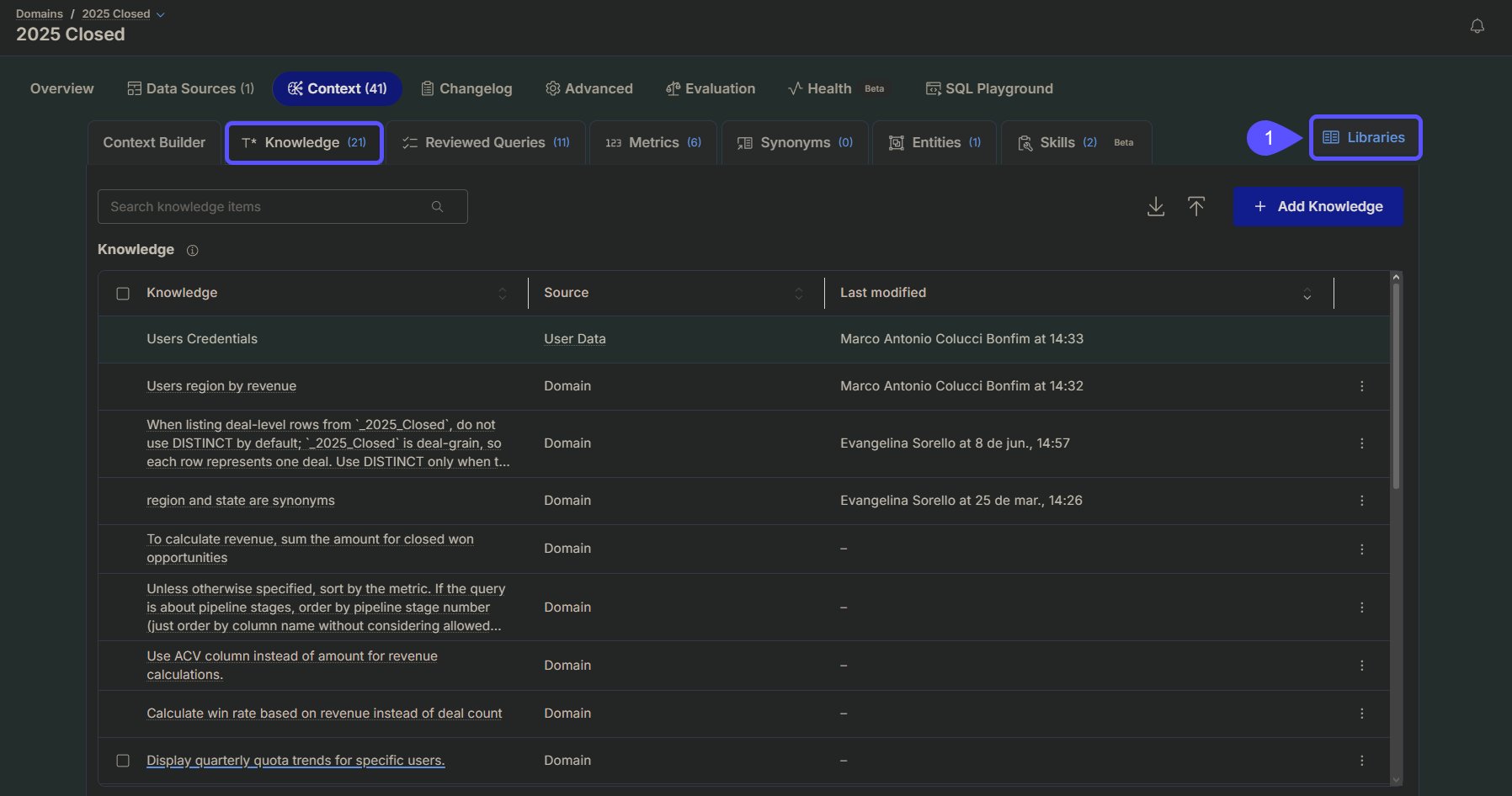
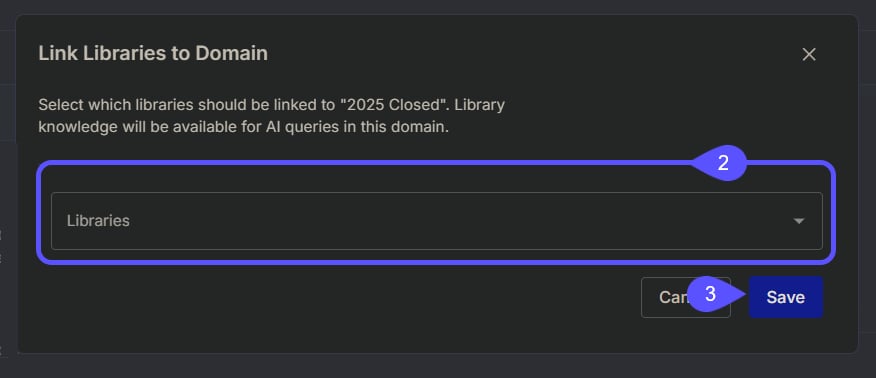
You must link a Context Library to a Domain before you can query its contents. To link one or more Libraries to a target Domain:- From the Domain’s Context tab, access Knowledge and click Libraries.
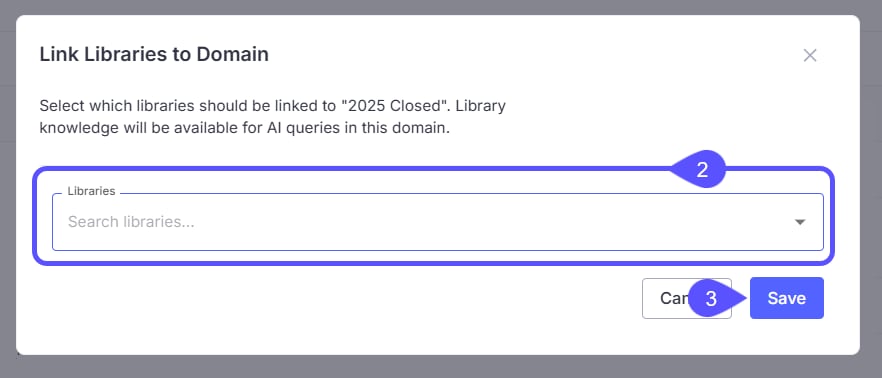
- Open the Libraries dropdown and select the Library or Libraries you want linked.
- Click Save.
Next steps
Domain Groups & Auto Domain Selection
Understand what these features are, how they differ, and when to use one over the other.
Set Up and Use Domain Groups & Auto Domain Selection
Step-by-step instructions for enabling Auto Domain Selection and creating and using domain groups.