

- Keep stakeholders in the loop.
- Ensure timely reviews or approvals.
- Automate regular Dashboard updates without manual follow-up.
Receive Dashboard updates
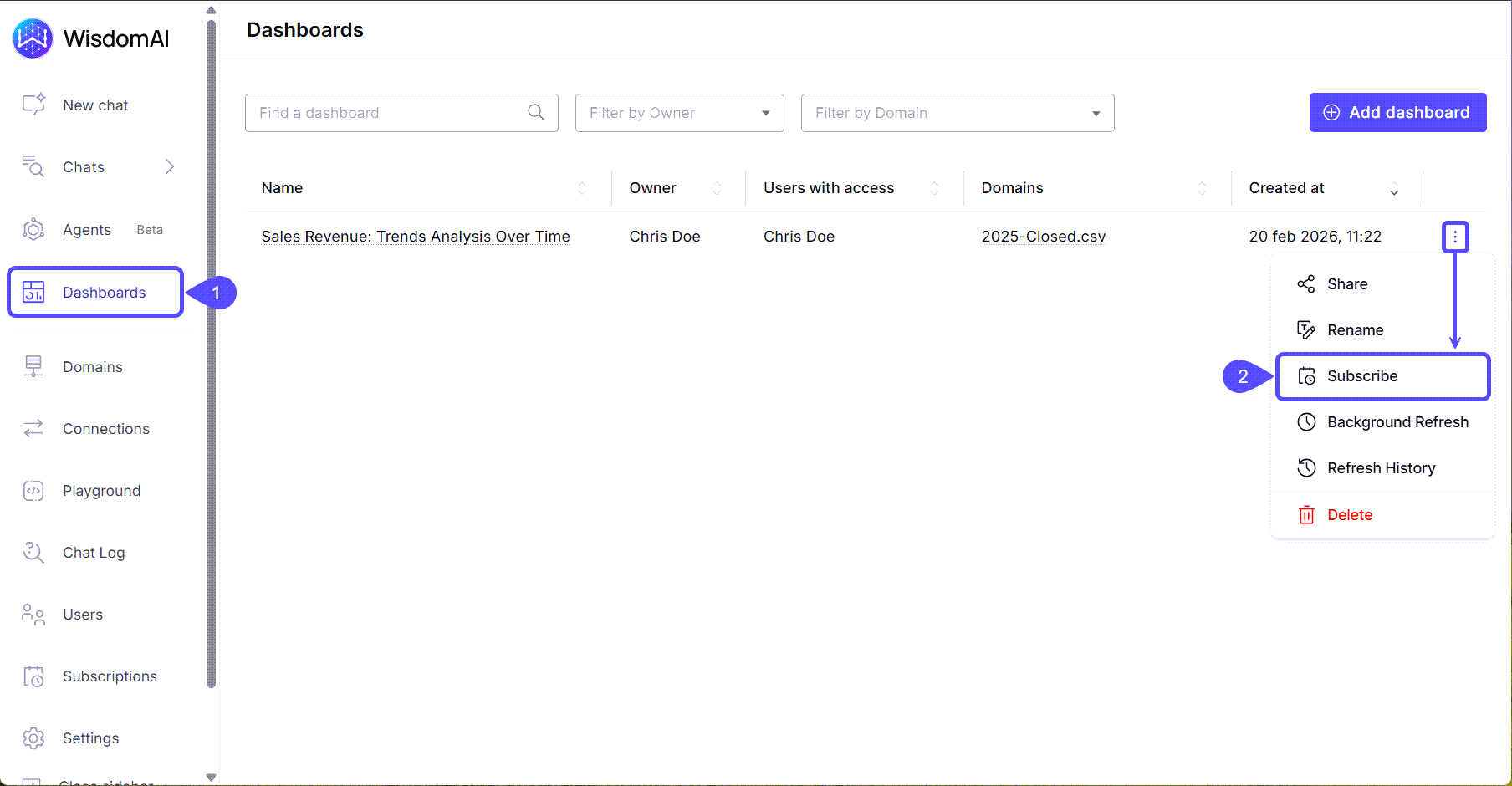
- Navigate to the Dashboards section in the left sidebar.
- Find the Dashboard you would like to share, click on the kebab menu icon, and select Subscribe.
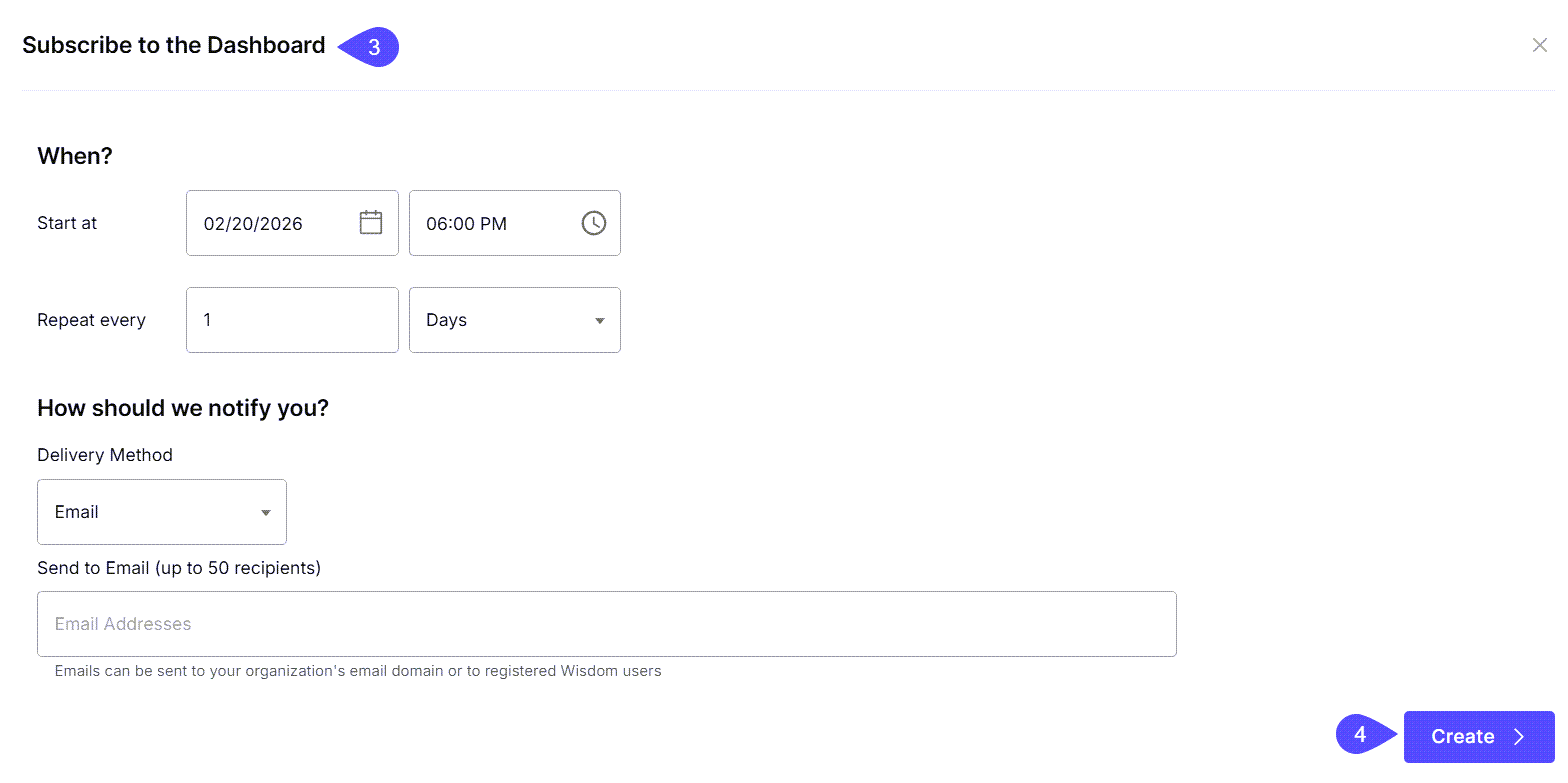
- In the modal window that opens, you can create a new notifications schedule by configuring the following:
- When?
- Set the Start Date, for example, to 31/05/26 at 9:00 AM.
- Choose the Interval, for example, Repeat every 2 Weeks.
- What?
- Select the Delivery Method (currently, only email is supported).
- Enter the recipient’s email address. You can add more than one address by separating them with a comma.
- When?
- Click on Create to save your scheduled notification.
Existing subscriptionsAfter subscribing to a Dashboard, it will appear in the Existing subscriptions section the next time you open the Subscribe option for the same Dashboard. From there, you can Test or Remove it.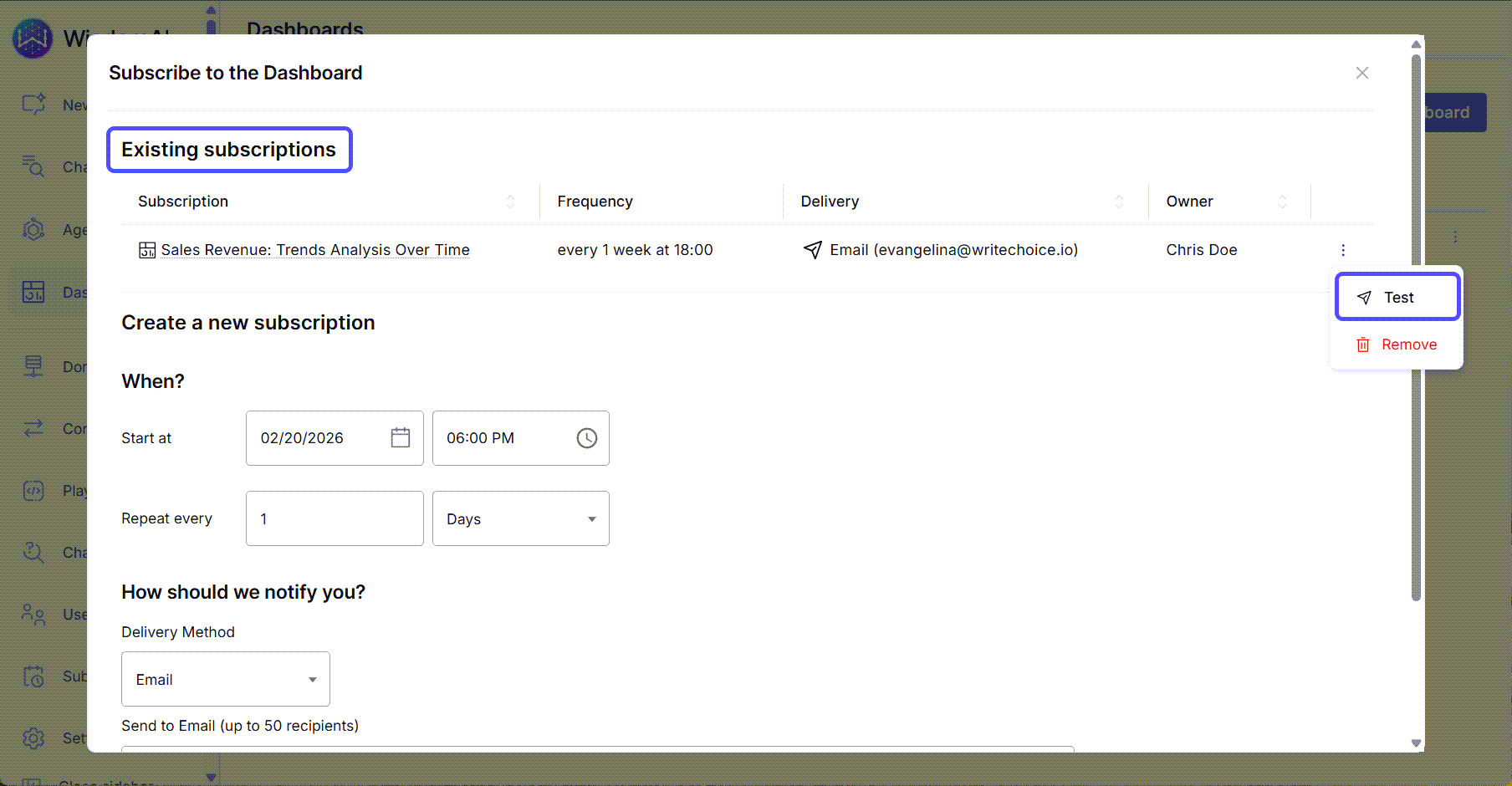
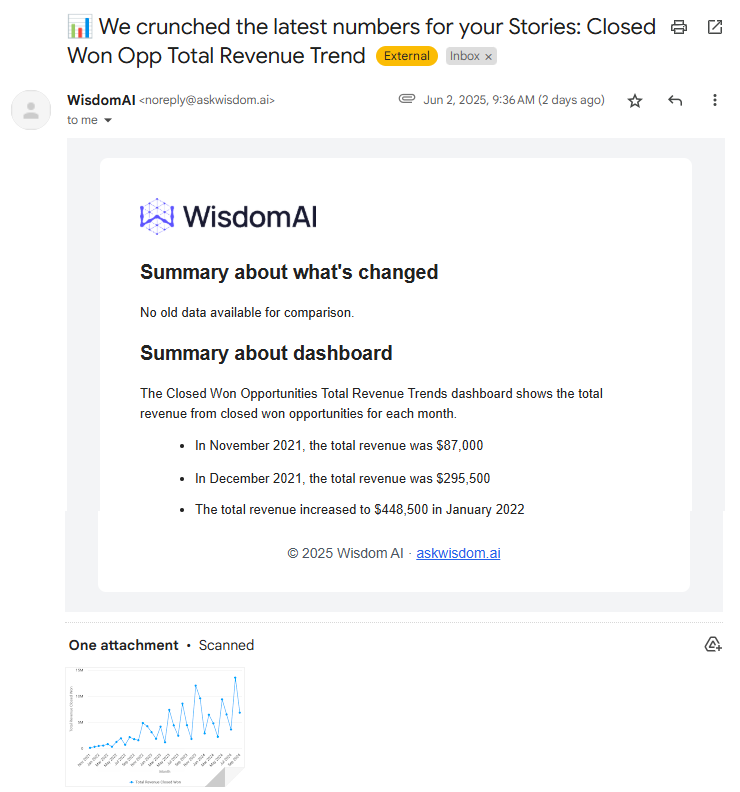
Next steps
Turn Answers into Dashboards
Compile key insights and visualizations into a shareable, narrative-driven report.
Share Dashboards and Set Access Control
Learn how to share your dashboards with others and manage who can view or edit them.