

Prerequisites
- Admin access to your WisdomAI Organization.
- An existing Domain to enable Web Search on.
1. Enable web search on a Domain
You can enable Web Search when creating a new domain or by adding it as a data source to an existing domain.Add web search to an existing Domain
- Navigate to your Domain and open the Overview tab.
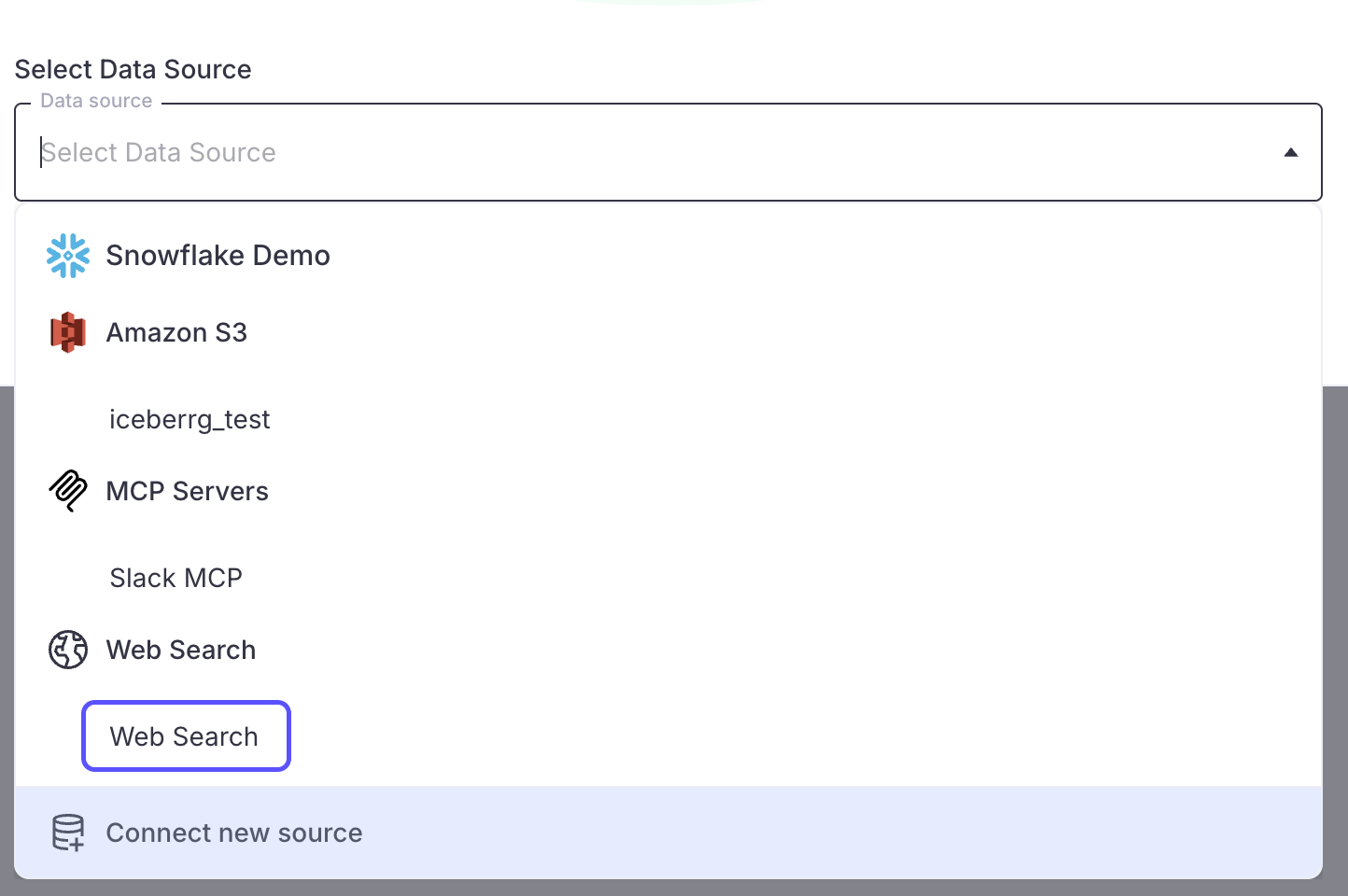
- Click Add Data Source.
- In the data source picker, select Web Search.
- Click Submit. A confirmation message will appear indicating that Web Search has been enabled.
Enable web search during Domain creation
- Navigate to Domains and click Add Domain.
- Enter a Domain name.
- In the data source selection, choose Web Search.
- Complete the domain creation process.
2. Configure the source policy
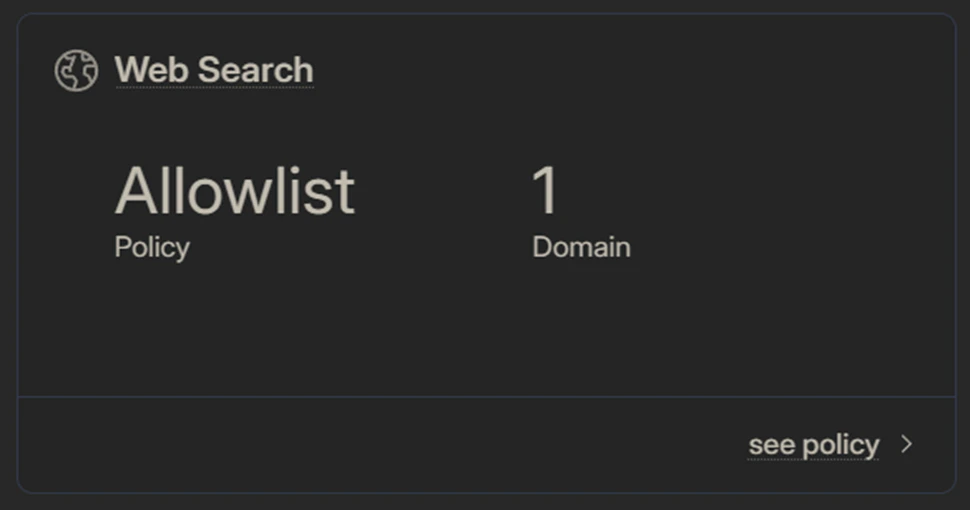
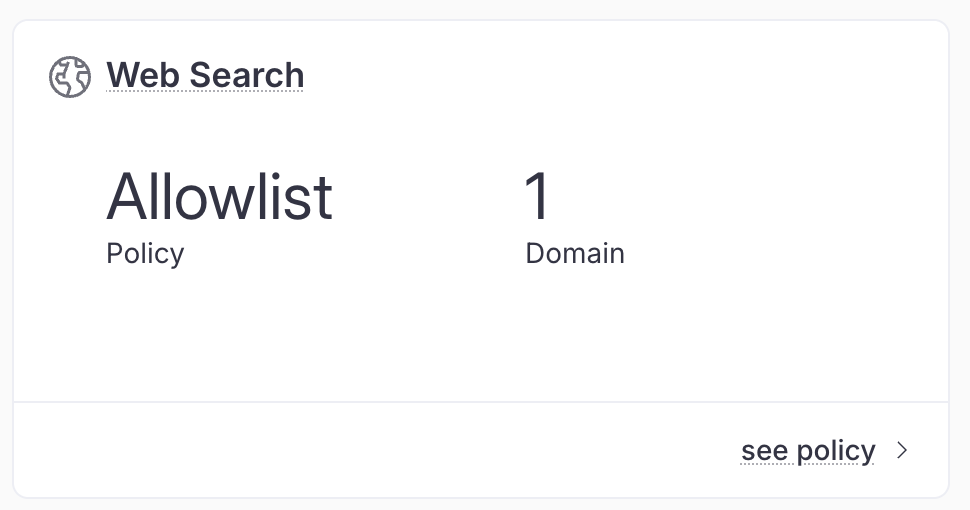
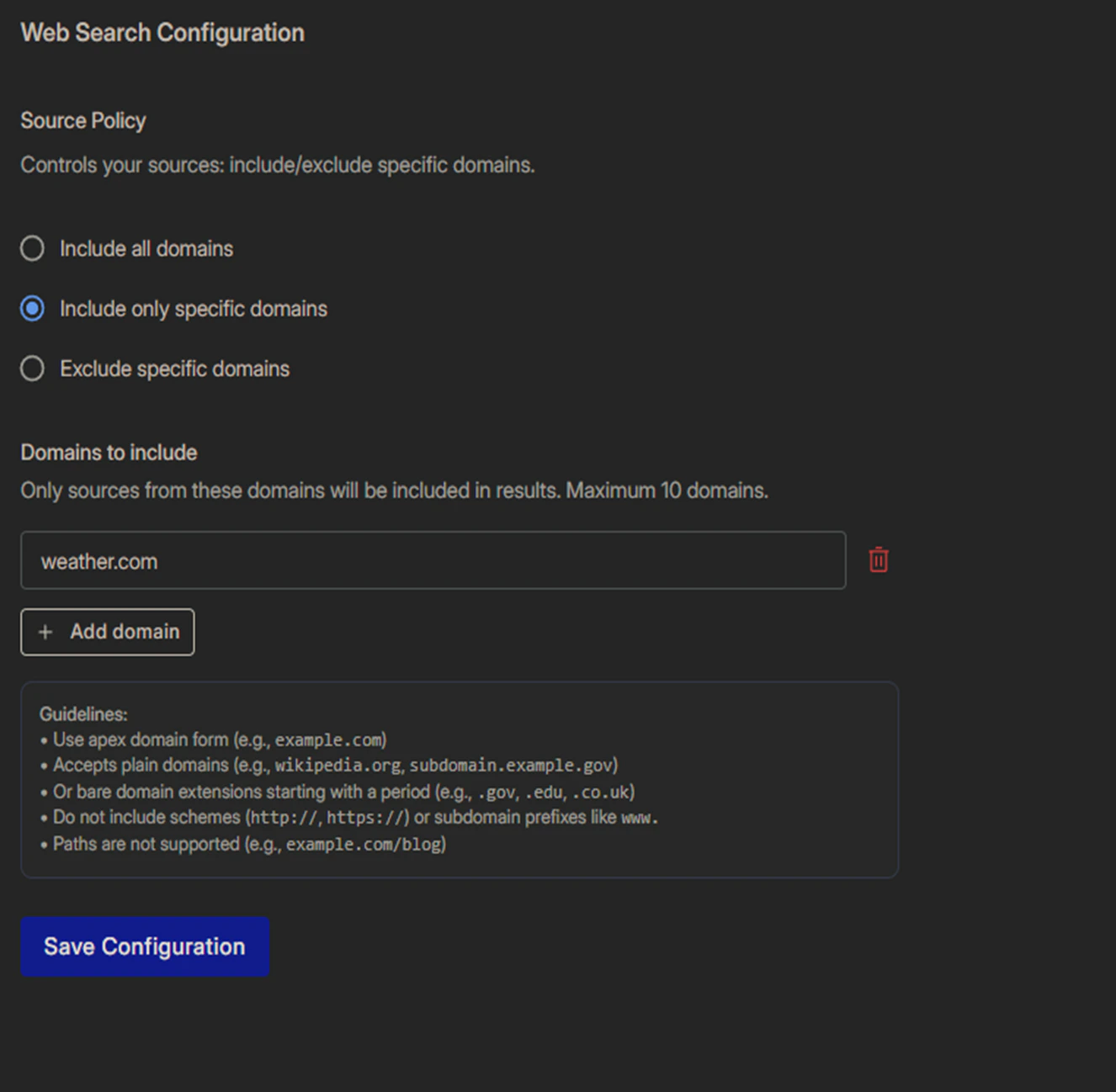
After enabling Web Search, you can control which websites WisdomAI is allowed to search. This is configured through the Source Policy on the Web Search configuration page.- Go to your Domain > Data Sources tab > Web Search sub-tab.
- Under Source Policy, select one of the three options:
- If you selected Include only specific domains or Exclude specific domains, add the domains you want to include or exclude:
- Click Add domain to add a new entry.
- Enter the domain in apex form (e.g.,
example.com). - You can add up to 10 domains, one per entry.
- Click Save Configuration.
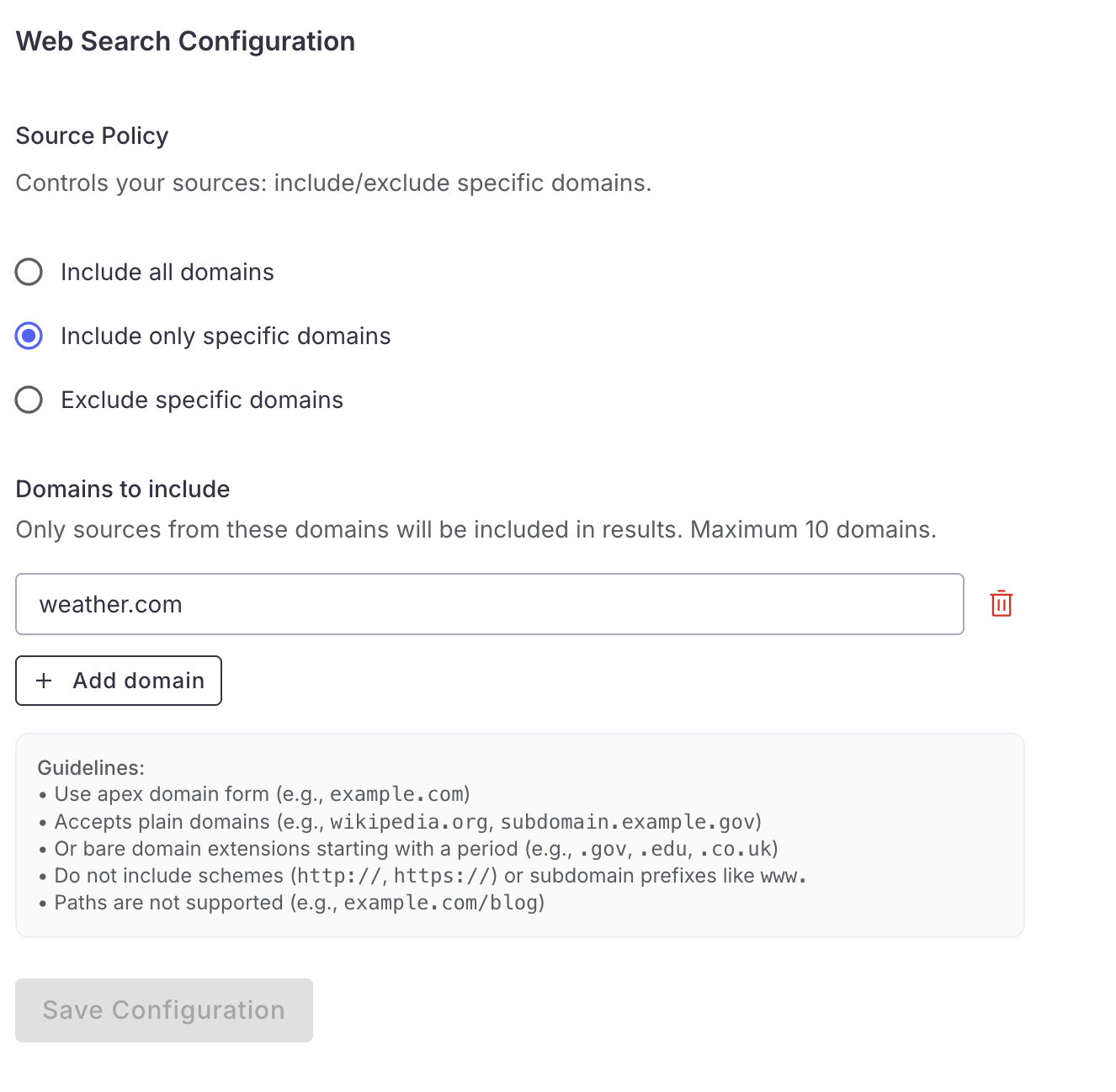
Domain format guidelines
When entering domains in the source policy, follow these rules:- Use apex domain form:
example.com,wikipedia.org - Subdomains are supported:
subdomain.example.gov - Bare domain extensions starting with a period are allowed:
.gov,.edu,.co.uk - Do not include URL schemes (
http://,https://) - Do not include
www.prefixes - Paths are not supported (e.g.,
example.com/blogis invalid)
How web search works in chat
WisdomAI uses two tools behind the scenes:- Web Search: Searches the web for information relevant to a user’s question, returning results with titles, URLs, and content excerpts.
- Web Fetch: Fetches and extracts content from specific web page URLs.
Web Search is an AI-driven tool. WisdomAI decides when to invoke web search or fetch based on the user’s question. You do not need to explicitly request a web search — if the question benefits from external information, WisdomAI will automatically search the web.
- It calls the web search tool with a search objective and optional keyword queries.
- Results are returned with titles, URLs, publish dates, and content excerpts.
- If it needs more detail from a specific page, it calls the web fetch tool to extract the page content.
- It synthesizes the web results into a response with inline citations and a Sources section listing all referenced URLs.
Web Fetch can only access publicly available pages. It cannot access content behind login walls, authentication gates, or private documents (e.g., private Google Docs).
Next steps
Connect Unstructured Repositories
Integrate unstructured data sources, such as documents or knowledge bases, to enrich your analysis.
Connect and Test Tutorial
Walk through the initial setup to connect a data source and run your first query.
Advanced Data Modeling
Define relationships and context in your data to enable more powerful analysis.