

Individual and organization connectors
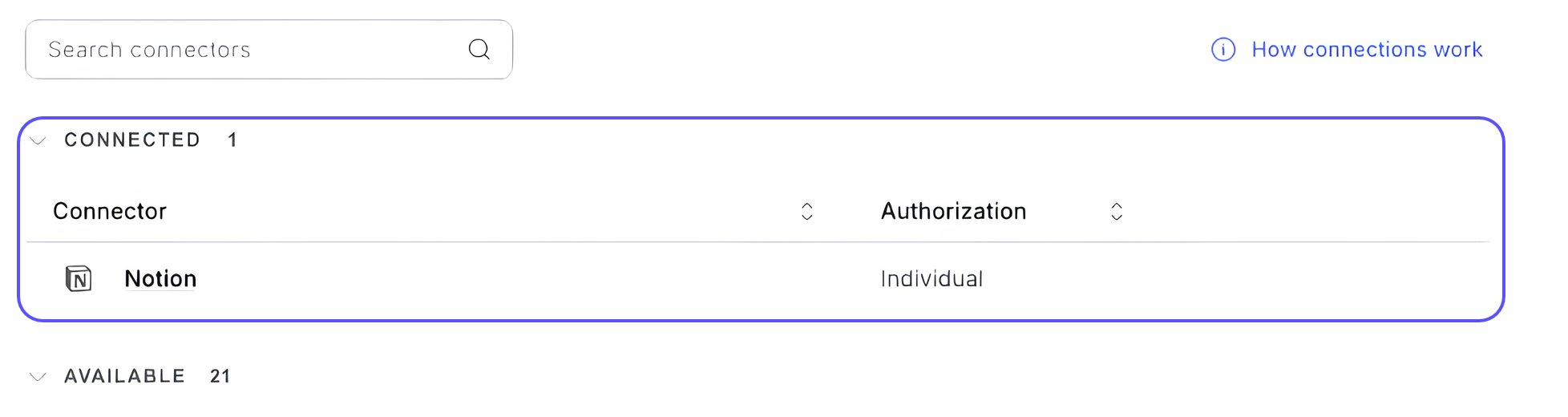
The Connections page lists the apps you have connected and the apps available to you. Each connector has an authorization type:Admins choose which connected apps (MCP and OAuth connectors) appear for your organization.
Privacy
WisdomAI doesn’t crawl or index your individual connections. It reads from them only when you ask something. Admins can see your chats, including anything pulled from connected apps. To read this summary in the product, click How connections work on the Connections page.Connect an app
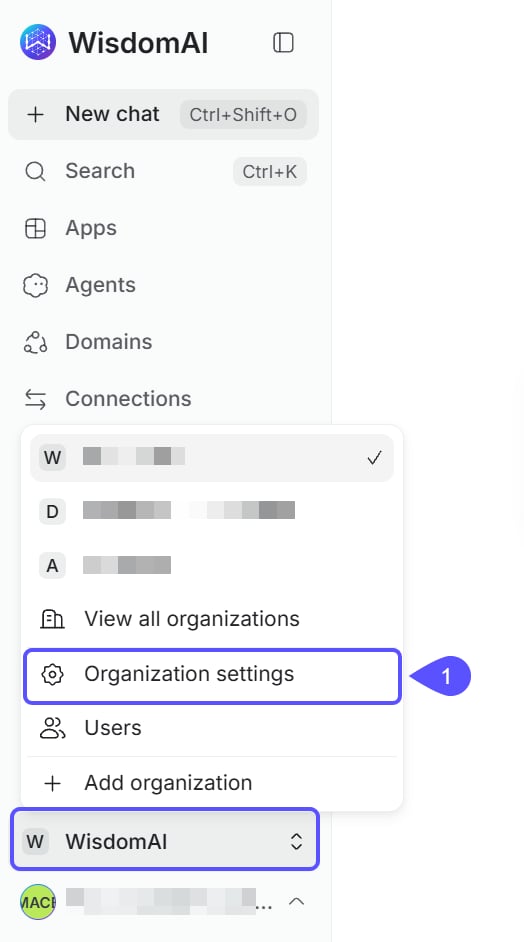
This example connects Notion. The steps are the same for other apps.- Open the Organization menu and click Organization settings.
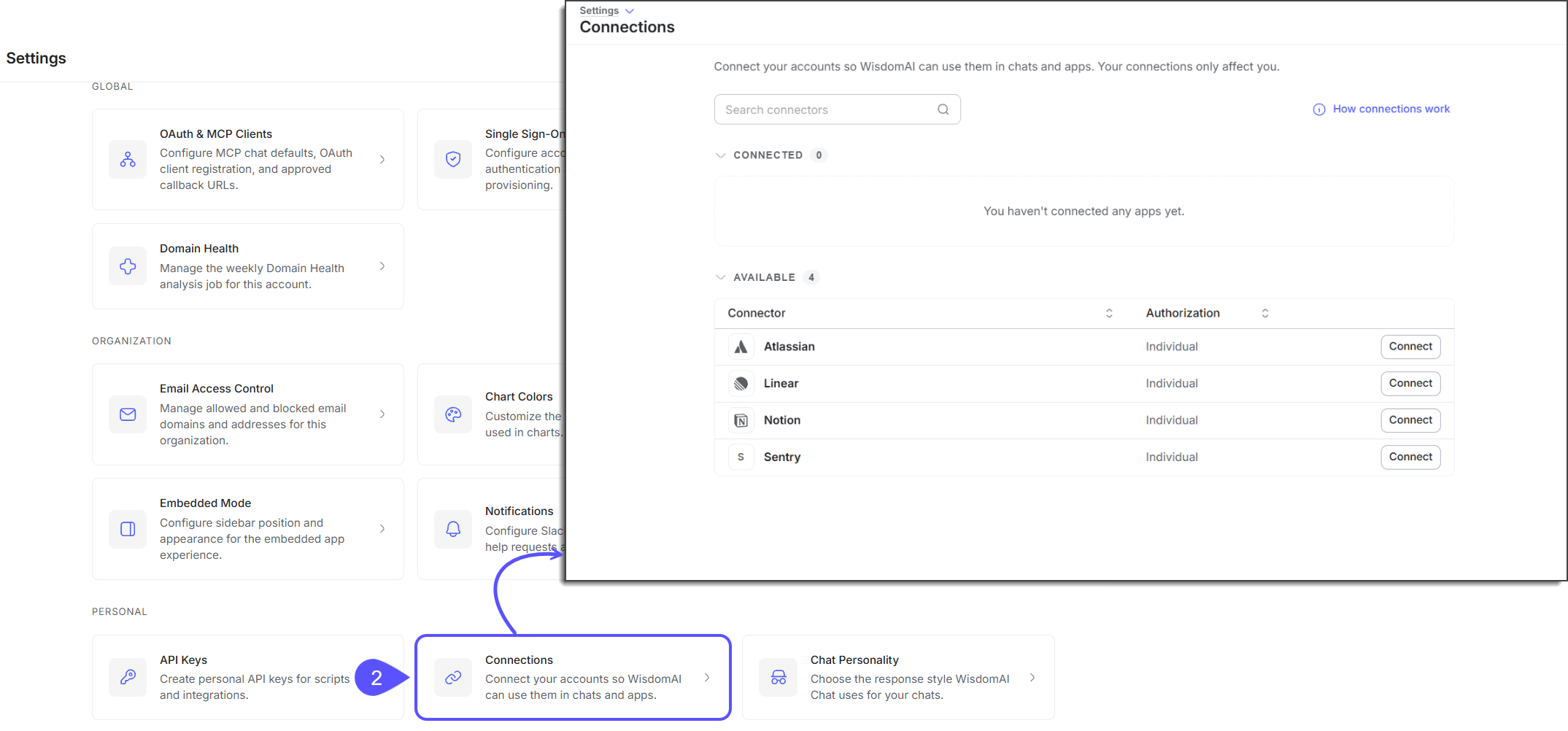
- Click Connections to open the connections page.
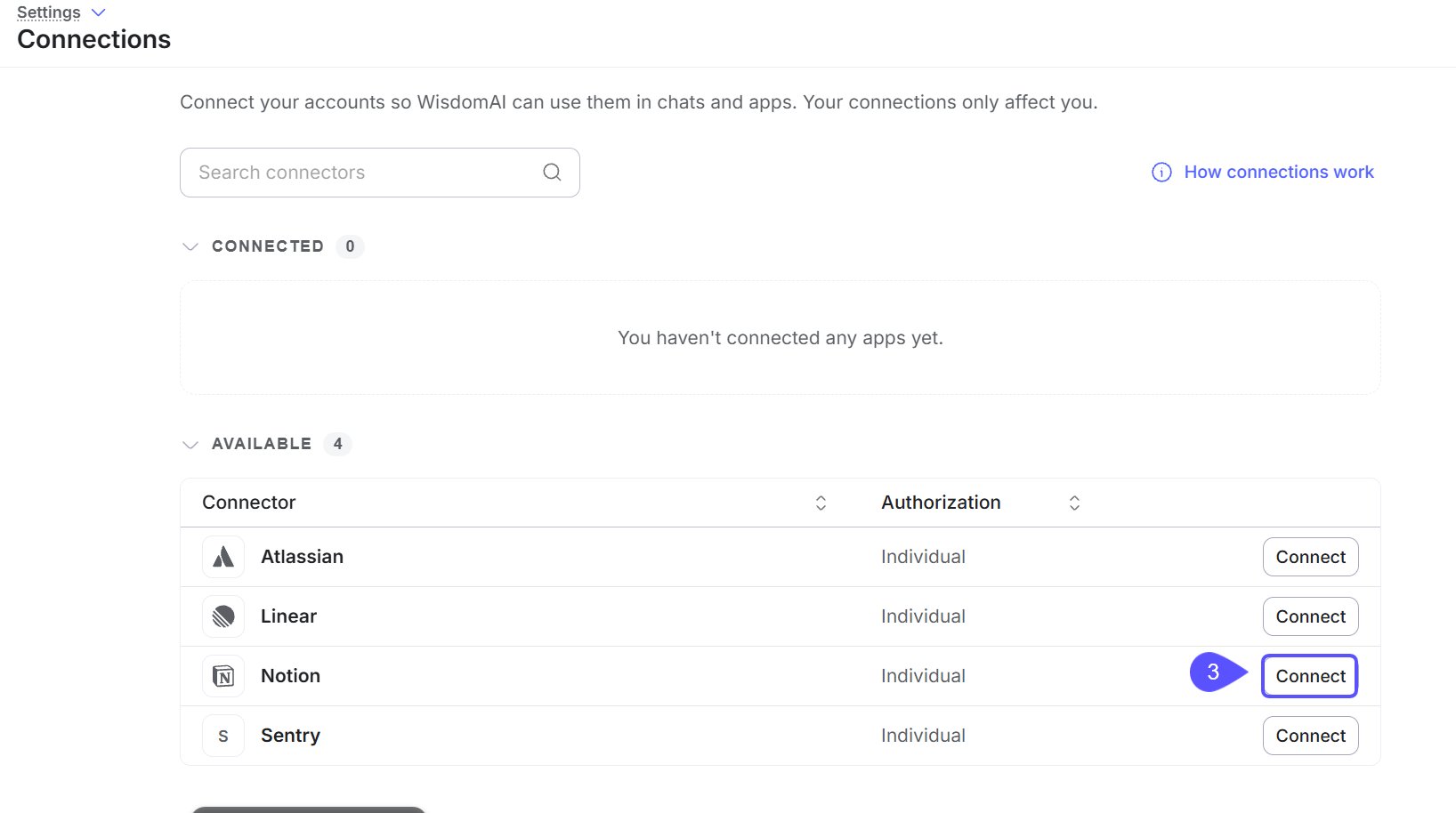
- Click Connect on the connector you want. To use your own account, choose the connector with Individual authorization.
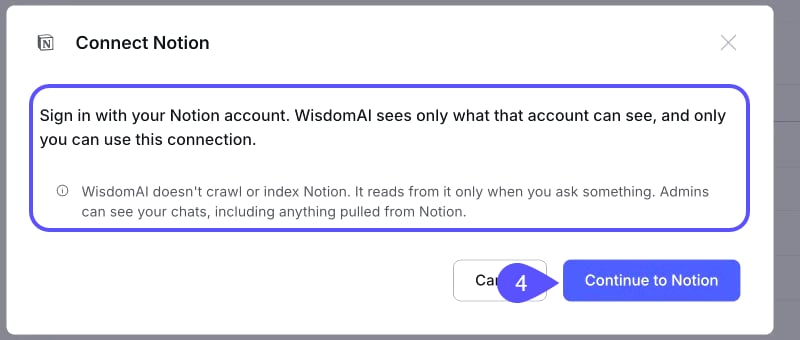
- Read the dialog. It states what WisdomAI will be able to see. Click Continue to Notion.
- Sign in and approve access in the sign-in window that Notion opens.
Manage tool permissions
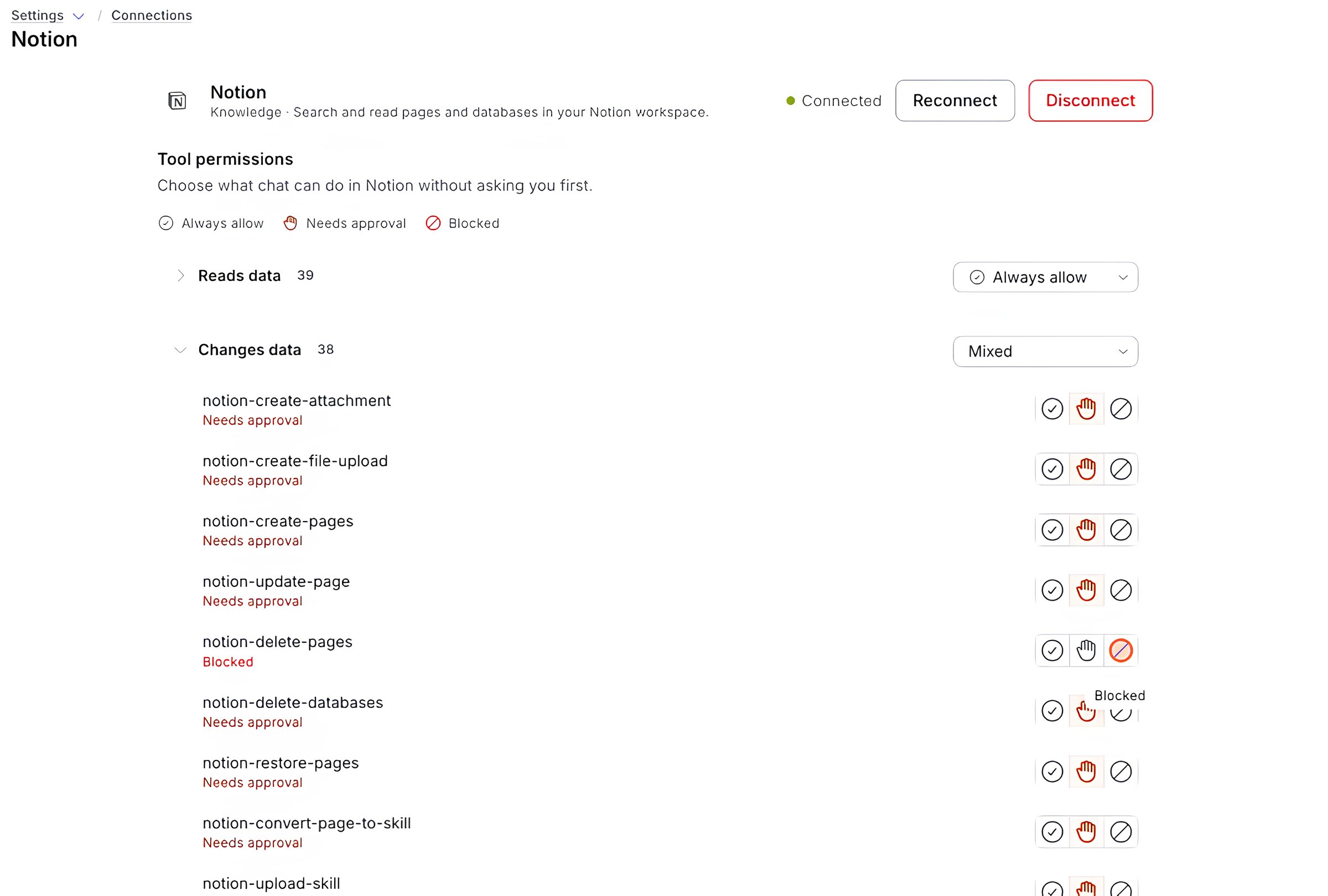
Click a connected app to open its page. The page shows the app’s status and the Reconnect and Disconnect buttons. Under Tool permissions, you choose what chat can do in the app without asking you first. Each tool has one of three settings:
Tools are grouped by what they do. For Notion, Reads data has 39 tools and defaults to Always allow. Changes data has 38 tools and defaults to Needs approval. Use the dropdown on a group to set all of its tools at once. The dropdown shows “Mixed” when the tools in a group have different settings.
To stop chat from deleting your Notion pages, expand Changes data and set
notion-delete-pages to Blocked.
Permissions apply to your connection only. Other people are not affected.
Ask chat about your connected app
Start a new chat and ask a question about content in the connected app. For example: “Find our local dev setup docs in my Notion and summarize the first steps for a new engineer.” WisdomAI searches the app with your own access and returns an answer with links back to the pages it used. To see how WisdomAI got the answer, expand the steps at the top of the response. They list the searches and tool calls WisdomAI ran in your app.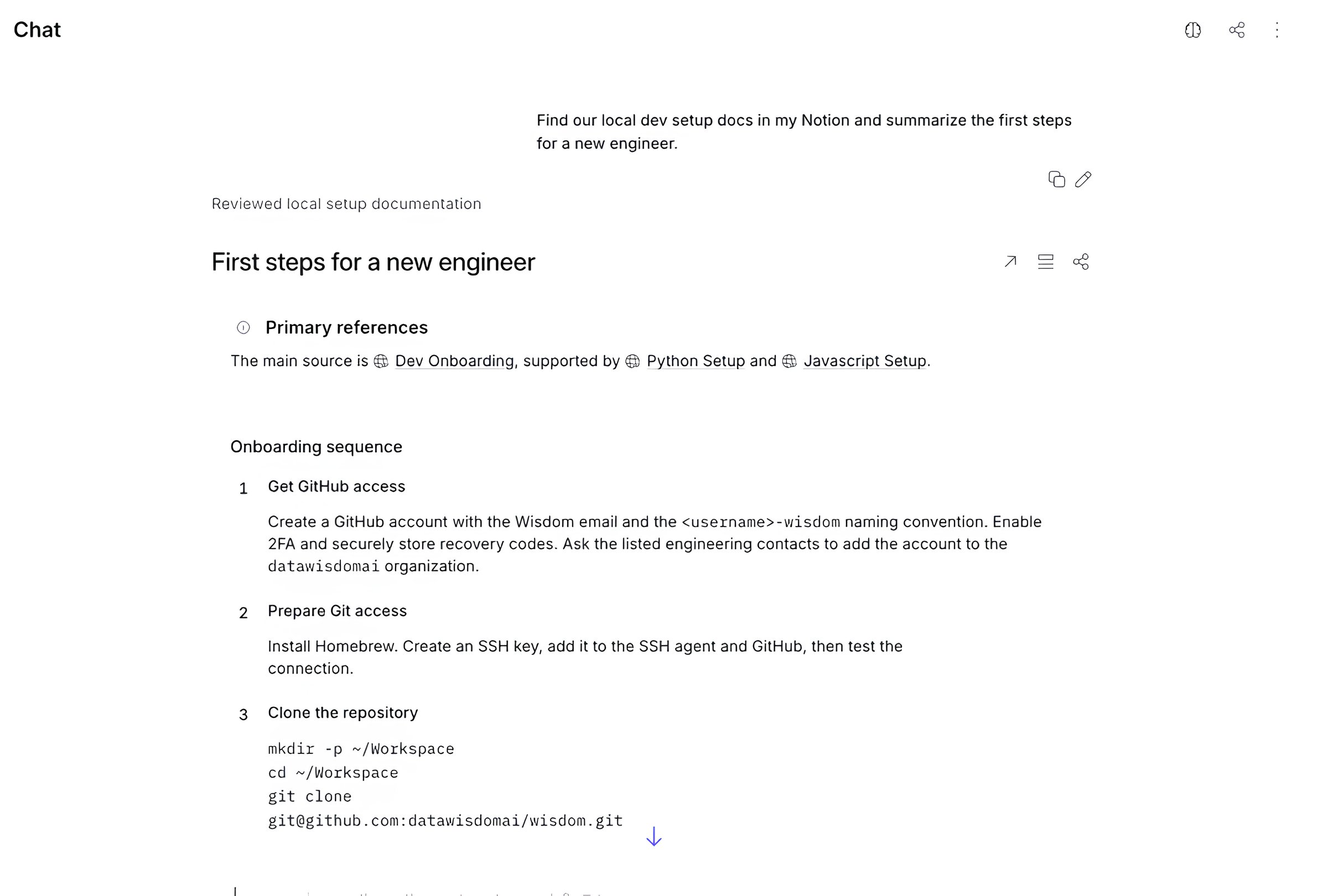
Related articles
MCP server
Connect external AI clients to WisdomAI through the MCP server.
Connect to Slack
Learn how to connect WisdomAI to Slack.