

Document Tables
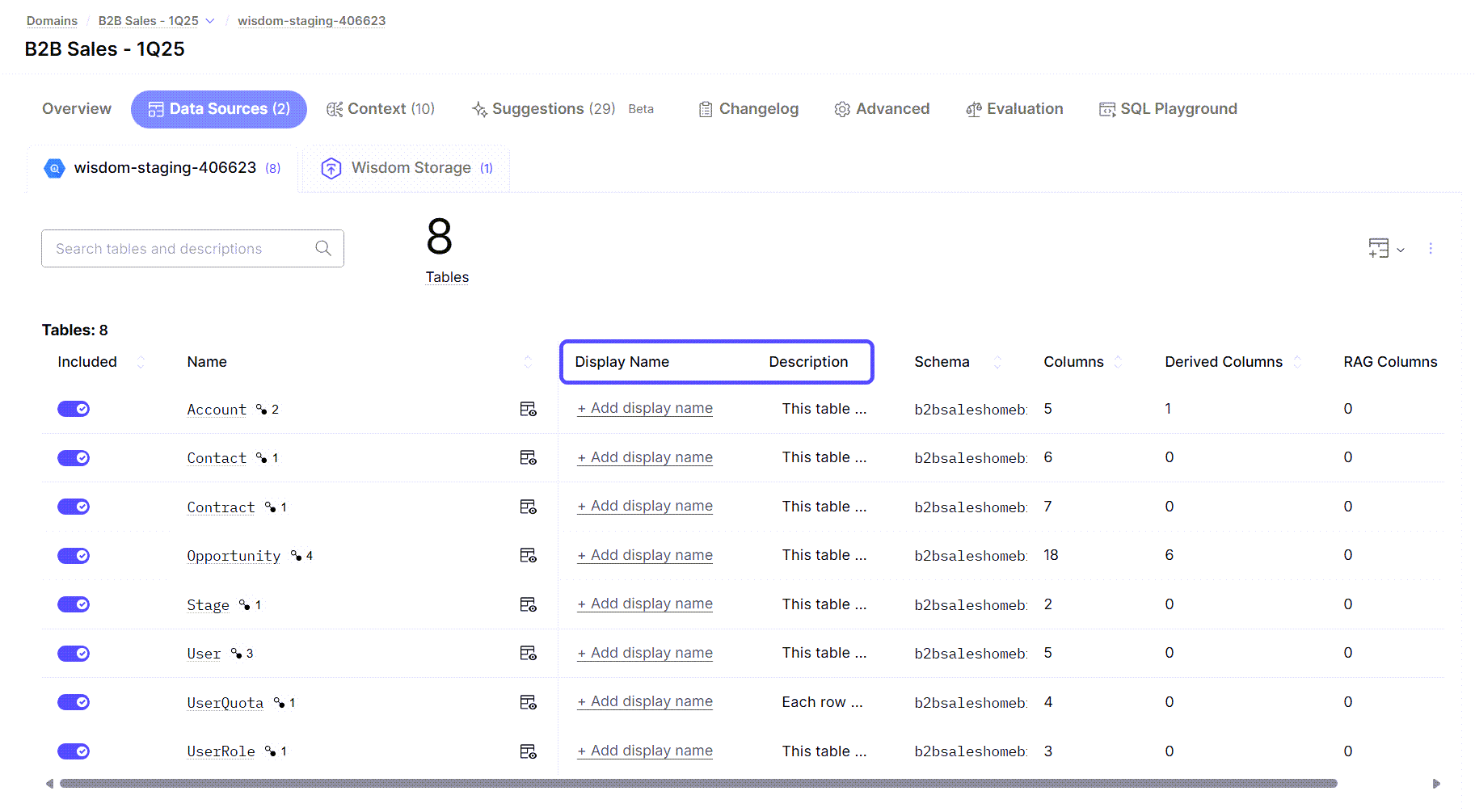
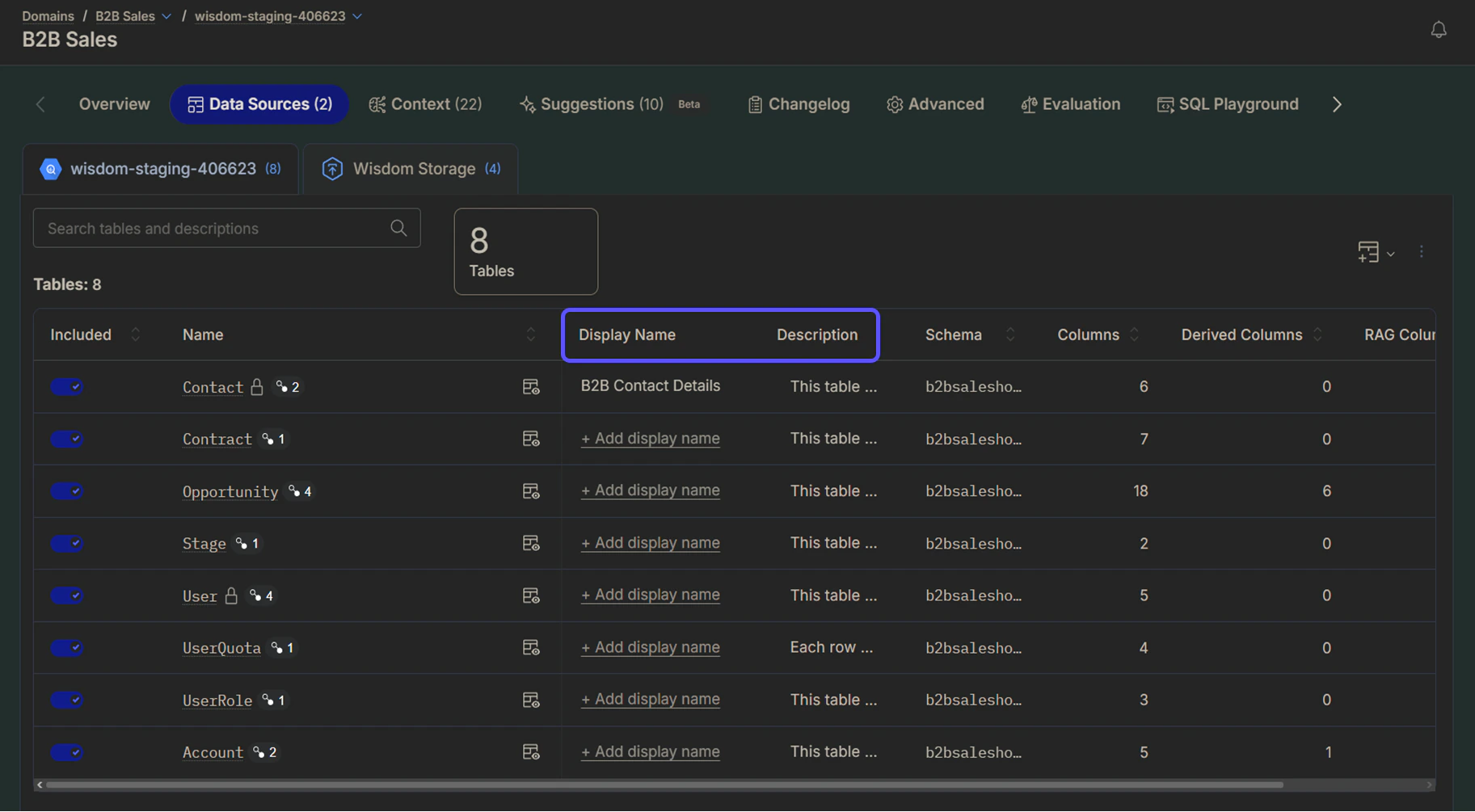
For each table in your data model, you can configure the following fields:| Field | Description | Example |
|---|---|---|
| Display Name | A business-friendly alias that replaces technical or system-generated table names. You can assign unique display names to the same table across different domains. If left blank, the system defaults to the technical table name for SQL generation. | The table name “contact” can be displayed as “B2B Contact Details”, clarifying the type of contact data represented in the table. |
| Description | In this field, you should provide a clear explanation of what the table represents, focusing on a concise, plain-English description of each row’s purpose and content. | This table stores detailed records of business accounts that have monthly revenue exceeding $10,000. Each row represents a single account and includes fields such as account ID, account name, industry classification, account creation date, current status (active, inactive, suspended), monthly revenue amount, and primary contact information. |
Document Columns
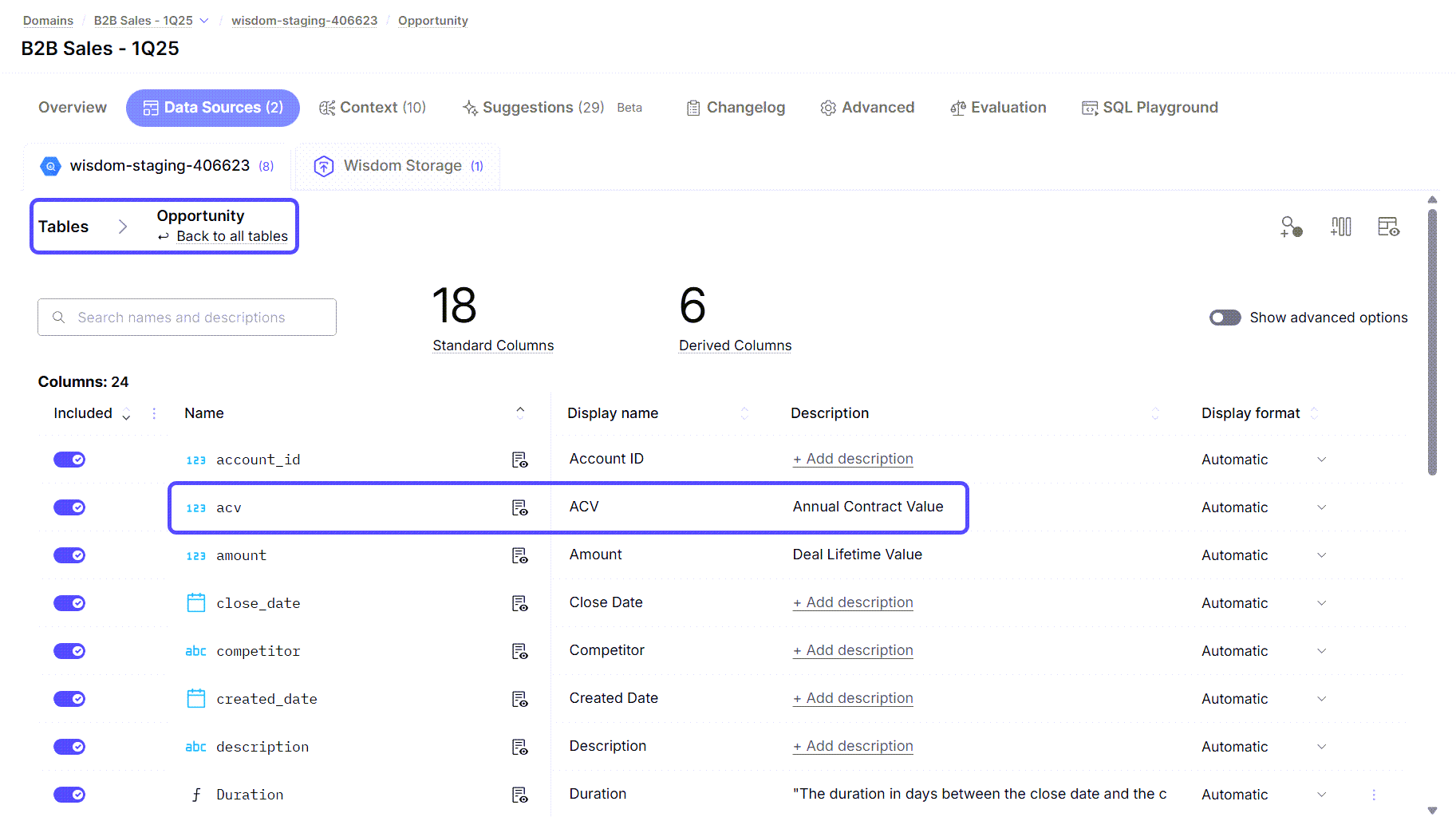
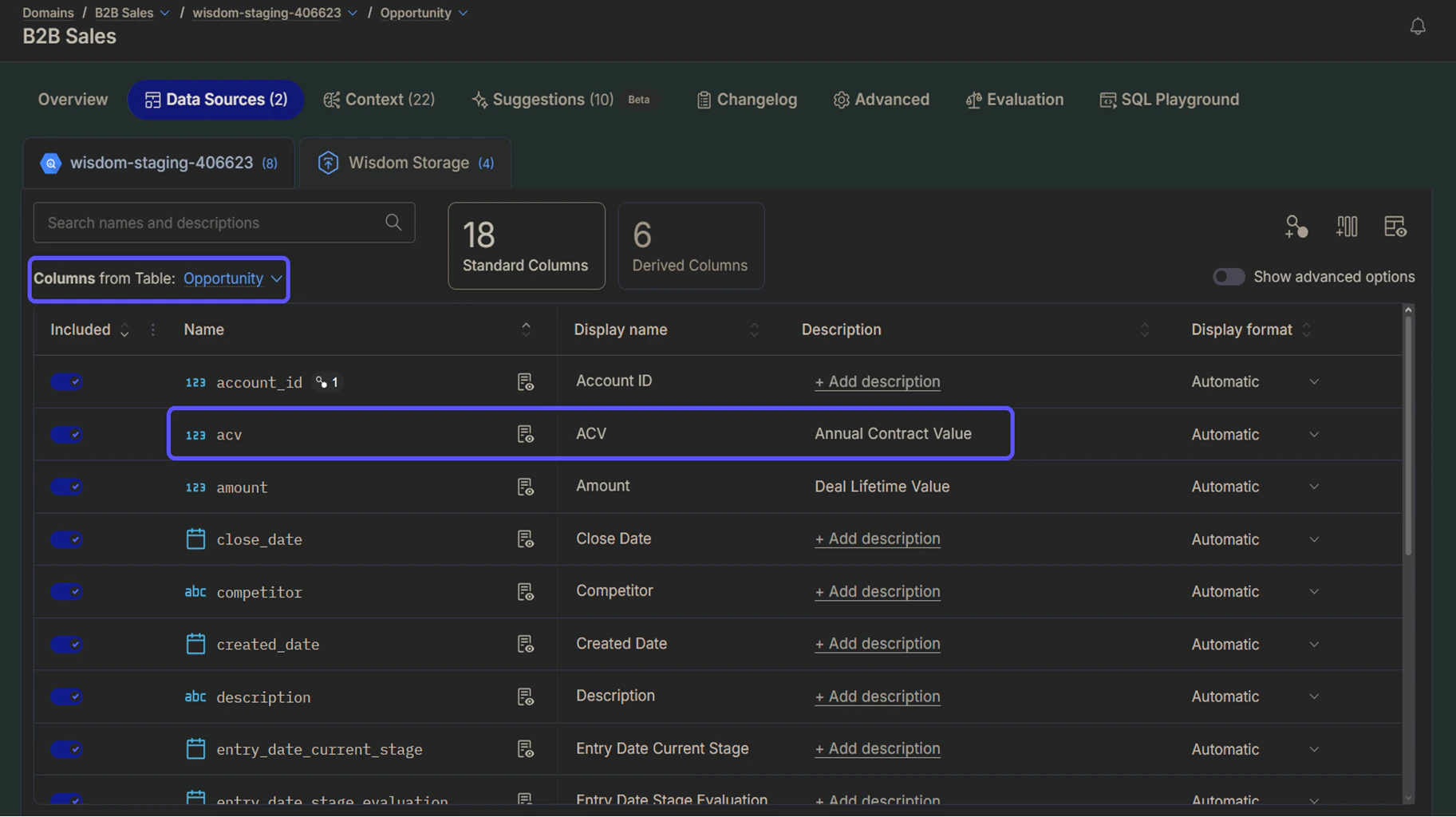
To document columns, click on the table’s name. A new page will open, displaying a list of all columns in the table. You can configure the following fields:| Field | Description |
|---|---|
| Display Name | User-friendly name shown in the interface replaces technical or system-generated table names. You can assign unique display names to the same table across different domains. If left blank, the system defaults to the technical table name for SQL generation. |
| Description | Clear explanation of what the column represents in business terms. |
| Display Format | A dropdown menu used to specify how data is presented to users. You can choose from options such as Date, Fiscal Year, Currency, Percentage, or Time to ensure the AI renders results in the most readable format. |
Advanced Column Options
If you toggle the Show advanced options switch on, the following additional configuration fields will appear, allowing for more granular control over your data model:| Field | Description |
|---|---|
| Primary Key | Identifies if the column is a unique identifier for the rows in the table. |
| Default Order | Sets the default sorting direction (Ascending or Descending) for the column. |
| Allowed values | Defines a specific list of acceptable values for the column. |
| Order allowed values | Enables or disables a specific custom sorting order for the defined allowed values. |
| User identifier | Marks the column as containing user-specific identifying information such as email or username. |
| Enable Lookups | Toggles whether this column can be used for data lookup operations. |

Set up RAG for Textual Columns
Retrieval-Augmented Generation (RAG) for Textual Columns is a feature that enhances the AI’s ability to understand and search through the data within a specific table. By configuring RAG for a table, you enhance the AI’s ability to search through data by selecting specific columns for different functions:- Text content for search: You can define which columns contain rich text that should be searched over.
- Filters for queries: You can select columns with structured data, such as IDs and dates, which can be used to narrow down search results.
- Primary Keys: You can pick columns that uniquely identify each row, which aids in data retrieval.
- Navigate to Domains > Select your preferred domain > Data Sources > Tables and locate the table for which you want to configure RAG columns.
- Click on the three vertical dots icon and then on RAG Settings.

- In the RAG Configuration for Textual Columns window that opens, complete the following:
- In the Text content columns for search field, select the columns that contain rich text content that will be searched over.
- In the Filter columns for queries field, select columns with structured data (like IDs or dates) that can be used to narrow down search results.
- In the Primary key field, choose one or more columns that uniquely identify each row in the table.
- In the Description of search columns text box, write a brief description of what the combination of the search columns represents. This helps the AI better understand the context of your data.
- (Optional) Click Advanced Options to specify columns for citation titles and URLs in the AI’s answers.
- Click Save to apply your settings. A notification will appear confirming that the configuration is updated and the data sync has been triggered.

Next Steps
Advanced Data Modeling
Define relationships and context in your data to enable more powerful analysis.
Provide Feedback to the System
Learn how to rate answers and provide corrections to improve the system’s accuracy.
Configure Domains
Manage and customize your data domains to refine context and improve query results.