

This page describes Chat V2, the new chat experience that is now the default for everyone. It replaces the Classic and Deep Analysis modes: Classic chats still open, but new conversations use the experience described here.
Ask a question
- Start a new chat. Click New chat in the sidebar and pick the domain that owns the data you’re asking about.
- Type your question. Ask the way you’d ask a colleague: “What was revenue by region last quarter?” For phrasing that gets better answers, see Ask Better Questions.
- Follow the work. The answer streams in along with what the AI is doing. For multi-step questions you’ll see its plan as a to-do list that checks off as it progresses.
Choose a mode
The mode selector under the chat input controls how much reasoning your question gets: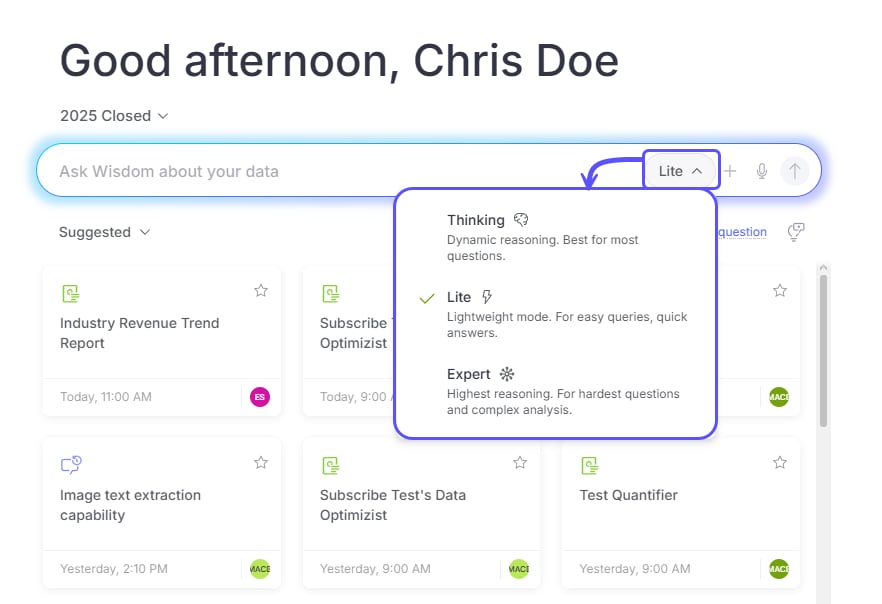
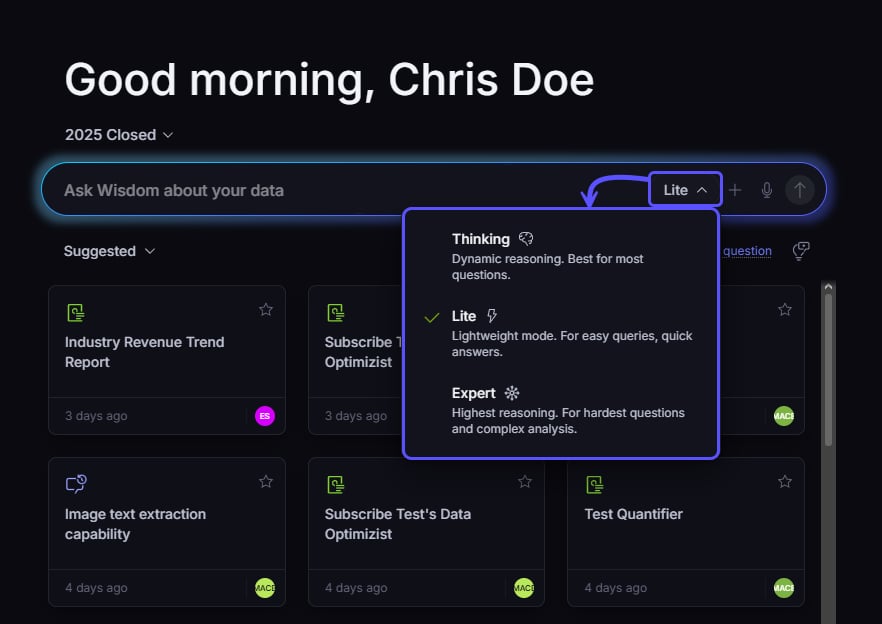
The earlier Deep Analysis and Classic modes are deprecated. For the long-running, open-ended investigations you used Deep Analysis for, use Expert — it runs inside the normal chat flow, so you can watch the plan progress and answer clarifying questions along the way.
When WisdomAI asks you a question
If your question is ambiguous, the AI asks instead of guessing. A clarification appears just above the chat input with the likely interpretations as clickable options. Click one and the analysis continues immediately, or type your own answer if none of the options fit.See how an answer was produced
Every answer shows its work. Click the activity indicator on a message to open the AI Workstream panel: a step-by-step list of what ran. Click any step to see its detail, including the exact SQL or Python that executed, the context it used, and the output table it produced. If web search is enabled for the domain, searches and fetched pages show up here too. This is the fastest way to verify a number before you rely on it.Work with answers and artifacts
Results open as tabs in a side panel next to the conversation:- Charts can be opened, restyled, and exported.
- Tables support instant filters, so you can narrow a result in place without re-asking.
- Files referenced in the analysis, including PDFs and images, preview in place.
Reports
For questions that deserve more than a table, the AI writes a report. An Open report card appears in the conversation; click it to watch the report stream in, section by section, in its own panel. From the report’s Share menu you can:- Export as PDF or Word (DOCX)
- Share via link, so teammates can open the report directly
Bring your own context
- Attach files from the + button: spreadsheets and CSVs, PDFs, images, and most text formats. Ask questions across them together with your connected data. See Use File Attachments in Chat.
- Reference a domain file from the same menu to pull an existing dataset or document into the conversation without re-uploading it.
- Paste images or code straight into the input.
Type less
- Type / to insert a skill your team has defined for recurring analysis patterns.
- Gray ghost text suggests a completion as you type; press Tab to accept it.
- Click the microphone to dictate your question instead of typing it.
Long-running questions
Deep questions take time. When a turn runs long, a Notify me when complete option appears above the input; enable it and your browser alerts you when the answer is ready, so you can work elsewhere in the meantime.Manage a conversation
- Share the conversation from the top bar and control who can open it.
- In this chat lists every question asked, so you can jump around long conversations.
- From a message you can copy a direct link to it or fork the chat from that point to explore a different direction.
- Rename, pin, duplicate, or delete the chat from its options menu.
Turn answers into assets
A good answer shouldn’t stay buried in a conversation:- Add to dashboard pins the result where your team will see it refreshed. See Turn Answers into Dashboards.
- When a question implies a recurring cadence (“every Monday”, “each month”), chat offers to create an Agent that runs it on schedule and delivers the result.
- When the AI learns something about your business worth keeping, it can propose saving it as domain knowledge for users with domain edit access to approve.
Next steps
Ask Better Questions
Build sharper natural-language questions to get more accurate answers.
Turn Answers into Dashboards
Compile key insights and visualizations into a shareable, narrative-driven report.