> ## Documentation Index
> Fetch the complete documentation index at: https://docs.wisdom.ai/llms.txt
> Use this file to discover all available pages before exploring further.
# Turn Answers into Dashboards
Dashboards provide a centralized view of your key business metrics and data visualizations, transforming individual responses into a live reporting hub. You can create Dashboards directly from Chat Responses or from the Dashboard Editor interface. With Dashboards, you can:
* Create dynamic narratives using your data.
* Customize layouts and visuals from responses to suit your audience.
* Share updates that **automatically reflect the changes** in your datasets.
Follow this guide to start building Dashboards and communicate insights clearly and effectively.
## Create Dashboards from chat responses
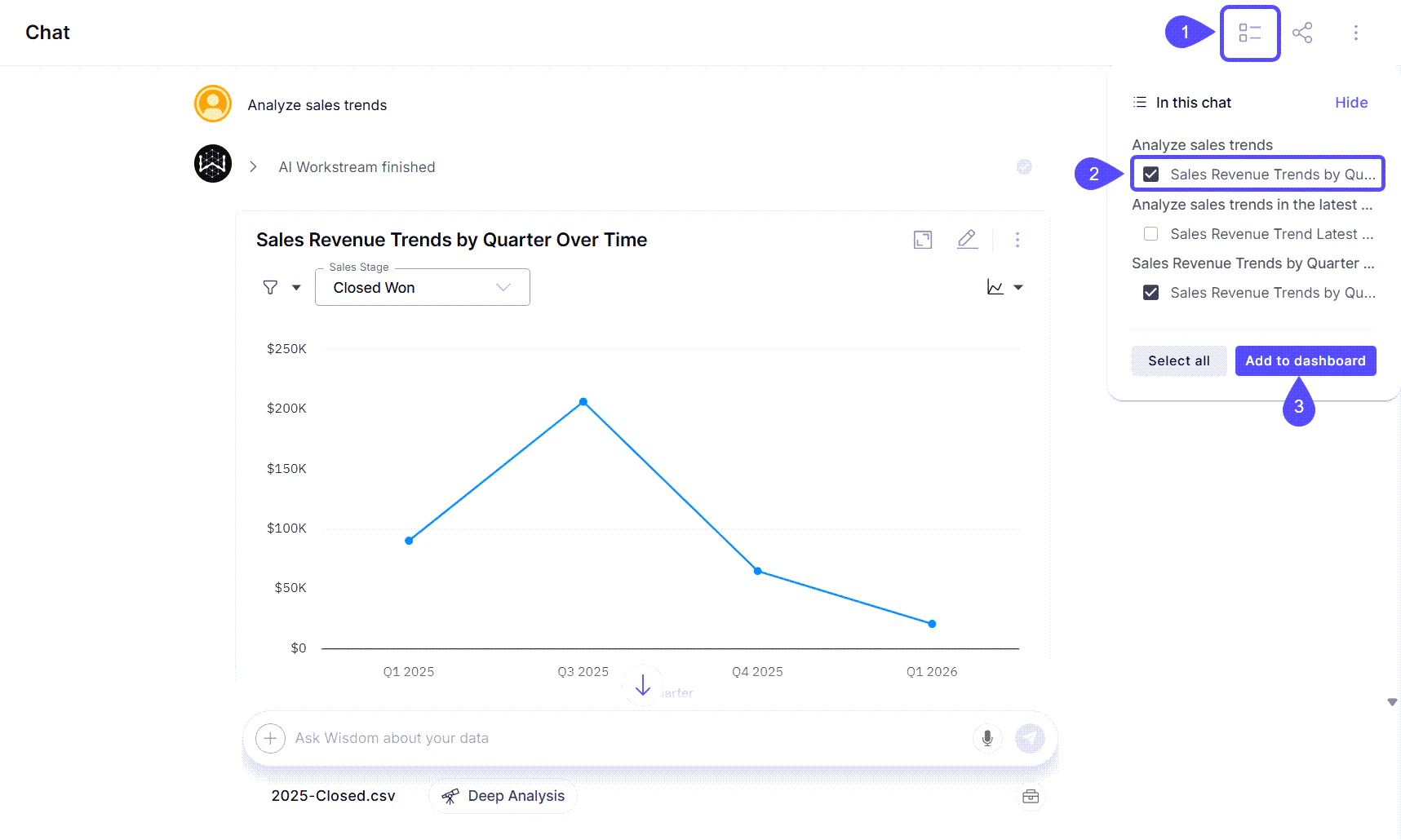
1. Within your chat window, click on the contextual menu icon labeled "In this chat."
2. Select one or more **answers** that you would like to include in your Dashboard.
Click **Select all** to add all the chat responses at once.
3. Click on **Add to dashboard**.
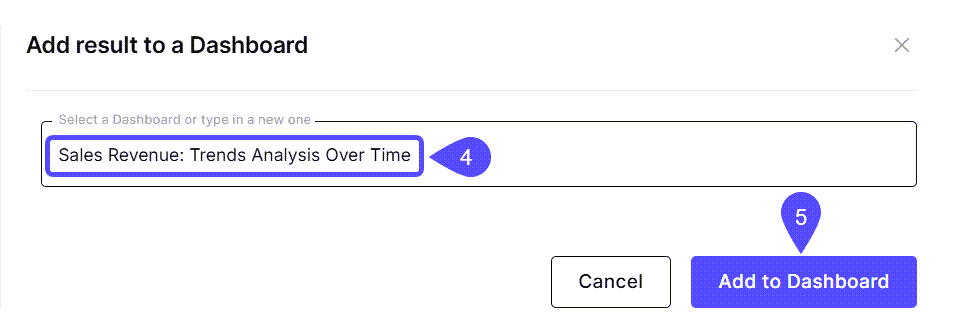
 4. In the modal window that opens, type the **title** of the new Dashboard or select an existing one.
5. Click the **Add to Dashboard** button. Now, you can find it under the **Dashboards** tab in the sidebar to begin sharing insights or scheduling updates.
4. In the modal window that opens, type the **title** of the new Dashboard or select an existing one.
5. Click the **Add to Dashboard** button. Now, you can find it under the **Dashboards** tab in the sidebar to begin sharing insights or scheduling updates.
 ## Create Dashboards from the Editor
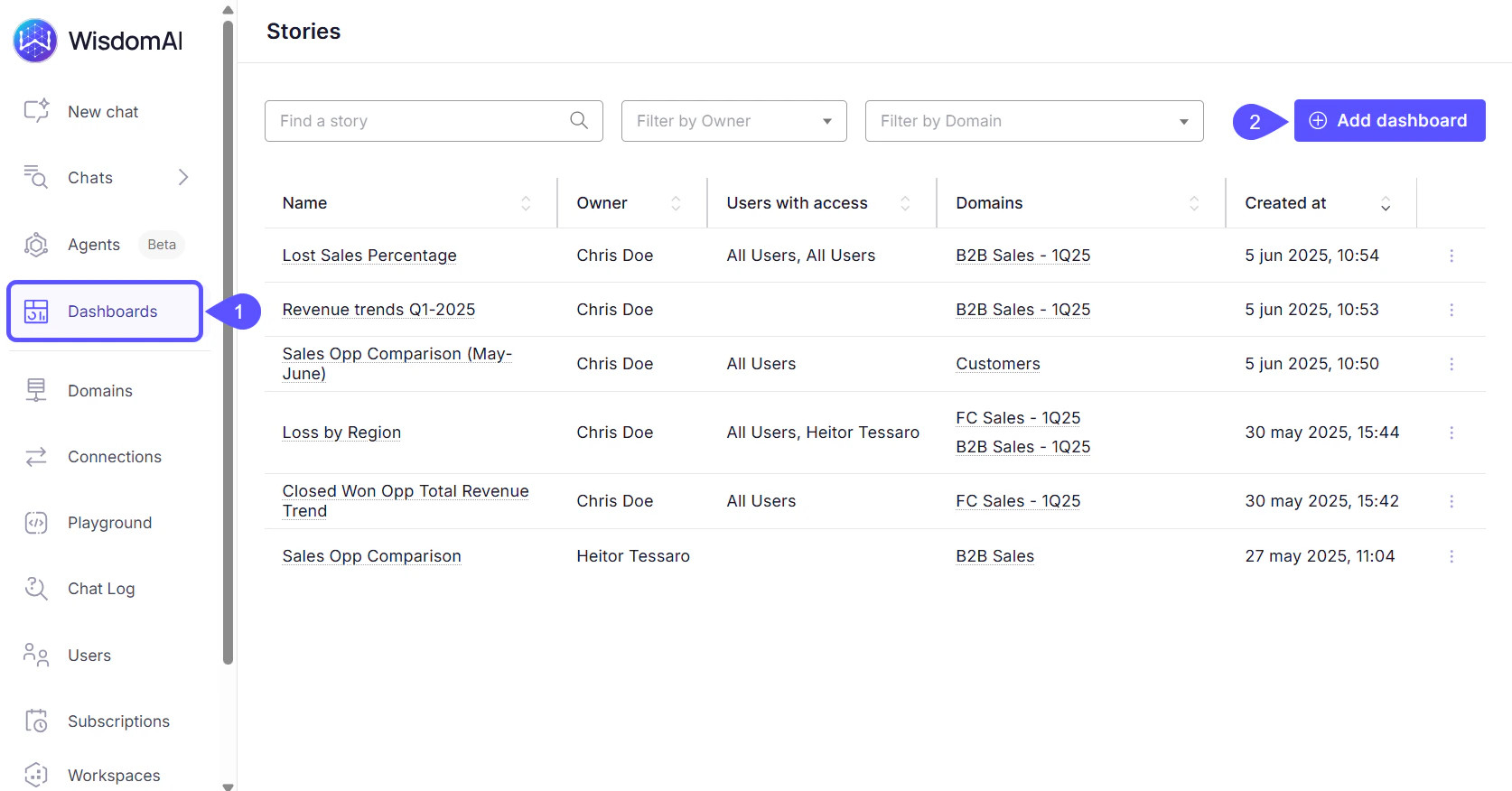
1. Open **Dashboards** in the left sidebar.
2. Click on the **Add Dashboard** button.
## Create Dashboards from the Editor
1. Open **Dashboards** in the left sidebar.
2. Click on the **Add Dashboard** button.
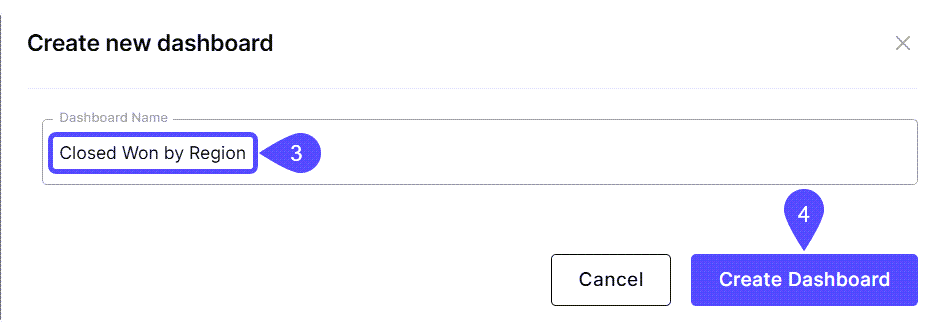
 3. Add a relevant **name** to your Dashboard.
4. Click on **Create Dashboard**.
3. Add a relevant **name** to your Dashboard.
4. Click on **Create Dashboard**.
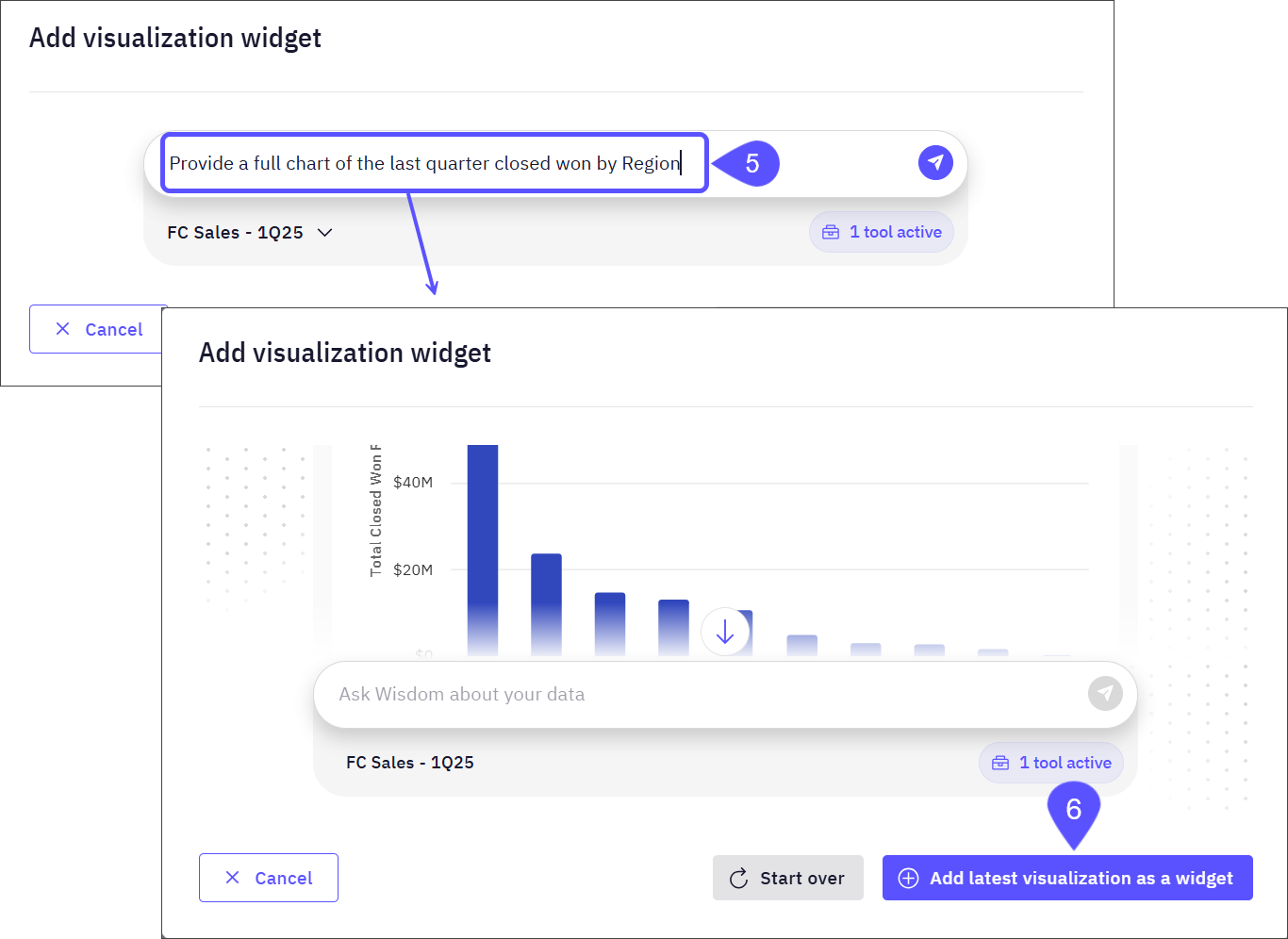
 5. The **Add visualization widget** modal window will open. In this window, you can ask WisdomAI a question about your data in natural language. Based on your question and query, WisdomAI may generate a visual representation, such as a chart or graph, that you can review and add directly to the Dashboard.
6. Click on the **Add latest visualization as a widget** button to save the response (a chart in this example) in the Dashboard.
5. The **Add visualization widget** modal window will open. In this window, you can ask WisdomAI a question about your data in natural language. Based on your question and query, WisdomAI may generate a visual representation, such as a chart or graph, that you can review and add directly to the Dashboard.
6. Click on the **Add latest visualization as a widget** button to save the response (a chart in this example) in the Dashboard.
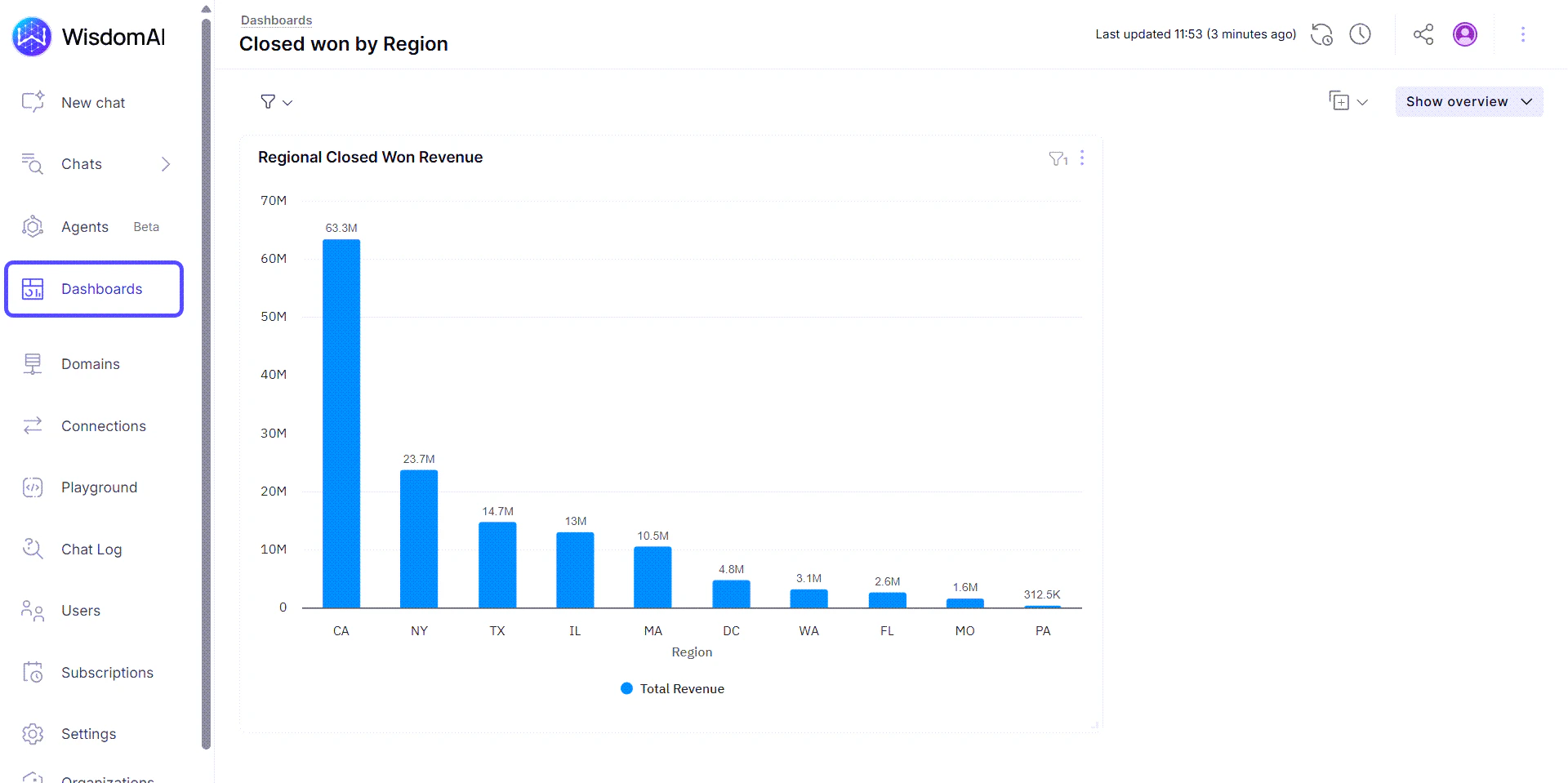
 Your Dashboard has now been created and saved. You can find it within the Dashboards tab.
 ## Next steps
Set up automated notifications to keep stakeholders updated with the latest dashboard insights.
Learn how to share your dashboards with others and manage who can view or edit them.
## Next steps
Set up automated notifications to keep stakeholders updated with the latest dashboard insights.
Learn how to share your dashboards with others and manage who can view or edit them.