> ## Documentation Index
> Fetch the complete documentation index at: https://docs.wisdom.ai/llms.txt
> Use this file to discover all available pages before exploring further.
# Request Help from Admin
The Request Help from Admin feature allows end-users to flag inadequate AI responses and request manual intervention from an administrator. When a user submits a request, the team receives a notification in a configured Slack channel containing the context needed to resolve the issue.
## Before you begin
Make sure you have a Slack workspace integrated with your account. See the [Connect to Slack](/integrations/connect-to-slack) page.
## Configure the Admin Help Channel
Configuration is managed at the Organization level. This allows you to route help requests from different workspaces to different Slack channels.
1. In the sidebar, click **Settings**.
2. Select **Notifications** from the settings menu.
3. In the text field, configure the Slack channel where you want to receive requests and click **Save**.
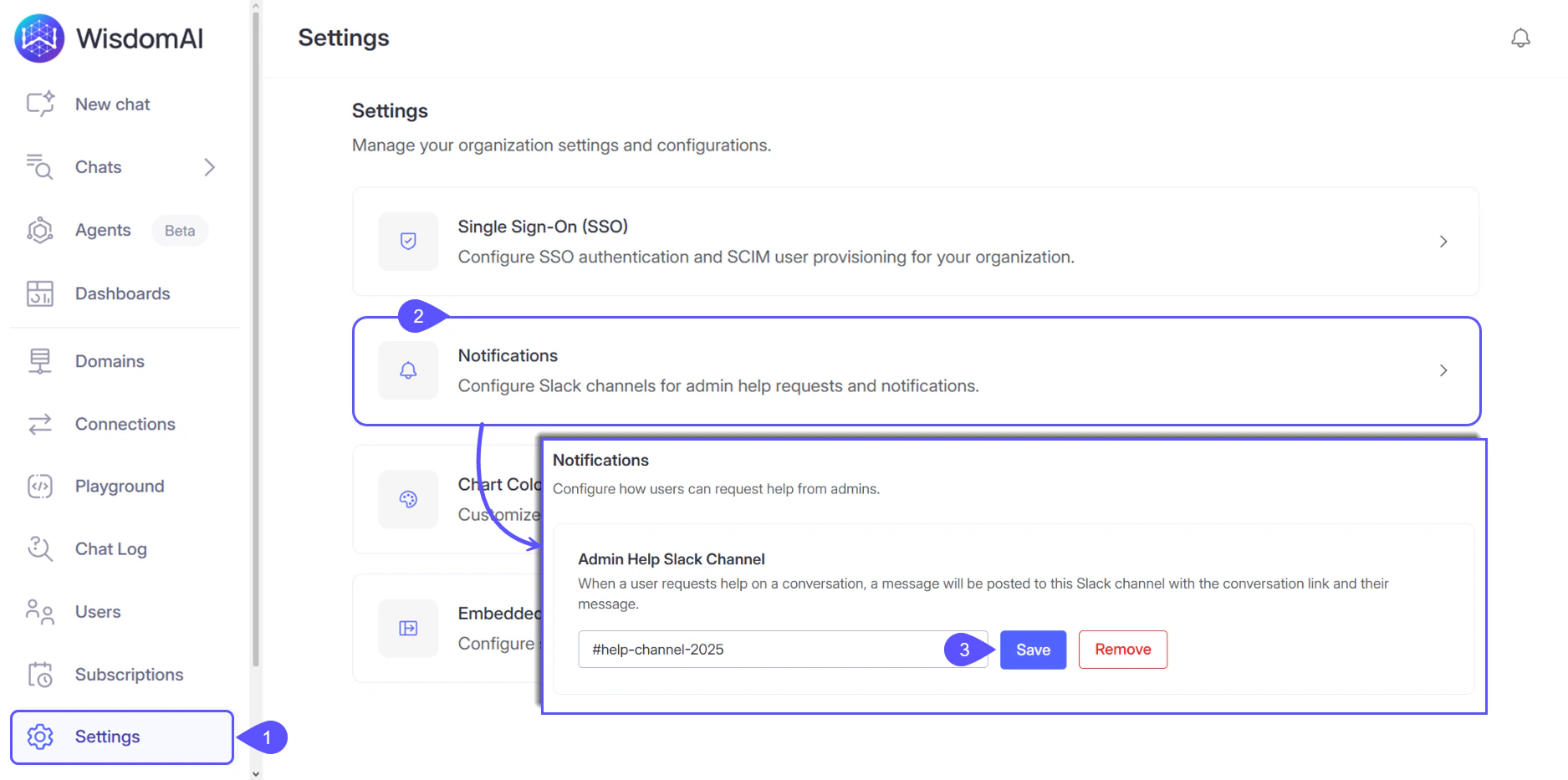
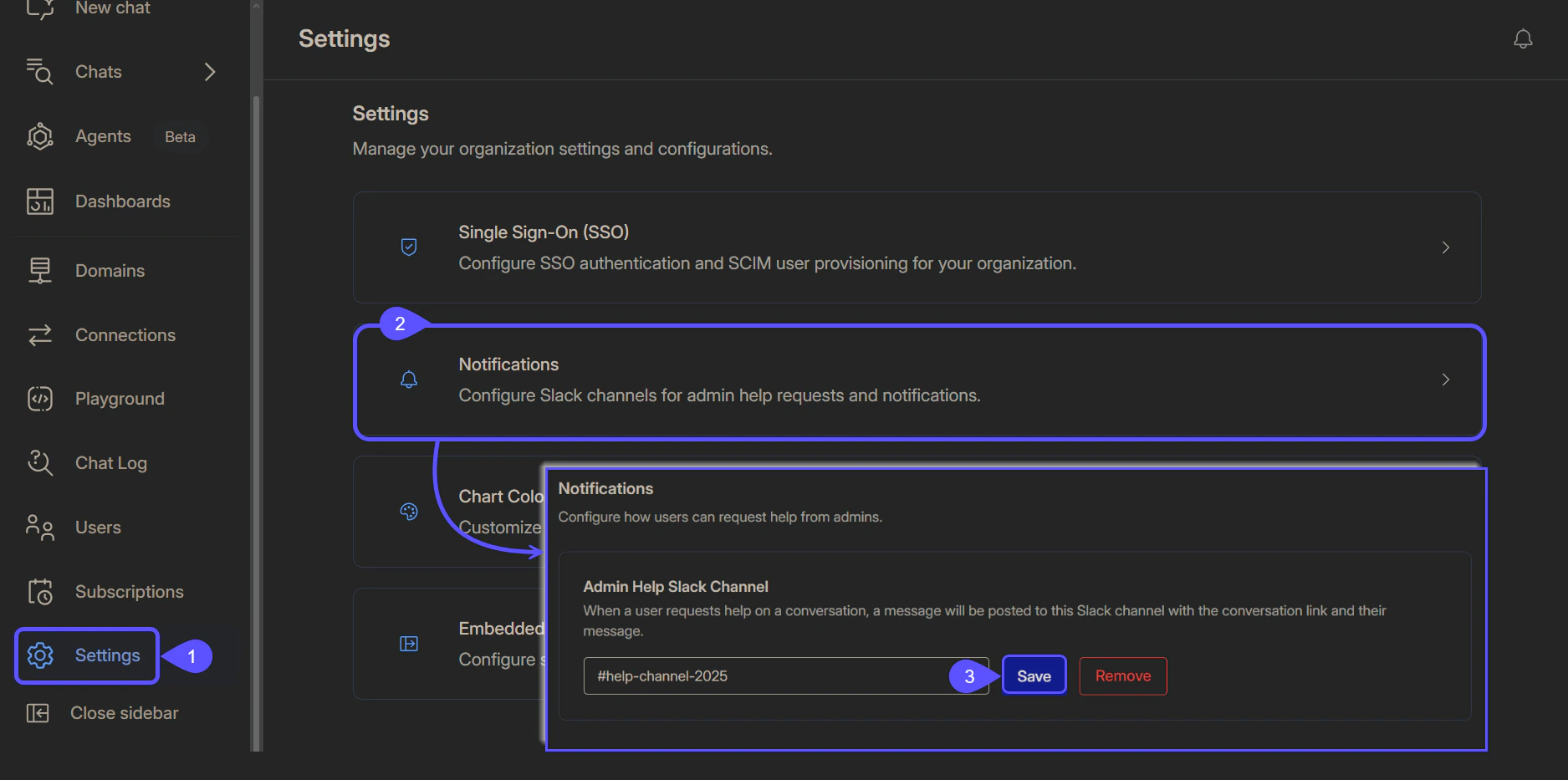 4. A confirmation message, "Slack notification channel saved" will appear in the top-right corner of the screen.
## How to request help
If you received an incorrect or incomplete response from the AI, you can trigger a help request directly from the chat interface.
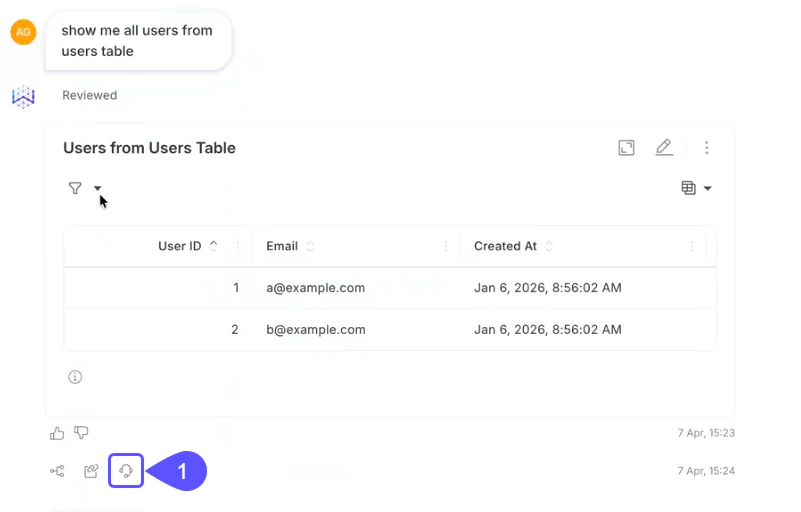
1. Below the AI response, you can click the "Ask for Help" **headset icon**.
4. A confirmation message, "Slack notification channel saved" will appear in the top-right corner of the screen.
## How to request help
If you received an incorrect or incomplete response from the AI, you can trigger a help request directly from the chat interface.
1. Below the AI response, you can click the "Ask for Help" **headset icon**.
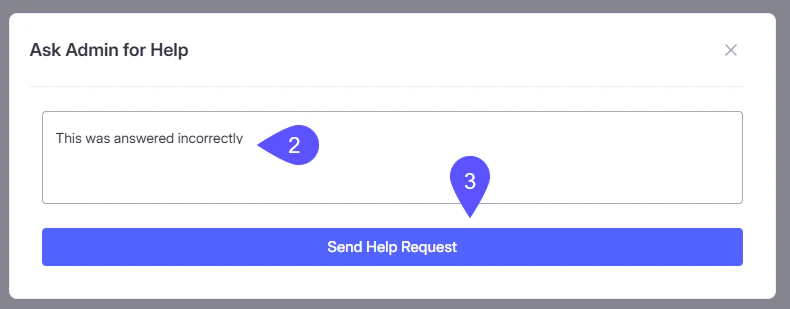
 2. A modal titled **Ask Admin for Help** will appear. You can describe what went wrong (e.g., "This was answered incorrectly").
3. Click **Send Help Request,** and the Admin receives it on the configured channel.
2. A modal titled **Ask Admin for Help** will appear. You can describe what went wrong (e.g., "This was answered incorrectly").
3. Click **Send Help Request,** and the Admin receives it on the configured channel.
 4. A confirmation message, "Help request sent to admin" will appear in the top-right corner of the screen.
## Admin notification
Once submitted, the Slack notification appears in the configured channel as follows:
```text theme={null}
{User Name} requires assistance on conversation: (Link to Conversation)
{User message}: This was answered incorrectly.
```
## Next steps
Learn how to connect WisdomAI to Slack.
Learn how to improve WisdomAI responses.
4. A confirmation message, "Help request sent to admin" will appear in the top-right corner of the screen.
## Admin notification
Once submitted, the Slack notification appears in the configured channel as follows:
```text theme={null}
{User Name} requires assistance on conversation: (Link to Conversation)
{User message}: This was answered incorrectly.
```
## Next steps
Learn how to connect WisdomAI to Slack.
Learn how to improve WisdomAI responses.