> ## Documentation Index
> Fetch the complete documentation index at: https://docs.wisdom.ai/llms.txt
> Use this file to discover all available pages before exploring further.
# Connected Apps
> Sign in to OAuth-secured apps so WisdomAI chat agents can act on your behalf.
Connected Apps is where you sign in to the OAuth-secured apps your administrator has set up, so WisdomAI's chat agents can call those tools on your behalf when answering your questions.
Your connections are personal to you. Signing in to or out of an app only affects your own access; other users in the workspace are unaffected.
## Before you start
Every user can manage their own connected apps. No special role is required.
The apps you can sign in to are the OAuth-secured [MCP server](/getting-started/connect-data-sources/connect-mcp-server) connections that an administrator has added on the **Connections** page. If no apps are listed, ask your workspace admin to add one.
## How connected apps work
When an administrator adds an MCP server connection that uses **OAuth** authentication, each user must individually authorize WisdomAI to access it. WisdomAI never stores a single shared credential for these apps.
The Connected Apps page is where you grant that authorization ahead of time. Once you sign in, your chat agents can use the app's tools during chat without interrupting you to authenticate. You can also sign in on demand. If you ask a question that needs an app you haven't connected, WisdomAI prompts you to connect during the chat session.
## Open Connected Apps
1. In the left-hand navigation, click the **Settings** icon.
2. On the Settings page, select **Connected Apps**.
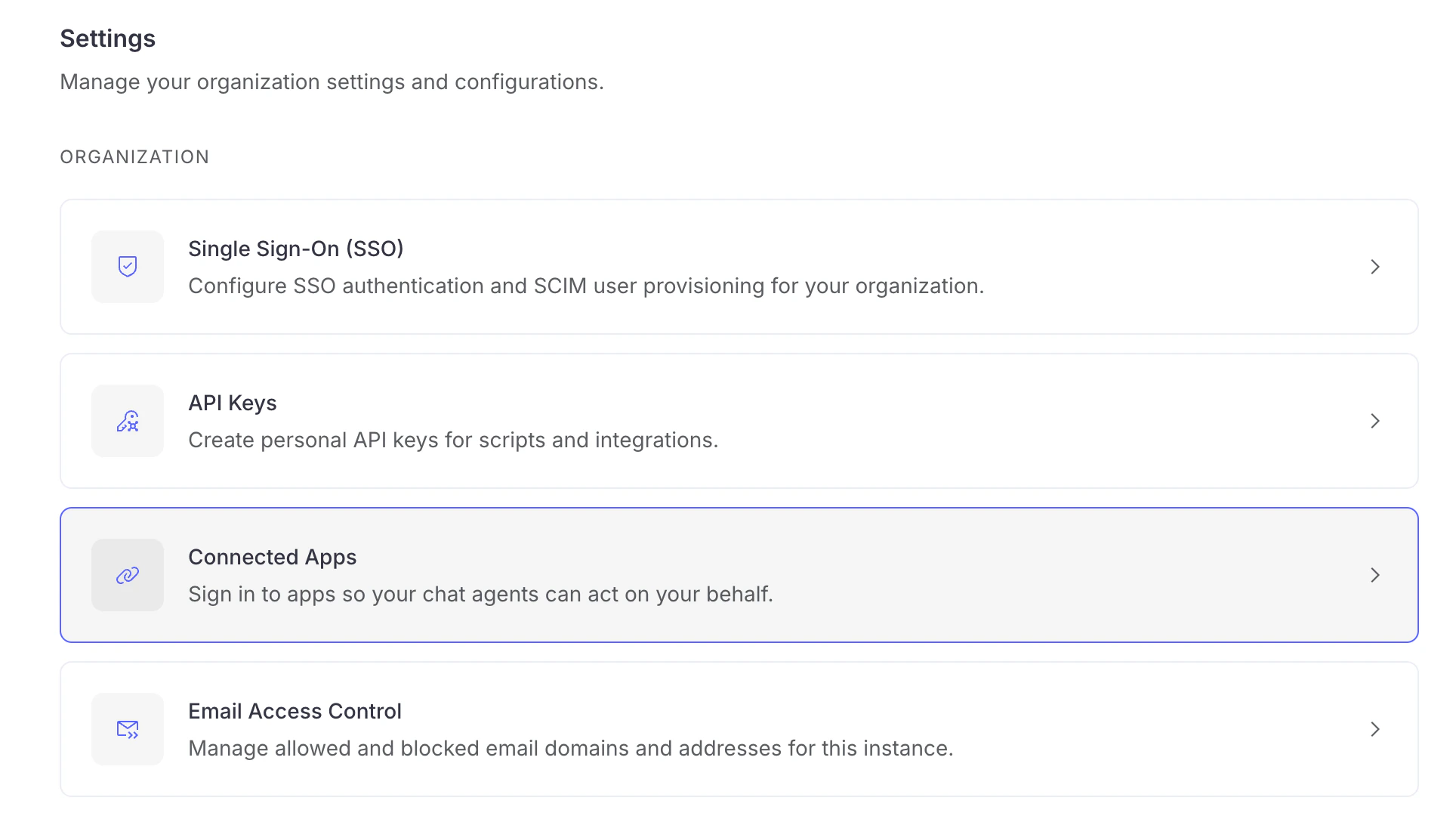 The page groups apps into two collapsible sections, each showing a count:
* **Connected**: Apps you have signed in to.
* **Available to connect**: Apps you can sign in to but haven't yet.
The page groups apps into two collapsible sections, each showing a count:
* **Connected**: Apps you have signed in to.
* **Available to connect**: Apps you can sign in to but haven't yet.
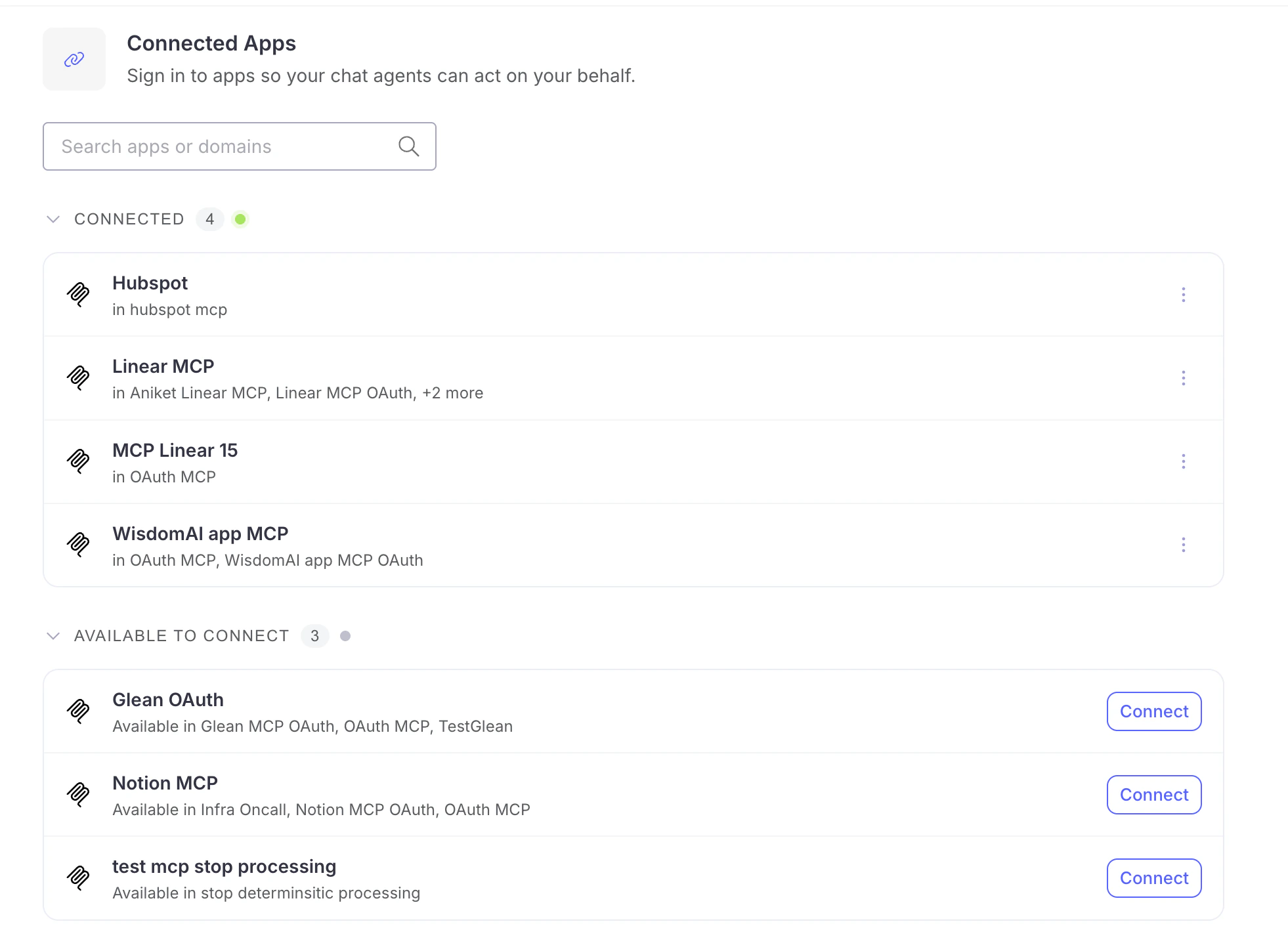 Each row shows the app's name and the domains it belongs to (for example, *in Sales, Marketing*). Use the **Search apps or domains** box to filter the list.
## Connect an app
1. Find the app under **Available to connect**.
2. Click **Connect**.
3. A secure popup opens. Authorize WisdomAI to access the app.
4. On success, the app moves to the **Connected** section.
You don't have to connect everything in advance. When a chat question needs an app you haven't signed in to, WisdomAI shows a **Connect** prompt right in the conversation. See [Validate the connection](/getting-started/connect-data-sources/connect-mcp-server#validate-the-connection).
## Reconnect an app
Use **Reconnect** if your access has stopped working or you need to authorize again — for example, to approve updated permissions or if you accidentally authenticated via a different account.
1. In the **Connected** section, open the **⋮** (more) menu on the app's row.
2. Select **Reconnect**.
3. Authorize WisdomAI again in the popup.
Reconnecting first revokes your existing access token for the app, then runs the sign-in flow again.
## Disconnect an app
1. In the **Connected** section, open the **⋮** (more) menu on the app's row.
2. Select **Disconnect**.
3. In the **Disconnect from \?** dialog, click **Disconnect**.
Each row shows the app's name and the domains it belongs to (for example, *in Sales, Marketing*). Use the **Search apps or domains** box to filter the list.
## Connect an app
1. Find the app under **Available to connect**.
2. Click **Connect**.
3. A secure popup opens. Authorize WisdomAI to access the app.
4. On success, the app moves to the **Connected** section.
You don't have to connect everything in advance. When a chat question needs an app you haven't signed in to, WisdomAI shows a **Connect** prompt right in the conversation. See [Validate the connection](/getting-started/connect-data-sources/connect-mcp-server#validate-the-connection).
## Reconnect an app
Use **Reconnect** if your access has stopped working or you need to authorize again — for example, to approve updated permissions or if you accidentally authenticated via a different account.
1. In the **Connected** section, open the **⋮** (more) menu on the app's row.
2. Select **Reconnect**.
3. Authorize WisdomAI again in the popup.
Reconnecting first revokes your existing access token for the app, then runs the sign-in flow again.
## Disconnect an app
1. In the **Connected** section, open the **⋮** (more) menu on the app's row.
2. Select **Disconnect**.
3. In the **Disconnect from \?** dialog, click **Disconnect**.
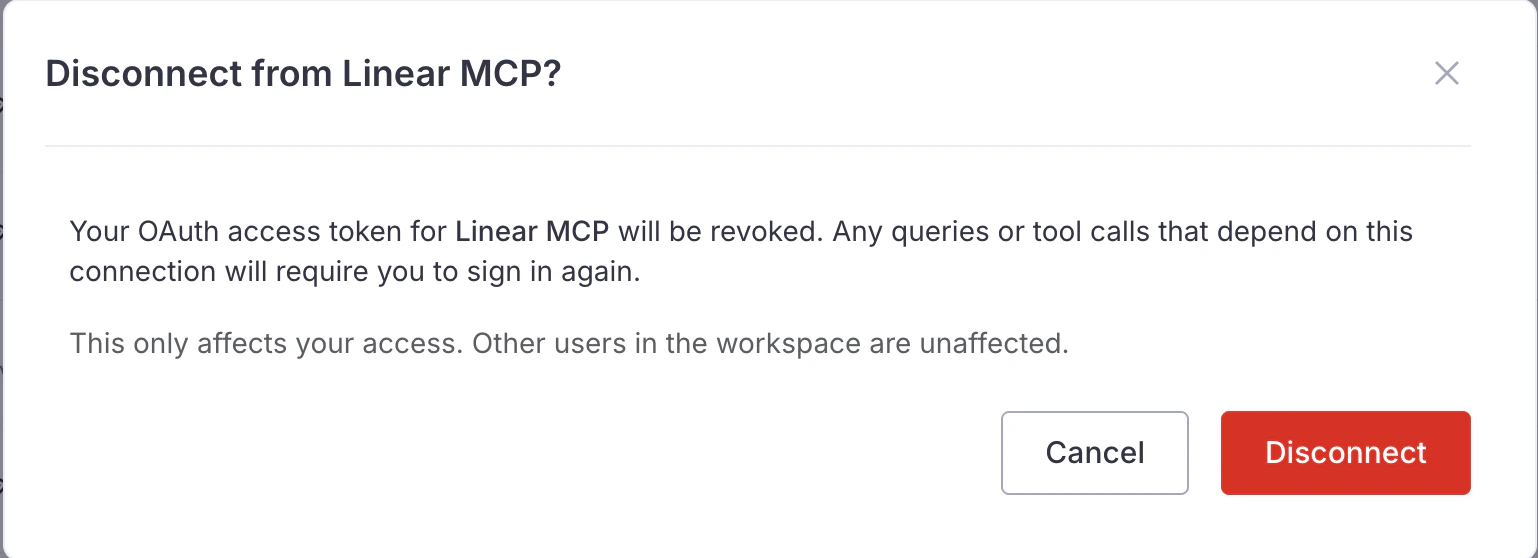 Disconnecting revokes your OAuth access token for that app. Any queries or tool calls that depend on the connection will require you to sign in again. This only affects your access — other users in the workspace are unaffected.
## No apps available
If the page shows **Nothing to sign in to yet**, no OAuth-secured apps have been set up for your workspace.
* If you can add connections, add an OAuth-secured MCP server from the [Connections page](/getting-started/connect-data-sources/connect-mcp-server) so your chat agents can act on your behalf.
* Otherwise, ask your workspace admin to add one.
## Next steps
Add an OAuth-secured MCP server that users can sign in to.
Learn how WisdomAI works with the Model Context Protocol.
Create personal bearer tokens for programmatic access.
Jump to any page or action with a single shortcut.
Disconnecting revokes your OAuth access token for that app. Any queries or tool calls that depend on the connection will require you to sign in again. This only affects your access — other users in the workspace are unaffected.
## No apps available
If the page shows **Nothing to sign in to yet**, no OAuth-secured apps have been set up for your workspace.
* If you can add connections, add an OAuth-secured MCP server from the [Connections page](/getting-started/connect-data-sources/connect-mcp-server) so your chat agents can act on your behalf.
* Otherwise, ask your workspace admin to add one.
## Next steps
Add an OAuth-secured MCP server that users can sign in to.
Learn how WisdomAI works with the Model Context Protocol.
Create personal bearer tokens for programmatic access.
Jump to any page or action with a single shortcut.