> ## Documentation Index
> Fetch the complete documentation index at: https://docs.wisdom.ai/llms.txt
> Use this file to discover all available pages before exploring further.
# API Keys
API keys are bearer tokens that let scripts, integrations, and tools authenticate with the WisdomAI API without going through an interactive login. You manage your keys from the **API Keys** settings page.
Each key **inherits the permissions of the person who created it** — a key can do exactly what its creator can do, and no more. Treat every key like a password.
## Before you start
Every WisdomAI user can create and manage their own API keys — no special role is required. What a key can access is determined by its creator's permissions.
By default, you see only the keys you created. Administrators can also see keys created by other users (see [View other users' keys](#view-other-users’-keys)).
## Open the API Keys page
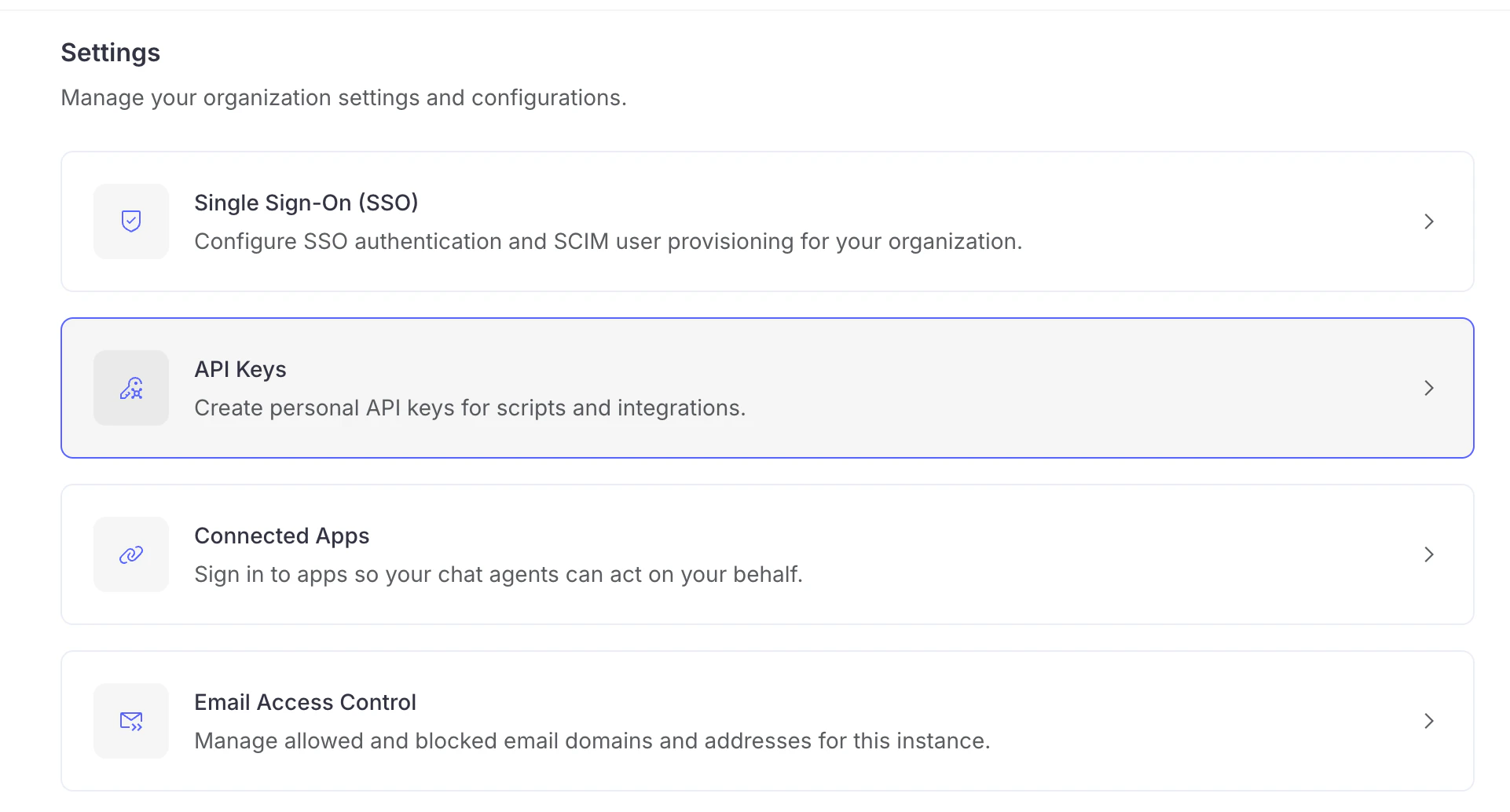
1. In the left-hand navigation, click the **Settings** icon.
2. On the Settings page, select **API Keys**.
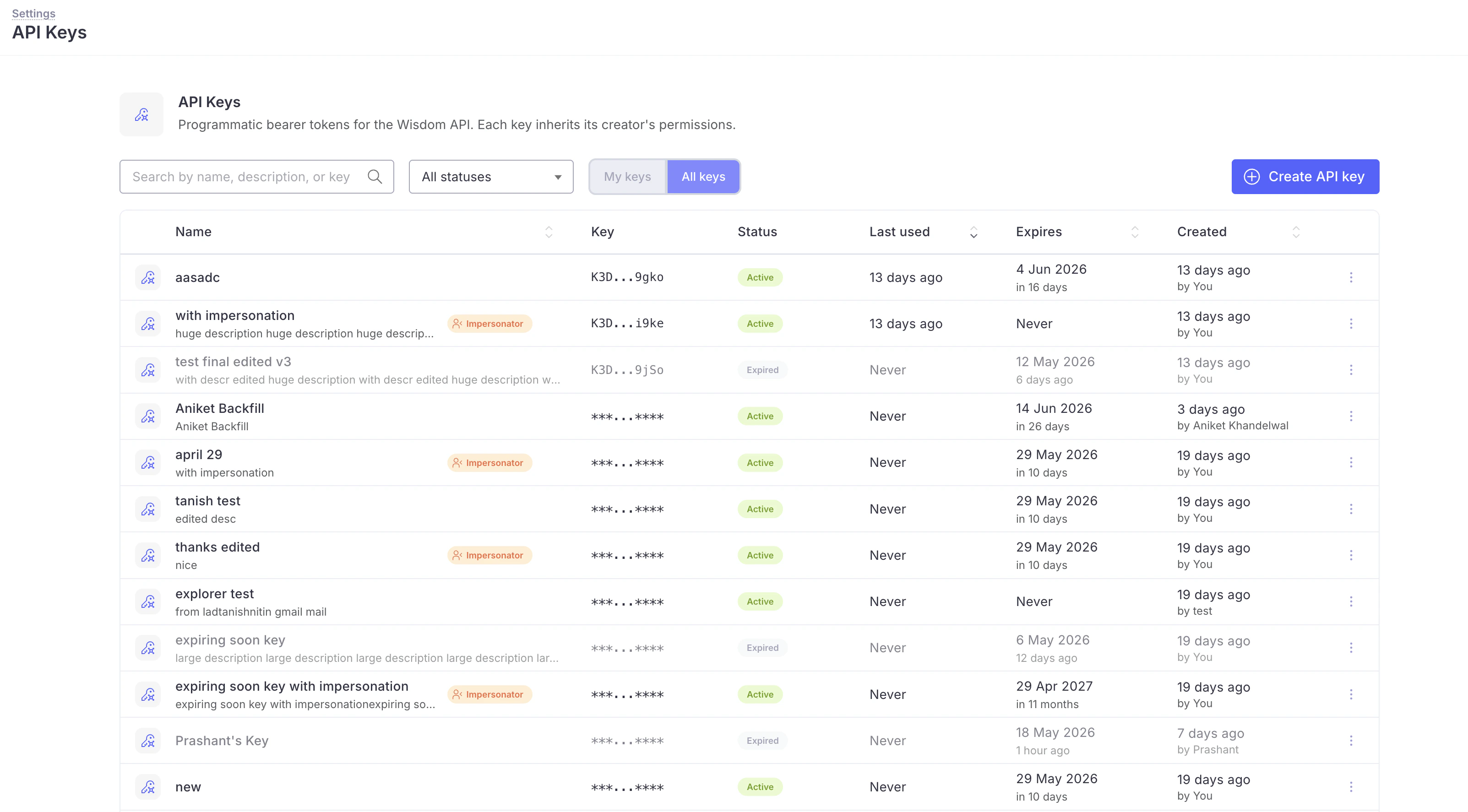
 The page lists your existing keys in a table. Each row shows the key's name and description, a masked fragment of the key, its status, when it was last used, when it expires, and when it was created.
 ## Create an API key
1. Click **Create API key** in the upper-right of the table.
2. In the **Create API key** dialog, fill in the fields:
* **Name** (required) — a label that identifies where the key is used, for example `Claude Code key` or `Embedding Dashboard`.
* **Description** (optional) — a note about what the key is for.
* **Expiration** — how long the key stays valid. Choose **7 days**, **30 days**, **90 days**, **180 days**, **1 year**, or **Never**. The dialog shows the exact expiry date below the field.
* **Allow impersonation** (optional) — lets the key act on behalf of other users. This toggle only appears for embedded-application use cases. See [Impersonation keys for embedded applications](#impersonation-keys-for-embedded-applications).
3. Click **Create**.
## Create an API key
1. Click **Create API key** in the upper-right of the table.
2. In the **Create API key** dialog, fill in the fields:
* **Name** (required) — a label that identifies where the key is used, for example `Claude Code key` or `Embedding Dashboard`.
* **Description** (optional) — a note about what the key is for.
* **Expiration** — how long the key stays valid. Choose **7 days**, **30 days**, **90 days**, **180 days**, **1 year**, or **Never**. The dialog shows the exact expiry date below the field.
* **Allow impersonation** (optional) — lets the key act on behalf of other users. This toggle only appears for embedded-application use cases. See [Impersonation keys for embedded applications](#impersonation-keys-for-embedded-applications).
3. Click **Create**.
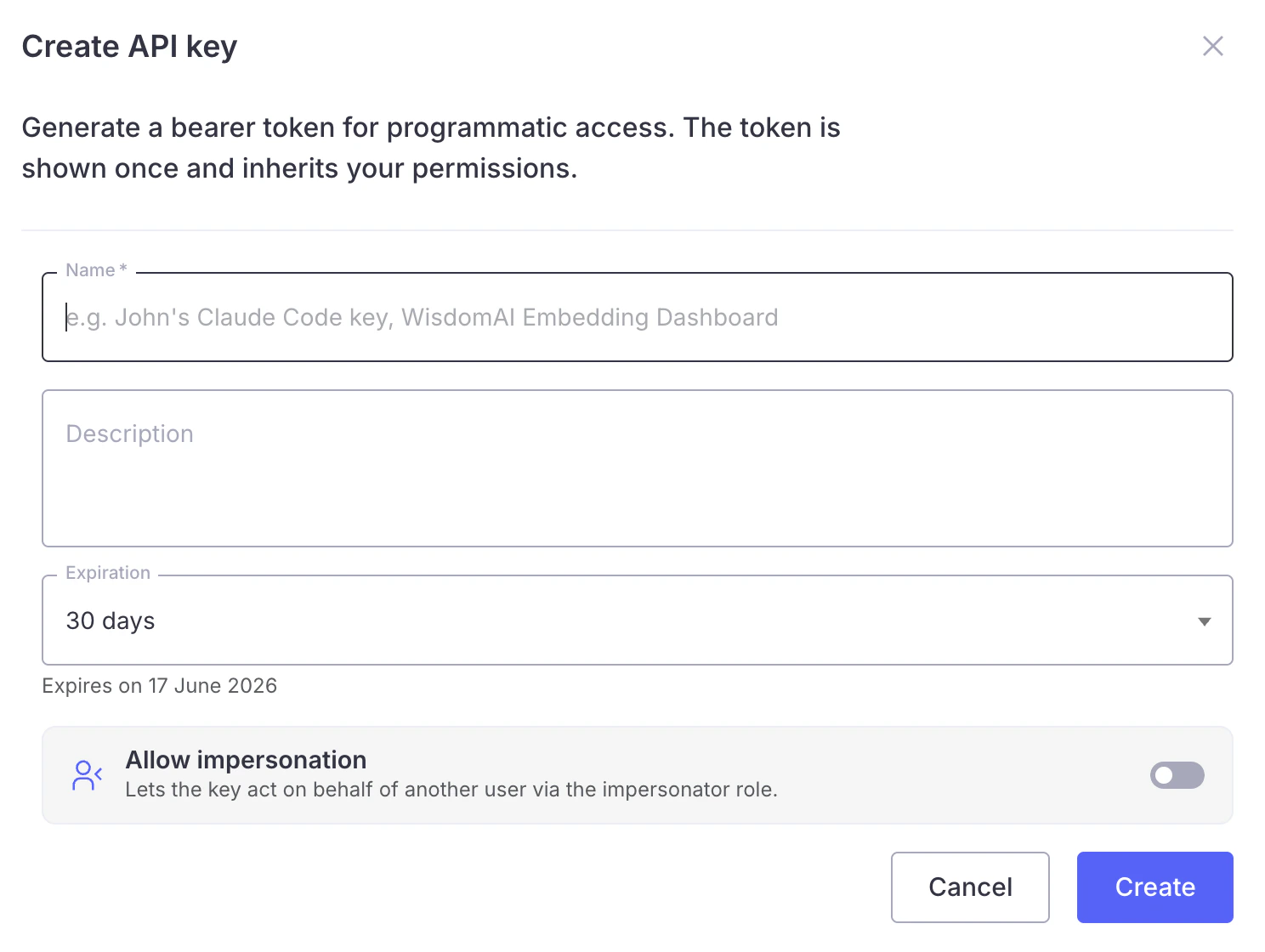 The default expiration is **30 days**. Short-lived keys that you rotate regularly are safer than long-lived ones — only choose **Never** when an integration genuinely cannot support rotation.
### Copy your key
After you click **Create**, WisdomAI shows the new token once, on the **API key created** screen.
1. Click the **copy** icon next to the token, or select the text and copy it manually.
2. Store the token somewhere secure, such as a secrets manager or your integration's environment configuration.
3. Click **Done**.
The full token is shown **only once**. WisdomAI does not store it in a form that can be displayed again. If you lose the token, [revoke the key](#revoke-an-api-key) and create a new one.
## Use an API key
Pass the token as a bearer token in the `Authorization` header of your API requests:
```text theme={null}
Authorization: Bearer YOUR_API_KEY
```
See the [GraphQL API](/integrations/graphql-api/GraphQL-API) and [MCP Server](/integrations/mcp-server/MCP-Server) documentation for full request examples.
## Impersonation keys for embedded applications
If you embed WisdomAI inside your own application, your backend needs a way to sign each of your end users into WisdomAI. An **impersonation key** makes this possible: it can act on behalf of other users.
Your server uses an impersonation key as the access token for the [`impersonateUser`](/integrations/graphql-api/mutations/auth/impersonate-user) mutation, which returns a short-lived JWT for a specific user. You then pass that JWT into the WisdomAI iframe. See [Impersonate User](/integrations/graphql-api/mutations/auth/impersonate-user) for the full embedded session flow.
### Create an impersonation key
In the **Create API key** dialog, turn on the **Allow impersonation** toggle before you click **Create**.
The default expiration is **30 days**. Short-lived keys that you rotate regularly are safer than long-lived ones — only choose **Never** when an integration genuinely cannot support rotation.
### Copy your key
After you click **Create**, WisdomAI shows the new token once, on the **API key created** screen.
1. Click the **copy** icon next to the token, or select the text and copy it manually.
2. Store the token somewhere secure, such as a secrets manager or your integration's environment configuration.
3. Click **Done**.
The full token is shown **only once**. WisdomAI does not store it in a form that can be displayed again. If you lose the token, [revoke the key](#revoke-an-api-key) and create a new one.
## Use an API key
Pass the token as a bearer token in the `Authorization` header of your API requests:
```text theme={null}
Authorization: Bearer YOUR_API_KEY
```
See the [GraphQL API](/integrations/graphql-api/GraphQL-API) and [MCP Server](/integrations/mcp-server/MCP-Server) documentation for full request examples.
## Impersonation keys for embedded applications
If you embed WisdomAI inside your own application, your backend needs a way to sign each of your end users into WisdomAI. An **impersonation key** makes this possible: it can act on behalf of other users.
Your server uses an impersonation key as the access token for the [`impersonateUser`](/integrations/graphql-api/mutations/auth/impersonate-user) mutation, which returns a short-lived JWT for a specific user. You then pass that JWT into the WisdomAI iframe. See [Impersonate User](/integrations/graphql-api/mutations/auth/impersonate-user) for the full embedded session flow.
### Create an impersonation key
In the **Create API key** dialog, turn on the **Allow impersonation** toggle before you click **Create**.
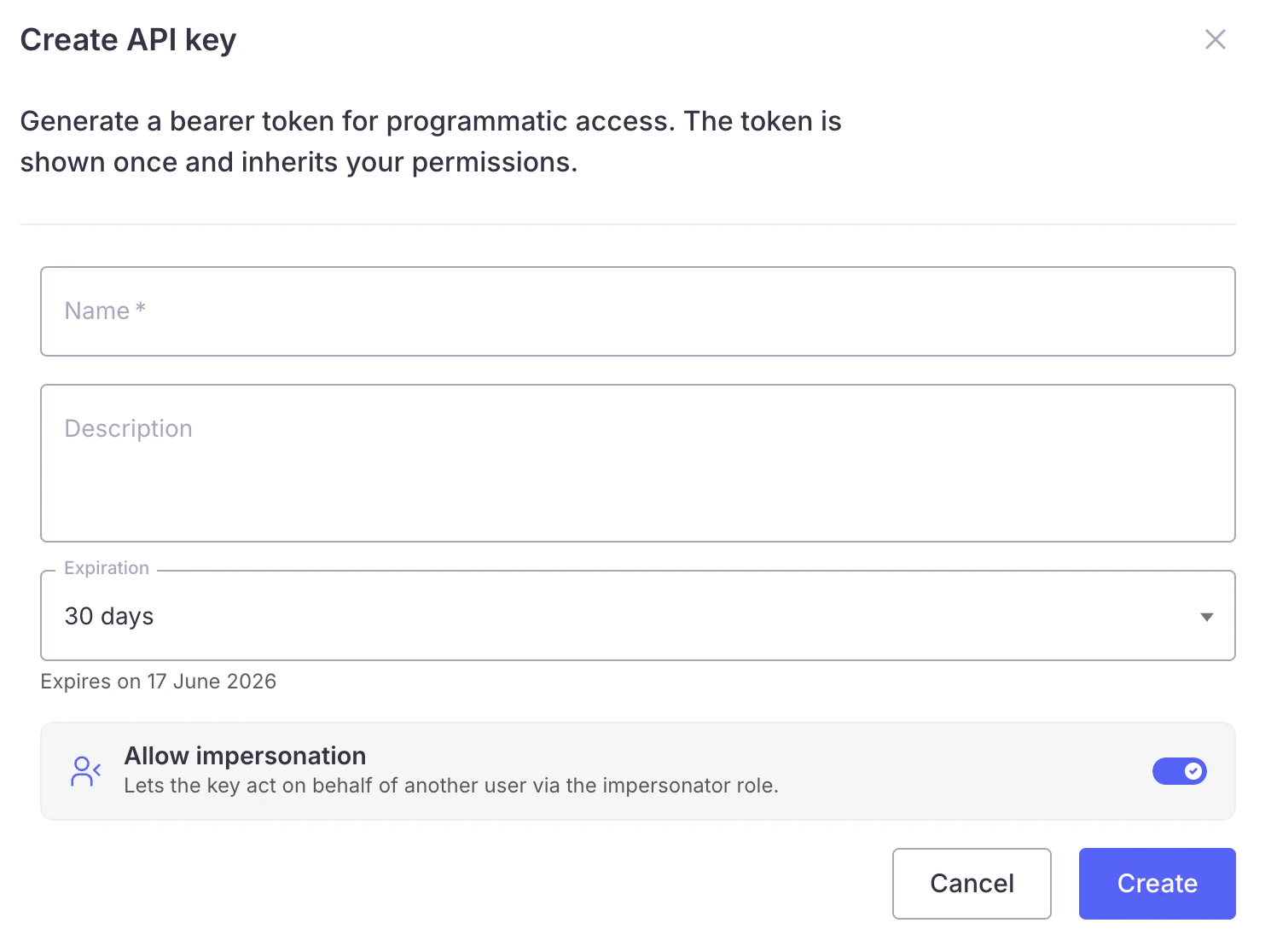 Keys created with this option are marked with an **Impersonator** badge in the table, so you can identify them at a glance.
The **Allow impersonation** toggle appears only when your deployment supports impersonation and your own account is permitted to grant it. If you're building an embedded integration and don't see the toggle, contact [WisdomAI support](/manage-account/contact-support).
Impersonation is set when the key is created — it cannot be added to or removed from an existing key. To change it, create a new key and revoke the old one.
An impersonation key can authenticate as any user in your organization, so it is highly privileged. Use it only from your server, never expose it in client-side code, and revoke it immediately if it may have been exposed.
## Understand key status
The **Status** column reflects how close a key is to expiring:
| Status | Meaning |
| :---------------- | :---------------------------------------------------------- |
| **Active** | The key is valid and can be used. |
| **Expiring soon** | The key expires within 7 days. Plan to rotate it. |
| **Expired** | The key has passed its expiration date and no longer works. |
Expired keys remain in the table for reference but cannot be used or edited. Revoked keys are removed from the table.
## Find a key
When you have many keys, use the controls above the table to narrow the list:
* **Search** — filter by name, description, or the masked key fragment.
* **Status** — show **All statuses**, or only **Active**, **Expiring soon**, or **Expired** keys.
## Edit an API key
You can update a key's **name** and **description** at any time. The token itself, its expiration, and its creator never change.
1. Click the **⋮** (more) menu at the end of the key's row.
2. Select **Edit API Key**.
3. Update the **Name** or **Description**.
4. Click **Save changes**.
Editing is disabled for expired keys. To replace an expired key, create a new one and revoke the old one.
## Revoke an API key
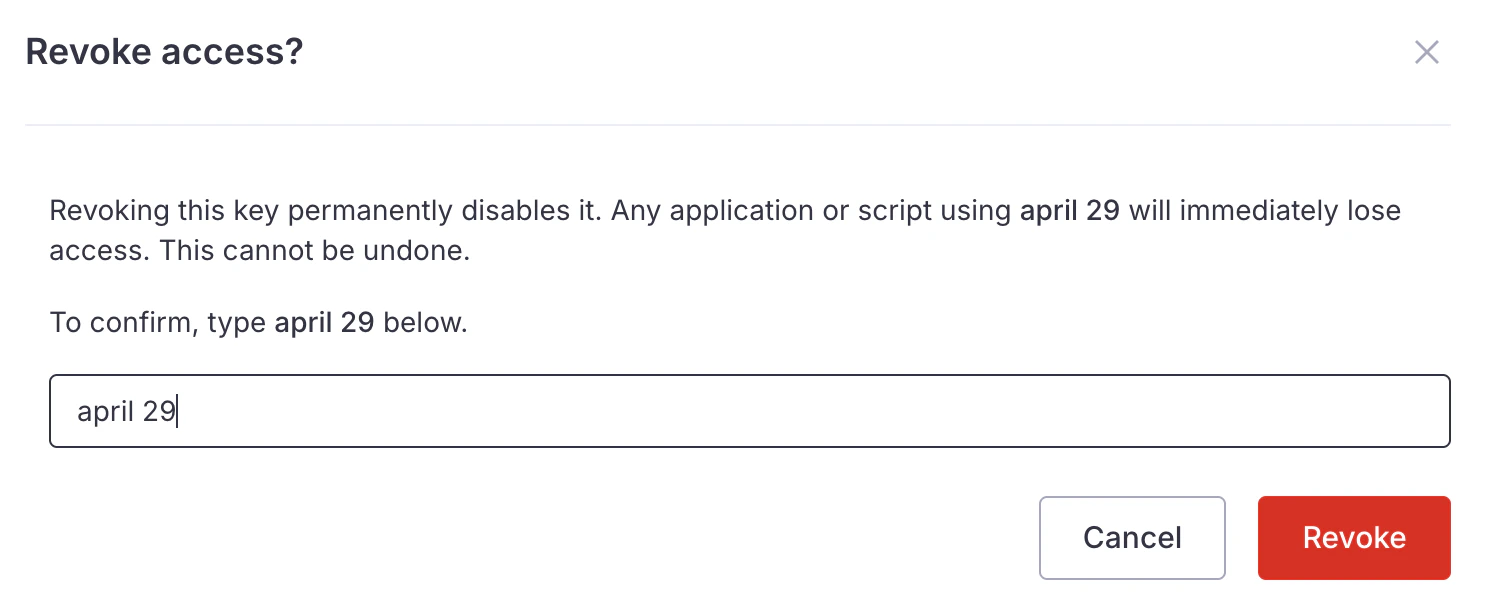
Revoking a key permanently disables it. Any application or script using that key immediately loses access.
1. Click the **⋮** (more) menu at the end of the key's row.
2. Select **Revoke API Key**.
3. In the **Revoke access?** dialog, type the key's name to confirm.
4. Click **Revoke**.
Revoking a key cannot be undone. Make sure no critical integration depends on the key before you revoke it.
Keys created with this option are marked with an **Impersonator** badge in the table, so you can identify them at a glance.
The **Allow impersonation** toggle appears only when your deployment supports impersonation and your own account is permitted to grant it. If you're building an embedded integration and don't see the toggle, contact [WisdomAI support](/manage-account/contact-support).
Impersonation is set when the key is created — it cannot be added to or removed from an existing key. To change it, create a new key and revoke the old one.
An impersonation key can authenticate as any user in your organization, so it is highly privileged. Use it only from your server, never expose it in client-side code, and revoke it immediately if it may have been exposed.
## Understand key status
The **Status** column reflects how close a key is to expiring:
| Status | Meaning |
| :---------------- | :---------------------------------------------------------- |
| **Active** | The key is valid and can be used. |
| **Expiring soon** | The key expires within 7 days. Plan to rotate it. |
| **Expired** | The key has passed its expiration date and no longer works. |
Expired keys remain in the table for reference but cannot be used or edited. Revoked keys are removed from the table.
## Find a key
When you have many keys, use the controls above the table to narrow the list:
* **Search** — filter by name, description, or the masked key fragment.
* **Status** — show **All statuses**, or only **Active**, **Expiring soon**, or **Expired** keys.
## Edit an API key
You can update a key's **name** and **description** at any time. The token itself, its expiration, and its creator never change.
1. Click the **⋮** (more) menu at the end of the key's row.
2. Select **Edit API Key**.
3. Update the **Name** or **Description**.
4. Click **Save changes**.
Editing is disabled for expired keys. To replace an expired key, create a new one and revoke the old one.
## Revoke an API key
Revoking a key permanently disables it. Any application or script using that key immediately loses access.
1. Click the **⋮** (more) menu at the end of the key's row.
2. Select **Revoke API Key**.
3. In the **Revoke access?** dialog, type the key's name to confirm.
4. Click **Revoke**.
Revoking a key cannot be undone. Make sure no critical integration depends on the key before you revoke it.
 ## View other users' keys
If you are an administrator, a **My keys / All keys** toggle appears next to the status filter:
* **My keys** — shows only the keys you created.
* **All keys** — shows keys created by everyone in the organization. The **Created** column adds the creator's name so you can tell keys apart.
This lets administrators audit and revoke keys across the organization — for example, when a teammate leaves.
## Security best practices
Create a separate key per script or integration, with a clear name. If one key is compromised, you can revoke it without disrupting everything else.
Prefer a fixed expiration over **Never**. Before a key reaches **Expiring soon**, create a replacement, update your integration, and revoke the old key.
Keep tokens in a secrets manager or environment variables — never commit them to source control or paste them into shared documents.
Because a key inherits its creator's permissions, an unused key is a standing risk. Revoke keys for retired integrations and for users who have left the organization.
## Next steps
Use your API key to query WisdomAI programmatically.
Connect WisdomAI to MCP-compatible tools and assistants.
Control which email domains and addresses can access your instance.
Learn how WisdomAI roles and permissions work.
## View other users' keys
If you are an administrator, a **My keys / All keys** toggle appears next to the status filter:
* **My keys** — shows only the keys you created.
* **All keys** — shows keys created by everyone in the organization. The **Created** column adds the creator's name so you can tell keys apart.
This lets administrators audit and revoke keys across the organization — for example, when a teammate leaves.
## Security best practices
Create a separate key per script or integration, with a clear name. If one key is compromised, you can revoke it without disrupting everything else.
Prefer a fixed expiration over **Never**. Before a key reaches **Expiring soon**, create a replacement, update your integration, and revoke the old key.
Keep tokens in a secrets manager or environment variables — never commit them to source control or paste them into shared documents.
Because a key inherits its creator's permissions, an unused key is a standing risk. Revoke keys for retired integrations and for users who have left the organization.
## Next steps
Use your API key to query WisdomAI programmatically.
Connect WisdomAI to MCP-compatible tools and assistants.
Control which email domains and addresses can access your instance.
Learn how WisdomAI roles and permissions work.