> ## Documentation Index
> Fetch the complete documentation index at: https://docs.wisdom.ai/llms.txt
> Use this file to discover all available pages before exploring further.
# Create a Skill
There are two ways to create a skill: directly through the Skills tab in domain settings, or by using the `skill-creator` system skill in chat to generate a complete draft.
## Before you begin
* You need domain write access (Administrator or Data Administrator) to create, edit, or delete skills. See [Access Management](/manage-account/access-management) for a full breakdown of roles and permissions.
* Explorers can trigger skill activation in chat, including explicit `/skill-name` invocation, but can't create, edit, or delete skills. They can also run `skill-creator` and get a full draft back in chat, but since Explorers do not have create or write access, the draft is not saved to the domain.
* Skills work best on top of well-configured domains. If a data source is poorly described or tables are not crawled, a skill cannot compensate for that. Set up your data model first. See [Advanced Data Modeling](/setting-up-wisdom-ai/advanced-data-modeling-creating-context).
## Create a skill from a domain
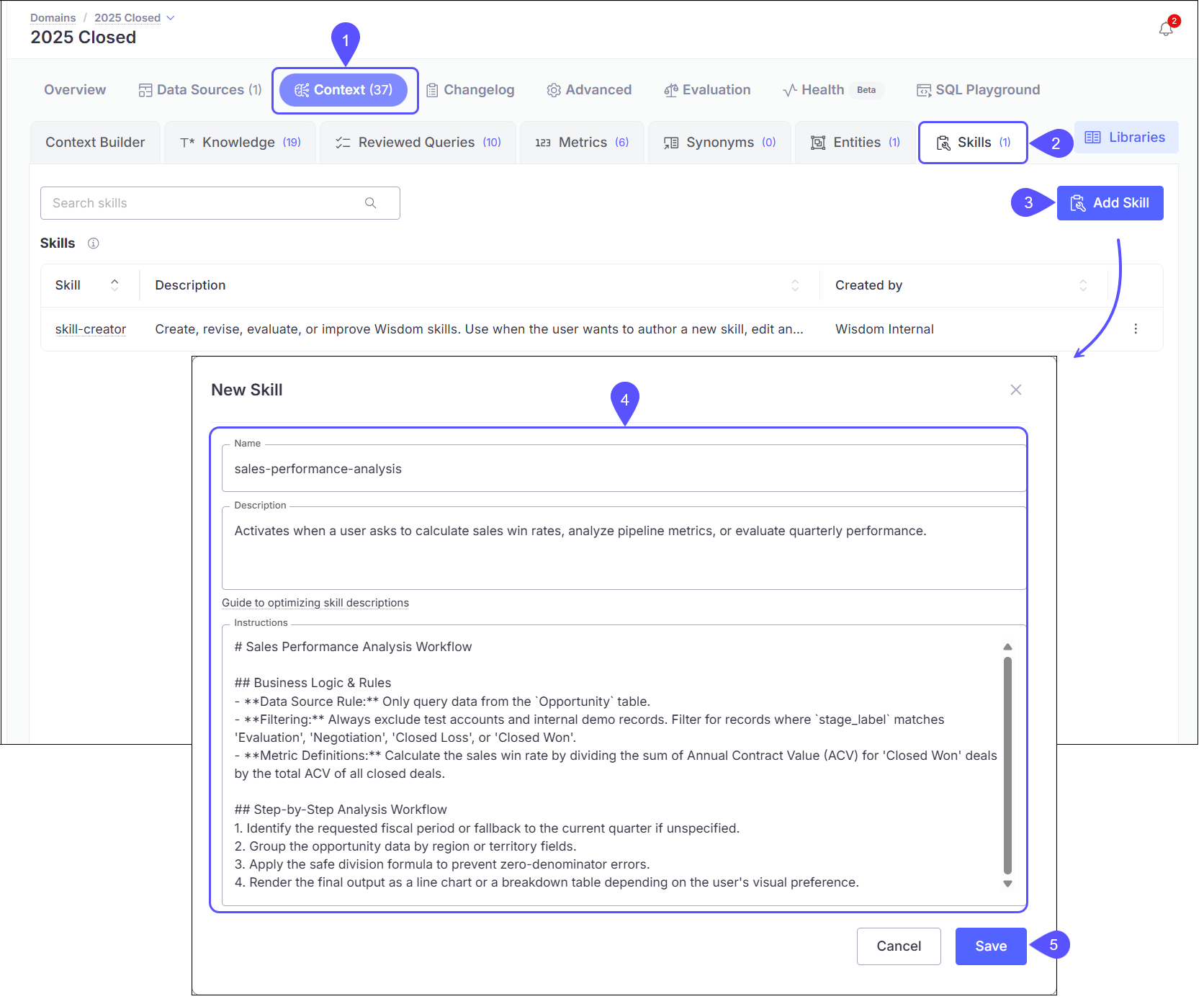
1. Navigate to the domain, then select the **Context** tab.
2. Select the **Skills** sub-tab.
3. Click **Add Skill**.
4. Fill in the three fields in the **New Skill** modal:
* **Name**: a lowercase, hyphenated identifier (e.g. `revenue-analysis`). This is also the identifier for explicit `/skill-name` invocation in chat.
* **Description**: describe when WisdomAI should activate this skill. The field includes a "Guide to optimizing skill descriptions" helper link.
* **Instructions**: the full guidance: steps, data source rules, output expectations, and business logic.
5. Click **Save**.
 ## Tips for writing effective skills
* Create skills for the top recurring question and analysis types in your domain.
* If a Knowledge entry is longer than approximately 500 words and contains step-by-step workflows or query templates, consider converting it to a skill instead.
* Match the phrasing your users would naturally type for the description. Vague descriptions cause the skill to activate too broadly or not at all.
* If your instructions include conditional phrasing like "when a user asks," "if the user asks," or "use this for X analysis," that's a sign the content belongs in a skill.
## Create a skill using `skill-creator` in chat
`skill-creator` is a built-in system skill that generates a complete skill draft (name, description, and instructions) from a natural-language workflow description.
1. Open a chat in the domain.
2. Describe your workflow in natural language. For example: "Can you create a skill for analyzing client performance improvement?"
3. WisdomAI loads `skill-creator` and generates a complete draft.
4. Review the draft. If you are an Administrator or Data Administrator, WisdomAI saves the skill directly to your domain.
Ask WisdomAI to revise an existing skill, evaluate its quality, or generate test prompts to verify activation, all by continuing the conversation with `skill-creator`.
## Verify the skill works
1. Open a chat in the domain and send a message you expect to trigger the skill.
2. Check for the "Skill loaded: `skill-name`" indicator in the conversation. Expand it to confirm the correct skill was activated.
To invoke the skill directly, type `/skill-name` in the chat input.
## Edit or delete a skill
* **Edit**: open the Skills tab, click the three-dot menu on the skill row, and select **Edit**. Every edit creates a new version. The domain links to the version saved at that point, so updates are explicit and do not silently change behavior.
* **Delete**: click the three-dot menu and select **Delete**. Deleting a skill is permanent.
System skills (Created By: Wisdom Internal) are read-only and cannot be edited or deleted.
Understand how Skills work and how they differ from Knowledge.
Explore all context-building tools available in your domain settings.
Build a well-configured domain before adding skills for best results.
## Tips for writing effective skills
* Create skills for the top recurring question and analysis types in your domain.
* If a Knowledge entry is longer than approximately 500 words and contains step-by-step workflows or query templates, consider converting it to a skill instead.
* Match the phrasing your users would naturally type for the description. Vague descriptions cause the skill to activate too broadly or not at all.
* If your instructions include conditional phrasing like "when a user asks," "if the user asks," or "use this for X analysis," that's a sign the content belongs in a skill.
## Create a skill using `skill-creator` in chat
`skill-creator` is a built-in system skill that generates a complete skill draft (name, description, and instructions) from a natural-language workflow description.
1. Open a chat in the domain.
2. Describe your workflow in natural language. For example: "Can you create a skill for analyzing client performance improvement?"
3. WisdomAI loads `skill-creator` and generates a complete draft.
4. Review the draft. If you are an Administrator or Data Administrator, WisdomAI saves the skill directly to your domain.
Ask WisdomAI to revise an existing skill, evaluate its quality, or generate test prompts to verify activation, all by continuing the conversation with `skill-creator`.
## Verify the skill works
1. Open a chat in the domain and send a message you expect to trigger the skill.
2. Check for the "Skill loaded: `skill-name`" indicator in the conversation. Expand it to confirm the correct skill was activated.
To invoke the skill directly, type `/skill-name` in the chat input.
## Edit or delete a skill
* **Edit**: open the Skills tab, click the three-dot menu on the skill row, and select **Edit**. Every edit creates a new version. The domain links to the version saved at that point, so updates are explicit and do not silently change behavior.
* **Delete**: click the three-dot menu and select **Delete**. Deleting a skill is permanent.
System skills (Created By: Wisdom Internal) are read-only and cannot be edited or deleted.
Understand how Skills work and how they differ from Knowledge.
Explore all context-building tools available in your domain settings.
Build a well-configured domain before adding skills for best results.