> ## Documentation Index
> Fetch the complete documentation index at: https://docs.wisdom.ai/llms.txt
> Use this file to discover all available pages before exploring further.
# Reviewed Queries
Reviewed queries are curated pairs of a natural language question and its ideal SQL response. They serve as a powerful tool to guarantee accuracy, especially for business-critical calculations or complex metrics that require a specific SQL structure, such as window functions or nested queries.
By building a repository of these pre-vetted queries, you ensure that everyone in your organization receives consistent, accurate answers to the most important questions. This is the most critical aspect of context for the language model to understand your data, as it provides direct, unambiguous examples of how to query your tables.
## Create Reviewed Queries
There are two primary ways to add queries to your knowledge base: directly from the chat interface or in bulk using a CSV file.
### Create from the chat interface
The most common workflow is to validate queries as you interact with the system. This allows you to refine the AI's generated SQL or provide your own from scratch.
An easy workflow to define reviewed queries is to ask the question in the chat, provide feedback or edit the generated SQL, and then validate the response.
1. Ask a question and review the generated answer.
2. If the answer is correct, click the **thumbs-up** icon.
Currently, feedback icons (thumbs-up and thumbs-down) appear only for responses containing charts or structured data. Feedback for text-only responses is not yet supported but will be available in a future update.
3. In the **Review a Question** modal that appears, confirm or edit the natural language question that the SQL code answers.
4. After confirmation, the query will be saved and listed in the **Context > Reviewed Queries** tab.
The following code block shows an example query to calculate the win rate for sales, validated by clicking the thumbs-up button.
```text theme={null}
SELECT
SAFE_DIVIDE(
SUM(CASE WHEN `stage_label` = 'Closed Won' THEN `acv` ELSE 0 END),
SUM(`acv`)
) AS `win_rate`
FROM `wisdom-staging-406623`.`b2bsaleshomebrew`.`Opportunity`
WHERE `stage_label` IN ('Evaluation', 'Negotiation', 'Closed Loss', 'Closed Won');
```
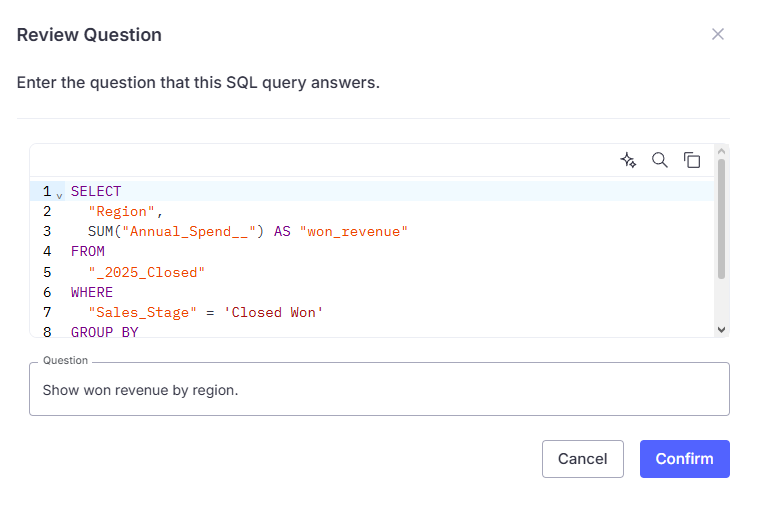
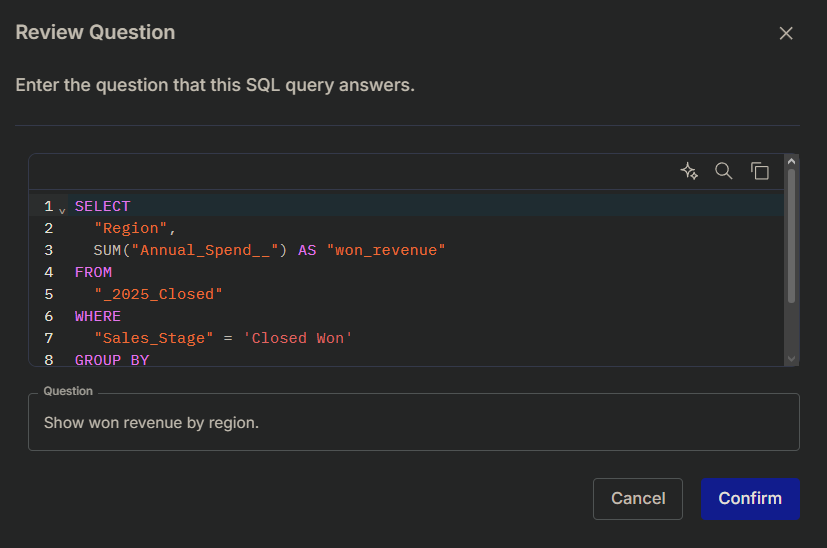 5. If the answer needs changes, click the **Edit** button (pencil icon) to modify the SQL. Once you are satisfied, click **Mark as reviewed**.
### Example: Editing a query for granularity
This example shows how to refine a query to get a more detailed view of your data.
Suppose you ask, **“Show me the yearly ARR trend,”** and the system generates the following correct, but high-level, query:
```text theme={null}
SELECT
DATE_TRUNC(`close_date`, YEAR) AS `year`,
SUM(`acv`) AS `arr`
FROM
`wisdom-staging-406623`.`b2bsaleshomebrew`.`Opportunity`
WHERE
`stage_label` = 'Closed Won'
GROUP BY
`year`
ORDER BY
`year` ASC
```
The chart shows a clear year-over-year trend. However, you decide that a **quarterly view** would be more insightful for tracking seasonal performance. To do this, click the **Edit** button (the pencil icon) to modify the SQL directly.
5. If the answer needs changes, click the **Edit** button (pencil icon) to modify the SQL. Once you are satisfied, click **Mark as reviewed**.
### Example: Editing a query for granularity
This example shows how to refine a query to get a more detailed view of your data.
Suppose you ask, **“Show me the yearly ARR trend,”** and the system generates the following correct, but high-level, query:
```text theme={null}
SELECT
DATE_TRUNC(`close_date`, YEAR) AS `year`,
SUM(`acv`) AS `arr`
FROM
`wisdom-staging-406623`.`b2bsaleshomebrew`.`Opportunity`
WHERE
`stage_label` = 'Closed Won'
GROUP BY
`year`
ORDER BY
`year` ASC
```
The chart shows a clear year-over-year trend. However, you decide that a **quarterly view** would be more insightful for tracking seasonal performance. To do this, click the **Edit** button (the pencil icon) to modify the SQL directly.
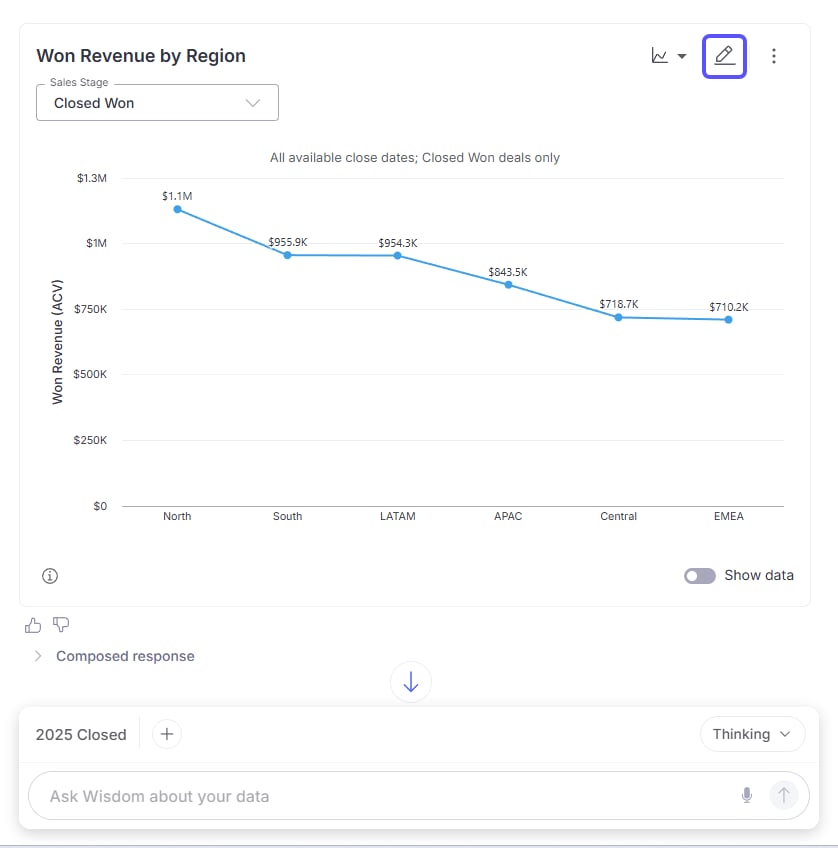
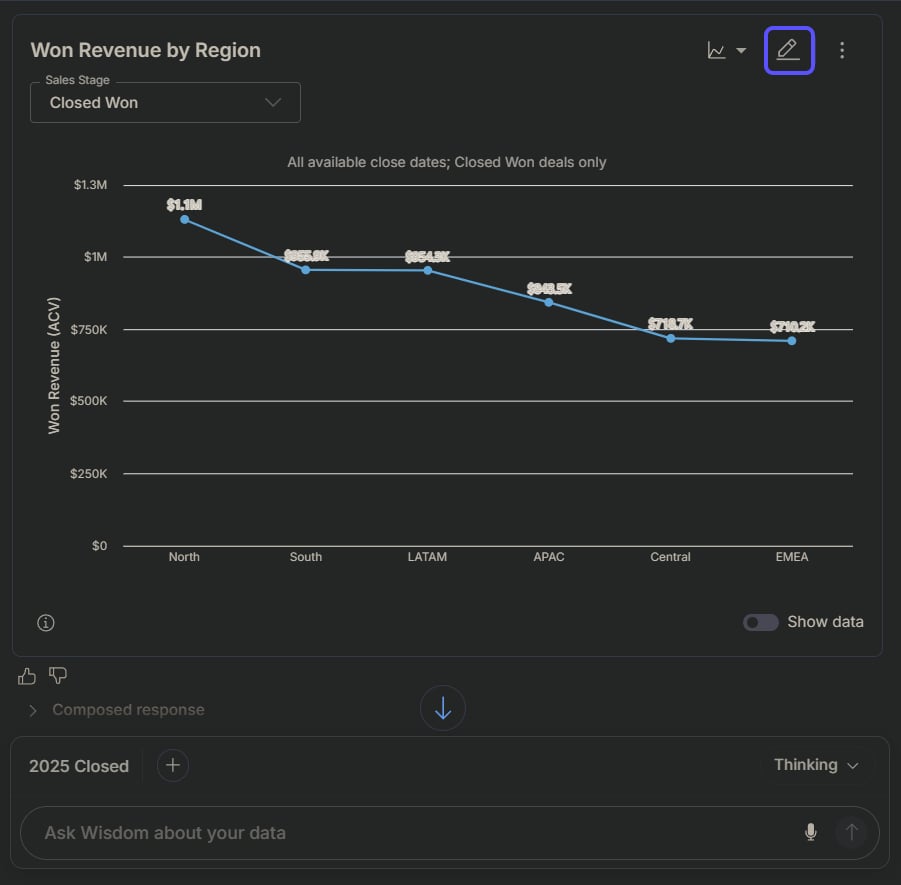 The only change needed is to adjust the `DATE_TRUNC` function from `YEAR` to `QUARTER`.
Here is the **edited SQL**:
```text theme={null}
SELECT
DATE_TRUNC(`close_date`, QUARTER) AS `quarter`,
SUM(`acv`) AS `arr`
FROM
`wisdom-staging-406623`.`b2bsaleshomebrew`.`Opportunity`
WHERE
`stage_label` = 'Closed Won'
GROUP BY
`quarter`
ORDER BY
`quarter` ASC
```
The only change needed is to adjust the `DATE_TRUNC` function from `YEAR` to `QUARTER`.
Here is the **edited SQL**:
```text theme={null}
SELECT
DATE_TRUNC(`close_date`, QUARTER) AS `quarter`,
SUM(`acv`) AS `arr`
FROM
`wisdom-staging-406623`.`b2bsaleshomebrew`.`Opportunity`
WHERE
`stage_label` = 'Closed Won'
GROUP BY
`quarter`
ORDER BY
`quarter` ASC
```
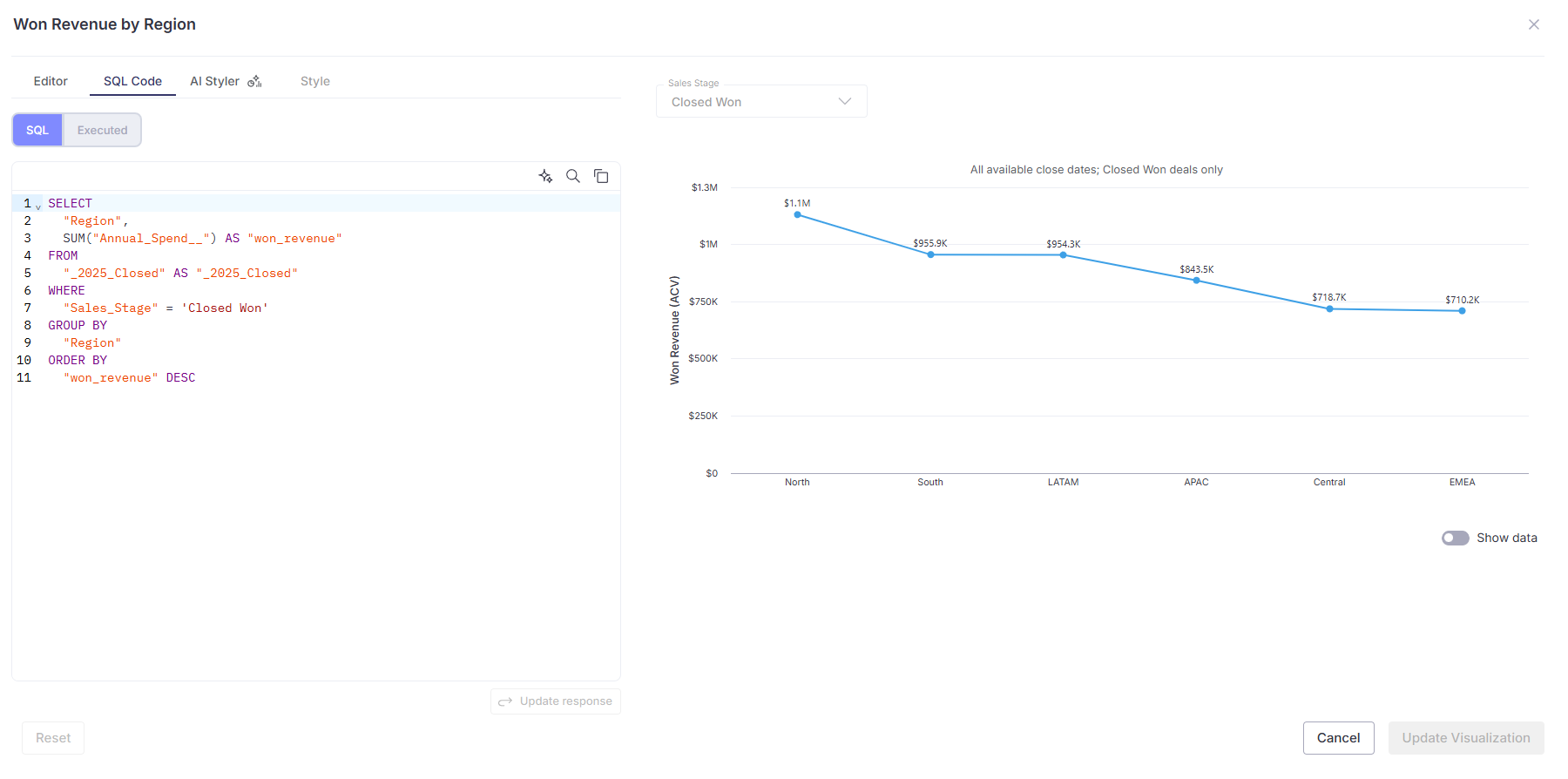
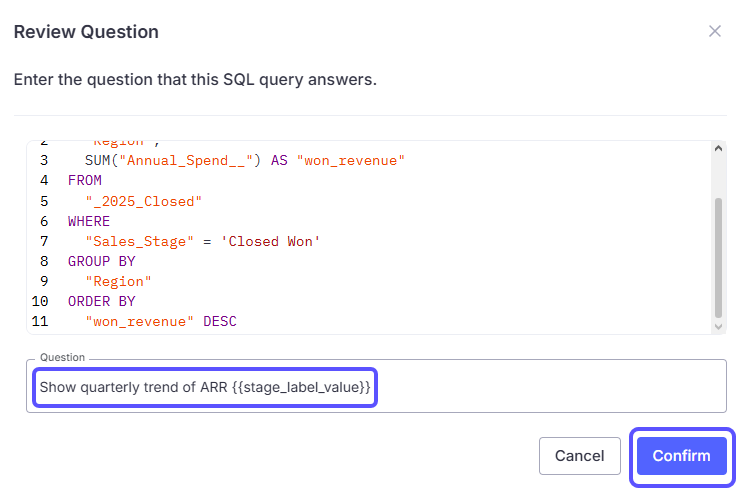
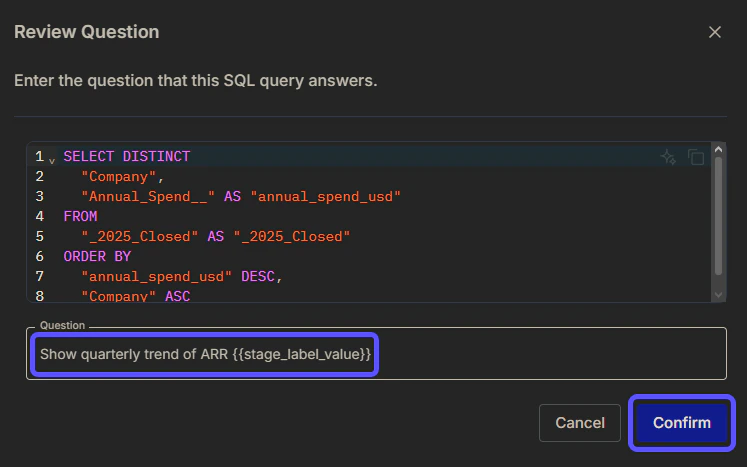
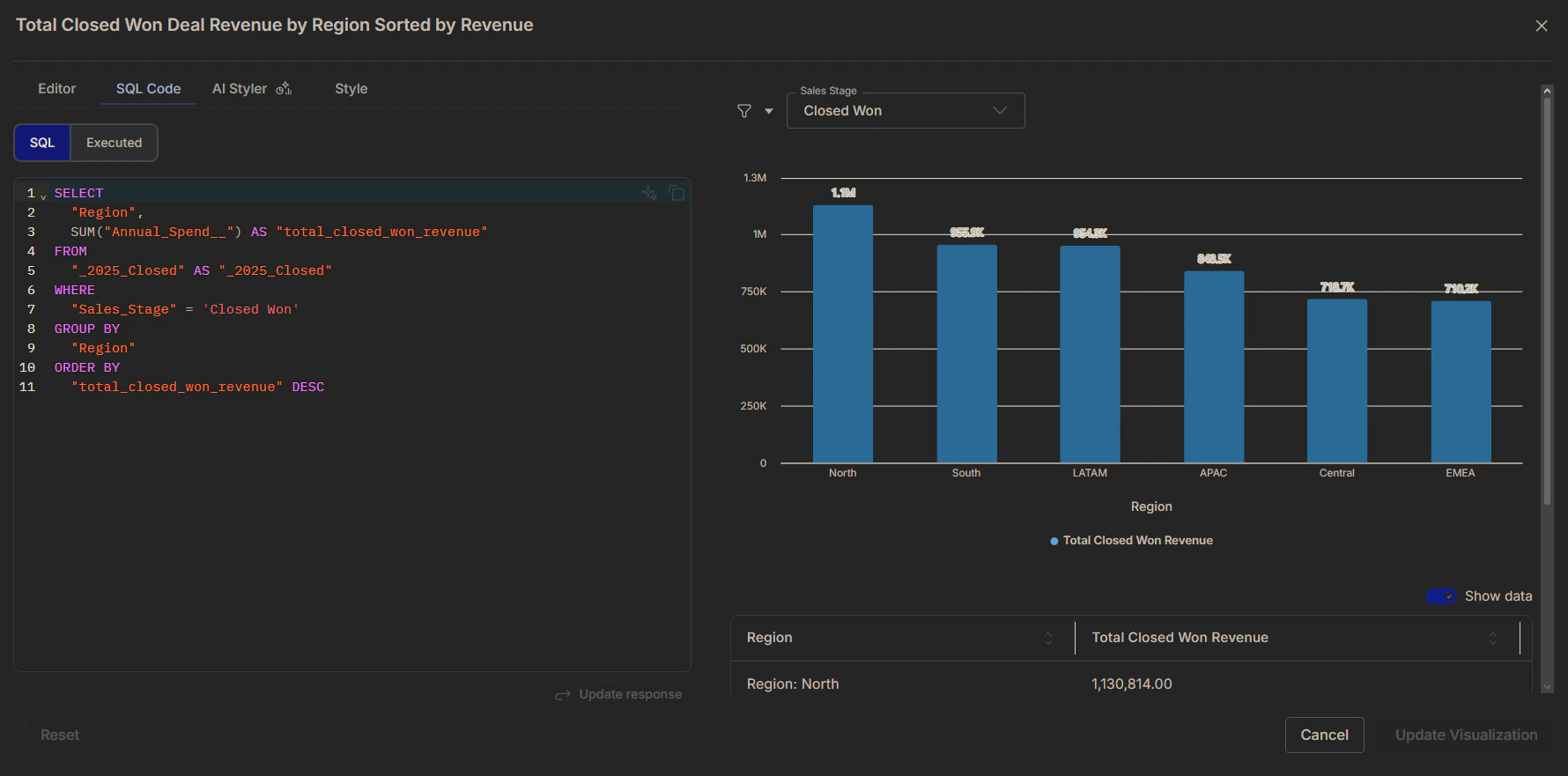 After applying the change and seeing the updated quarterly chart, you can save this improved version. You would click **Mark as reviewed** and update the question to **“Show me the quarterly ARR trend”** to save it as a new, more specific Validated Query for future use.
 ### Bulk upload with CSV
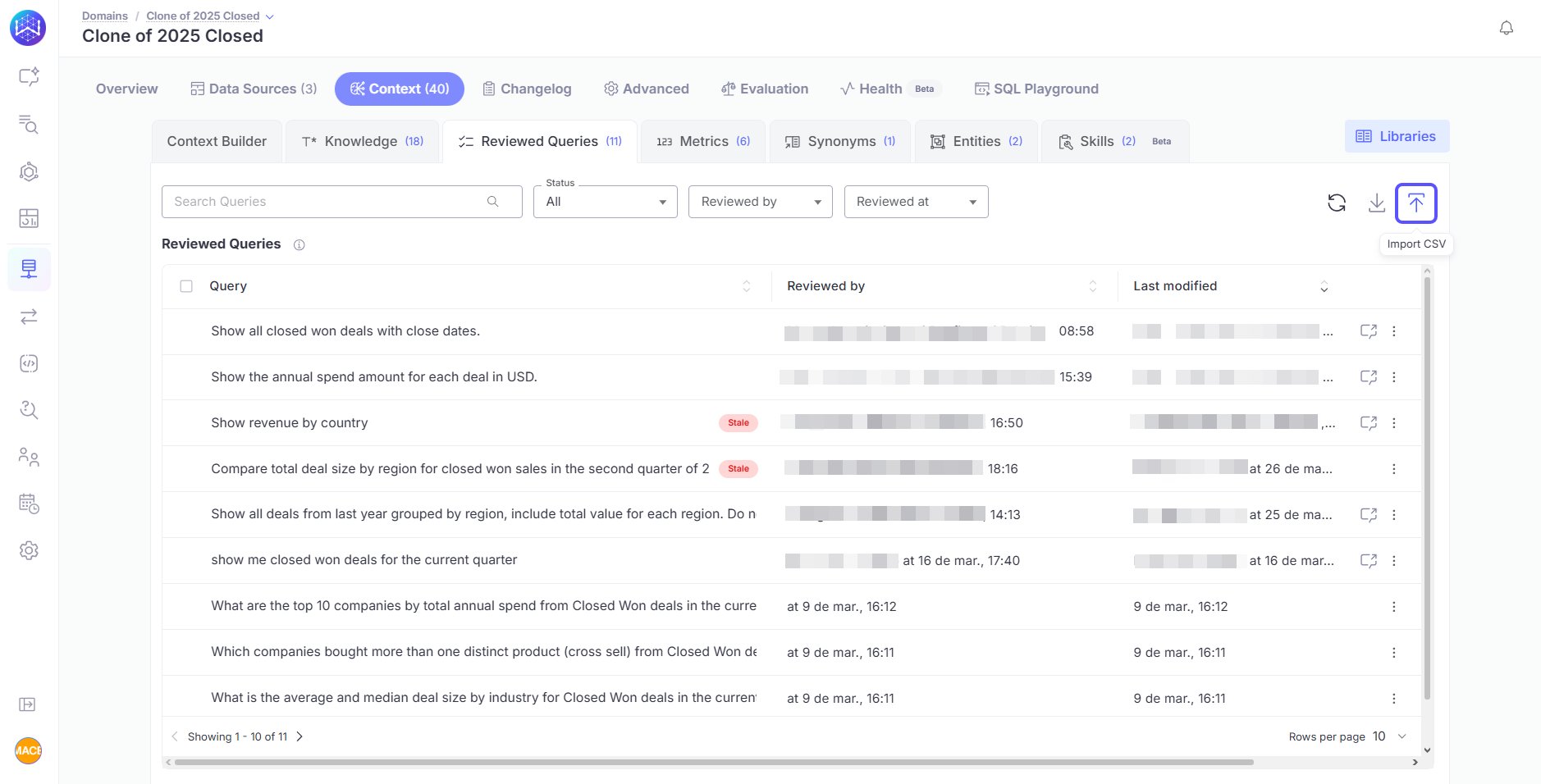
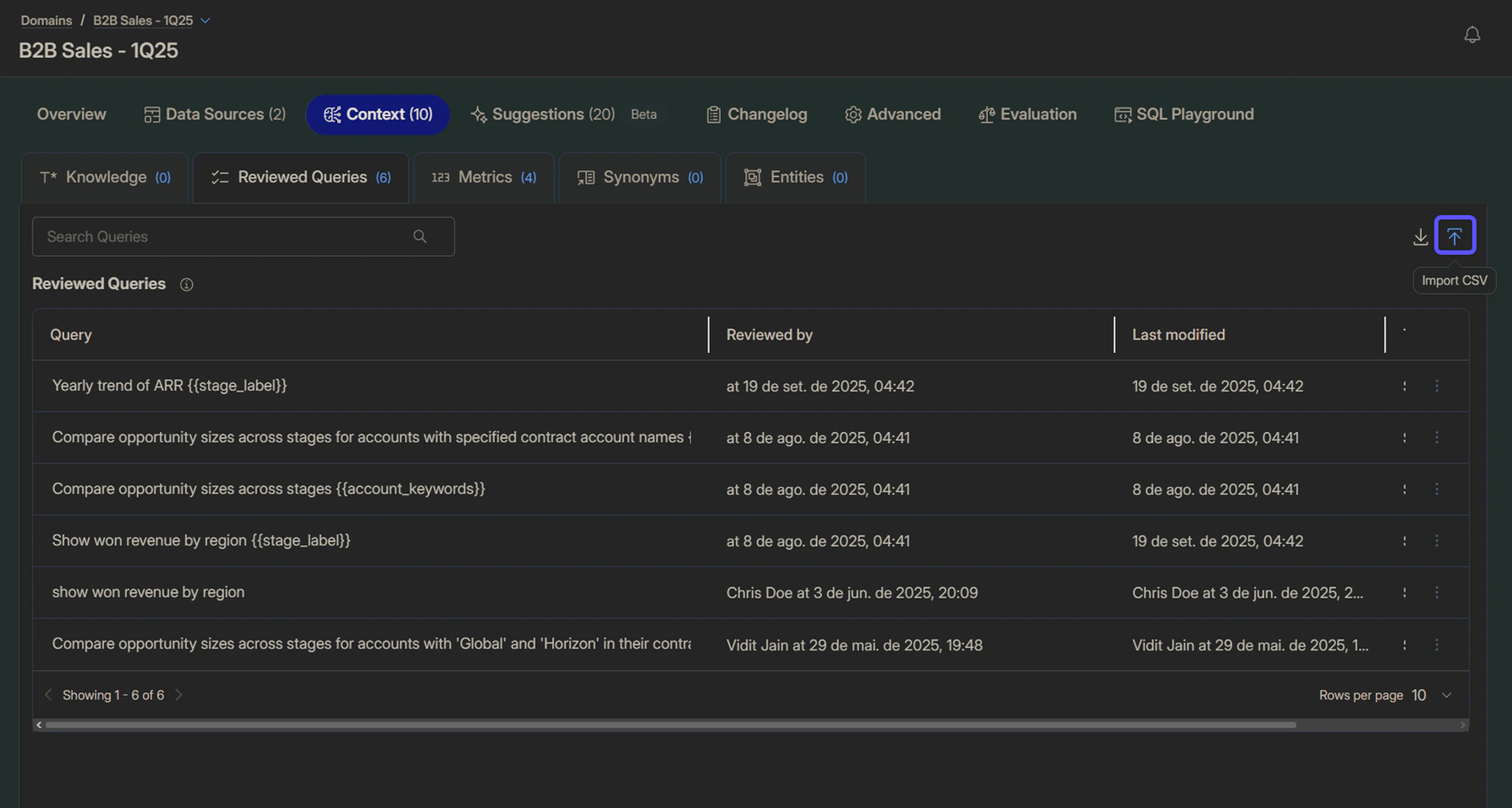
For adding many validated queries at once, you can use the import CSV option in the **Context** > **Reviewed Queries** tab. This is ideal for migrating existing reports or defining a set of canonical metrics from the start.
Create a CSV file with the required column headers. By default, the CSV must include `Query` and `SQL`. Populate each row with a natural language question and its corresponding SQL statement.
If your domain contains multiple database connections, the CSV file must include the following three exact column headers: `Query`, `SQL`, and `Connection`. The `Connection` column should contain the name of the database connection exactly as it appears on the Connections page in WisdomAI (for example, `SNOWFLAKE-dev`). If the `Connection` column is missing, its header is renamed, or the specified connection name does not match an existing connection, the CSV upload will fail.
### Bulk upload with CSV
For adding many validated queries at once, you can use the import CSV option in the **Context** > **Reviewed Queries** tab. This is ideal for migrating existing reports or defining a set of canonical metrics from the start.
Create a CSV file with the required column headers. By default, the CSV must include `Query` and `SQL`. Populate each row with a natural language question and its corresponding SQL statement.
If your domain contains multiple database connections, the CSV file must include the following three exact column headers: `Query`, `SQL`, and `Connection`. The `Connection` column should contain the name of the database connection exactly as it appears on the Connections page in WisdomAI (for example, `SNOWFLAKE-dev`). If the `Connection` column is missing, its header is renamed, or the specified connection name does not match an existing connection, the CSV upload will fail.
 ## Best practices for well-formed SQL
For a reviewed query to be effective and reusable, follow these best practices when writing your SQL:
* **Keep it concise and readable:** Write SQL that is easy to understand. If the logic is complex, use comments or break it down.
* **Split complex examples:** Instead of creating one example that calculates multiple metrics (e.g., “Show revenue and ARR trend”), split it into two separate, focused examples (“Show revenue trend” and “Show ARR trend”).
* **Use CTEs for complex logic:** If the SQL requires multiple steps or transformations, break it down into more understandable Common Table Expressions (CTEs).
* **Be consistent:** Use a consistent SQL structure for different variations of the same metric. For example, the queries for “Yearly trend of ARR” and “ARR by segment” should be built from a consistent base calculation of ARR, ideally using the same CTE.
## Combining with language Knowledge for complex cases
While reviewed queries are powerful, some complex business rules are best enforced by pairing them with explicit instructions in your **language knowledge**. Reviewed queries teach the model *how* to calculate a specific metric, while language knowledge can teach it *what not to do* to avoid common logical errors.
For instance, imagine you have a `statewise_population` table with a pre-aggregated `country_population` column. Summing this column across multiple states from the same country would lead to massive double-counting.
While a validated query can show the correct way to get the population, adding a clear instruction in [language knowledge](/setting-up-wisdom-ai/advanced-data-modeling-creating-context#natural-language-context) provides an extra layer of protection against mistakes:
**Instruction Example:** “Never sum up the `country_population` column across different rows for the same country.”
Using both features together ensures that even when the AI generates new or slightly different queries, it still adheres to your most important business logic.
## Manage Reviewed Queries
As a Domain Data Admin, you can edit a reviewed query or reopen the conversation where it was created.
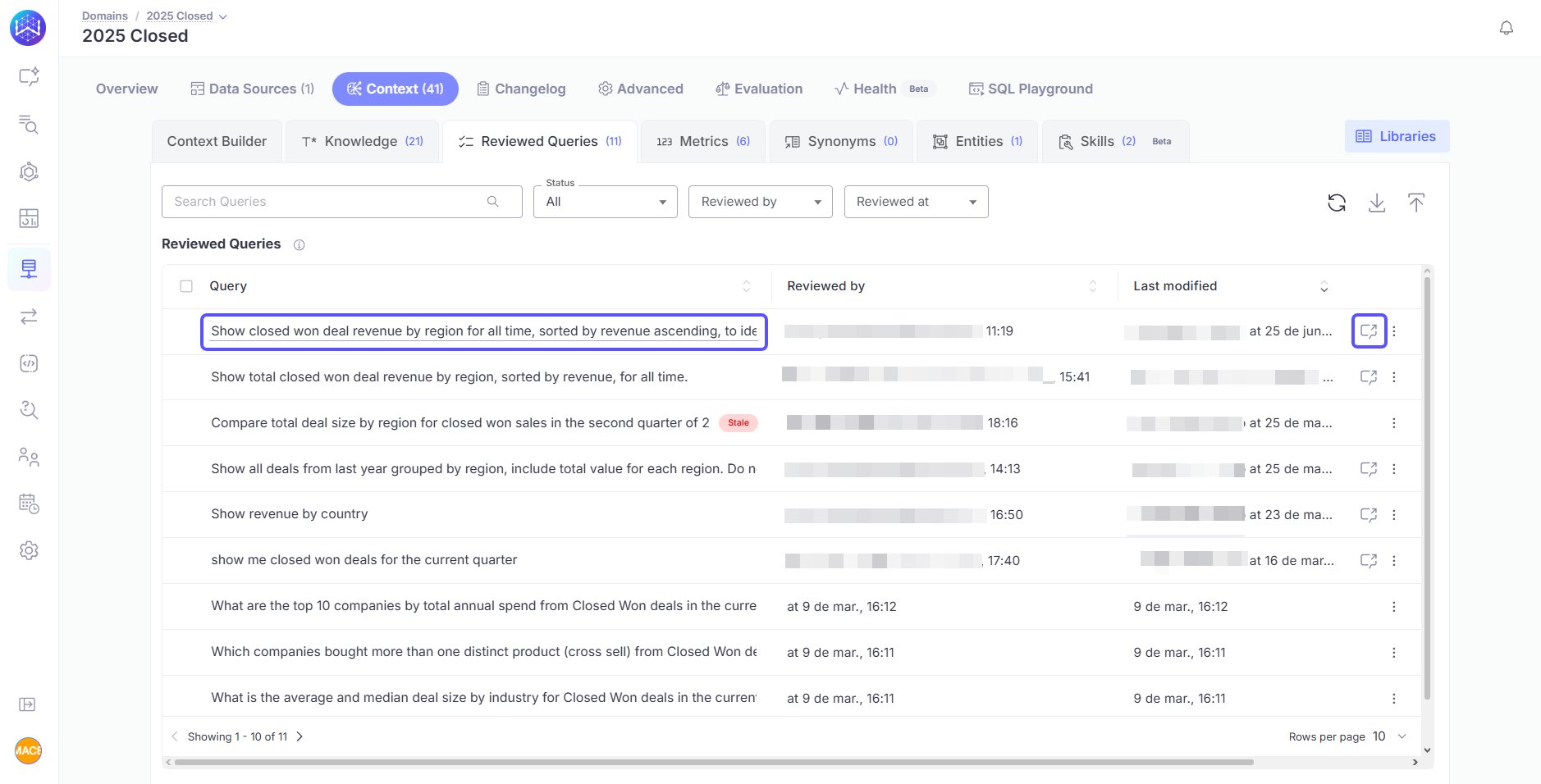
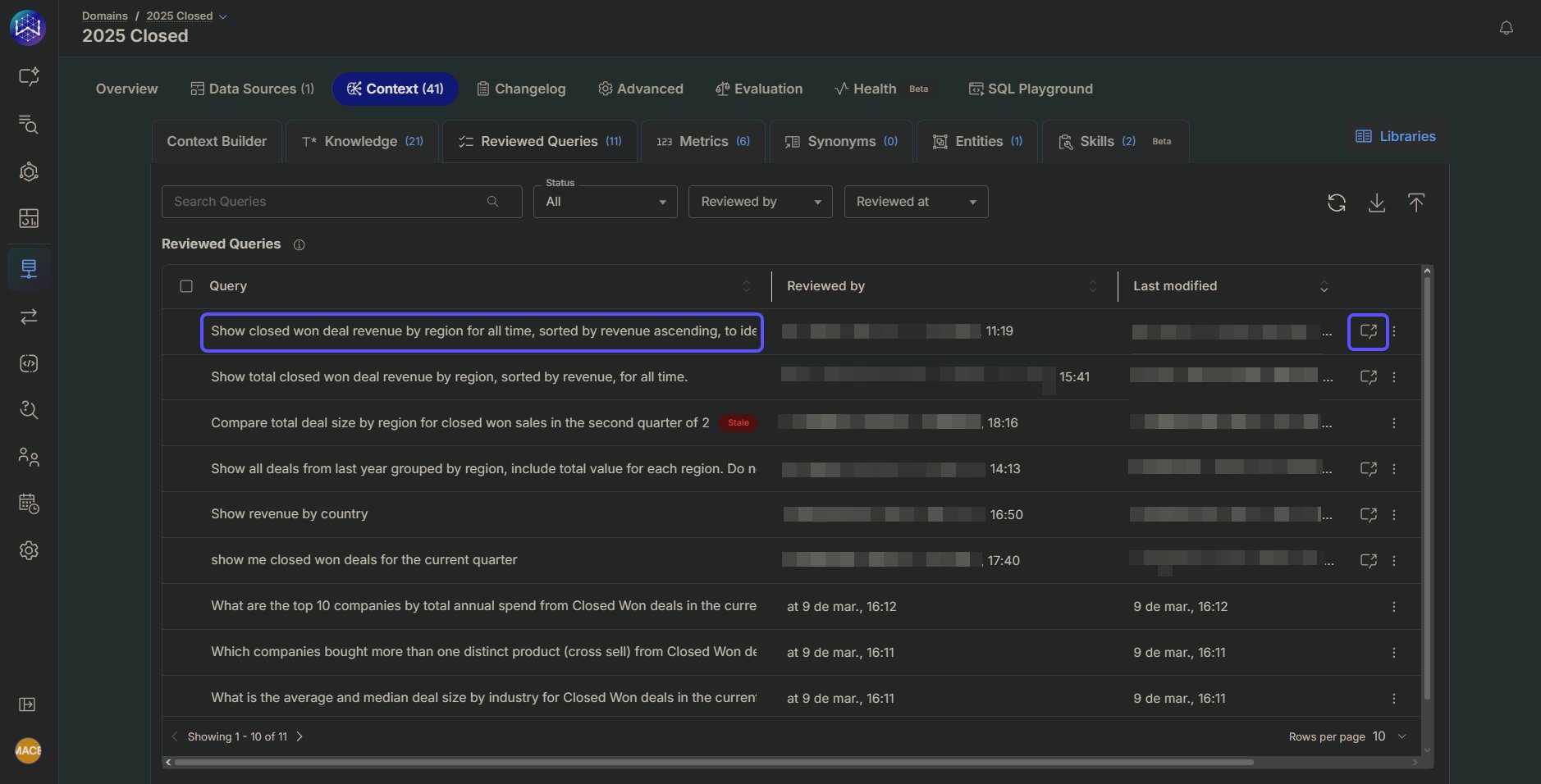
* To edit a reviewed query, click the query row and update the query text as needed.
* To reopen the original query workflow, click the **Open conversation** icon. This opens the conversation where the query was validated, allowing you to re-ask the question, modify the visualization, refine the query, edit its SQL, or regenerate the results.
## Best practices for well-formed SQL
For a reviewed query to be effective and reusable, follow these best practices when writing your SQL:
* **Keep it concise and readable:** Write SQL that is easy to understand. If the logic is complex, use comments or break it down.
* **Split complex examples:** Instead of creating one example that calculates multiple metrics (e.g., “Show revenue and ARR trend”), split it into two separate, focused examples (“Show revenue trend” and “Show ARR trend”).
* **Use CTEs for complex logic:** If the SQL requires multiple steps or transformations, break it down into more understandable Common Table Expressions (CTEs).
* **Be consistent:** Use a consistent SQL structure for different variations of the same metric. For example, the queries for “Yearly trend of ARR” and “ARR by segment” should be built from a consistent base calculation of ARR, ideally using the same CTE.
## Combining with language Knowledge for complex cases
While reviewed queries are powerful, some complex business rules are best enforced by pairing them with explicit instructions in your **language knowledge**. Reviewed queries teach the model *how* to calculate a specific metric, while language knowledge can teach it *what not to do* to avoid common logical errors.
For instance, imagine you have a `statewise_population` table with a pre-aggregated `country_population` column. Summing this column across multiple states from the same country would lead to massive double-counting.
While a validated query can show the correct way to get the population, adding a clear instruction in [language knowledge](/setting-up-wisdom-ai/advanced-data-modeling-creating-context#natural-language-context) provides an extra layer of protection against mistakes:
**Instruction Example:** “Never sum up the `country_population` column across different rows for the same country.”
Using both features together ensures that even when the AI generates new or slightly different queries, it still adheres to your most important business logic.
## Manage Reviewed Queries
As a Domain Data Admin, you can edit a reviewed query or reopen the conversation where it was created.
* To edit a reviewed query, click the query row and update the query text as needed.
* To reopen the original query workflow, click the **Open conversation** icon. This opens the conversation where the query was validated, allowing you to re-ask the question, modify the visualization, refine the query, edit its SQL, or regenerate the results.
 ## Next steps
Understand how to identify and flag when the system's answers lack necessary context.
Learn how to rate answers and provide corrections to improve the system's accuracy.
Track and analyze negative user feedback to identify areas for system improvement.
Compile key insights and visualizations into a shareable, narrative-driven report.
## Next steps
Understand how to identify and flag when the system's answers lack necessary context.
Learn how to rate answers and provide corrections to improve the system's accuracy.
Track and analyze negative user feedback to identify areas for system improvement.
Compile key insights and visualizations into a shareable, narrative-driven report.