> ## Documentation Index
> Fetch the complete documentation index at: https://docs.wisdom.ai/llms.txt
> Use this file to discover all available pages before exploring further.
# Provide Feedback to the System
Your feedback is essential for improving WisdomAI's accuracy and reliability. By rating answers and providing corrections, you help the system learn and refine its responses. This guide walks you through the feedback process for all users.
* [Rate an answer](#1-rate-an-answer)
* [Provide a correction](#2-provide-a-correction)
* [Refine your question](#3-refine-your-question)
## 1. Rate an answer
After WisdomAI provides an answer, you will see thumbs-up (👍) and thumbs-down (👎) icons.
* **Click Thumbs Up (👍):** Use this if the answer is accurate, relevant, and helpful. This positive reinforcement helps the system understand what a good response looks like.
* **Click Thumbs Down (👎):** Use this if the answer is incorrect, incomplete, or unhelpful. This flags the response for review.
## 2. Provide a correction
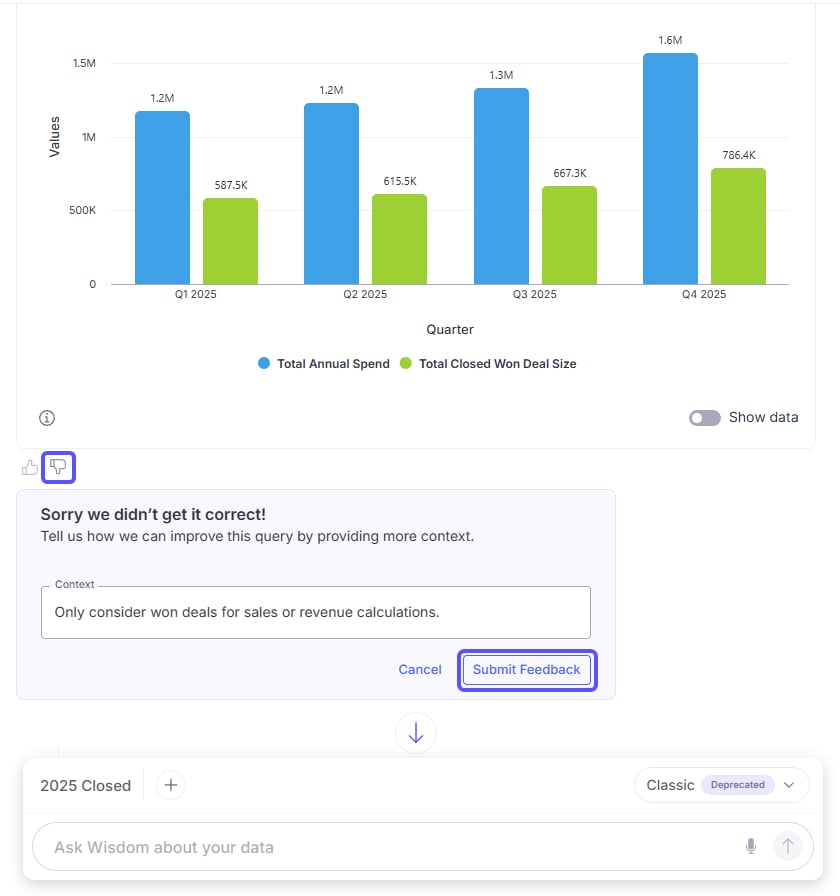
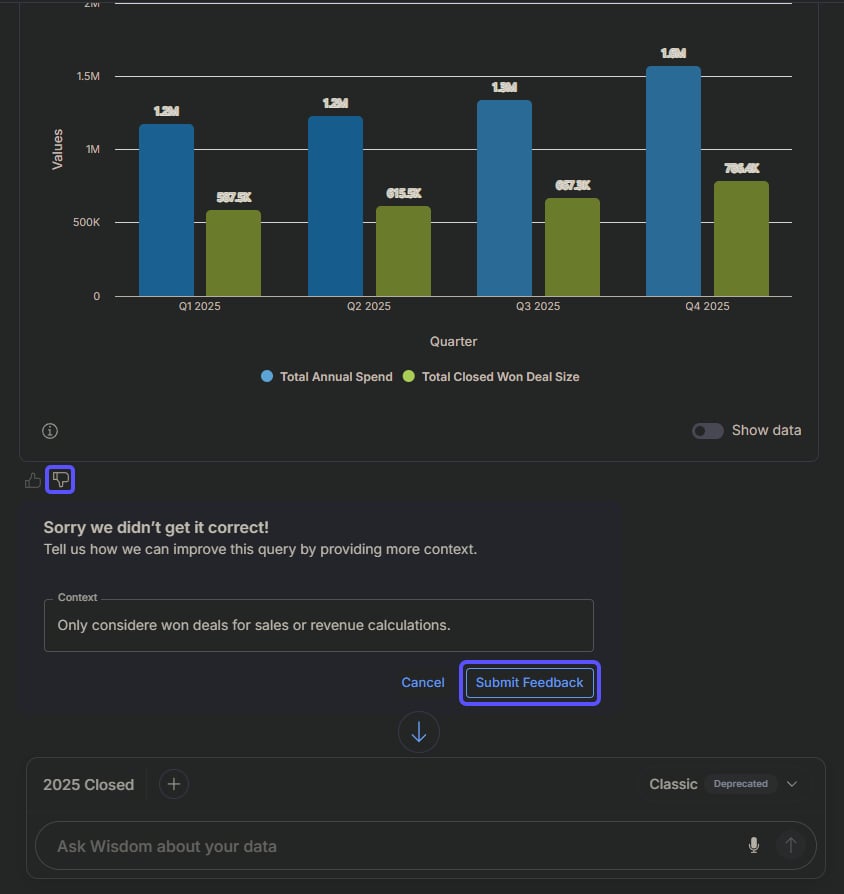
When you click **Thumbs Down (👎)**, you will be prompted to provide more details. This is the most direct way to teach the system.
* **If the answer is incorrect:** Provide the correct answer in the text field.
* **If the answer is incomplete:** Add the missing context or information.
 ## 3. Refine your question
You can also provide feedback by rephrasing your original question. If an initial query does not provide the desired result, refining it with more specific details helps WisdomAI learn to interpret user intent better.
For advanced tasks like editing the SQL query or managing validated queries, you must be an Administrator. See the [Validate and Test Answers](/improve-wisdom-ai-responses/validate-and-test-answers) guide for admin-specific workflows.
## Next steps
Walk through the initial setup to connect a data source and run your first query.
Test and validate both natural language responses and SQL query results directly within the chat interface.
## 3. Refine your question
You can also provide feedback by rephrasing your original question. If an initial query does not provide the desired result, refining it with more specific details helps WisdomAI learn to interpret user intent better.
For advanced tasks like editing the SQL query or managing validated queries, you must be an Administrator. See the [Validate and Test Answers](/improve-wisdom-ai-responses/validate-and-test-answers) guide for admin-specific workflows.
## Next steps
Walk through the initial setup to connect a data source and run your first query.
Test and validate both natural language responses and SQL query results directly within the chat interface.