> ## Documentation Index
> Fetch the complete documentation index at: https://docs.wisdom.ai/llms.txt
> Use this file to discover all available pages before exploring further.
# Set Up and Use Domain Groups & Auto Domain Selection
This guide walks through setting up and using Auto Domain Selection and Domain Groups:
* [Enable Auto Domain Selection](#enable-auto-domain-selection) (admin, one-time)
* [Use Auto mode in chat](#use-auto-mode-in-chat)
* [Create a domain group](#create-a-domain-group) (admin)
* [Edit or delete a domain group](#edit-or-delete-a-domain-group) (admin)
* [Use a group in chat](#use-a-group-in-chat)
* [Add cross-domain context](#add-cross-domain-context)
* [View the cross-domain reviewed query library](#view-the-cross-domain-reviewed-query-library)
For background on what these features are and when to reach for one over the other, see [Domain Groups & Auto Domain Selection](/setting-up-wisdom-ai/domain-groups).
## Enable Auto Domain Selection
A workspace admin must enable this feature before it's available to anyone.
1. Go to **Settings → Cross-Domain Settings → Auto Domain Selection**
2. Toggle **Enable Auto Domain Selection** on
3. *(Workspaces with more than 10 domains)* Configure the **Domain Greenlist**: select the subset of domains WisdomAI is allowed to auto-select from. Required for large workspaces. Without it, Auto mode won't be available.
The greenlist bounds the candidate pool coarsely. It doesn't replace declaring specific domain relationships, that's what Domain Groups are for.
## Use Auto mode in chat
1. Open the domain selector dropdown in chat
2. Click **Auto** (sparkles icon)
3. WisdomAI routes each question to the right domain or group automatically
Switch back to a specific domain or group at any time from the same dropdown.
## Create a domain group
Only workspace admins can create domain groups. If the option is not visible in Settings, ask your admin.
1. Go to **Settings → Cross-Domain Settings**
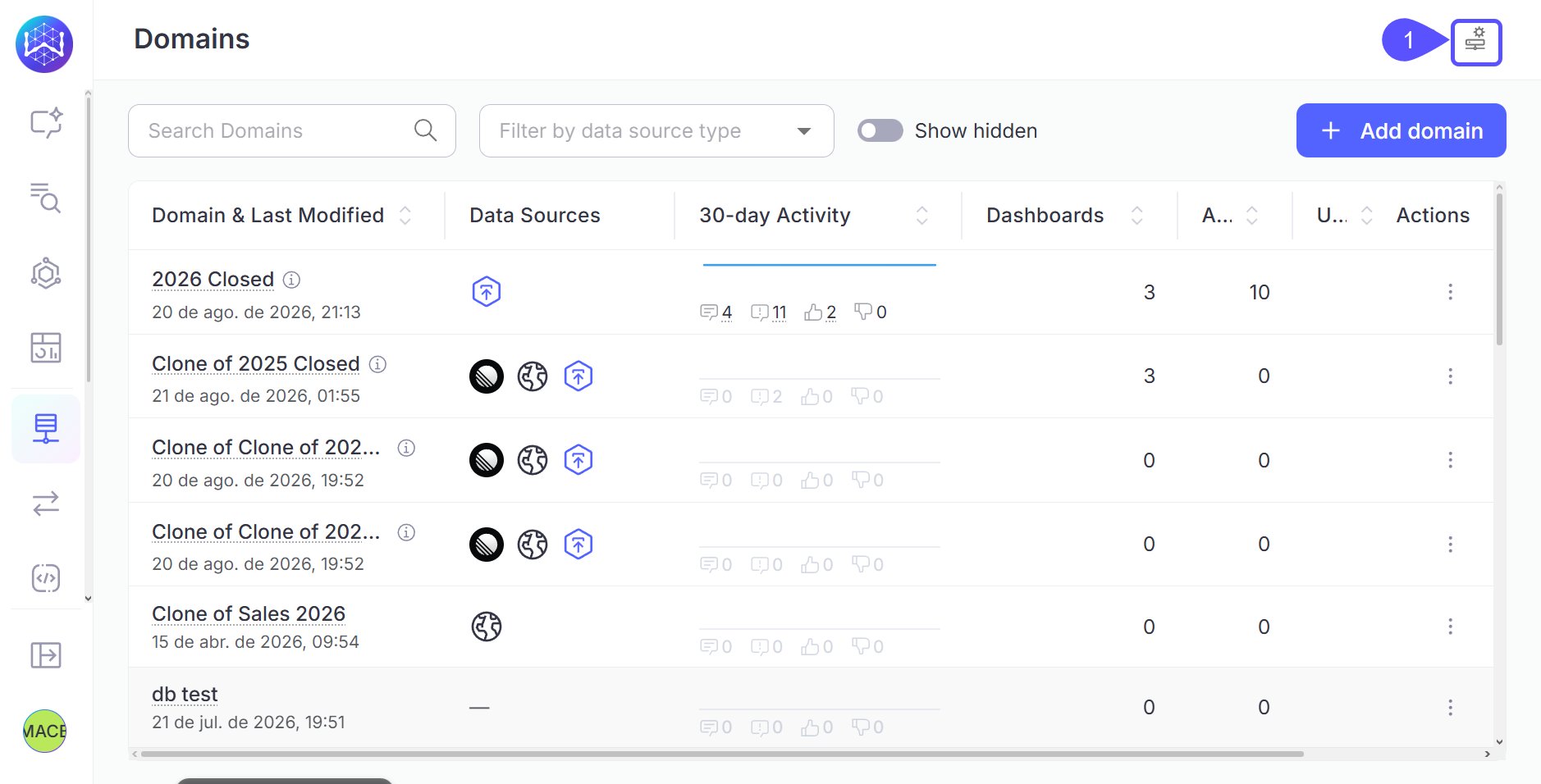 2. Under **Domain Groups**, click **Add Group**
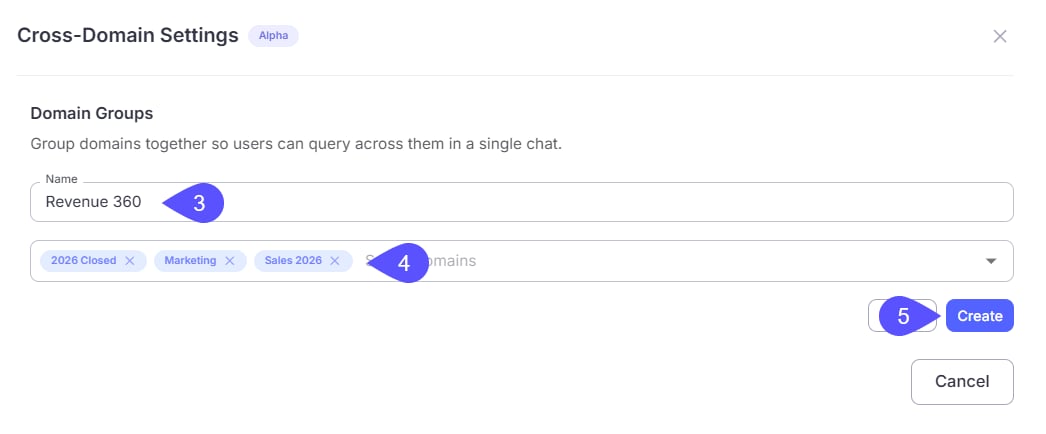
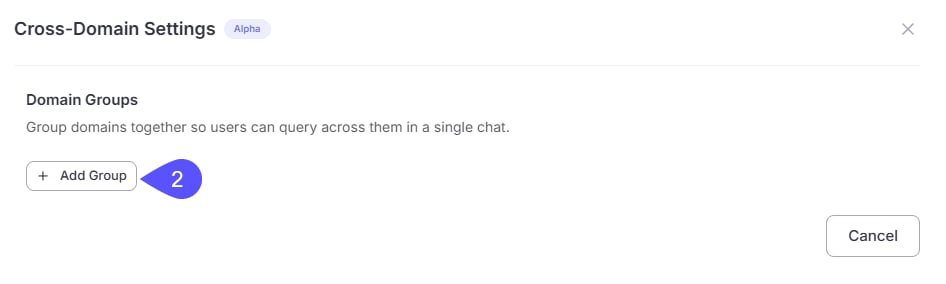 3. Give the group a clear, business-oriented name (e.g., *"Revenue 360"* rather than *"Salesforce + Stripe"*)
4. Select two or more domains from the picker
5. Click **Create**
3. Give the group a clear, business-oriented name (e.g., *"Revenue 360"* rather than *"Salesforce + Stripe"*)
4. Select two or more domains from the picker
5. Click **Create**
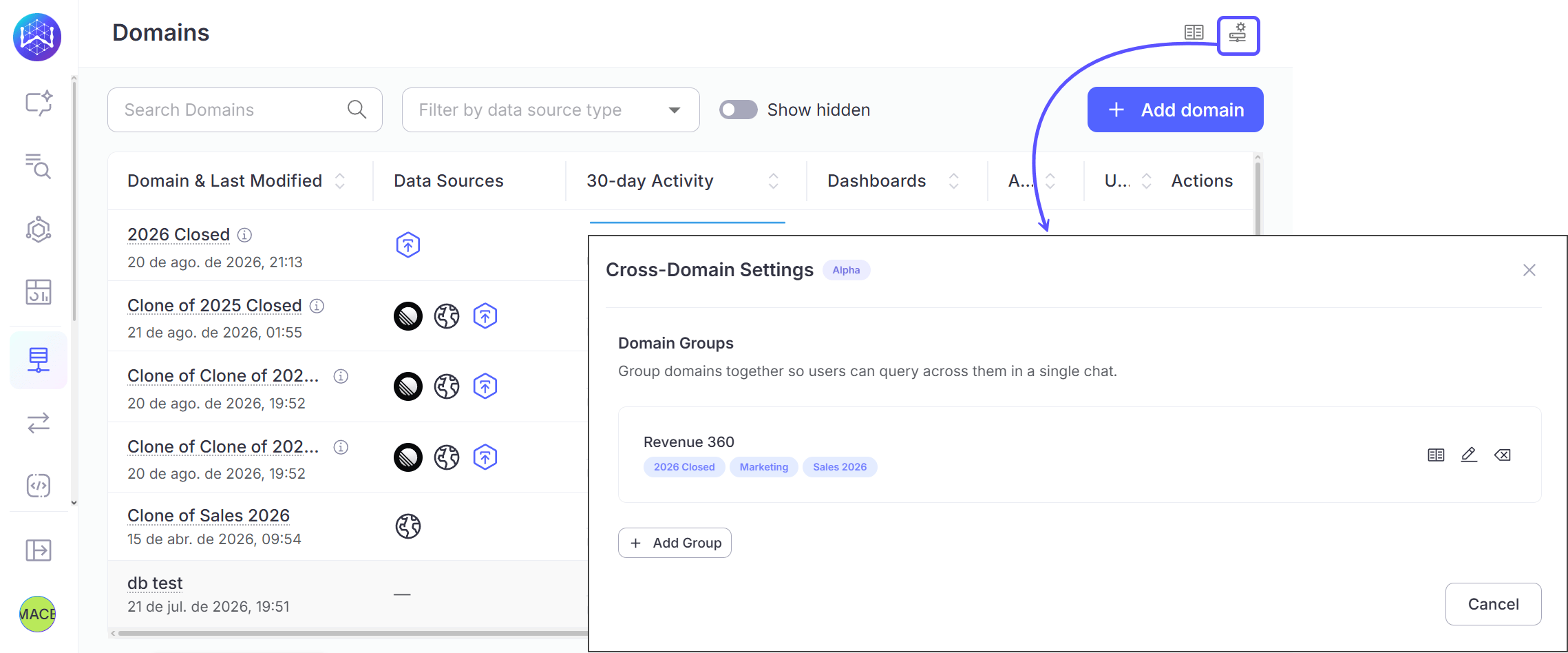
 The group appears in the domain selector dropdown, marked with a Group chip.
 ## Edit or delete a domain group
| **Action** | **Steps** |
| ---------- | ------------------------------------------------------------------------------------------------------- |
| Edit | **Settings → Cross-Domain Settings** → find the group → update the domain selection → save |
| Delete | Click the delete icon next to the group. This removes the group only; underlying domains are unaffected |
## Use a group in chat
1. Open the domain selector at the top of the chat interface
2. Select a group (marked with a **Group** chip)
3. The conversation can now draw on any table from any domain in the group
**Heads up:** Queries that span multiple domains may take slightly longer, since WisdomAI reasons across a larger set of tables.
## Add cross-domain context
Each domain in a group brings its own context library. That context explains individual domains, but not how the domains relate to each other. Use the **Manage Context** button to add context at the group level.
## Edit or delete a domain group
| **Action** | **Steps** |
| ---------- | ------------------------------------------------------------------------------------------------------- |
| Edit | **Settings → Cross-Domain Settings** → find the group → update the domain selection → save |
| Delete | Click the delete icon next to the group. This removes the group only; underlying domains are unaffected |
## Use a group in chat
1. Open the domain selector at the top of the chat interface
2. Select a group (marked with a **Group** chip)
3. The conversation can now draw on any table from any domain in the group
**Heads up:** Queries that span multiple domains may take slightly longer, since WisdomAI reasons across a larger set of tables.
## Add cross-domain context
Each domain in a group brings its own context library. That context explains individual domains, but not how the domains relate to each other. Use the **Manage Context** button to add context at the group level.
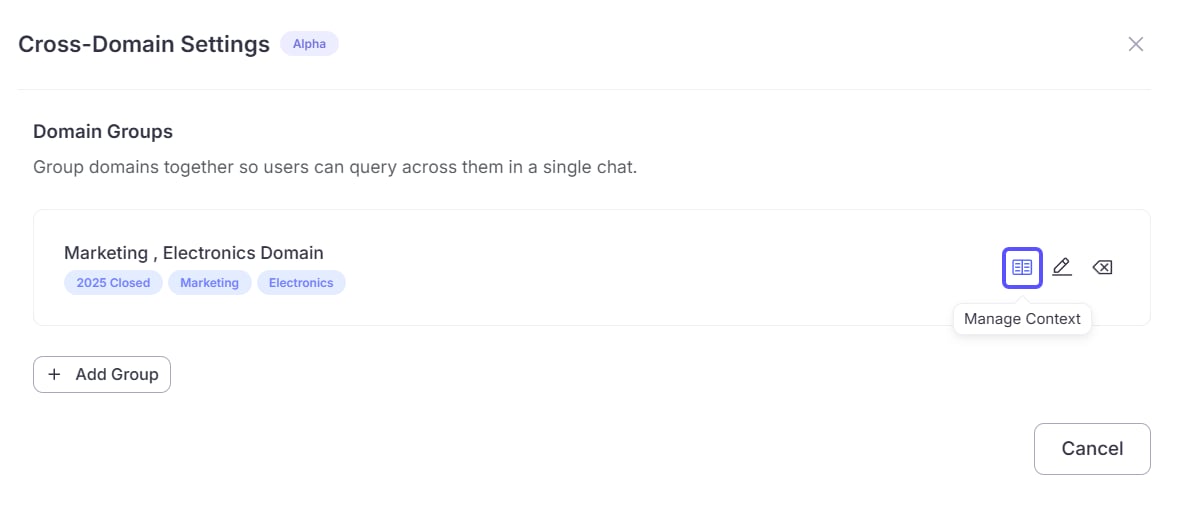 Within **Manage Context**, you can add two types of context:
* **Knowledge**: Add guidance on how to use the combined domains together. For example, explain how datasets connect or which business rules apply across all domains in the group.
* **Reviewed Queries**: The group starts with reviewed queries inherited from all included base domains.
## View the cross-domain reviewed query library
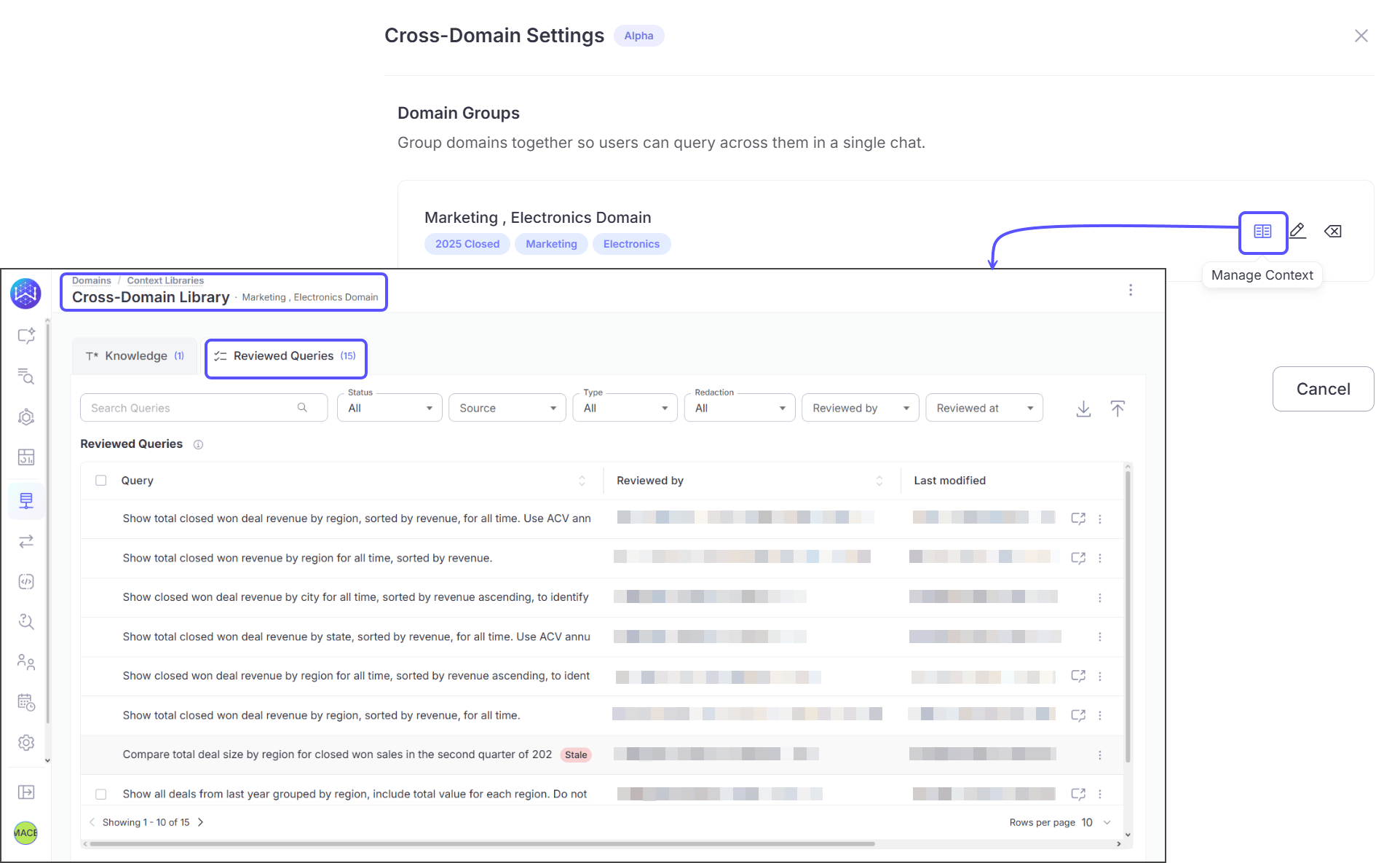
When you approve a response within a domain group using thumbs up, WisdomAI saves that query to a separate cross-domain reviewed query library. It does not appear in any individual domain's context library.
To view it, click the **Manage Context** button, then navigate to **Cross-Domain Library → Reviewed Queries**.
Within **Manage Context**, you can add two types of context:
* **Knowledge**: Add guidance on how to use the combined domains together. For example, explain how datasets connect or which business rules apply across all domains in the group.
* **Reviewed Queries**: The group starts with reviewed queries inherited from all included base domains.
## View the cross-domain reviewed query library
When you approve a response within a domain group using thumbs up, WisdomAI saves that query to a separate cross-domain reviewed query library. It does not appear in any individual domain's context library.
To view it, click the **Manage Context** button, then navigate to **Cross-Domain Library → Reviewed Queries**.
 ## Quick Reference
| **Task** | **Where** |
| ---------------------------------------- | -------------------------------------------------------- |
| Create, edit, or delete a group | Settings → Cross-Domain Settings → Domain Groups |
| Enable Auto Domain Selection | Settings → Cross-Domain Settings → Auto Domain Selection |
| Configure domain greenlist (10+ domains) | Settings → Cross-Domain Settings → Auto Domain Selection |
| Select a group in chat | Domain selector → item with **Group** chip |
| Use Auto mode in chat | Domain selector → **Auto** (sparkles icon) |
## Next steps
Understand what these features are, how they differ, and when to use one over the other.
Learn how to rate answers and provide corrections to improve the system's accuracy.
Understand the methods for verifying the correctness and reliability of generated answers.
## Quick Reference
| **Task** | **Where** |
| ---------------------------------------- | -------------------------------------------------------- |
| Create, edit, or delete a group | Settings → Cross-Domain Settings → Domain Groups |
| Enable Auto Domain Selection | Settings → Cross-Domain Settings → Auto Domain Selection |
| Configure domain greenlist (10+ domains) | Settings → Cross-Domain Settings → Auto Domain Selection |
| Select a group in chat | Domain selector → item with **Group** chip |
| Use Auto mode in chat | Domain selector → **Auto** (sparkles icon) |
## Next steps
Understand what these features are, how they differ, and when to use one over the other.
Learn how to rate answers and provide corrections to improve the system's accuracy.
Understand the methods for verifying the correctness and reliability of generated answers.