> ## Documentation Index
> Fetch the complete documentation index at: https://docs.wisdom.ai/llms.txt
> Use this file to discover all available pages before exploring further.
# Manage your Agents
After an Agent is created, it appears in a list on the main **Agents** page. From this page, you can manage all the Agents you have access to.
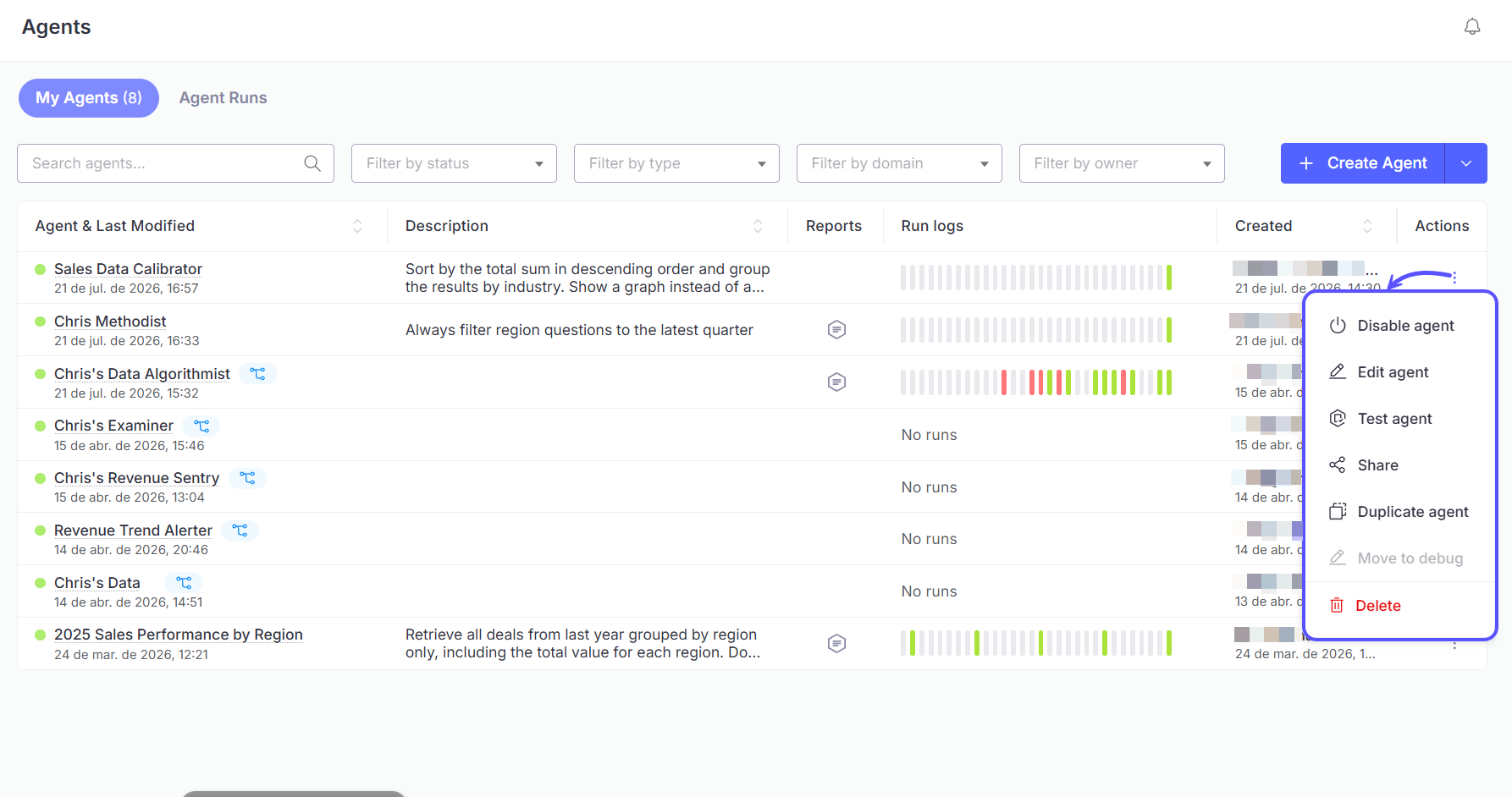
 To manage an individual agent, locate it in the list and click the **three-dot menu (...)** under the **Actions** column. A dropdown menu will appear with the following options:
* **Share**: Allows you to share the Agent with other users for collaboration.
* **Manage access**: grant **Editor** or **Viewer** access for that agent.
* **Manage general access**: share it with everyone in your organization.
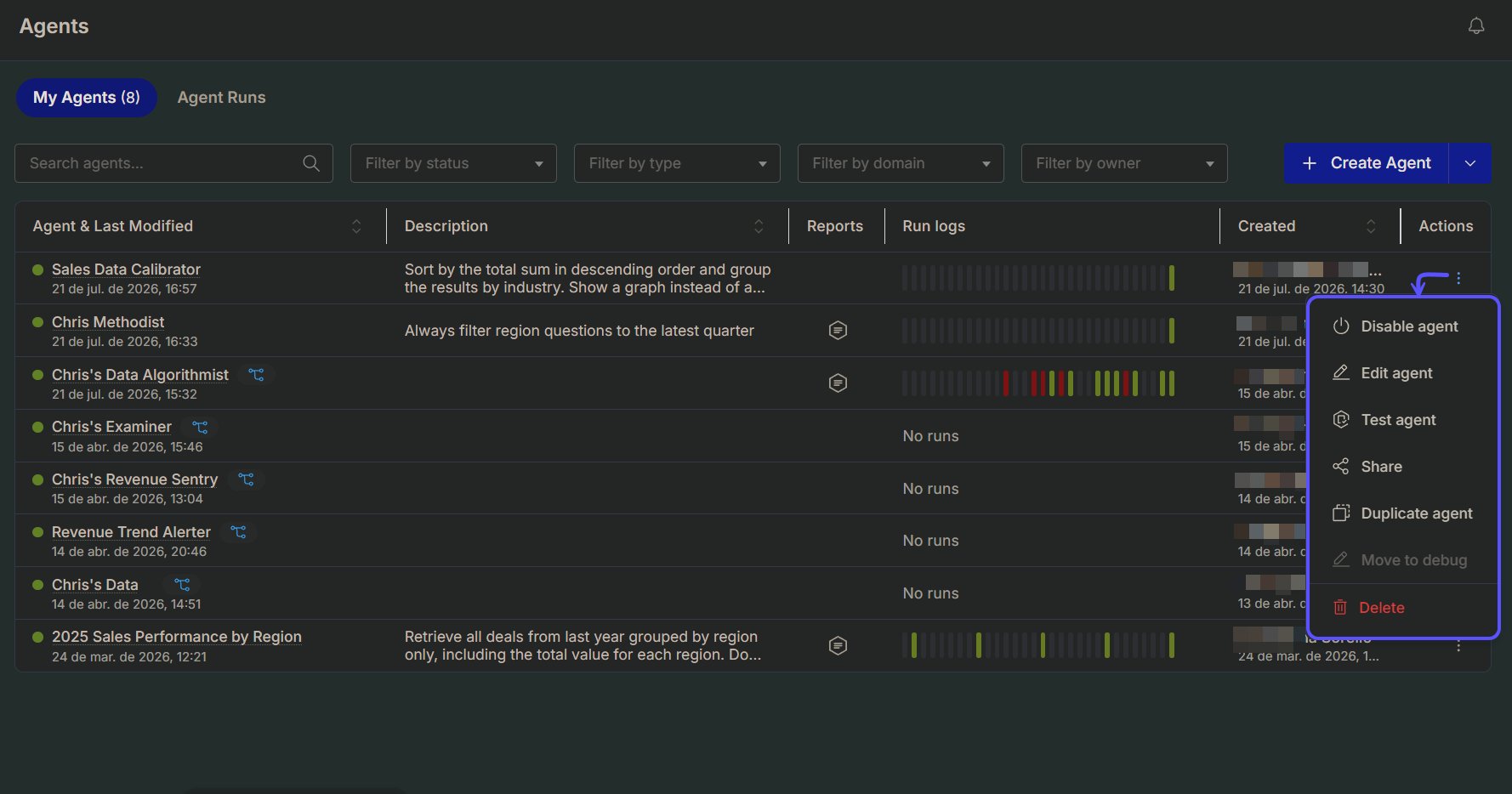
To manage an individual agent, locate it in the list and click the **three-dot menu (...)** under the **Actions** column. A dropdown menu will appear with the following options:
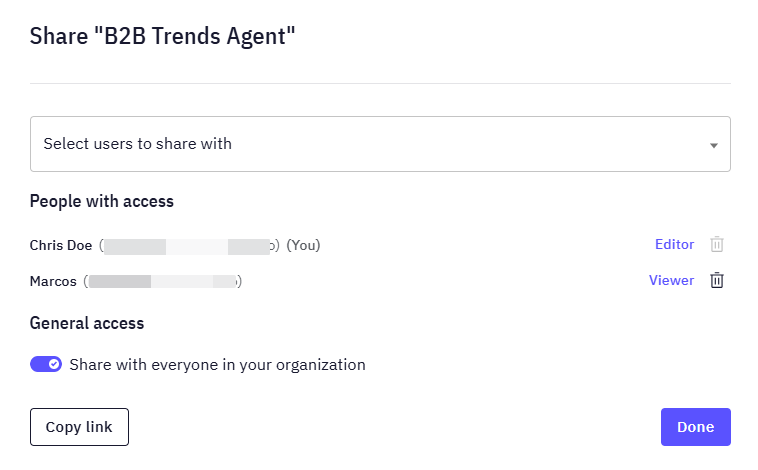
* **Share**: Allows you to share the Agent with other users for collaboration.
* **Manage access**: grant **Editor** or **Viewer** access for that agent.
* **Manage general access**: share it with everyone in your organization.
 * **Test**: Manually runs the Agent's entire workflow. The Agent will evaluate its trigger (if enabled) and, if the conditions are met (or if the trigger is disabled), run the full analysis and send a notification.
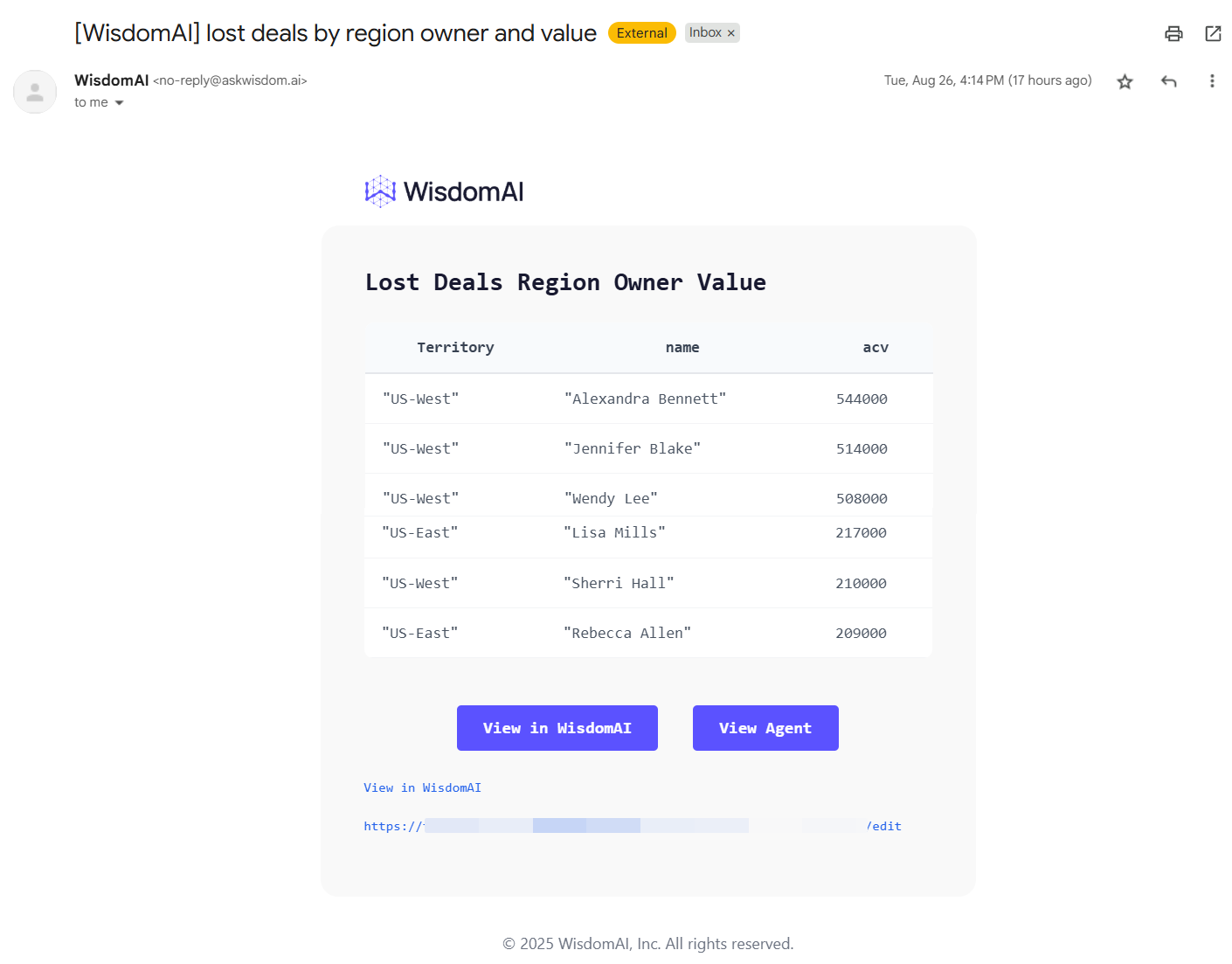
A notification is only sent if the trigger criteria are satisfied.
Once you get the notification, you will be able to:
* **View in WisdomAI**: it takes you to the chat window.
* **View Agent**: it takes you to the agent configuration page.
* **Test**: Manually runs the Agent's entire workflow. The Agent will evaluate its trigger (if enabled) and, if the conditions are met (or if the trigger is disabled), run the full analysis and send a notification.
A notification is only sent if the trigger criteria are satisfied.
Once you get the notification, you will be able to:
* **View in WisdomAI**: it takes you to the chat window.
* **View Agent**: it takes you to the agent configuration page.
 * **Edit**: Opens the canvas for Visual agents, allowing you to modify the Agent's name, trigger, work description, or schedule.
* **Delete**: Permanently removes the Agent. This action cannot be undone.
## View previous Runs
You can view a detailed history of every time an agent has run. This log is useful for auditing and debugging an agent's behavior over time.
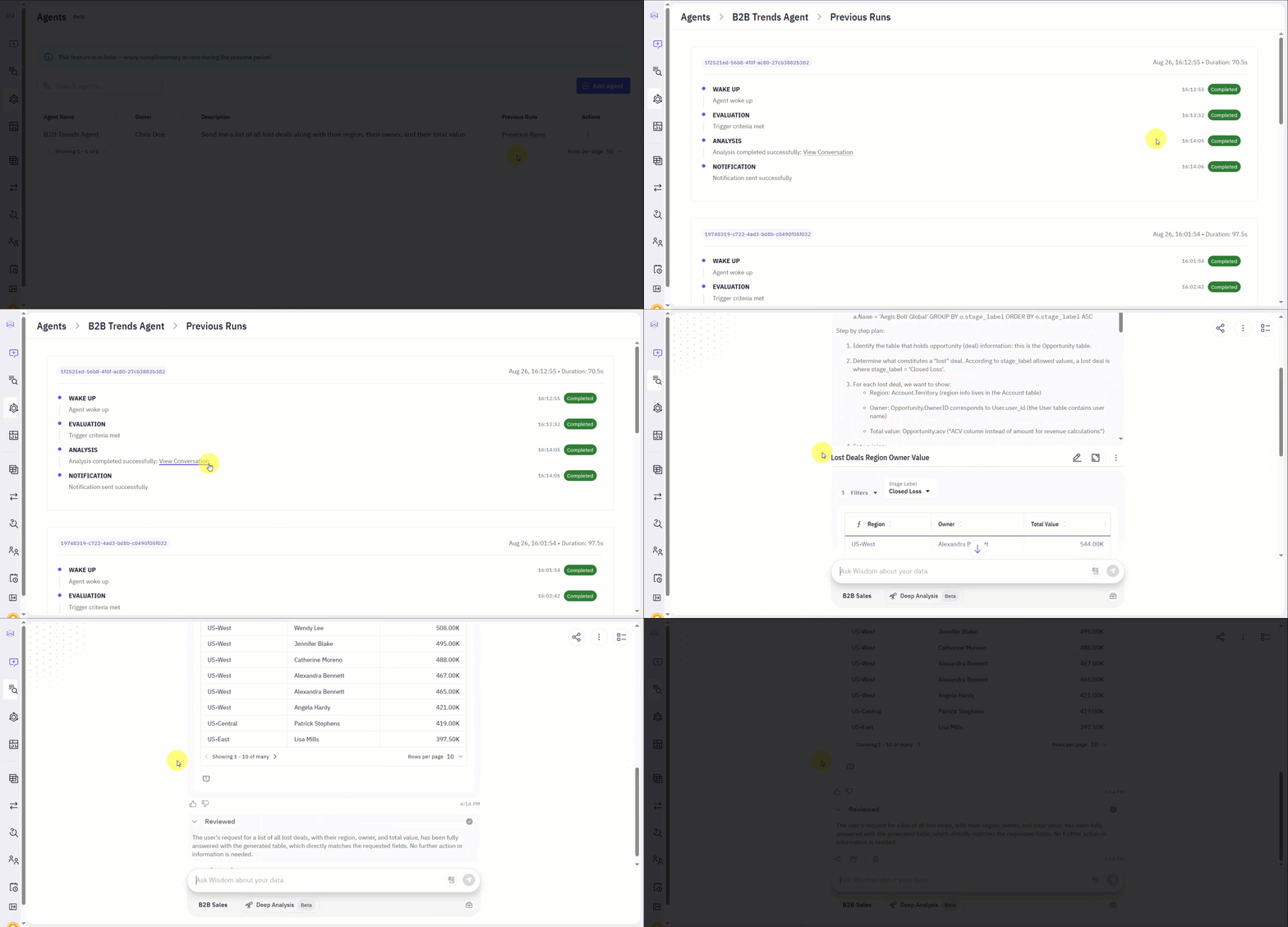
1. To see the log, find your agent on the **Agents** page and click the **Previous Runs** link in its corresponding row.
2. This will take you to the **Previous Runs** page, which displays a timeline of all past executions. Each entry in the log shows the status of the agent's key stages:
| **Stage** | **Description** |
| :--------------- | :------------------------------------------------------------------------ |
| **WAKE UP** | Confirms the agent started at its scheduled time. |
| **EVALUATION** | Shows whether the trigger criteria were met. |
| **ANALYSIS** | Confirms if the analysis was completed successfully. |
| **NOTIFICATION** | Shows if the notification was sent successfully or if there was an error. |
**Visual Agents** log each run per node. You can replay any run on the canvas to review the status of each node.
* **Edit**: Opens the canvas for Visual agents, allowing you to modify the Agent's name, trigger, work description, or schedule.
* **Delete**: Permanently removes the Agent. This action cannot be undone.
## View previous Runs
You can view a detailed history of every time an agent has run. This log is useful for auditing and debugging an agent's behavior over time.
1. To see the log, find your agent on the **Agents** page and click the **Previous Runs** link in its corresponding row.
2. This will take you to the **Previous Runs** page, which displays a timeline of all past executions. Each entry in the log shows the status of the agent's key stages:
| **Stage** | **Description** |
| :--------------- | :------------------------------------------------------------------------ |
| **WAKE UP** | Confirms the agent started at its scheduled time. |
| **EVALUATION** | Shows whether the trigger criteria were met. |
| **ANALYSIS** | Confirms if the analysis was completed successfully. |
| **NOTIFICATION** | Shows if the notification was sent successfully or if there was an error. |
**Visual Agents** log each run per node. You can replay any run on the canvas to review the status of each node.
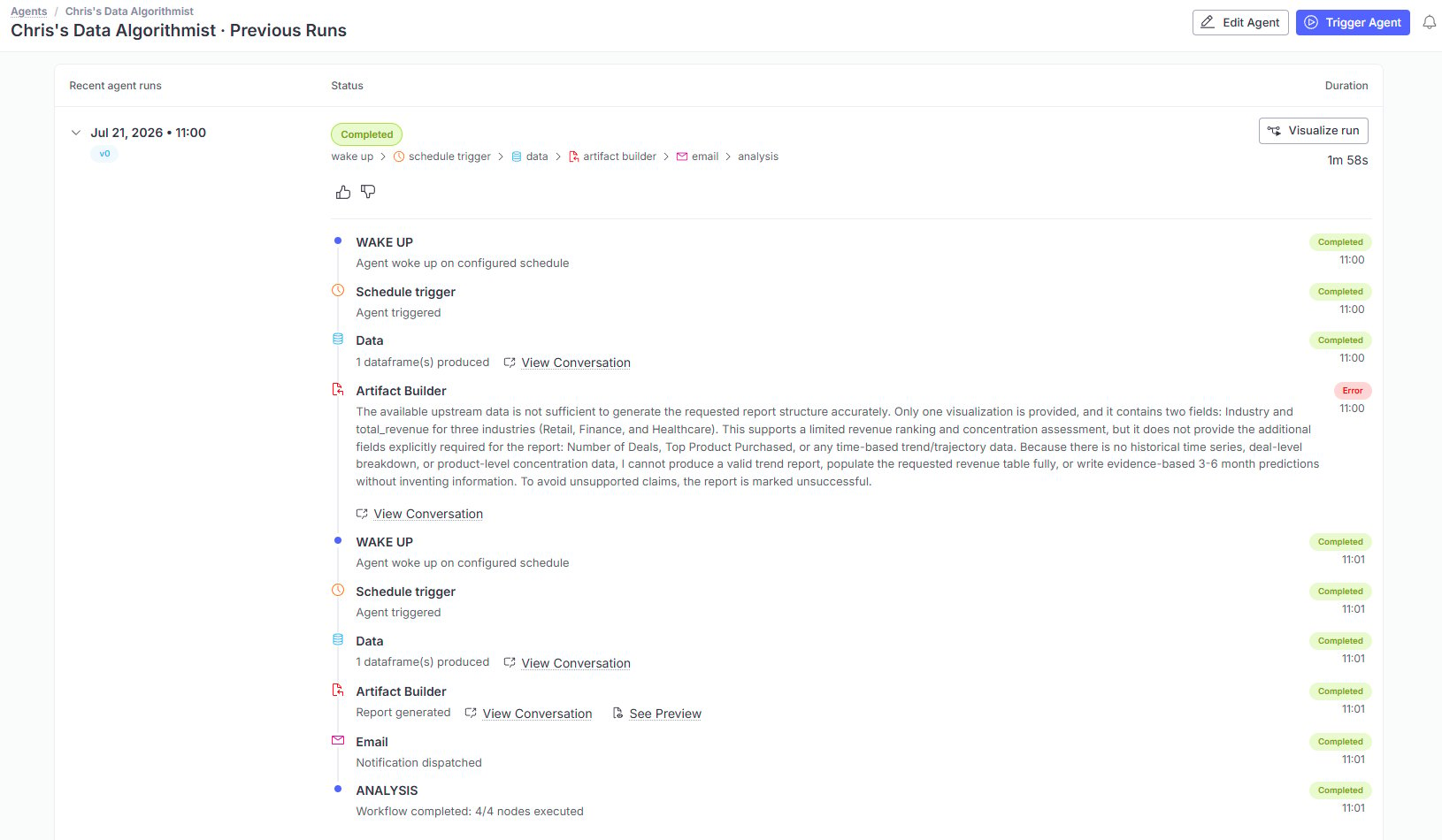
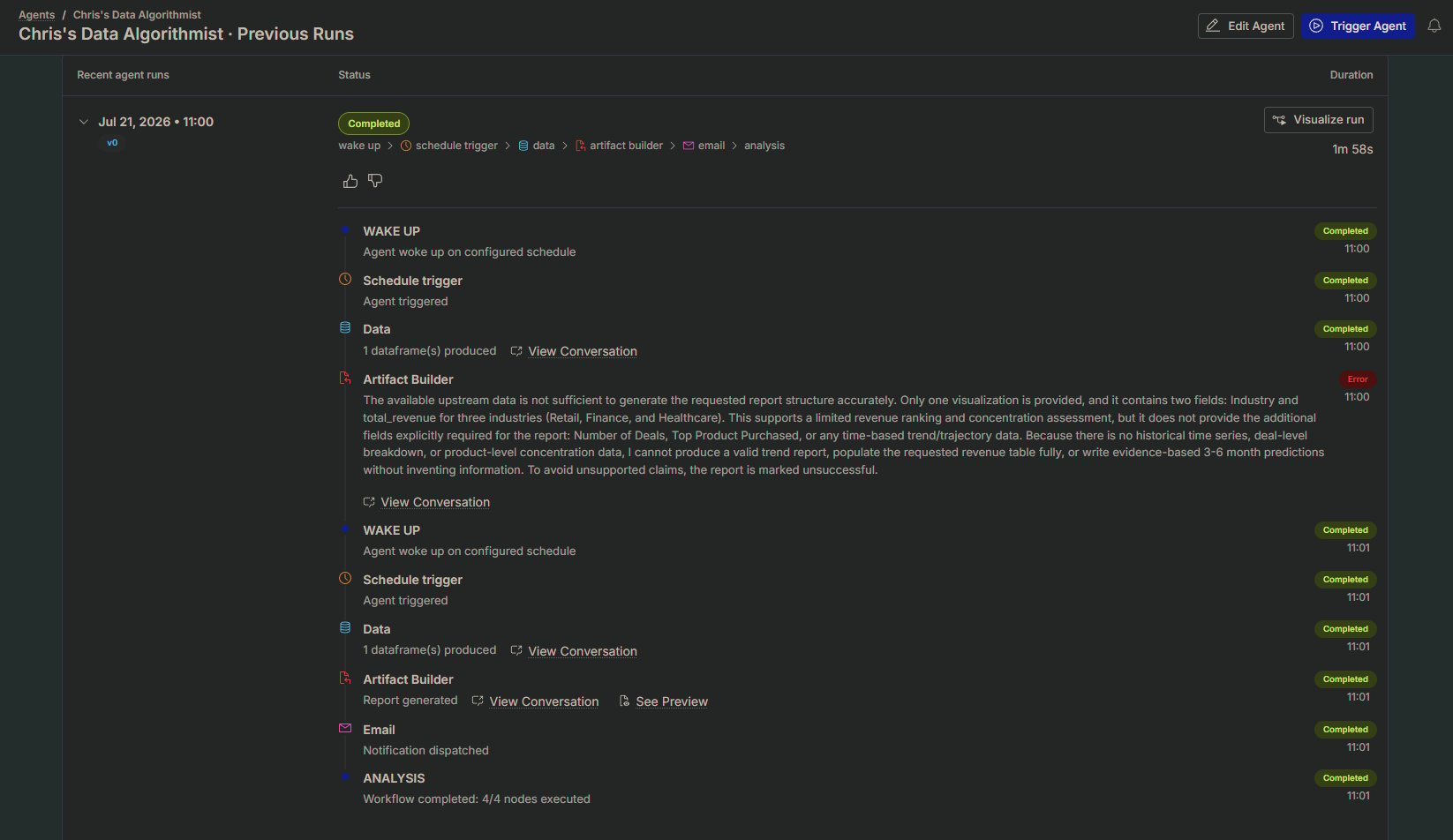 3. If an analysis was successfully generated, you can click the **View Conversation** button within the ANALYSIS step. This will take you to the specific conversation where you can inspect the detailed results and the exact query that was run for that execution.
 ## RBAC
Use Role-Based Access Control (RBAC) to manage collaboration. Refer to the table below to understand the differences between Editor and Viewer permissions and how they respect existing data access rules.
| Feature | Editor | Viewer |
| :----------------------- | :----: | :----: |
| View Agent & Run History | ✅ | ✅ |
| Edit Configuration | ✅ | ❌ |
| Trigger/Test Runs | ✅ | ❌ |
| Delete Agent | ✅ | ❌ |
## Agent states
Every agent is always in one of three states, shown next to its name on the Agents page:
* **Active**: The agent runs normally and delivers notifications to its configured channel.
* **Debug**: The agent still runs on its schedule and produces output, but doesn't notify subscribers. Use this state to validate changes against live data without alerting your team.
* **Inactive**: The agent doesn't run at all, scheduled or otherwise.
\[GIF]
## Reports
Each agent has a **Reports** list of its generated artifacts, with an **Export to PDF** action. (DOCX export is available via the API.)
To view an agent's reports:
1. On the **Agents** page, find the **Reports** column. Agents that have generated at least one report show an icon there, agents with no runs yet show none.
2. Click the icon to open that agent's Reports list.
## RBAC
Use Role-Based Access Control (RBAC) to manage collaboration. Refer to the table below to understand the differences between Editor and Viewer permissions and how they respect existing data access rules.
| Feature | Editor | Viewer |
| :----------------------- | :----: | :----: |
| View Agent & Run History | ✅ | ✅ |
| Edit Configuration | ✅ | ❌ |
| Trigger/Test Runs | ✅ | ❌ |
| Delete Agent | ✅ | ❌ |
## Agent states
Every agent is always in one of three states, shown next to its name on the Agents page:
* **Active**: The agent runs normally and delivers notifications to its configured channel.
* **Debug**: The agent still runs on its schedule and produces output, but doesn't notify subscribers. Use this state to validate changes against live data without alerting your team.
* **Inactive**: The agent doesn't run at all, scheduled or otherwise.
\[GIF]
## Reports
Each agent has a **Reports** list of its generated artifacts, with an **Export to PDF** action. (DOCX export is available via the API.)
To view an agent's reports:
1. On the **Agents** page, find the **Reports** column. Agents that have generated at least one report show an icon there, agents with no runs yet show none.
2. Click the icon to open that agent's Reports list.
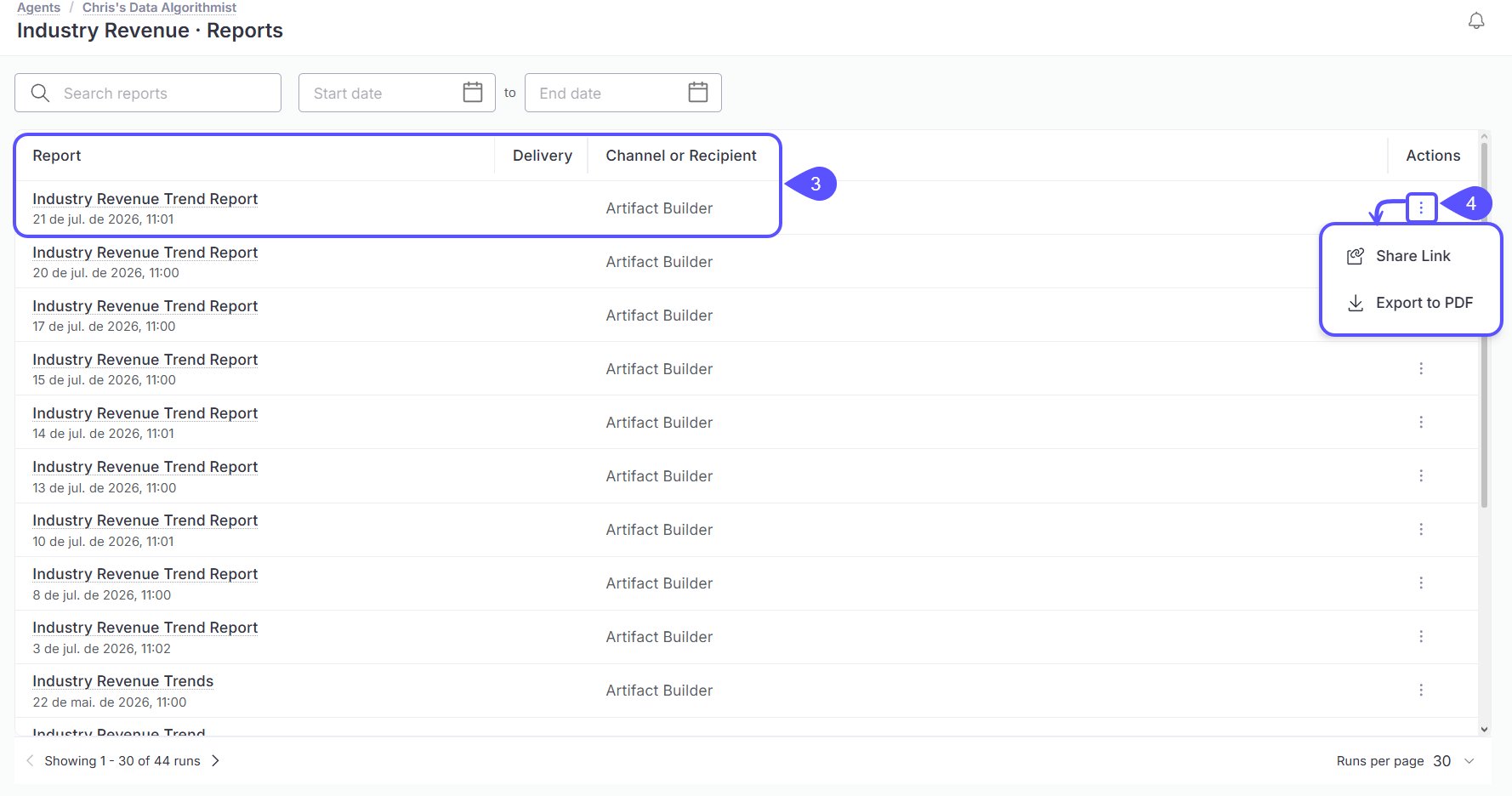
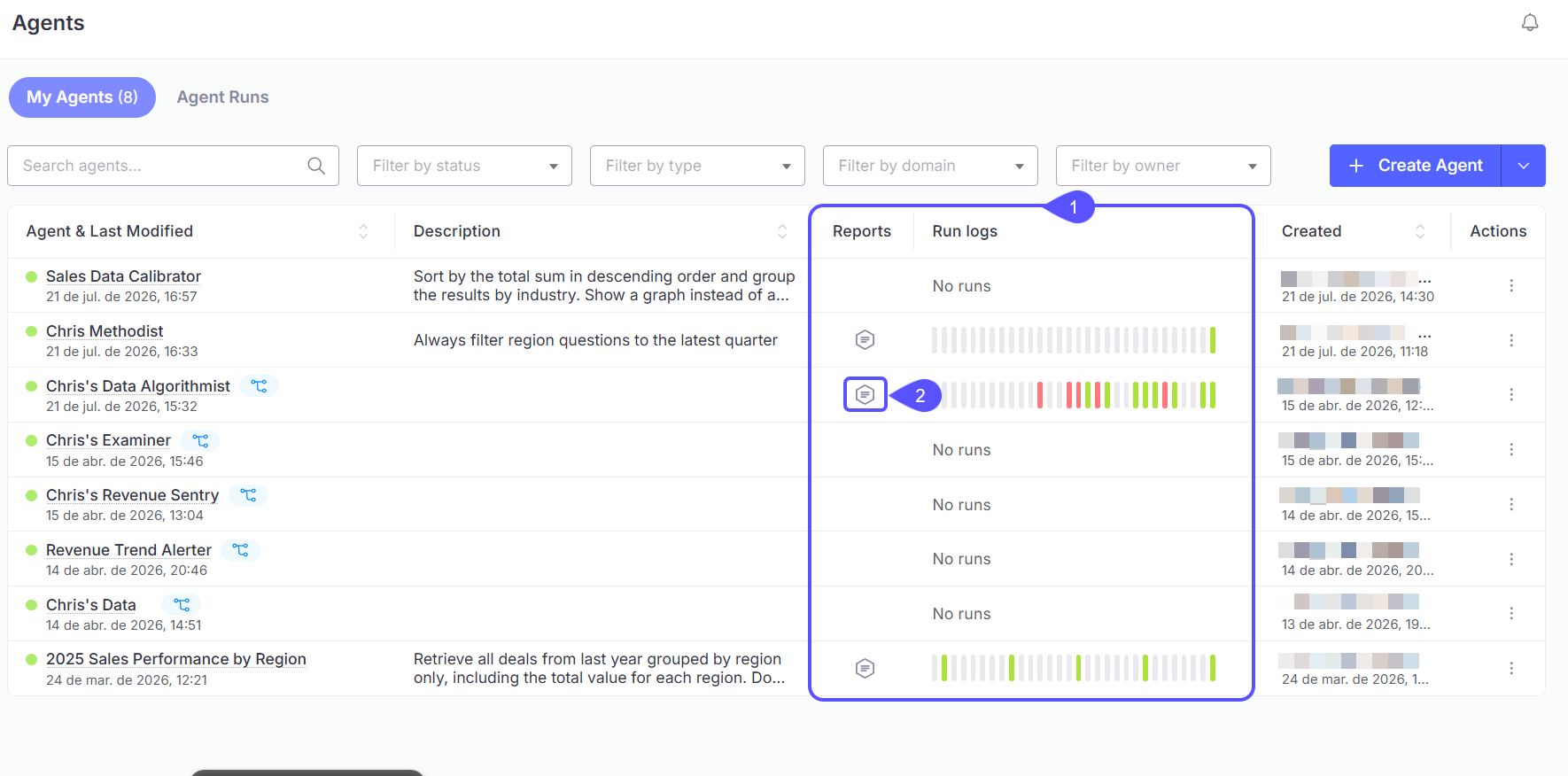 3. Each row shows the report name and the date and time it ran, along with its **Delivery** method and **Channel or Recipient**.
4. Click the **three-dot menu** next to a report to:
* **Share Link**: Copy a shareable link to that report.
* **Export to PDF**: Download the report as a PDF.
3. Each row shows the report name and the date and time it ran, along with its **Delivery** method and **Channel or Recipient**.
4. Click the **three-dot menu** next to a report to:
* **Share Link**: Copy a shareable link to that report.
* **Export to PDF**: Download the report as a PDF.
 ## Next steps
Set up the Slack integration to receive notifications from your agents and stories.
Perform in-depth investigations for complex questions and receive a detailed report.
## Next steps
Set up the Slack integration to receive notifications from your agents and stories.
Perform in-depth investigations for complex questions and receive a detailed report.