> ## Documentation Index
> Fetch the complete documentation index at: https://docs.wisdom.ai/llms.txt
> Use this file to discover all available pages before exploring further.
# Add Domain-Specific Knowledge
To improve how WisdomAI understands and answers user queries, you can add your business knowledge to your Domain. This will help refine data interpretation, align responses with business definitions, and improve overall accuracy.
Here's how to do it:
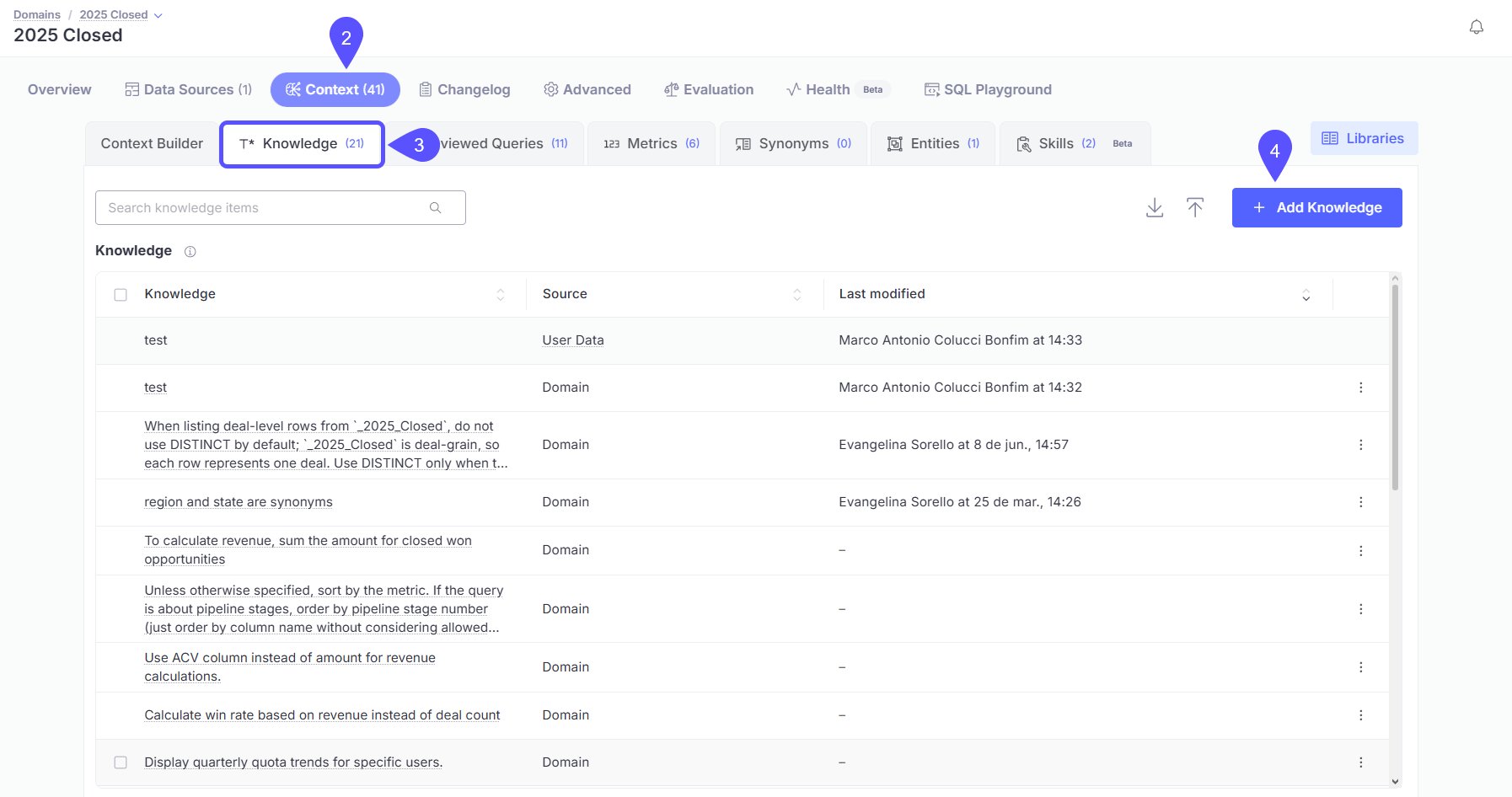
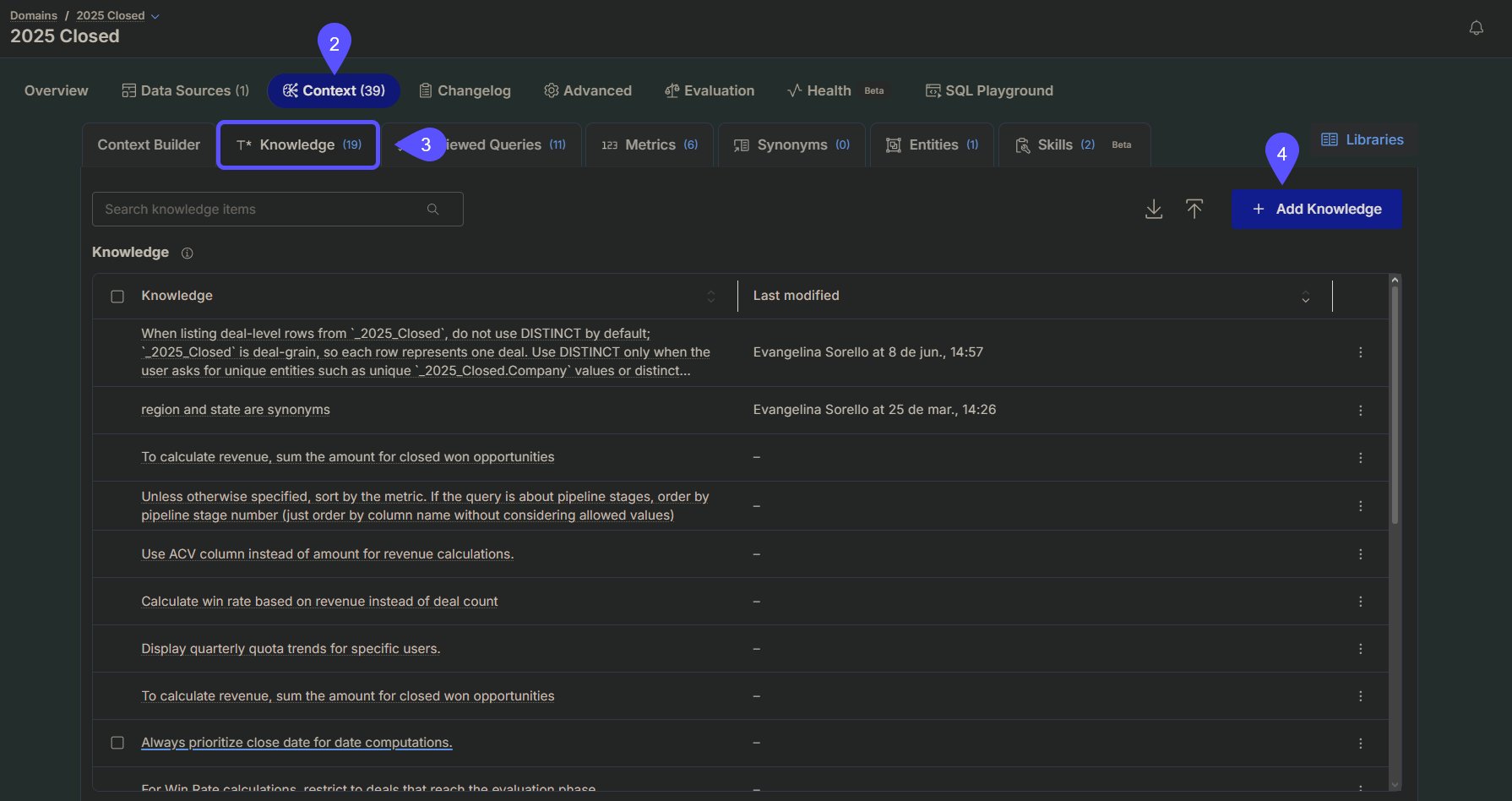
1. Select the relevant **Domain** from your Domains dashboard.
2. Navigate to the **Context** tab.
3. Select the **Knowledge** tab inside the Context section.
4. Click the **+ Add Knowledge** button to begin a new entry and add natural language context.
* Alternatively, **upload a file** containing domain-specific information.
* Here, you can also **download** the context entries in a CSV-format file.
 ### Further Knowledge configuration
Other key features within the Domain section help you define and refine contextual information for accurate AI responses.
* **Data Sources**: This tab is where you manage and model the raw data structure to make it queryable and insightful within the platform. To enhance Knowledge from the Data Sources tab, you can:
* [**Document Tables and Columns**](/setting-up-wisdom-ai/manage-tables-columns/document-tables-and-columns): Write clear, natural language descriptions for tables and columns to help the AI interpret schema elements accurately.
* [**Define Metrics with SQL**](/improve-wisdom-ai-responses/how-to-create-metrics): Use SQL formulas to define key metrics and calculations, ensuring consistent, precise responses.
## Next steps
Organize insights by tagging chats, navigating history, and sharing vetted answers with your team.
Learn how to rate answers and provide corrections to improve the system's accuracy.
Understand the methods for verifying the correctness and reliability of generated answers.
Define relationships and Knowledge in your data to enable more powerful analysis.
### Further Knowledge configuration
Other key features within the Domain section help you define and refine contextual information for accurate AI responses.
* **Data Sources**: This tab is where you manage and model the raw data structure to make it queryable and insightful within the platform. To enhance Knowledge from the Data Sources tab, you can:
* [**Document Tables and Columns**](/setting-up-wisdom-ai/manage-tables-columns/document-tables-and-columns): Write clear, natural language descriptions for tables and columns to help the AI interpret schema elements accurately.
* [**Define Metrics with SQL**](/improve-wisdom-ai-responses/how-to-create-metrics): Use SQL formulas to define key metrics and calculations, ensuring consistent, precise responses.
## Next steps
Organize insights by tagging chats, navigating history, and sharing vetted answers with your team.
Learn how to rate answers and provide corrections to improve the system's accuracy.
Understand the methods for verifying the correctness and reliability of generated answers.
Define relationships and Knowledge in your data to enable more powerful analysis.