> ## Documentation Index
> Fetch the complete documentation index at: https://docs.wisdom.ai/llms.txt
> Use this file to discover all available pages before exploring further.
# Role Mapping & SSO Groups
Once users are provisioned via SSO, you can automate their permission levels by mapping Identity Provider (IdP) data to WisdomAI roles.
### Role management through SCIM
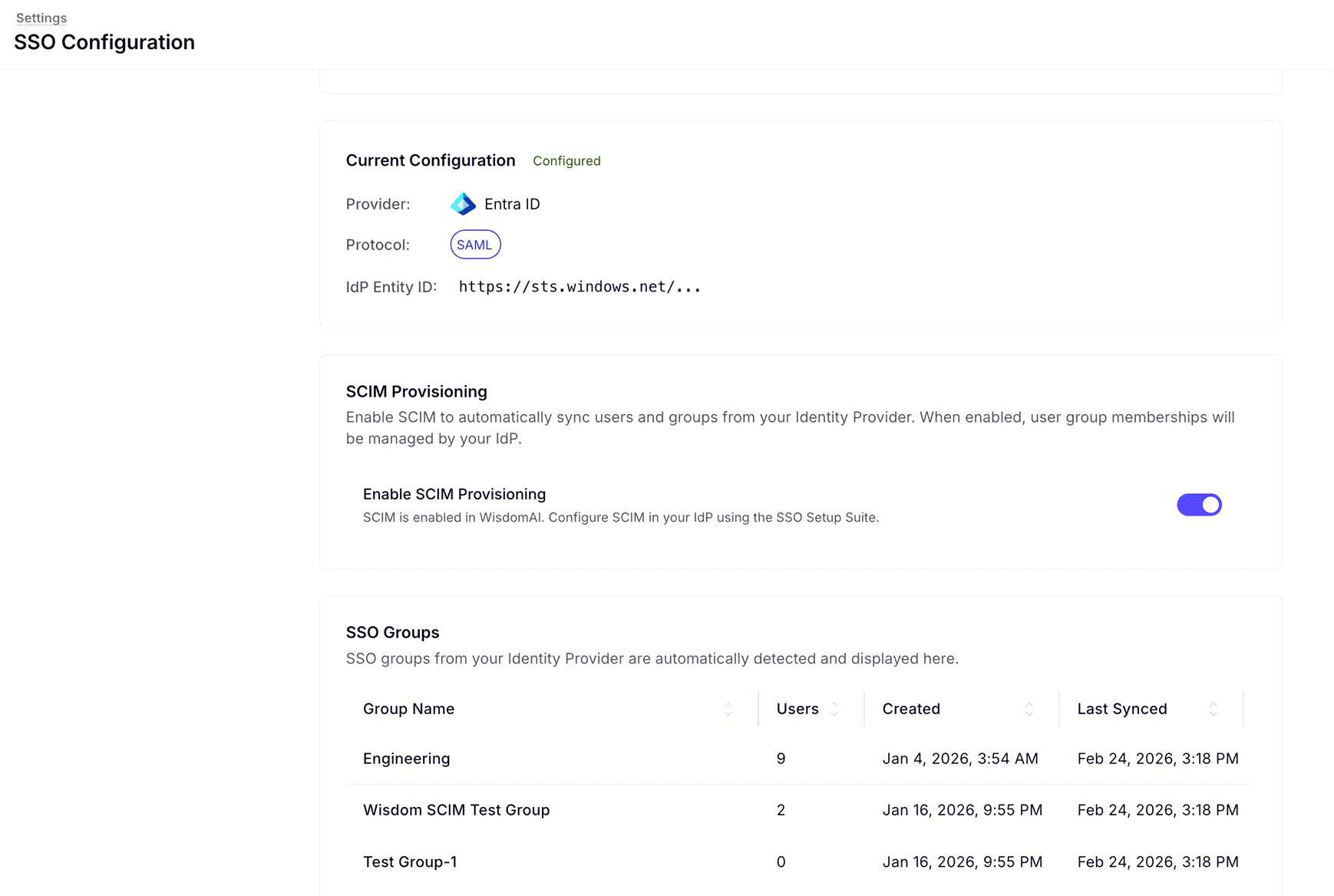
When SCIM is enabled, your existing SSO groups are automatically detected and synced to Wisdom.
* **View Synced Groups**: Navigate to the **SSO Groups** list in the SSO Configuration settings to see groups like "Engineering" or "Sales" along with their sync status.
 * **Assign Roles to Groups**: Use the **Add SSO Group** button to link a synced group to a specific WisdomAI role (e.g., Explorer).
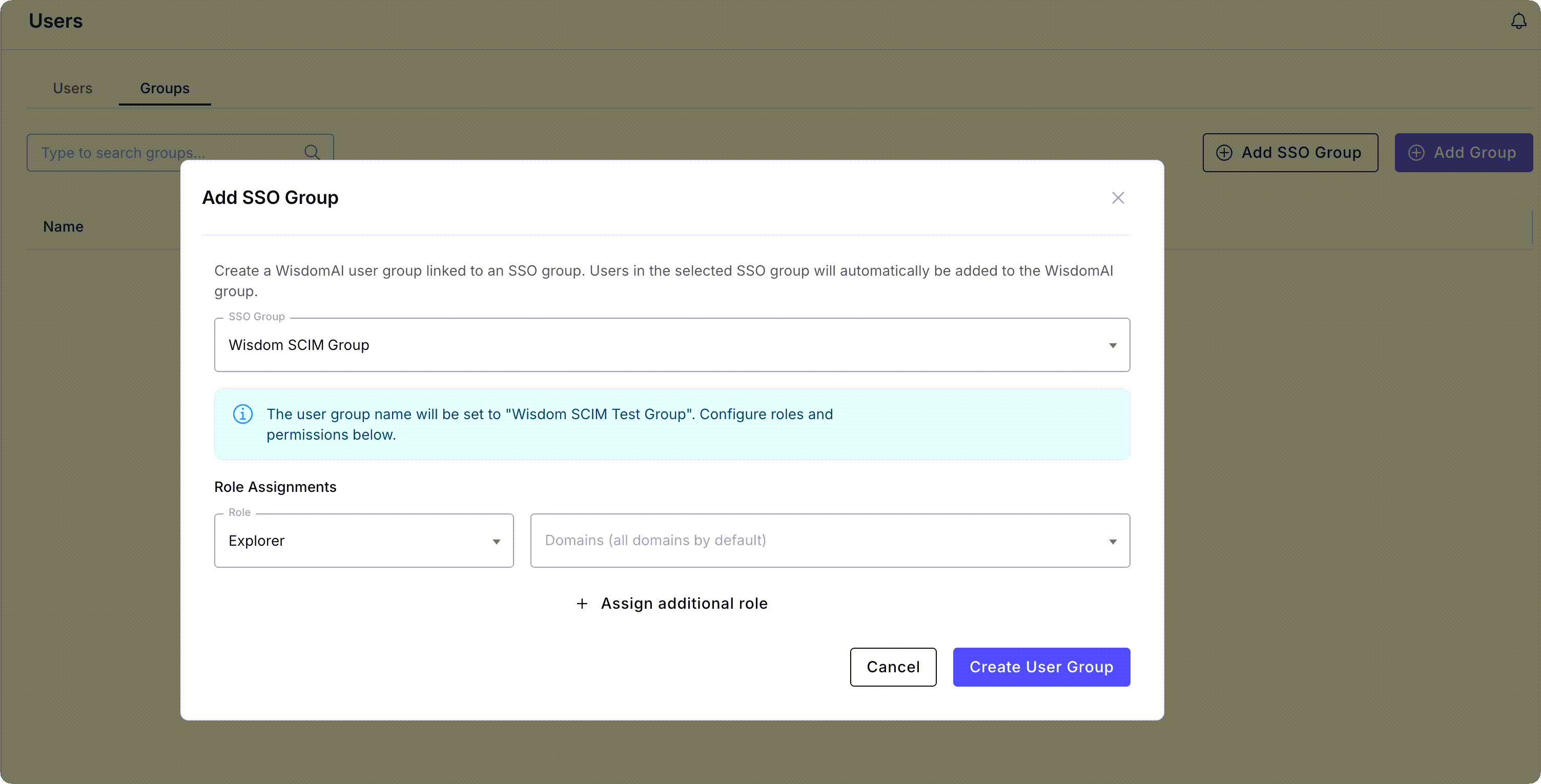 Any user belonging to that SSO group will automatically inherit the assigned roles and domain permissions in WisdomAI.
### Role management through claims
If you prefer not to use SCIM groups, you can configure roles based on "claims" within the IDP's JSON Web Token (JWT).
Contact [WisdomAI support](/manage-account/contact-support) to enable claims-based role management for your instance.
**How the mapping works:**
1. When a user logs in, WisdomAI reads a specific claim from the JWT (typically named `roles` or `groups`) which contains a list of strings.
2. An **SSO Group** in WisdomAI acts as a bridge. It maps a specific **string element** from that JWT list to the assigned **WisdomAI Role**.
3. If a user’s JWT contains the string `"marketing_admin"`, and you have created an SSO Group in Wisdom that maps `"marketing_admin"` to the **Explorer** role, that user is automatically granted those permissions.
**Set it up:**
* Click the **Add Group** button.
* In the **Add SSO Group** modal that opens, enter the string element that matches your IDP claim in the **SSO Group Name** field.
The claim should be a list of strings.
* **Role Assignments**: Select the Role (e.g., Explorer) and the corresponding Domains to be mapped to that string.
* Click **Create User Group** to finalize the mapping.
### Auto SSO group generation
To avoid manual mapping entirely, WisdomAI can auto-generate groups based on a specific string schema in your IdP claims.
Contact [WisdomAI support](/manage-account/contact-support) to enable claims-based role management for your instance.
Each claim string must follow this schema:
`wisdom.[optional_workspace_uri].role.[optional_scope_type].[optional_scope]`
1. `wisdom.` prefix for namespace and versioning purposes
2. `optional workspace URI.` (default workspace if not given)
3. `role.` (one of administrator, data\_administrator, explorer, observer)
4. `optional scope type.` (required if scope is given)
5. `optional scope` (required if scope type is given)
**Examples of valid claim strings:**
* `wisdom.explorer`: Assigns the Explorer role on all domains in the default workspace.
* `wisdom.foo.explorer`: Assigns the Explorer role on all domains within the "foo" workspace.
* `wisdom.explorer.DOMAIN.ET_DOMAIN_foo`: Assigns the Explorer role to a specific domain in the default workspace.
* `wisdom.foo.explorer.DOMAIN.ET_DOMAIN_bar`: Assigns the Explorer role on a specific domain in the foo workspace.
## Next steps
Explore the full list of databases and platforms you can connect to the system.
Understand the core concepts and architecture behind the platform's data analysis capabilities.
Walk through the initial setup to connect a data source and run your first query.
Any user belonging to that SSO group will automatically inherit the assigned roles and domain permissions in WisdomAI.
### Role management through claims
If you prefer not to use SCIM groups, you can configure roles based on "claims" within the IDP's JSON Web Token (JWT).
Contact [WisdomAI support](/manage-account/contact-support) to enable claims-based role management for your instance.
**How the mapping works:**
1. When a user logs in, WisdomAI reads a specific claim from the JWT (typically named `roles` or `groups`) which contains a list of strings.
2. An **SSO Group** in WisdomAI acts as a bridge. It maps a specific **string element** from that JWT list to the assigned **WisdomAI Role**.
3. If a user’s JWT contains the string `"marketing_admin"`, and you have created an SSO Group in Wisdom that maps `"marketing_admin"` to the **Explorer** role, that user is automatically granted those permissions.
**Set it up:**
* Click the **Add Group** button.
* In the **Add SSO Group** modal that opens, enter the string element that matches your IDP claim in the **SSO Group Name** field.
The claim should be a list of strings.
* **Role Assignments**: Select the Role (e.g., Explorer) and the corresponding Domains to be mapped to that string.
* Click **Create User Group** to finalize the mapping.
### Auto SSO group generation
To avoid manual mapping entirely, WisdomAI can auto-generate groups based on a specific string schema in your IdP claims.
Contact [WisdomAI support](/manage-account/contact-support) to enable claims-based role management for your instance.
Each claim string must follow this schema:
`wisdom.[optional_workspace_uri].role.[optional_scope_type].[optional_scope]`
1. `wisdom.` prefix for namespace and versioning purposes
2. `optional workspace URI.` (default workspace if not given)
3. `role.` (one of administrator, data\_administrator, explorer, observer)
4. `optional scope type.` (required if scope is given)
5. `optional scope` (required if scope type is given)
**Examples of valid claim strings:**
* `wisdom.explorer`: Assigns the Explorer role on all domains in the default workspace.
* `wisdom.foo.explorer`: Assigns the Explorer role on all domains within the "foo" workspace.
* `wisdom.explorer.DOMAIN.ET_DOMAIN_foo`: Assigns the Explorer role to a specific domain in the default workspace.
* `wisdom.foo.explorer.DOMAIN.ET_DOMAIN_bar`: Assigns the Explorer role on a specific domain in the foo workspace.
## Next steps
Explore the full list of databases and platforms you can connect to the system.
Understand the core concepts and architecture behind the platform's data analysis capabilities.
Walk through the initial setup to connect a data source and run your first query.