> ## Documentation Index
> Fetch the complete documentation index at: https://docs.wisdom.ai/llms.txt
> Use this file to discover all available pages before exploring further.
# Google Sheets
The WisdomAI integration for Google Sheets allows you to pull live data from your WisdomAI dashboards directly into Google Sheets. You can import any widget from your dashboards and chats using custom formulas or a visual dialog, and extract the latest version of data, everything with a single click.
## Get started
Before you begin, ensure you have the **API Credentials**:
Email [support@askwisdom.ai](mailto:support@askwisdom.ai) to request API keys for the Google Sheets integration, along with the use case. The WisdomAI team will reply with **your API token** and **the wrapper script**.
## Set up the integration
Follow these steps to integrate your Google Sheets with WisdomAI:
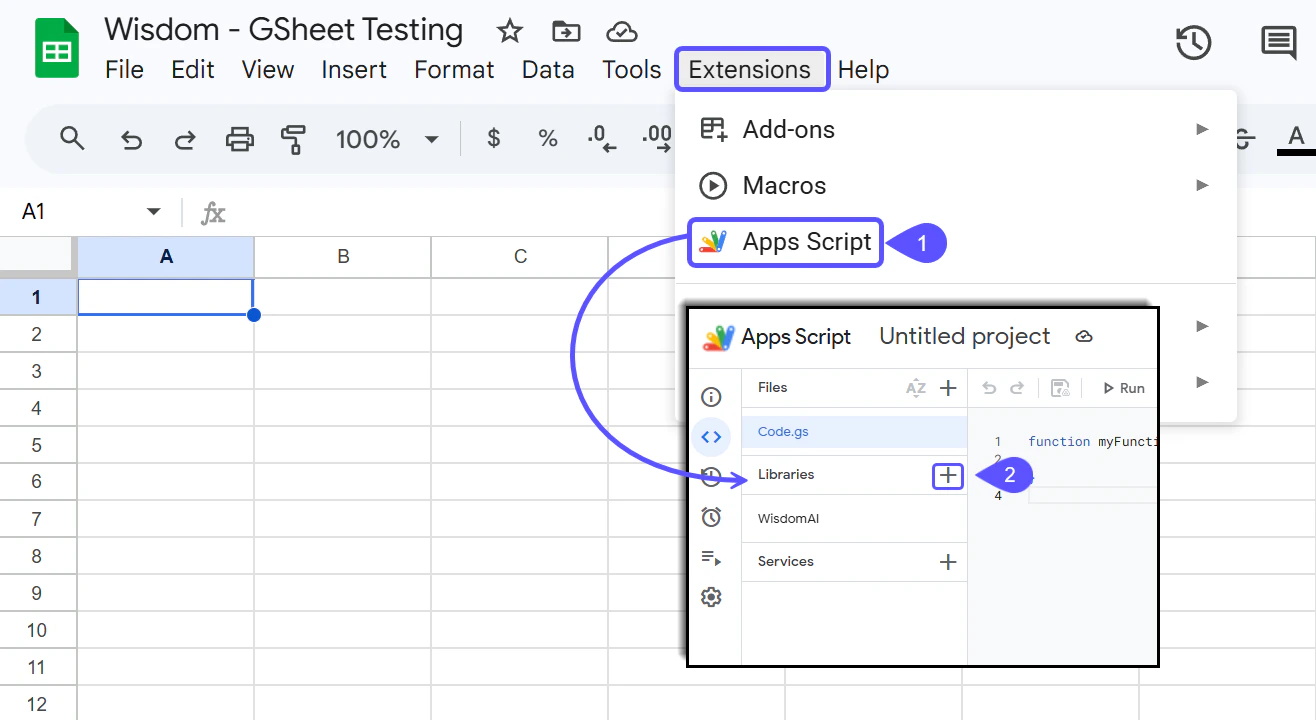
1. Open your Google Sheet and go to **Extensions** > **Apps Script**.
2. In the script editor, click the **+** icon next to Libraries.
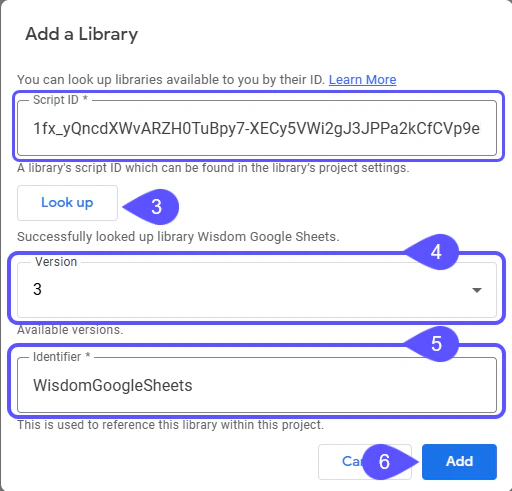
 3. Enter the Script ID: `1fx_yQncdXWvARZH0TuBpy7-XECy5VWi2gJ3JPPa2kCfCVp9elsyHPZK8` and click **Look up**.
4. Select the latest version.
5. Set the identifier as **WisdomGoogleSheets**.
6. Click **Add**.
3. Enter the Script ID: `1fx_yQncdXWvARZH0TuBpy7-XECy5VWi2gJ3JPPa2kCfCVp9elsyHPZK8` and click **Look up**.
4. Select the latest version.
5. Set the identifier as **WisdomGoogleSheets**.
6. Click **Add**.
 7. Paste the wrapper script shared by [support@askwisdom.ai](mailto:support@askwisdom.ai) into Code.gs, replacing any existing code.
8. Save and reload your spreadsheet. Once synced, a WisdomAI menu will appear in the menu bar.
## Set up your account
To configure your account, follow these steps:
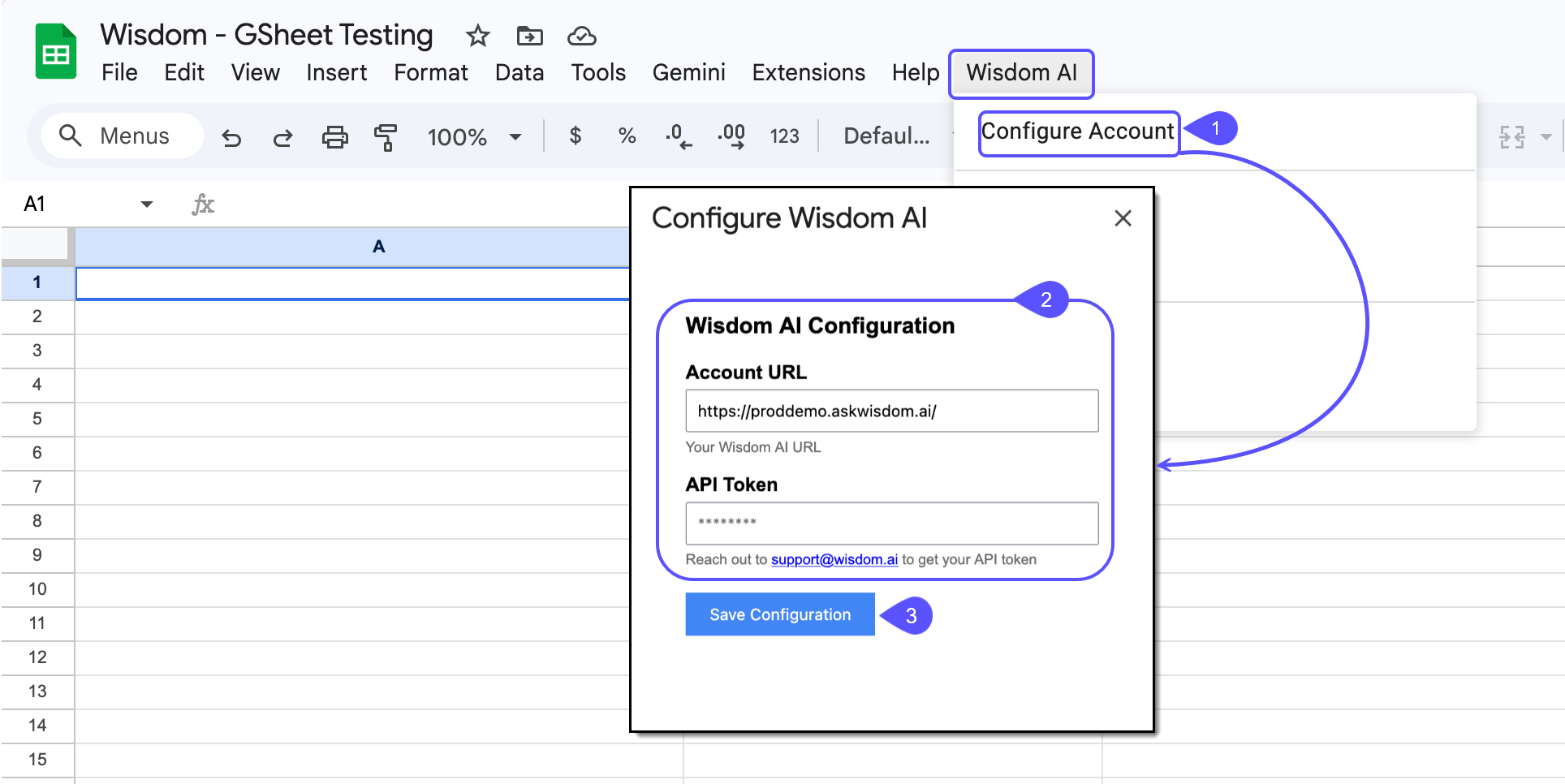
1. In your Google Sheet, go to **Wisdom AI** > **Configure Account** from the menu bar.
2. Enter your Account URL and the API Token you received.
3. Click **Save Configuration**.
7. Paste the wrapper script shared by [support@askwisdom.ai](mailto:support@askwisdom.ai) into Code.gs, replacing any existing code.
8. Save and reload your spreadsheet. Once synced, a WisdomAI menu will appear in the menu bar.
## Set up your account
To configure your account, follow these steps:
1. In your Google Sheet, go to **Wisdom AI** > **Configure Account** from the menu bar.
2. Enter your Account URL and the API Token you received.
3. Click **Save Configuration**.
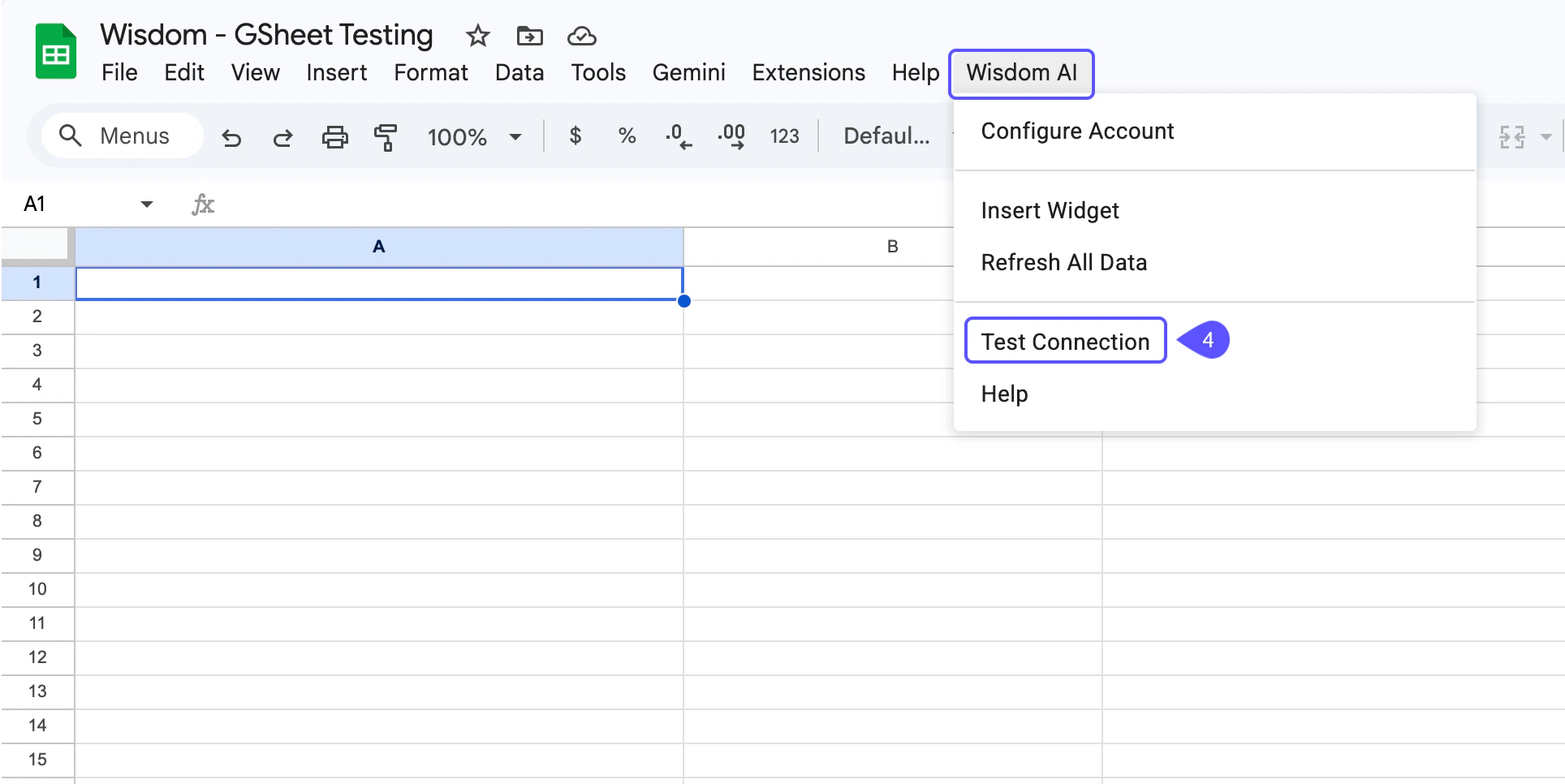
 4. Go to **Wisdom AI** > **Test Connection** to verify that everything works.
 ## Visual widget
To insert a visual widget, follow these steps:
1. Go to **Wisdom AI** > **Insert Widget**.
## Visual widget
To insert a visual widget, follow these steps:
1. Go to **Wisdom AI** > **Insert Widget**.
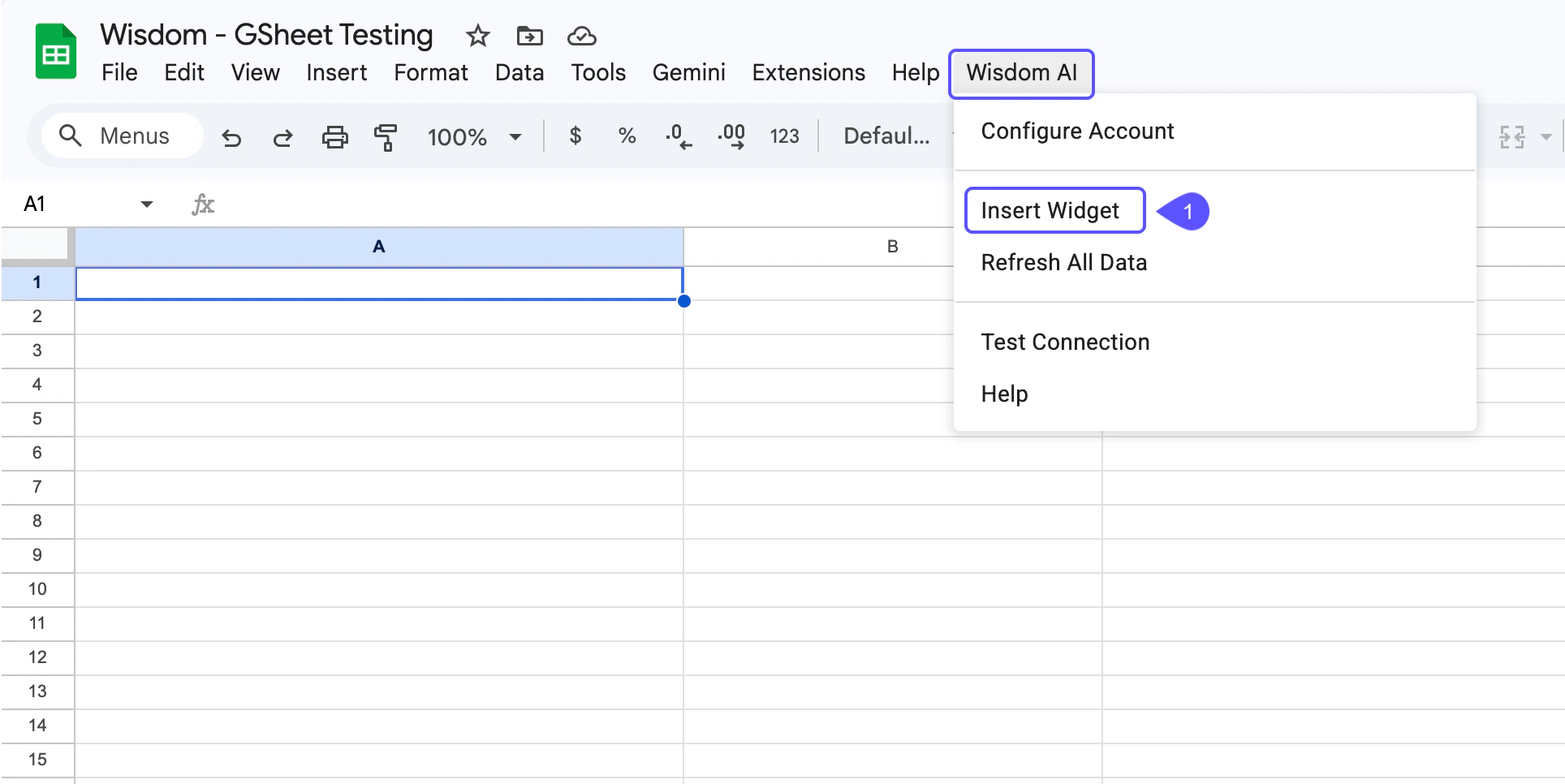 2. Paste the widget URL from your Wisdom dashboard
3. On any widget, click the menu and select **Copy link to visualization**. You can choose which rows and columns to import and whether to include headers.
## Custom formulas
You can also use these formulas directly in cells:
| Formula | What it does |
| :------------------------------------------- | :------------------------- |
| `=WISDOM_WIDGET`(dashboardId, widgetId) | Fetches data from a widget |
| `=WISDOM_COLUMN`(dashboardId, widgetId, col) | Fetches a single column |
## Refreshing data
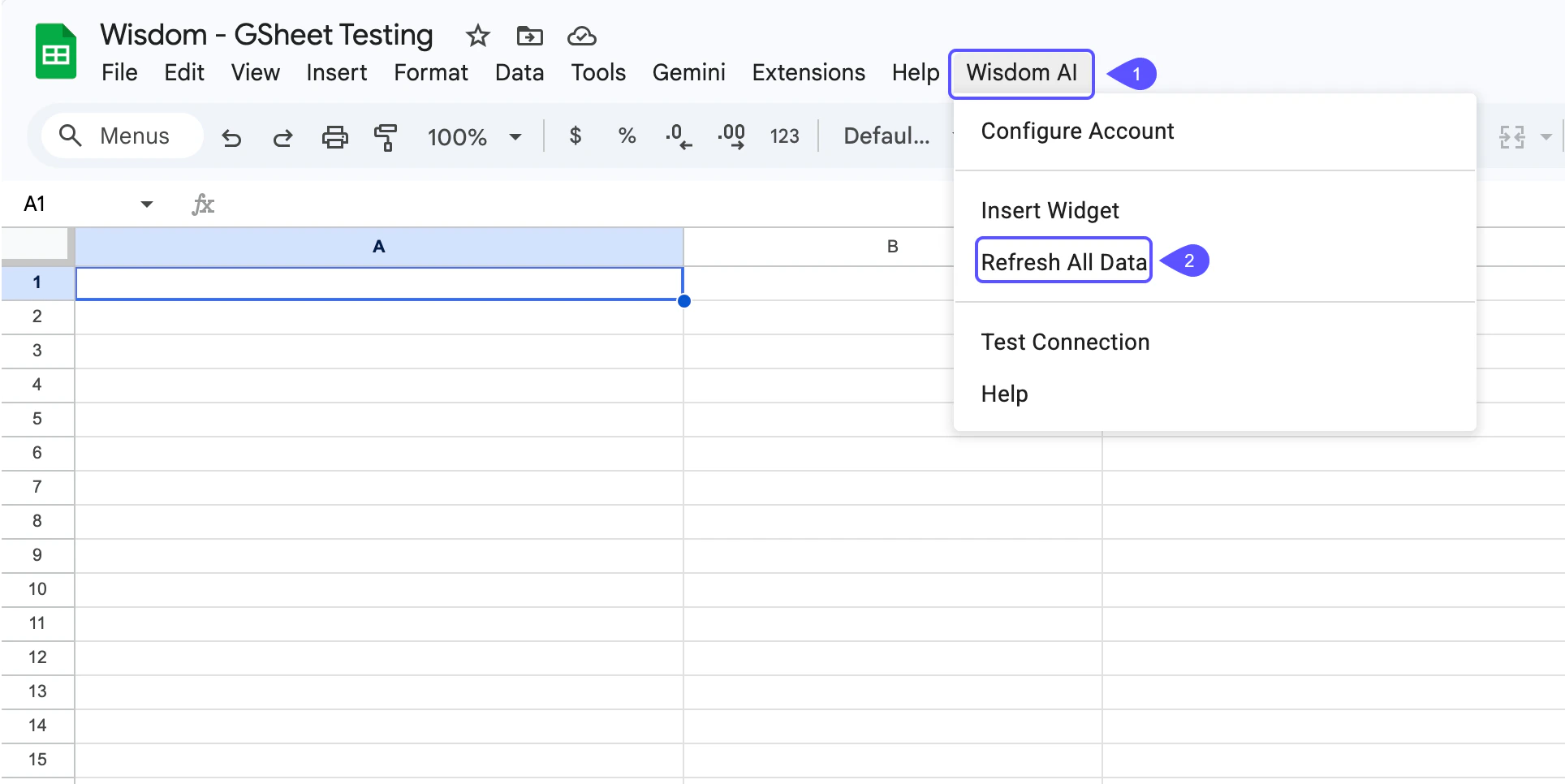
To update everything, go to **Wisdom AI** > **Refresh All Data**. This re-fetches every WisdomAI formula in the active sheet.
2. Paste the widget URL from your Wisdom dashboard
3. On any widget, click the menu and select **Copy link to visualization**. You can choose which rows and columns to import and whether to include headers.
## Custom formulas
You can also use these formulas directly in cells:
| Formula | What it does |
| :------------------------------------------- | :------------------------- |
| `=WISDOM_WIDGET`(dashboardId, widgetId) | Fetches data from a widget |
| `=WISDOM_COLUMN`(dashboardId, widgetId, col) | Fetches a single column |
## Refreshing data
To update everything, go to **Wisdom AI** > **Refresh All Data**. This re-fetches every WisdomAI formula in the active sheet.
 ## Next Steps
Discover how to embed conversational AI chat interfaces
Learn how to connect WisdomAI to Slack.
## Next Steps
Discover how to embed conversational AI chat interfaces
Learn how to connect WisdomAI to Slack.