> ## Documentation Index
> Fetch the complete documentation index at: https://docs.wisdom.ai/llms.txt
> Use this file to discover all available pages before exploring further.
# Validate and Test Answers
This guide is for Administrators responsible for ensuring the accuracy of WisdomAI responses. This workflow typically begins after an end-user [provides negative feedback on an answer](/setting-up-wisdom-ai/feedback-mechanisms/provide-feedback-to-the-system).
Here, you will learn how to edit, test, and validate responses to build confidence and improve the system's knowledge base.
## Prerequisites
* You must have **Administrator** permissions. For details, see [Access Management](/manage-account/access-management).
## 1. Edit the SQL query
When an answer is incorrect, you can directly edit the underlying SQL query.
1. Click the **Edit** button on the answer card in the chat interface.
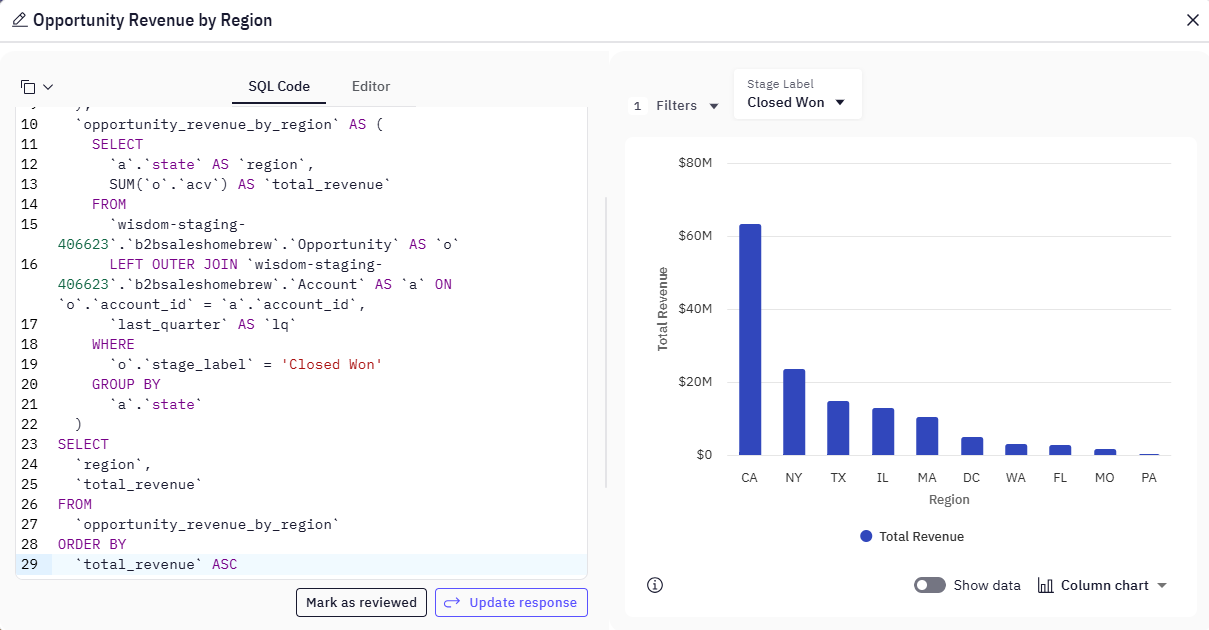
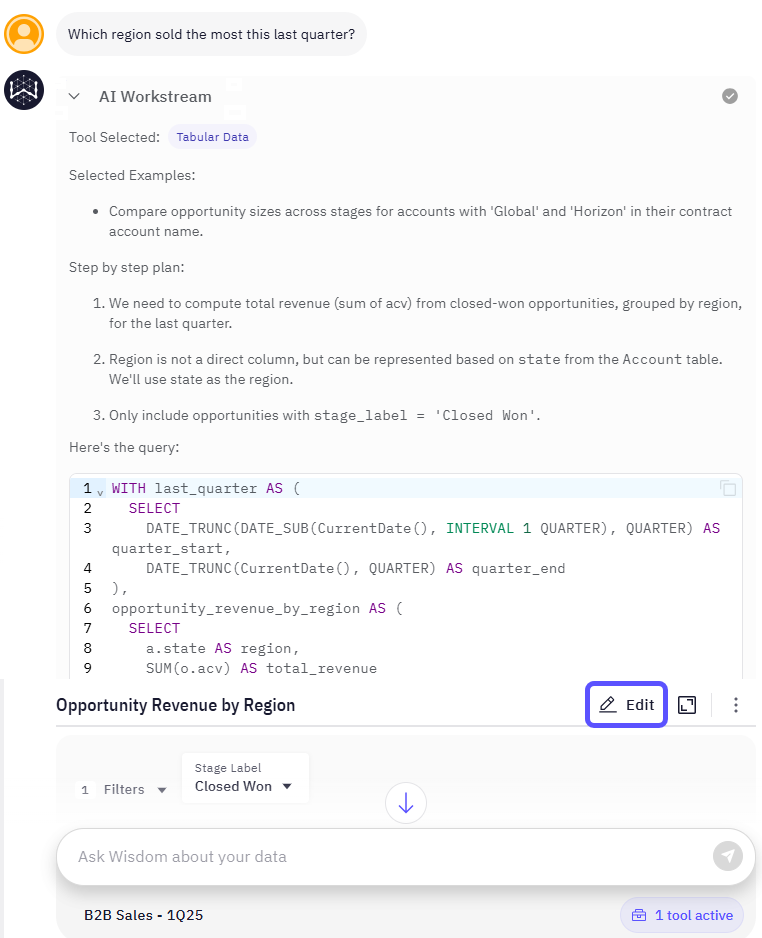 2. The **Editor** window will open. Go to the **SQL Code** tab.
3. Modify the SQL statement to fix inaccuracies, add joins, or correct filters.
4. Click **Update response** to run the revised query and refresh the data.
5. (Optional) Switch back to the **Editor** tab to configure chart types, add filters, or drag-and-drop columns for visualization.
2. The **Editor** window will open. Go to the **SQL Code** tab.
3. Modify the SQL statement to fix inaccuracies, add joins, or correct filters.
4. Click **Update response** to run the revised query and refresh the data.
5. (Optional) Switch back to the **Editor** tab to configure chart types, add filters, or drag-and-drop columns for visualization.
 ## 2. Test the updated answer
After editing the query, you must test the new response.
* **Retry with Adjustments:** Use the **Retry** option in the chat window to have the system regenerate the response using your new SQL.
* **Cross-Reference:** Validate the new result by cross-referencing it with a known value or an external report.
* **Test for Accuracy:** Try rephrasing the original question in a few different ways (e.g., "revenue by region" vs. "how much did each territory earn?"). If the system doesn't return the correct answer, you may need to [Add Context](#3-add-knowledge-context) to help it with precise queries.
## 3. Add Context (knowledge)
If the system consistently misunderstands terms, you can add explicit context. This helps the system formulate more precise queries.
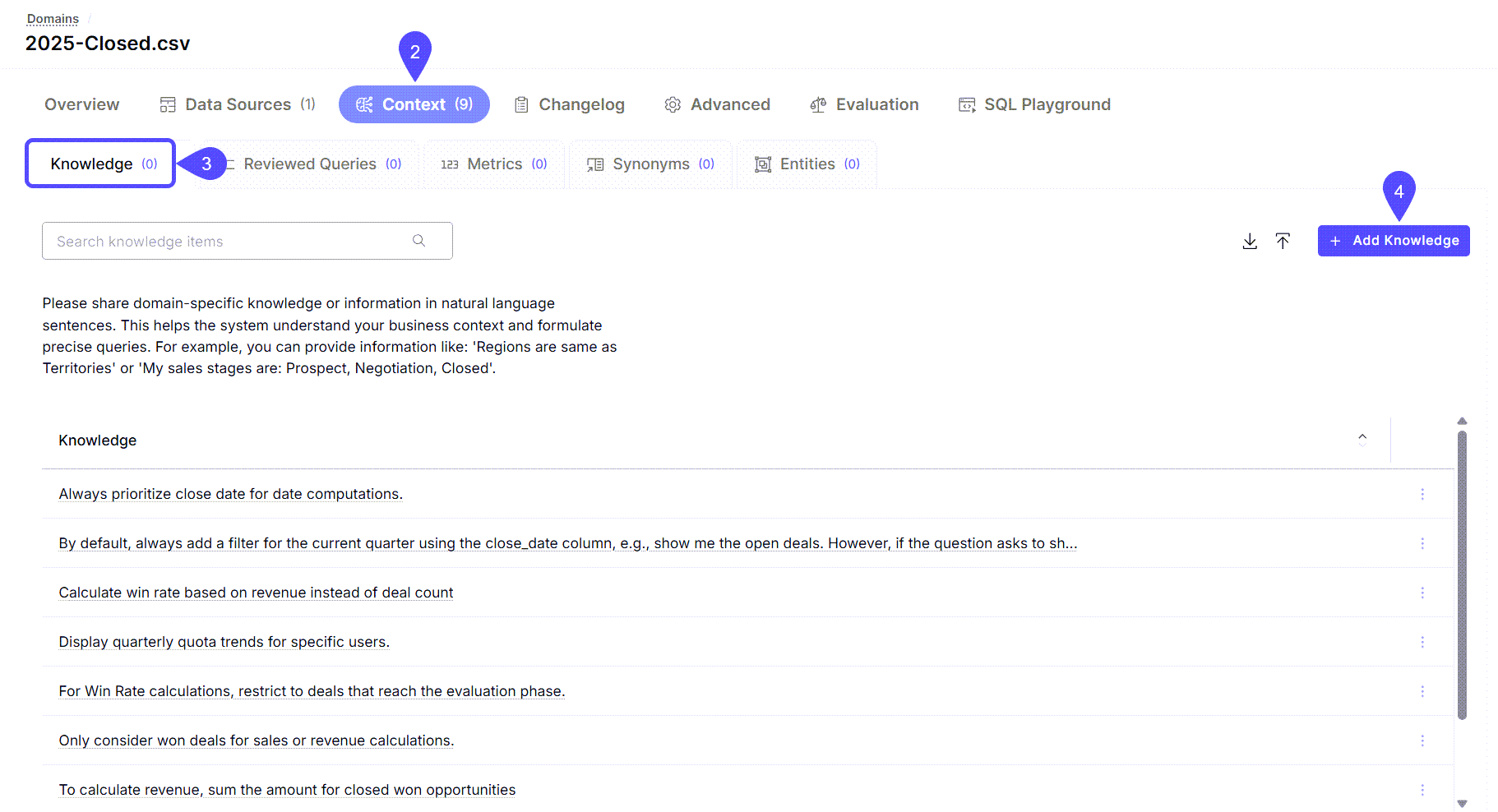
1. Navigate to **Domains** > (Select your Domain)
2. Navigate to the **Context** tab.
3. Select the **Knowledge** tab inside the Context section.
4. Click the **+ Add Knowledge** button to begin a new entry and add natural language context. Add natural language sentences to define business terms.
* *Example 1:* `Regions are the same as Territories.`
* *Example 2:* `My sales stages are: Prospect, Negotiation, Closed.`
5. Click **SAVE**.
## 2. Test the updated answer
After editing the query, you must test the new response.
* **Retry with Adjustments:** Use the **Retry** option in the chat window to have the system regenerate the response using your new SQL.
* **Cross-Reference:** Validate the new result by cross-referencing it with a known value or an external report.
* **Test for Accuracy:** Try rephrasing the original question in a few different ways (e.g., "revenue by region" vs. "how much did each territory earn?"). If the system doesn't return the correct answer, you may need to [Add Context](#3-add-knowledge-context) to help it with precise queries.
## 3. Add Context (knowledge)
If the system consistently misunderstands terms, you can add explicit context. This helps the system formulate more precise queries.
1. Navigate to **Domains** > (Select your Domain)
2. Navigate to the **Context** tab.
3. Select the **Knowledge** tab inside the Context section.
4. Click the **+ Add Knowledge** button to begin a new entry and add natural language context. Add natural language sentences to define business terms.
* *Example 1:* `Regions are the same as Territories.`
* *Example 2:* `My sales stages are: Prospect, Negotiation, Closed.`
5. Click **SAVE**.
 To learn more about adding context to a domain, refer to the [**Add Domain-Specific Knowledge**](/setting-up-wisdom-ai/add-domain-specific-knowledge) guide.
## 4. Mark the answer as reviewed
Once you have confirmed the SQL is correct and the answer is accurate, save it to the system's knowledge base.
1. From the **SQL Code** tab in the **Editor** window, click **Mark as reviewed**.
2. In the **Review Question** window, add a clear title for the question (e.g., "Official Quarterly Revenue by Region").
3. Click **Confirm**.
To learn more about adding context to a domain, refer to the [**Add Domain-Specific Knowledge**](/setting-up-wisdom-ai/add-domain-specific-knowledge) guide.
## 4. Mark the answer as reviewed
Once you have confirmed the SQL is correct and the answer is accurate, save it to the system's knowledge base.
1. From the **SQL Code** tab in the **Editor** window, click **Mark as reviewed**.
2. In the **Review Question** window, add a clear title for the question (e.g., "Official Quarterly Revenue by Region").
3. Click **Confirm**.
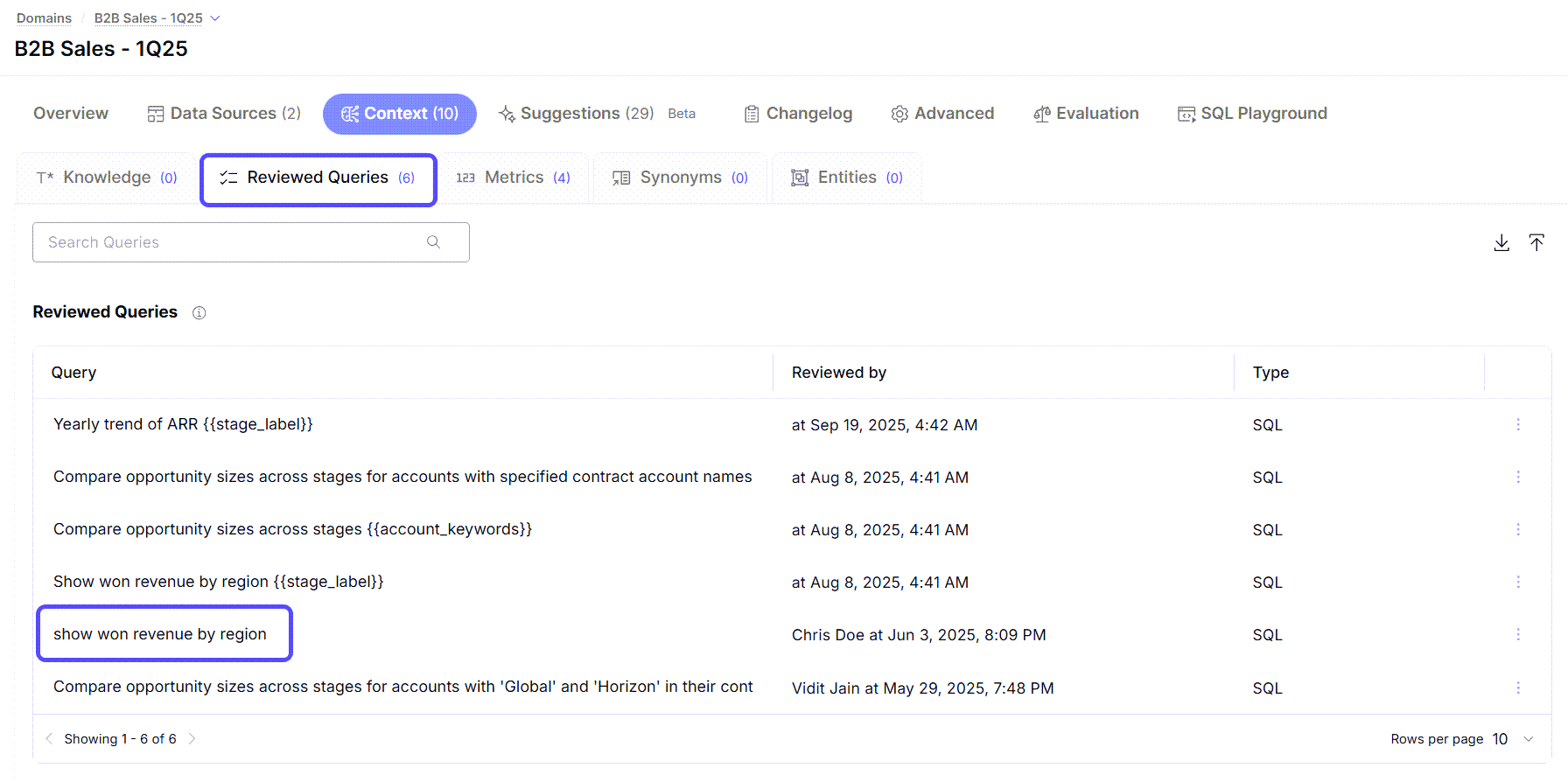
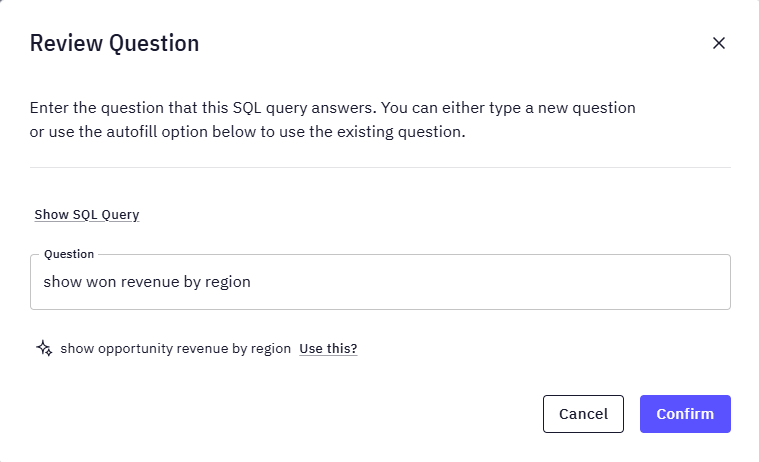 This action saves the question and its validated SQL as a [Validated Query](/setting-up-wisdom-ai/feedback-mechanisms/reviewed-queries), which serves as a trusted reference for similar future questions.
To ensure that the information provided in the answer is accurate, relevant, and reliable, you can:
* Test and validate both natural language responses and SQL query results directly within the chat interface.
* Review the generated output by providing feedback.
* Edit or vet the SQL query when necessary.
These features help you iterate efficiently and build confidence in the outputs you receive.
This action saves the question and its validated SQL as a [Validated Query](/setting-up-wisdom-ai/feedback-mechanisms/reviewed-queries), which serves as a trusted reference for similar future questions.
To ensure that the information provided in the answer is accurate, relevant, and reliable, you can:
* Test and validate both natural language responses and SQL query results directly within the chat interface.
* Review the generated output by providing feedback.
* Edit or vet the SQL query when necessary.
These features help you iterate efficiently and build confidence in the outputs you receive.
 ## Next steps
Organize insights by tagging chats, navigating history, and sharing vetted answers with your team.
Define relationships and Knowledge in your data to enable more powerful analysis.
## Next steps
Organize insights by tagging chats, navigating history, and sharing vetted answers with your team.
Define relationships and Knowledge in your data to enable more powerful analysis.