> ## Documentation Index
> Fetch the complete documentation index at: https://docs.wisdom.ai/llms.txt
> Use this file to discover all available pages before exploring further.
# Use Evaluations Sets and Runs
This article describes the concepts of Evaluation Sets and Evaluation Runs, which are tools used to test and validate your AI's domain performance.
## Evaluation Sets
In the Evaluation Sets tab, you can create specific sets of prompts that simulate user interactions and provide expected SQL outputs alongside these prompts. This allows for a direct comparison to see how accurately the AI converts natural language into database queries.
To create an Evaluation Set:
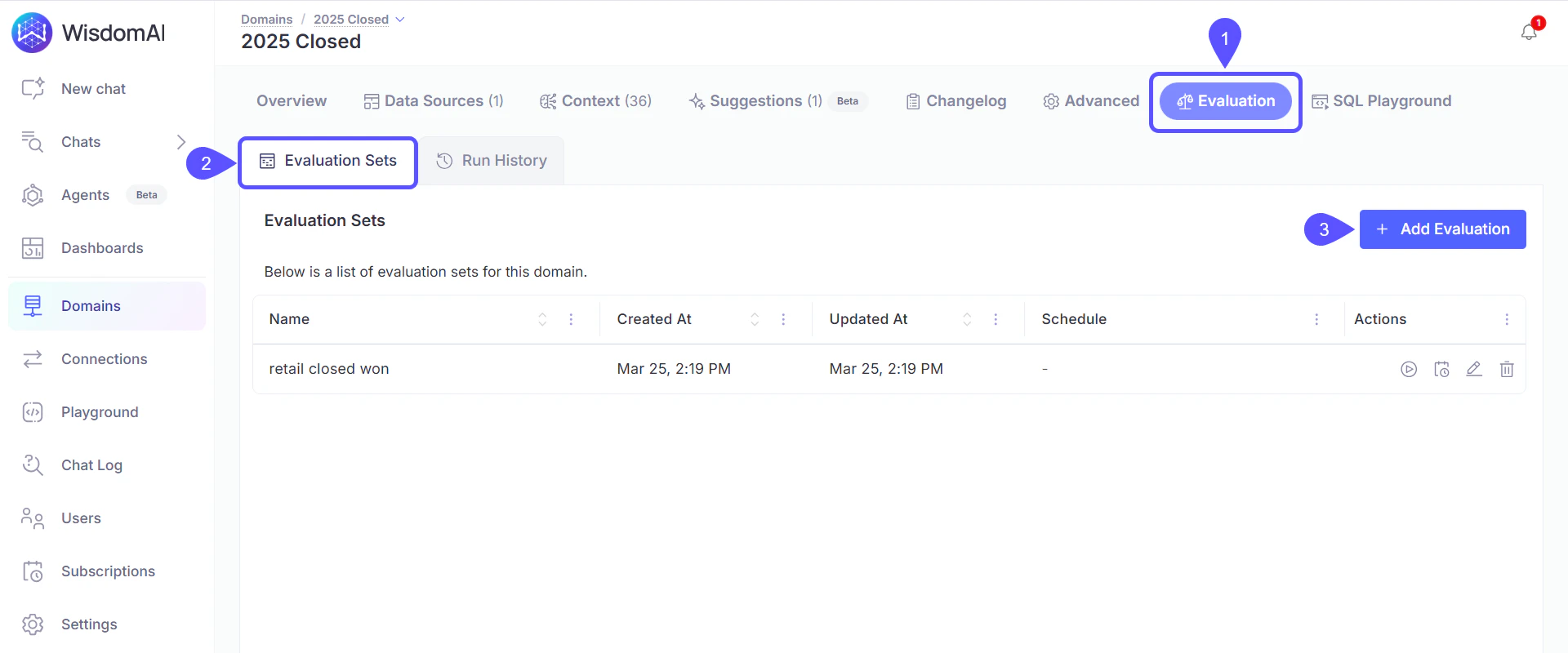
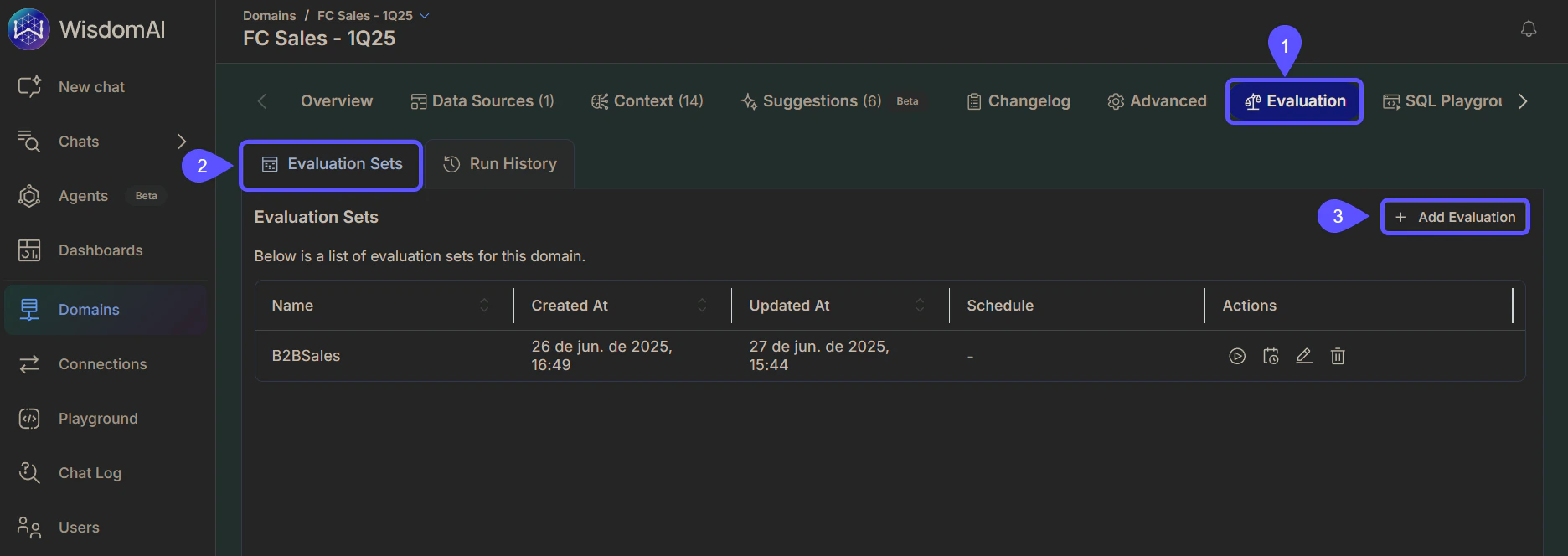
1. Open a Domain and click on the **Evaluation** tab.
2. Navigate to the **Evaluation Sets** Sub-tab.
3. Click **Add Evaluation**.
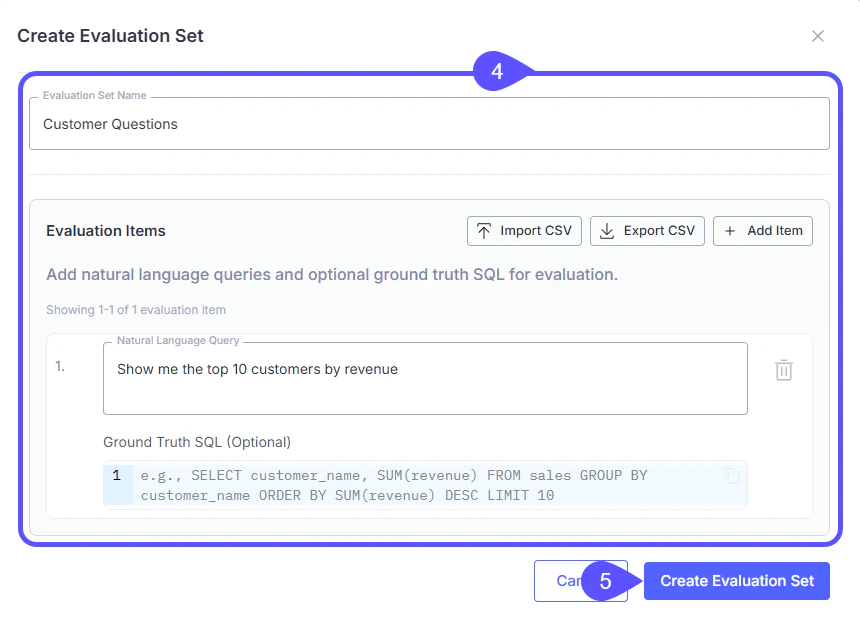
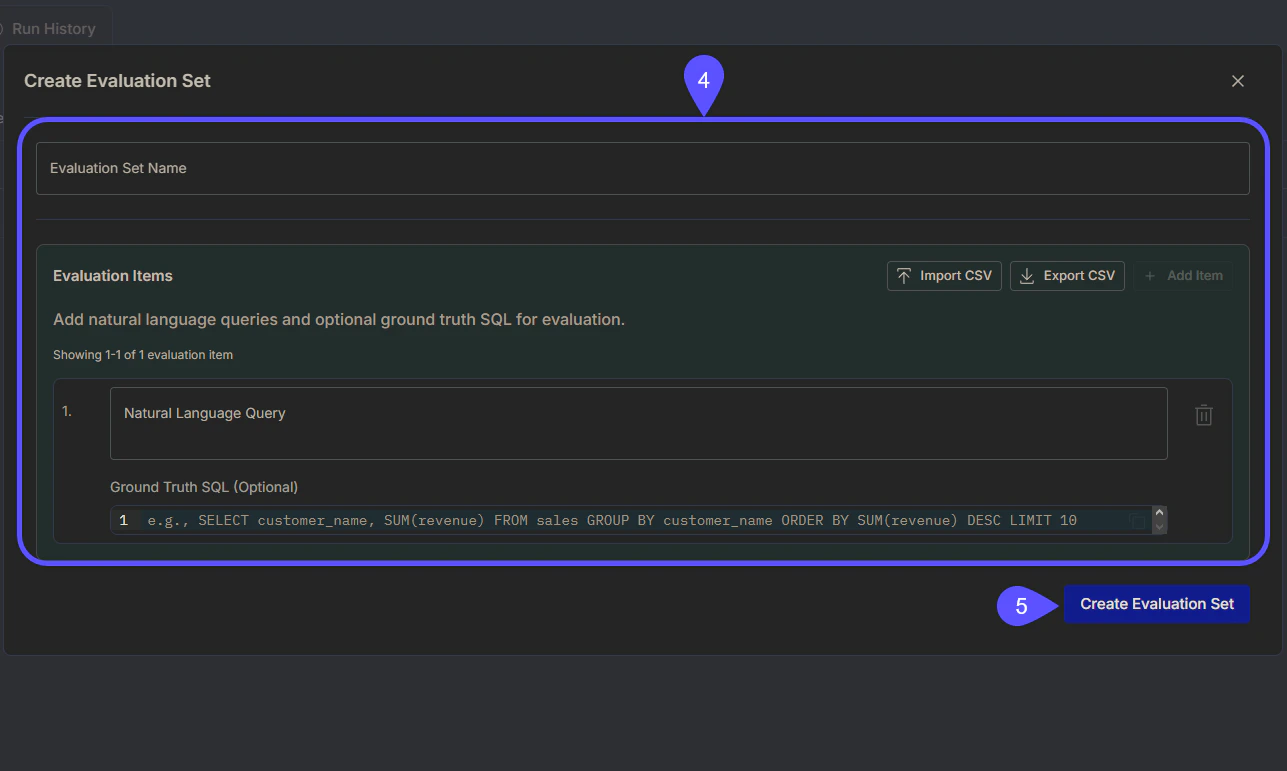
 4. Fill out the **Create Evaluation Set** Form, providing a set **Name** and presenting a natural language query. Optionally, you can import CSV and also ground truth SQL.
5. Click on **Create Evaluation Set**. The new Evaluation set will appear listed.
4. Fill out the **Create Evaluation Set** Form, providing a set **Name** and presenting a natural language query. Optionally, you can import CSV and also ground truth SQL.
5. Click on **Create Evaluation Set**. The new Evaluation set will appear listed.
 ## Evaluation Runs
Evaluation Runs are where the AI processes your defined Evaluation Sets. After running these evaluations, you can review the results to identify areas for improvement.
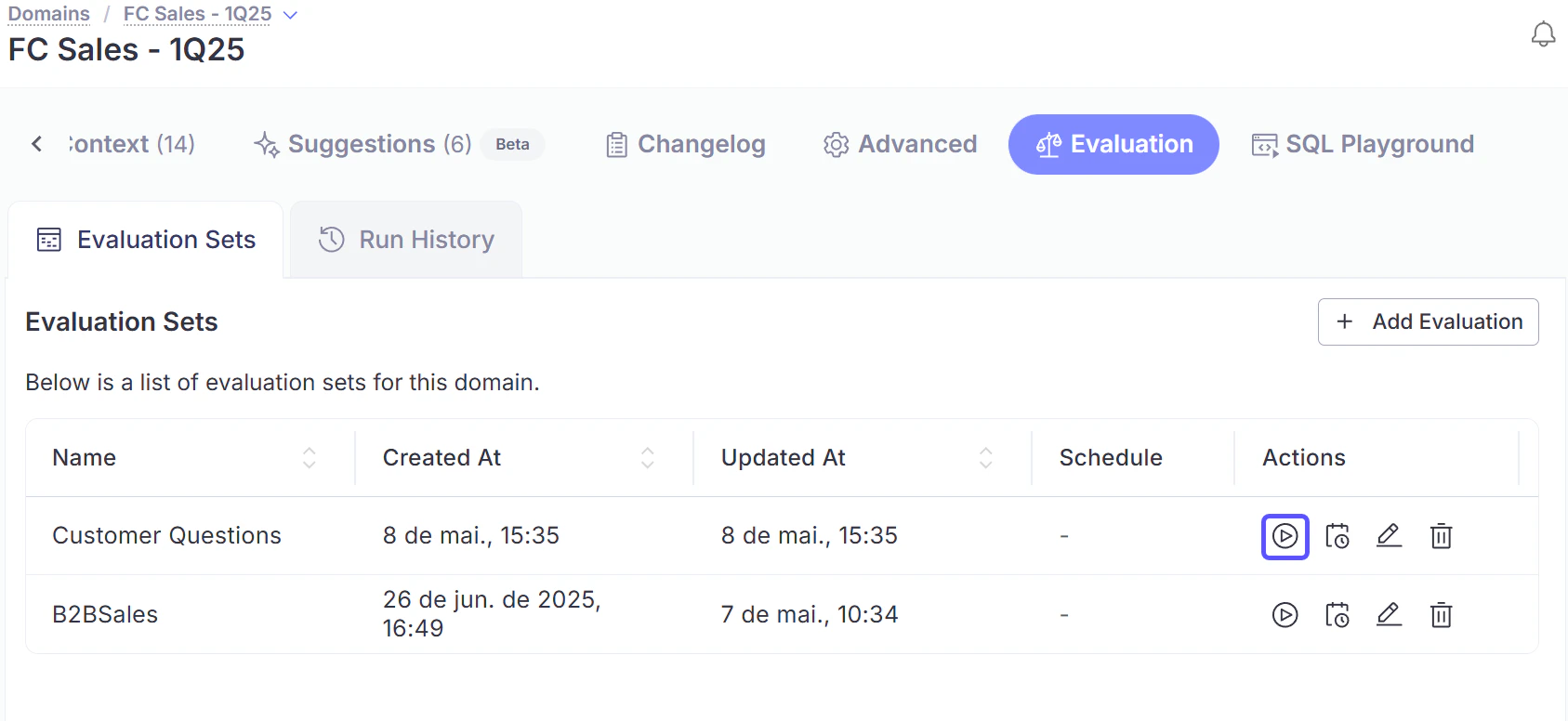
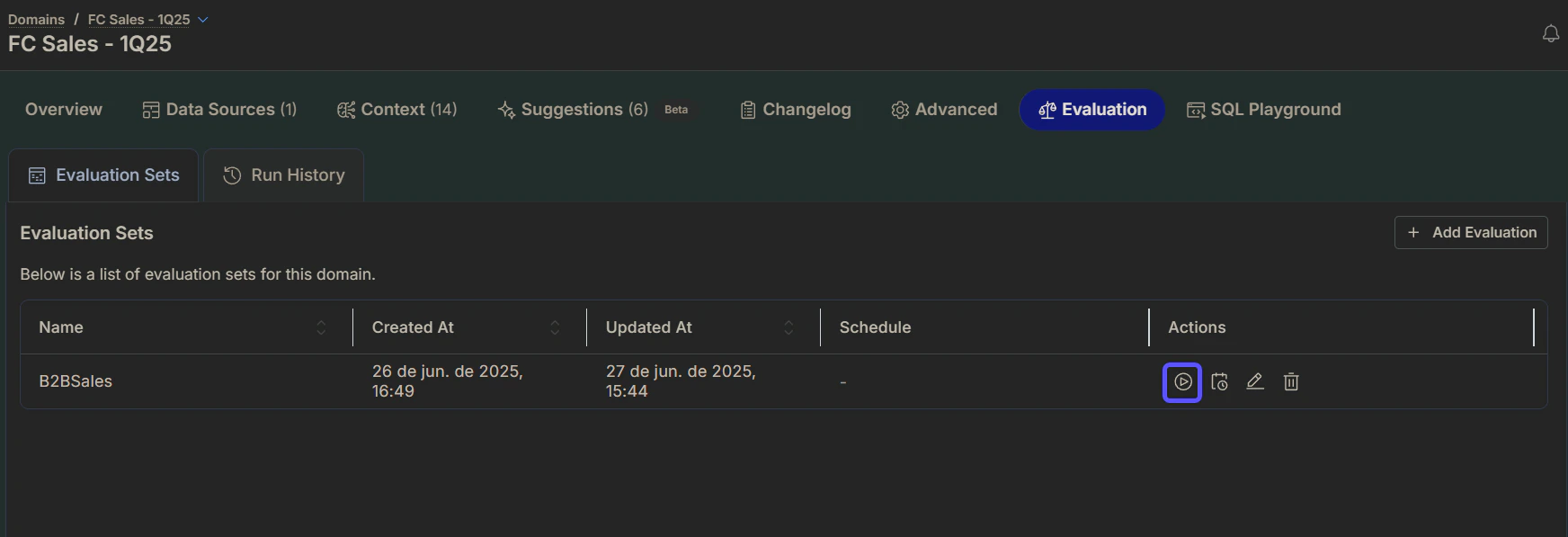
To run an Evaluation, go to the **Evaluations Set** tab, select an evaluation, and click on the **run icon**. You will see the results in the Evaluation Runs tab.
## Evaluation Runs
Evaluation Runs are where the AI processes your defined Evaluation Sets. After running these evaluations, you can review the results to identify areas for improvement.
To run an Evaluation, go to the **Evaluations Set** tab, select an evaluation, and click on the **run icon**. You will see the results in the Evaluation Runs tab.
 ### Evaluation Run indicators
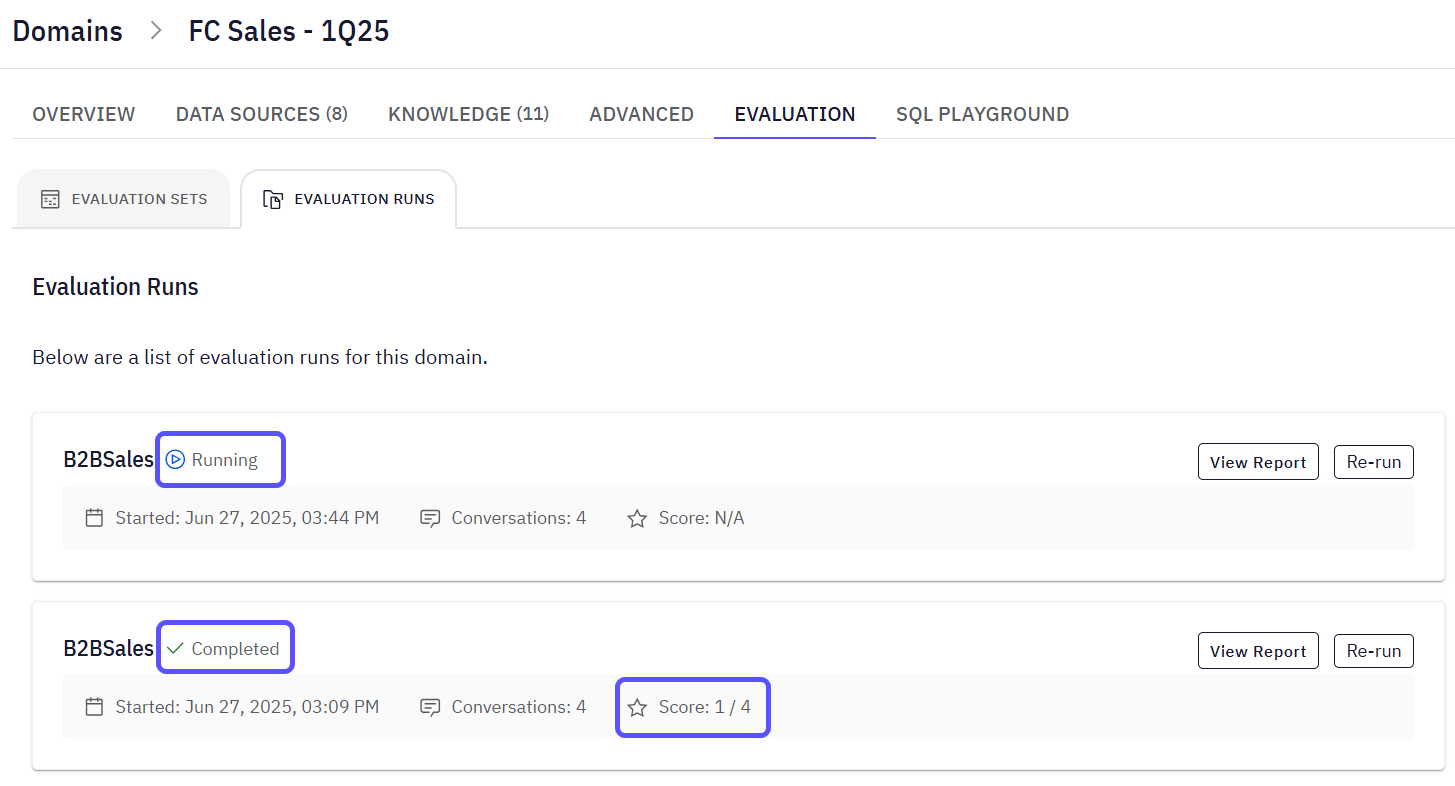
Evaluation Run Indicators provide a concise overview of the Run's progress and outcome. These indicators offer immediate feedback on the Evaluation's status and score, detailing how well the AI's generated responses matched the expected results. They are:
* **Status:** Signals its progress or completion.
* Running: The evaluation run is currently in progress.
* Completed: The evaluation run has finished successfully.
* **Score:** Reflects the result of the completed Evaluation. It tells you how many conversations passed based on the predefined **evaluation criteria** (i.e., Prompt + Expected SQL result added in the Evaluation set modal).
The Score evaluation criteria refer to how much the generated answer matches the expected SQL result defined previously.
### Evaluation Run indicators
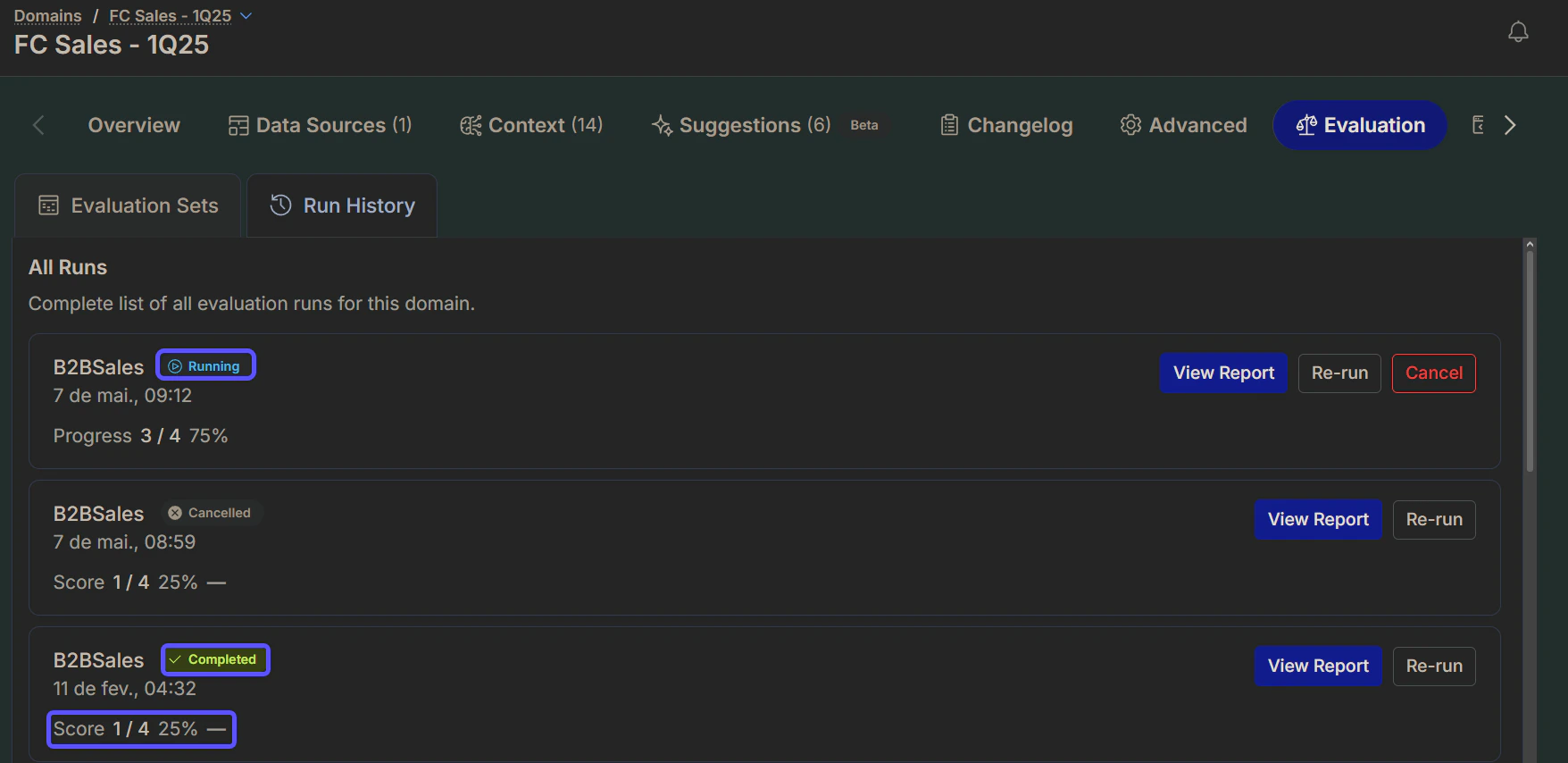
Evaluation Run Indicators provide a concise overview of the Run's progress and outcome. These indicators offer immediate feedback on the Evaluation's status and score, detailing how well the AI's generated responses matched the expected results. They are:
* **Status:** Signals its progress or completion.
* Running: The evaluation run is currently in progress.
* Completed: The evaluation run has finished successfully.
* **Score:** Reflects the result of the completed Evaluation. It tells you how many conversations passed based on the predefined **evaluation criteria** (i.e., Prompt + Expected SQL result added in the Evaluation set modal).
The Score evaluation criteria refer to how much the generated answer matches the expected SQL result defined previously.
 ### Evaluation Run report
When you click the **View Report** option, you will see comprehensive details about how the evaluation run performed. Here's a breakdown of the information you'll find:
* **View Domain:** A link that allows you to navigate to the specific domain that was evaluated.
* **Soft Match:** This **Score** indicates the overall performance of the Evaluation. It shows how many of the evaluation criteria were successfully met out of the total. It is named as Soft Match since results may be considered a match even if they are not the same as the expected (provided) SQL.
* **Individual Session Details**: The report organizes the evaluation results by individual sessions or queries (e.g., Session 1, Session 2).
### Evaluation Run report
When you click the **View Report** option, you will see comprehensive details about how the evaluation run performed. Here's a breakdown of the information you'll find:
* **View Domain:** A link that allows you to navigate to the specific domain that was evaluated.
* **Soft Match:** This **Score** indicates the overall performance of the Evaluation. It shows how many of the evaluation criteria were successfully met out of the total. It is named as Soft Match since results may be considered a match even if they are not the same as the expected (provided) SQL.
* **Individual Session Details**: The report organizes the evaluation results by individual sessions or queries (e.g., Session 1, Session 2).
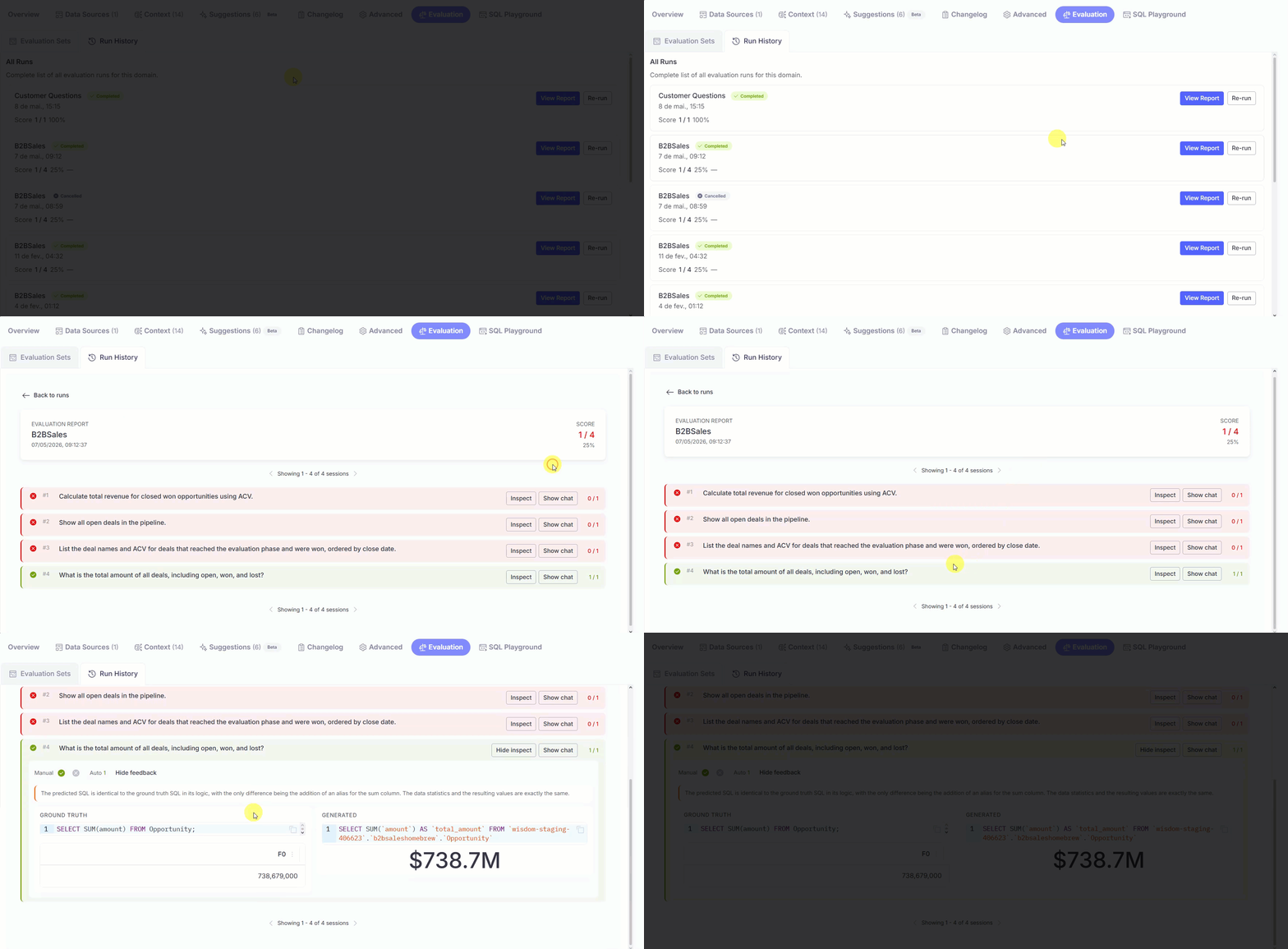
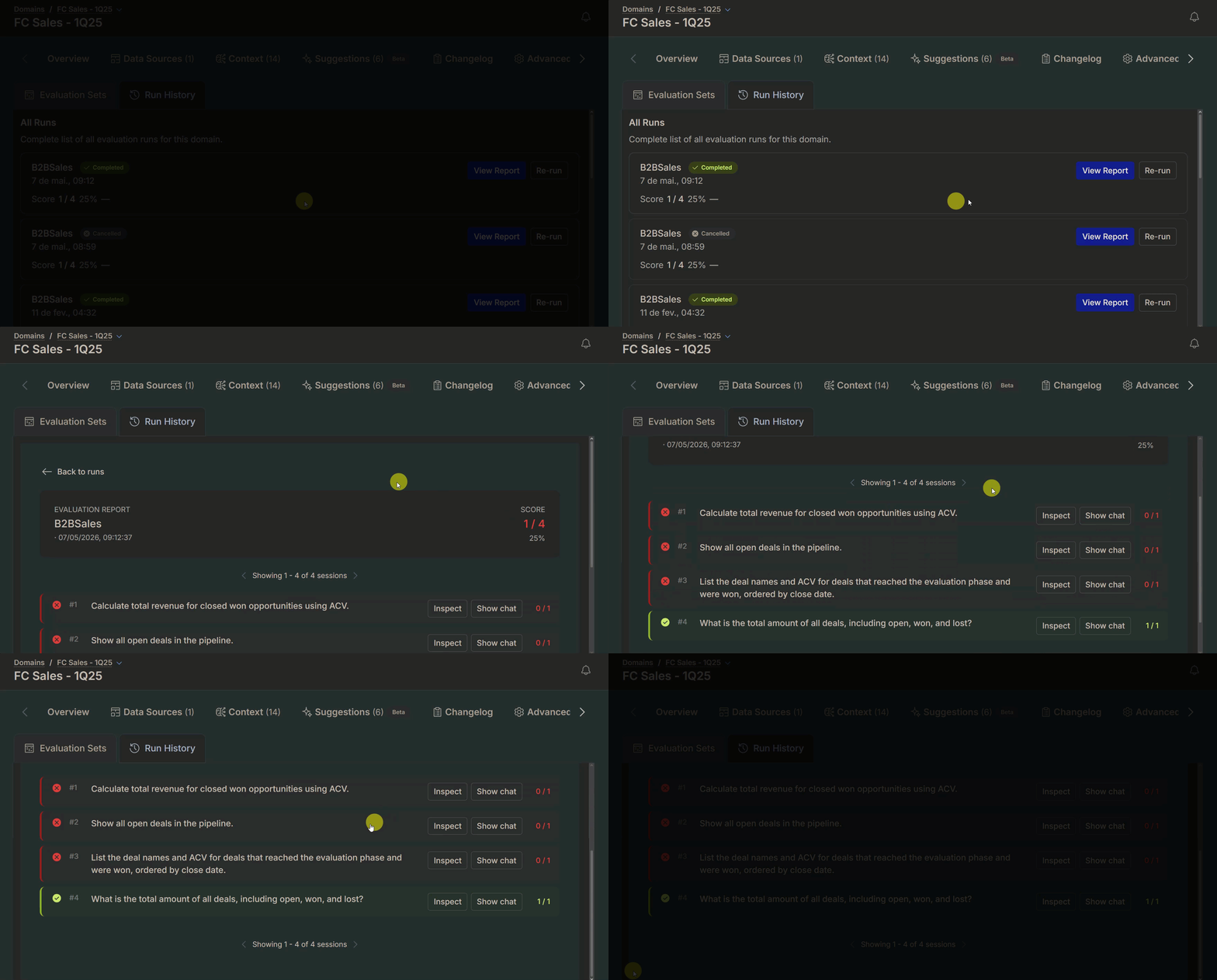 For each session, the report is broken down into several components, allowing you to analyze the AI's performance thoroughly.
* **Session Title:** This states the query or task that was evaluated for that particular session (e.g., "Calculate total revenue for closed won opportunities using ACV.").
* **Evaluation Details:** This expandable section provides specific insights into the session's outcome. The core components are detailed in the table below.
| Component | Description |
| :------------------- | :-------------------------------------------------------------------------------------------------------------- |
| **Prompt** | The specific input prompt that was used for the session. |
| **Manual Score** | An option for you to manually score the Evaluation (✅ or ❌), which overrides the automated score. |
| **Automated Score** | The system automatically assigns the score. This corresponds to the **Soft Match**. |
| **Ground Truth** | The expected or correct outcome, typically the ideal SQL query (`SELECT SUM(amount) FROM Opportunity`). |
| **Generated Result** | The output produced by the system, including the generated SQL query and the final result (e.g., `"$137.55M"`). |
For each session, the report is broken down into several components, allowing you to analyze the AI's performance thoroughly.
* **Session Title:** This states the query or task that was evaluated for that particular session (e.g., "Calculate total revenue for closed won opportunities using ACV.").
* **Evaluation Details:** This expandable section provides specific insights into the session's outcome. The core components are detailed in the table below.
| Component | Description |
| :------------------- | :-------------------------------------------------------------------------------------------------------------- |
| **Prompt** | The specific input prompt that was used for the session. |
| **Manual Score** | An option for you to manually score the Evaluation (✅ or ❌), which overrides the automated score. |
| **Automated Score** | The system automatically assigns the score. This corresponds to the **Soft Match**. |
| **Ground Truth** | The expected or correct outcome, typically the ideal SQL query (`SELECT SUM(amount) FROM Opportunity`). |
| **Generated Result** | The output produced by the system, including the generated SQL query and the final result (e.g., `"$137.55M"`). |
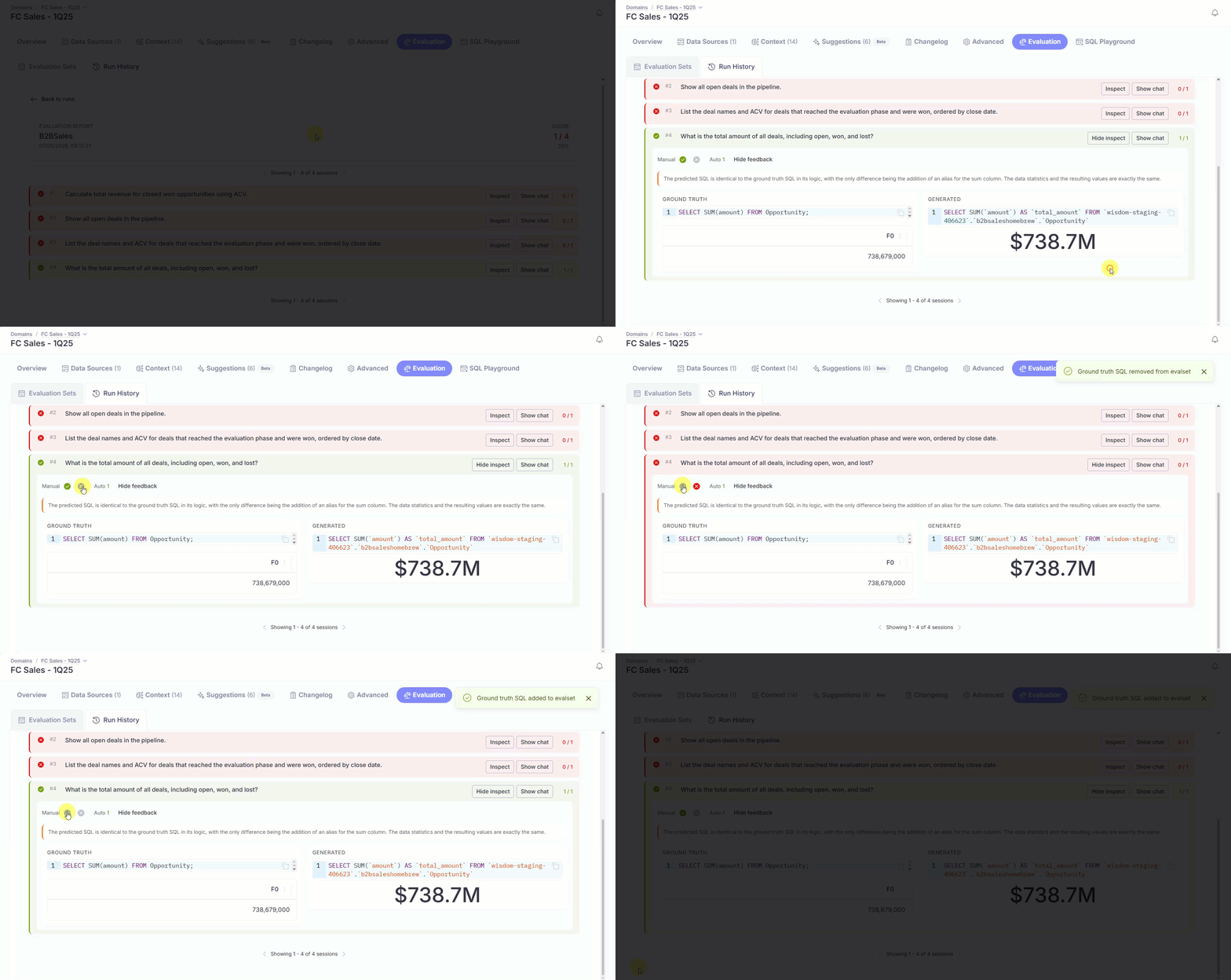
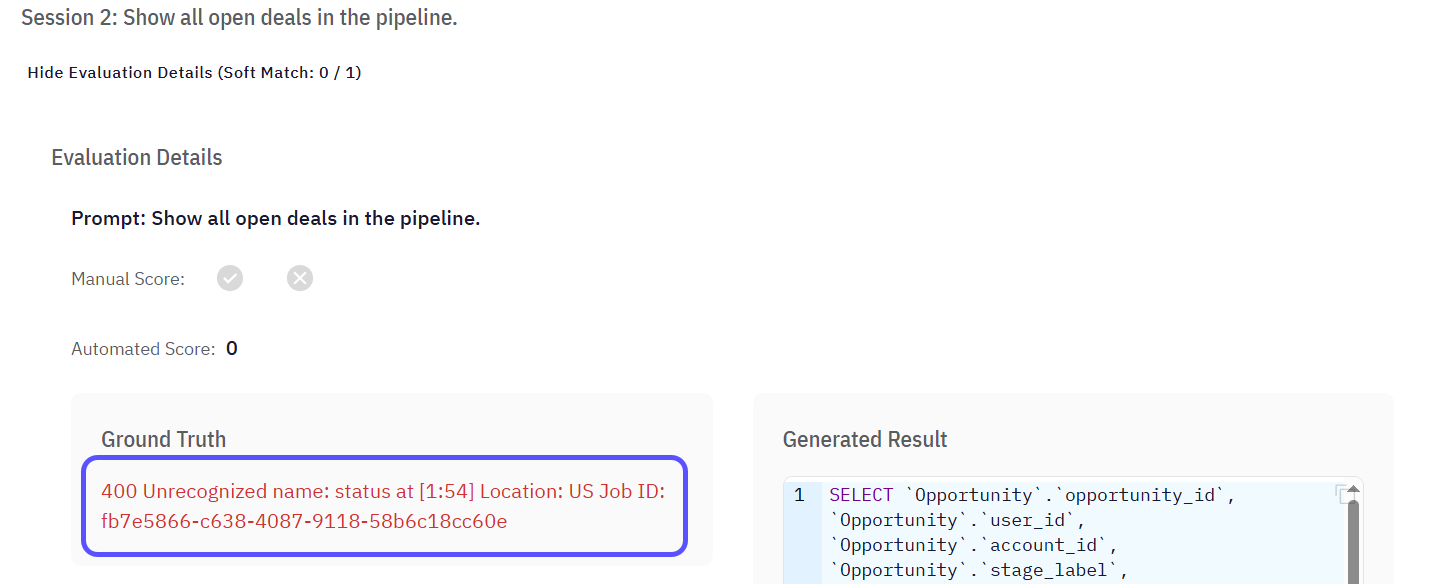
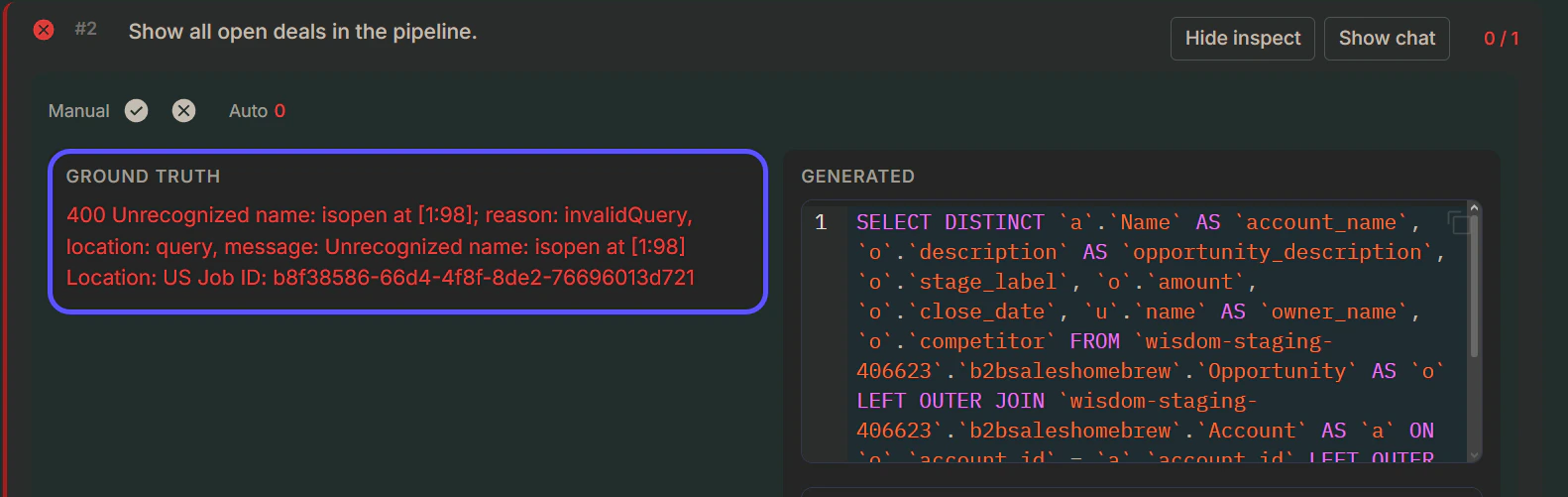
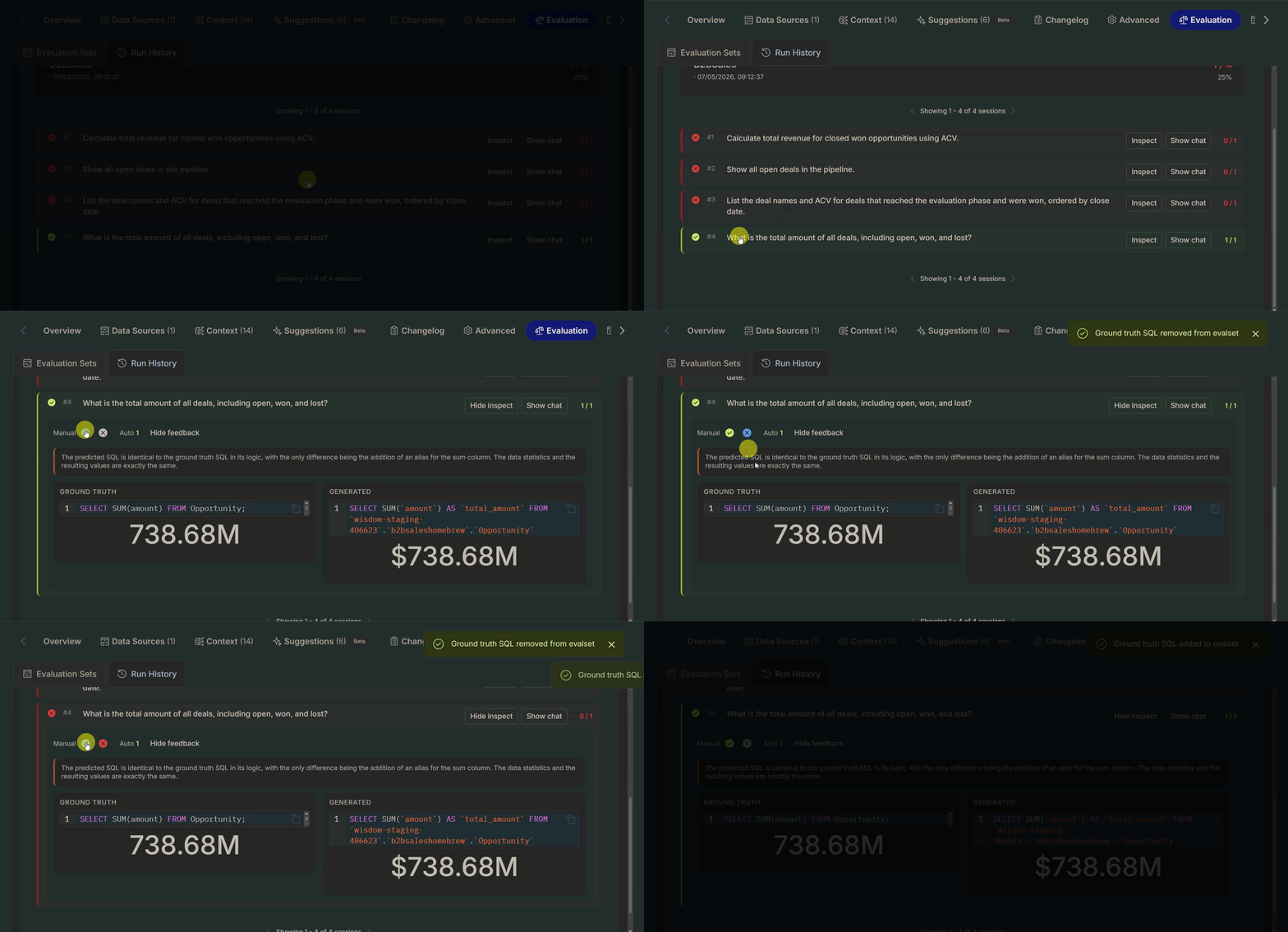 Providing an incorrect SQL code will lead to a syntax or semantic error. The system will display a red message detailing the nature of the error, often including the location within the query where the problem occurred, to aid in correction.
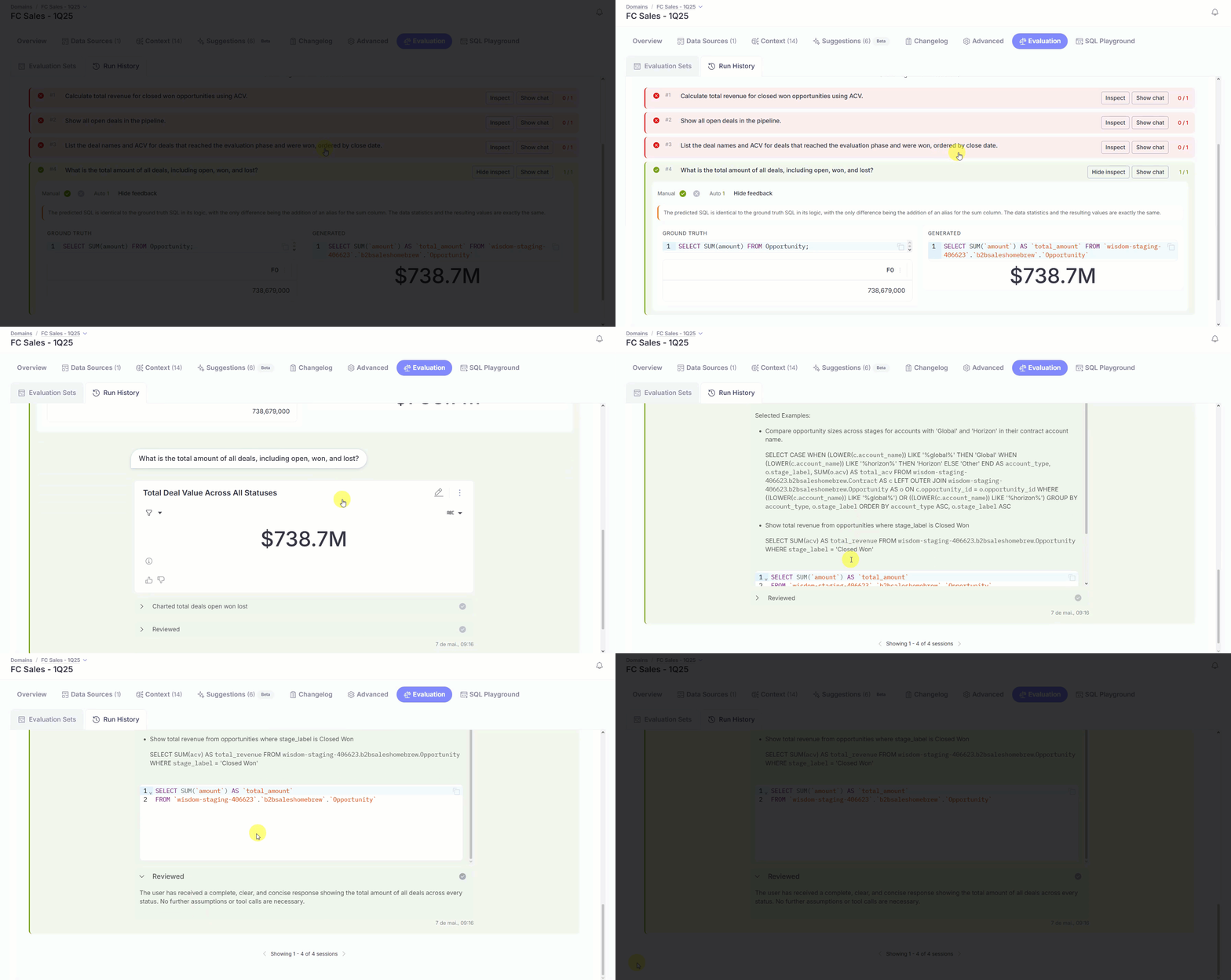
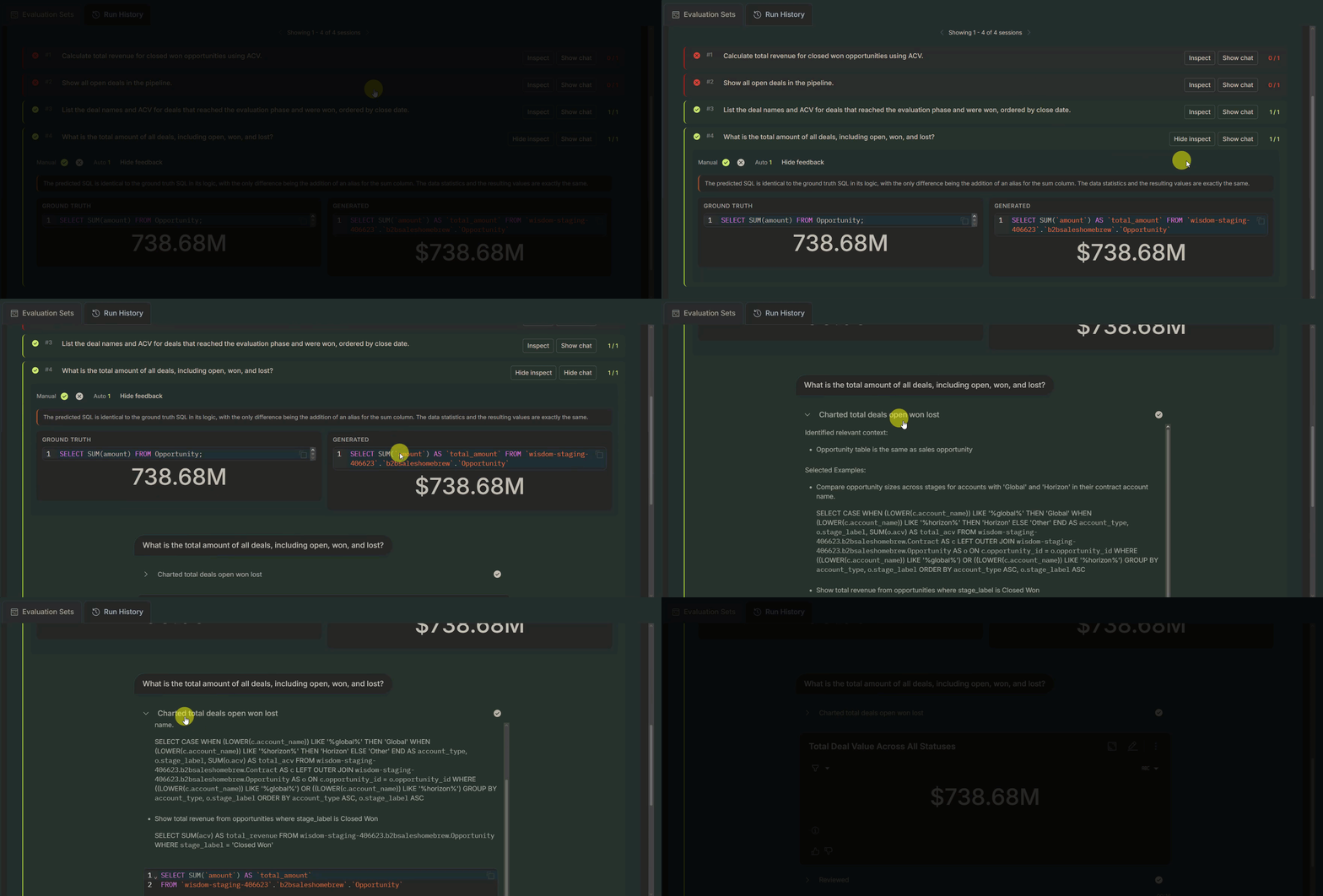
 * **Conversation:** You can expand this section to review the entire conversational exchange related to that specific session. This includes:
* **AI Workstream:** Offers a look into the AI's process, showing the tool it selected, the examples it referenced, and the step-by-step plan it followed to generate the response.
* **Reviewed Status**: Confirms whether the response has been reviewed and summarizes the outcome (e.g., "The user received a complete response... so no further action or information is needed.").
* **Conversation:** You can expand this section to review the entire conversational exchange related to that specific session. This includes:
* **AI Workstream:** Offers a look into the AI's process, showing the tool it selected, the examples it referenced, and the step-by-step plan it followed to generate the response.
* **Reviewed Status**: Confirms whether the response has been reviewed and summarizes the outcome (e.g., "The user received a complete response... so no further action or information is needed.").
 Navigating the report helps you understand the system's processing, verify generated results, and review the underlying conversational logic.
## Next steps
Manage and customize your data domains to refine context and improve query results.
Organize insights by tagging chats, navigating history, and sharing vetted answers with your team.
Walk through the initial setup to connect a data source and run your first query.
Define relationships and context in your data to enable more powerful analysis.
Navigating the report helps you understand the system's processing, verify generated results, and review the underlying conversational logic.
## Next steps
Manage and customize your data domains to refine context and improve query results.
Organize insights by tagging chats, navigating history, and sharing vetted answers with your team.
Walk through the initial setup to connect a data source and run your first query.
Define relationships and context in your data to enable more powerful analysis.