> ## Documentation Index
> Fetch the complete documentation index at: https://docs.wisdom.ai/llms.txt
> Use this file to discover all available pages before exploring further.
# Connect Unstructured Repositories or Datasets
WisdomAI allows you to connect your domain to an unstructured repository or dataset from an **Amazon S3 bucket**, thereby enhancing your chatbot responses and ensuring the AI understands the underlying structure of your information.
## Connect an Amazon S3 dataset
Follow the steps below to connect your Amazon S3 bucket as a data source.
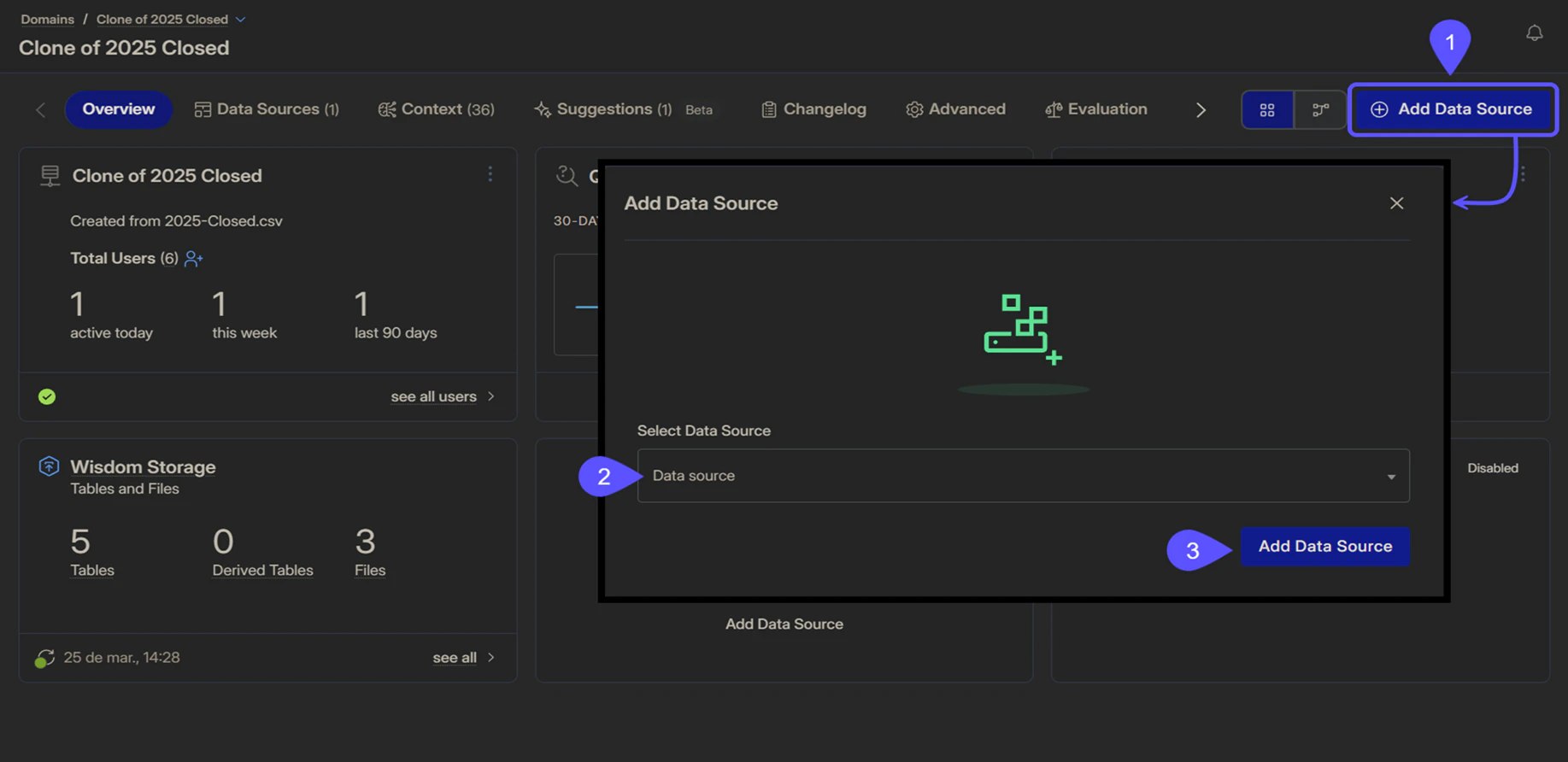
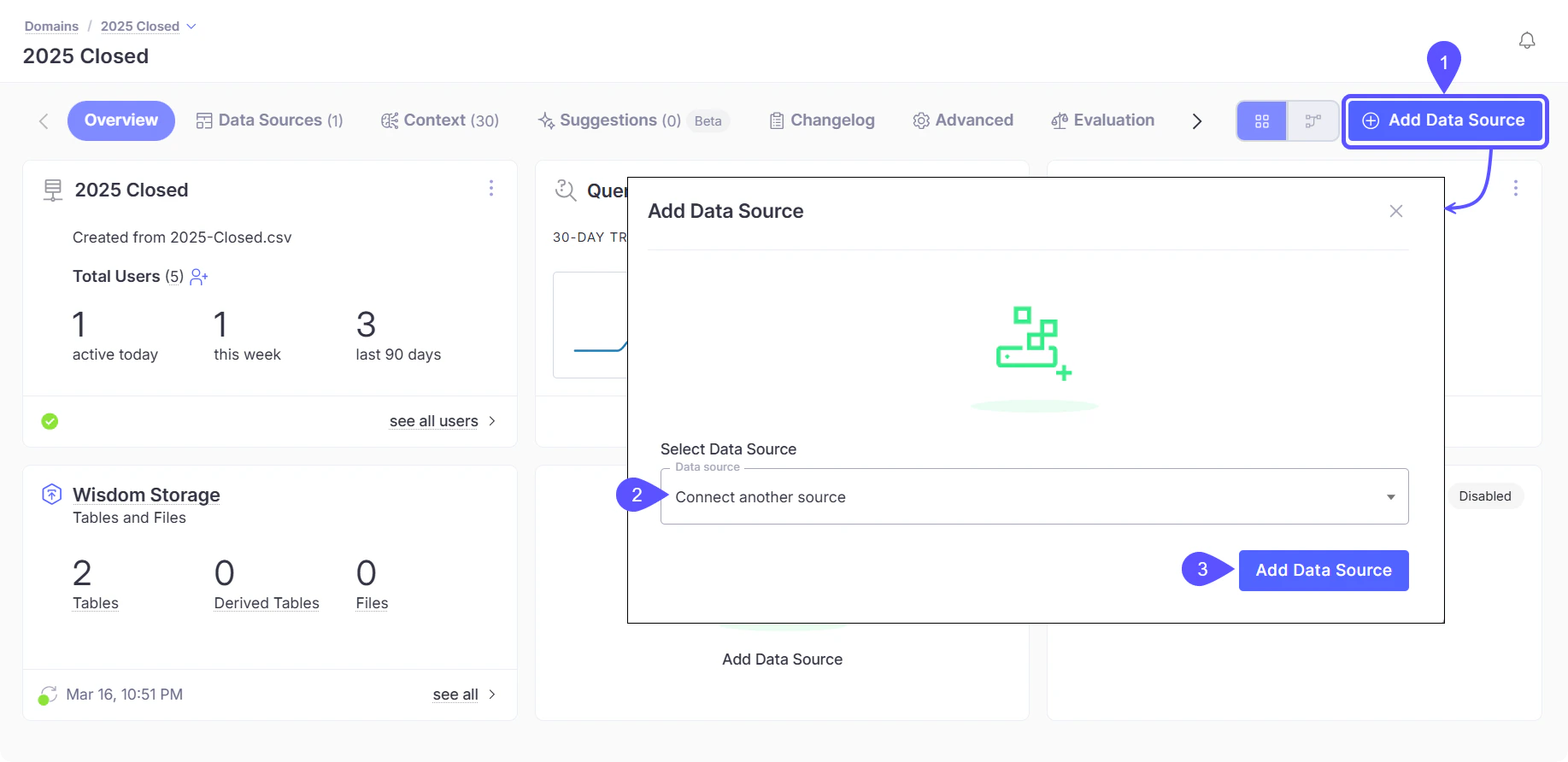
1. Access your domain and, in the **Overview** tab, click **Add Data Source**.
2. In the modal that opens, select **Connect another source** from the **Data Source** selector.
3. Click **Add Data Source** to continue.
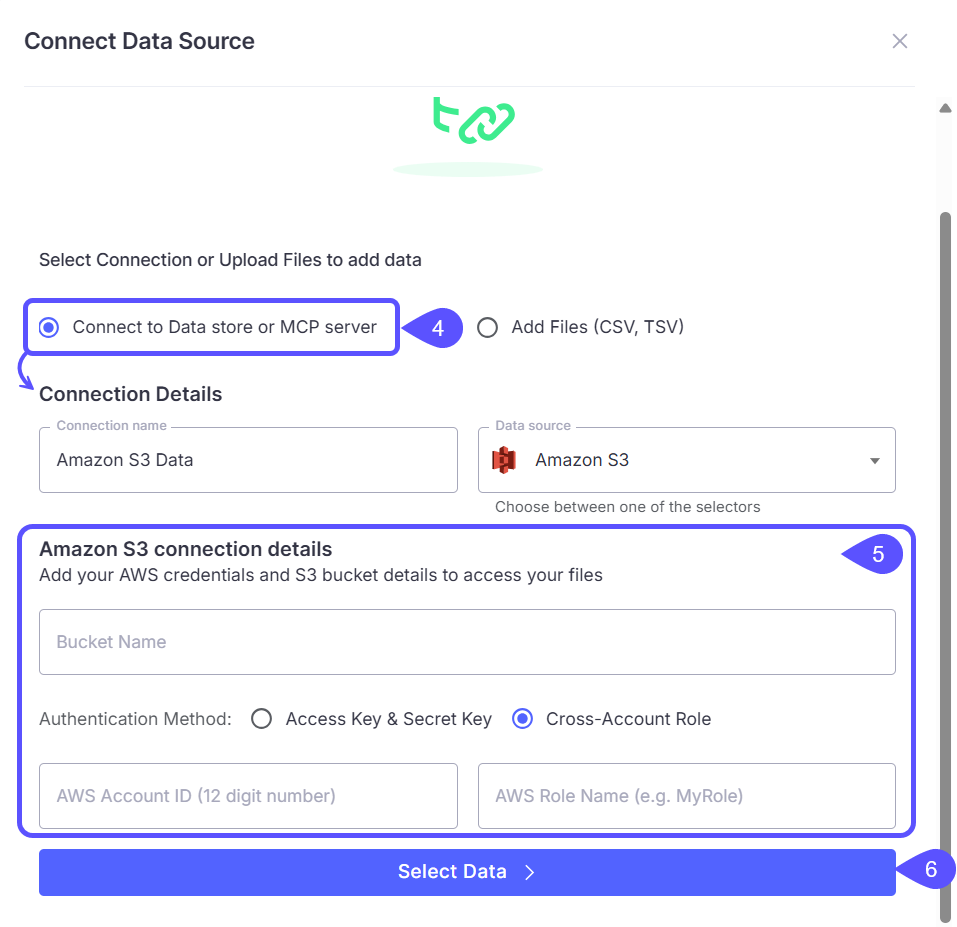
 4. Select **Connect to Data store or MCP server**, then provide the following **Connection Details**:
* **Connection name**
* **Data source**: Select **Amazon S3**
5. Fill in the **Amazon S3 connection details**:
* **Bucket Name**: The bucket where your files are stored.
* **Authentication Method**: Choose one of the following:
* **Access Key & Secret Key**: Provide the **Region**, **AWS Access Key ID**, and **AWS Secret Access Key**.
* **Cross-Account Role**: Provide the **AWS Account ID** that has access to the bucket and the **AWS Role Name**.
6. Click **Select Data** to continue.
4. Select **Connect to Data store or MCP server**, then provide the following **Connection Details**:
* **Connection name**
* **Data source**: Select **Amazon S3**
5. Fill in the **Amazon S3 connection details**:
* **Bucket Name**: The bucket where your files are stored.
* **Authentication Method**: Choose one of the following:
* **Access Key & Secret Key**: Provide the **Region**, **AWS Access Key ID**, and **AWS Secret Access Key**.
* **Cross-Account Role**: Provide the **AWS Account ID** that has access to the bucket and the **AWS Role Name**.
6. Click **Select Data** to continue.
 7. In the data selection screen, browse the contents of the S3 bucket and select the files or paths you want to include.
8. Confirm your selection to add the dataset as a data source.
## Next steps
Manage and customize your data domains to refine context and improve query results.
Organize insights by tagging chats, navigating history, and sharing vetted answers with your team.
Walk through the initial setup to connect a data source and run your first query.
Define relationships and context in your data to enable more powerful analysis.
7. In the data selection screen, browse the contents of the S3 bucket and select the files or paths you want to include.
8. Confirm your selection to add the dataset as a data source.
## Next steps
Manage and customize your data domains to refine context and improve query results.
Organize insights by tagging chats, navigating history, and sharing vetted answers with your team.
Walk through the initial setup to connect a data source and run your first query.
Define relationships and context in your data to enable more powerful analysis.