> ## Documentation Index
> Fetch the complete documentation index at: https://docs.wisdom.ai/llms.txt
> Use this file to discover all available pages before exploring further.
# Search the Web
WisdomAI can search the internet and fetch content from public web pages when answering user questions. When enabled on a domain, the AI automatically supplements its database-driven analysis with real-time information from the web, such as industry benchmarks, market trends, competitor data, or publicly available reference material.
## Prerequisites
* [Admin access](/manage-account/access-management) to your WisdomAI Organization.
* An existing [Domain](/setting-up-wisdom-ai/manage-domains/understand-domains) to enable Web Search on.
## 1. Enable web search on a Domain
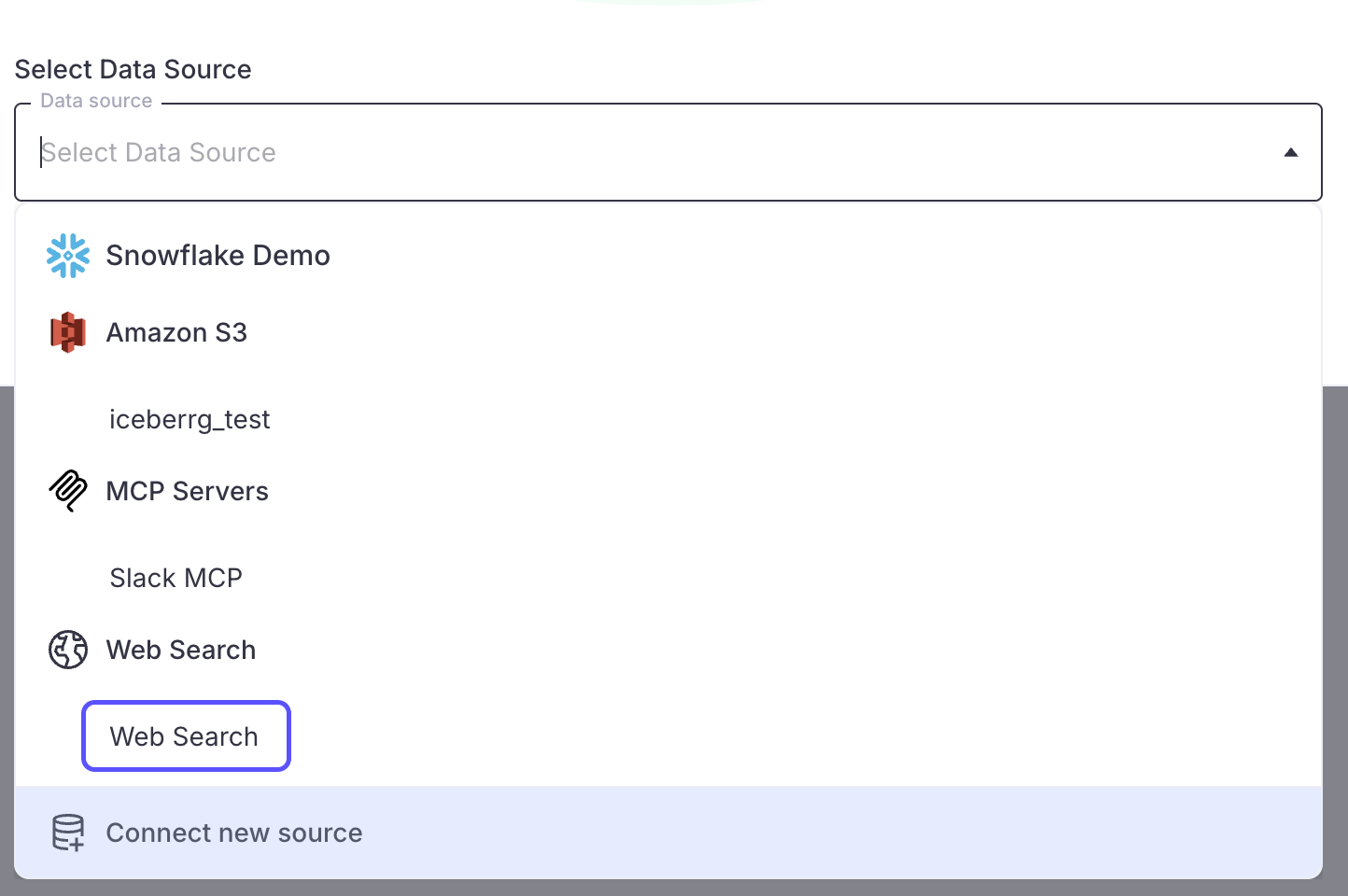
You can enable Web Search when creating a new domain or by adding it as a data source to an existing domain.
### Add web search to an existing Domain
1. Navigate to your **Domain** and open the **Overview** tab.
2. Click **Add Data Source**.
3. In the data source picker, select **Web Search**.
4. Click **Submit**. A confirmation message will appear indicating that Web Search has been enabled.
 ### Enable web search during Domain creation
1. Navigate to **Domains** and click **Add Domain**.
2. Enter a **Domain name**.
3. In the data source selection, choose **Web Search**.
4. Complete the domain creation process.
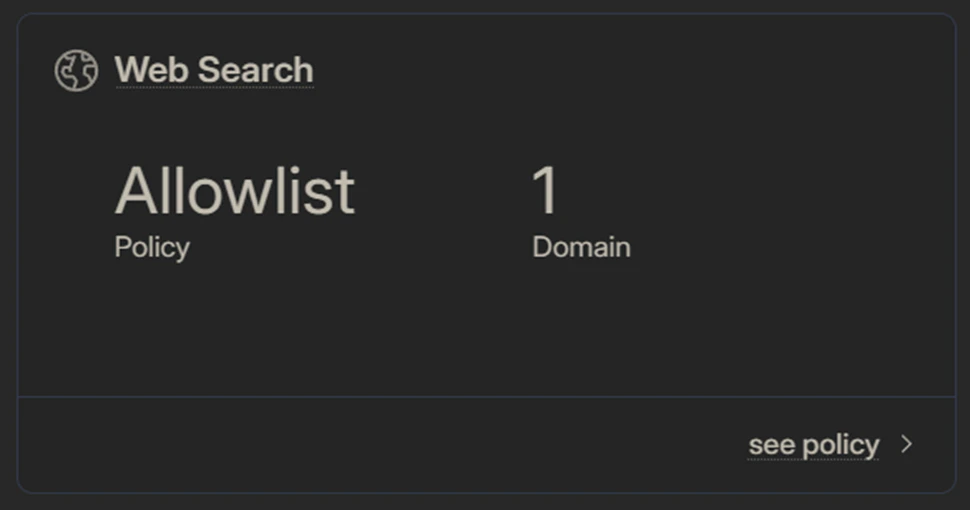
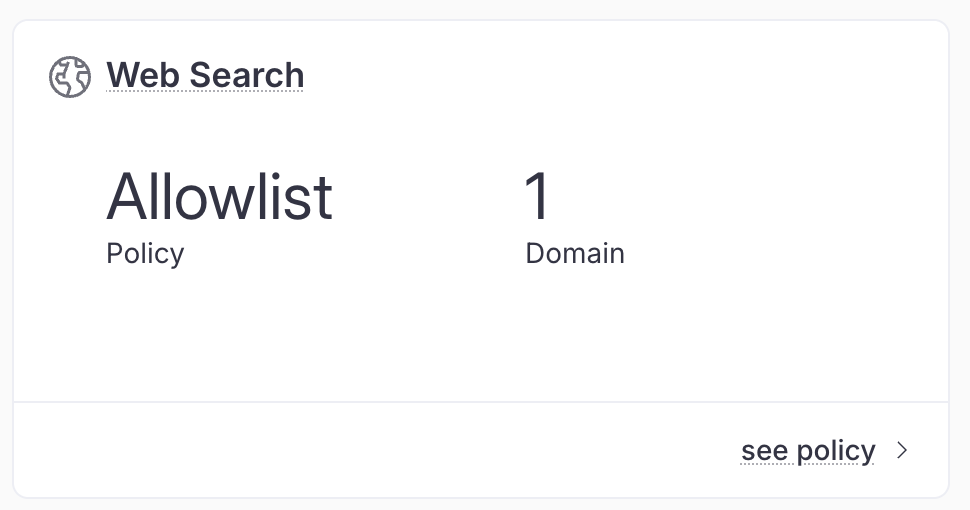
Once enabled, a **Web Search** card will appear on the Domain Overview tab, and a **Web Search** sub-tab will be available under the **Data Sources** tab.
### Enable web search during Domain creation
1. Navigate to **Domains** and click **Add Domain**.
2. Enter a **Domain name**.
3. In the data source selection, choose **Web Search**.
4. Complete the domain creation process.
Once enabled, a **Web Search** card will appear on the Domain Overview tab, and a **Web Search** sub-tab will be available under the **Data Sources** tab.
 ## 2. Configure the source policy
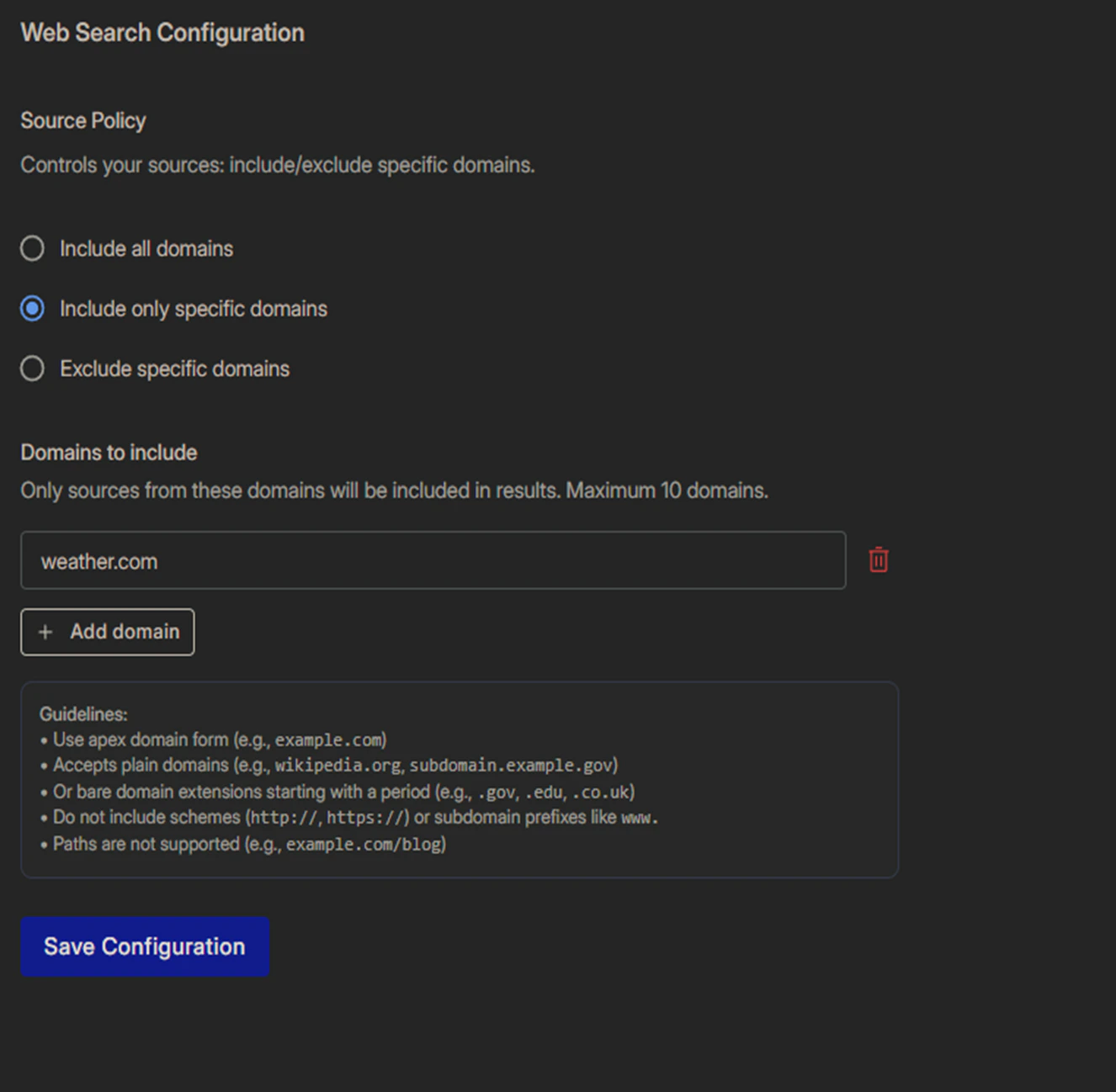
After enabling Web Search, you can control which websites WisdomAI is allowed to search. This is configured through the **Source Policy** on the Web Search configuration page.
1. Go to your **Domain** > **Data Sources** tab > **Web Search** sub-tab.
2. Under **Source Policy**, select one of the three options:
| Policy | Description |
| :-------------------------------- | :-------------------------------------------------------------------------------- |
| **Include all domains** | WisdomAI can search any website. This is the default. |
| **Include only specific domains** | WisdomAI will only return results from the listed domains (allowlist). |
| **Exclude specific domains** | WisdomAI will return results from all domains except the listed ones (blocklist). |
**Include only specific domains** and **Exclude specific domains** are mutually exclusive — you can only use one at a time.
3. If you selected **Include only specific domains** or **Exclude specific domains**, add the domains you want to include or exclude:
* Click **Add domain** to add a new entry.
* Enter the domain in apex form (e.g., `example.com`).
* You can add up to **10 domains**, one per entry.
4. Click **Save Configuration**.
## 2. Configure the source policy
After enabling Web Search, you can control which websites WisdomAI is allowed to search. This is configured through the **Source Policy** on the Web Search configuration page.
1. Go to your **Domain** > **Data Sources** tab > **Web Search** sub-tab.
2. Under **Source Policy**, select one of the three options:
| Policy | Description |
| :-------------------------------- | :-------------------------------------------------------------------------------- |
| **Include all domains** | WisdomAI can search any website. This is the default. |
| **Include only specific domains** | WisdomAI will only return results from the listed domains (allowlist). |
| **Exclude specific domains** | WisdomAI will return results from all domains except the listed ones (blocklist). |
**Include only specific domains** and **Exclude specific domains** are mutually exclusive — you can only use one at a time.
3. If you selected **Include only specific domains** or **Exclude specific domains**, add the domains you want to include or exclude:
* Click **Add domain** to add a new entry.
* Enter the domain in apex form (e.g., `example.com`).
* You can add up to **10 domains**, one per entry.
4. Click **Save Configuration**.
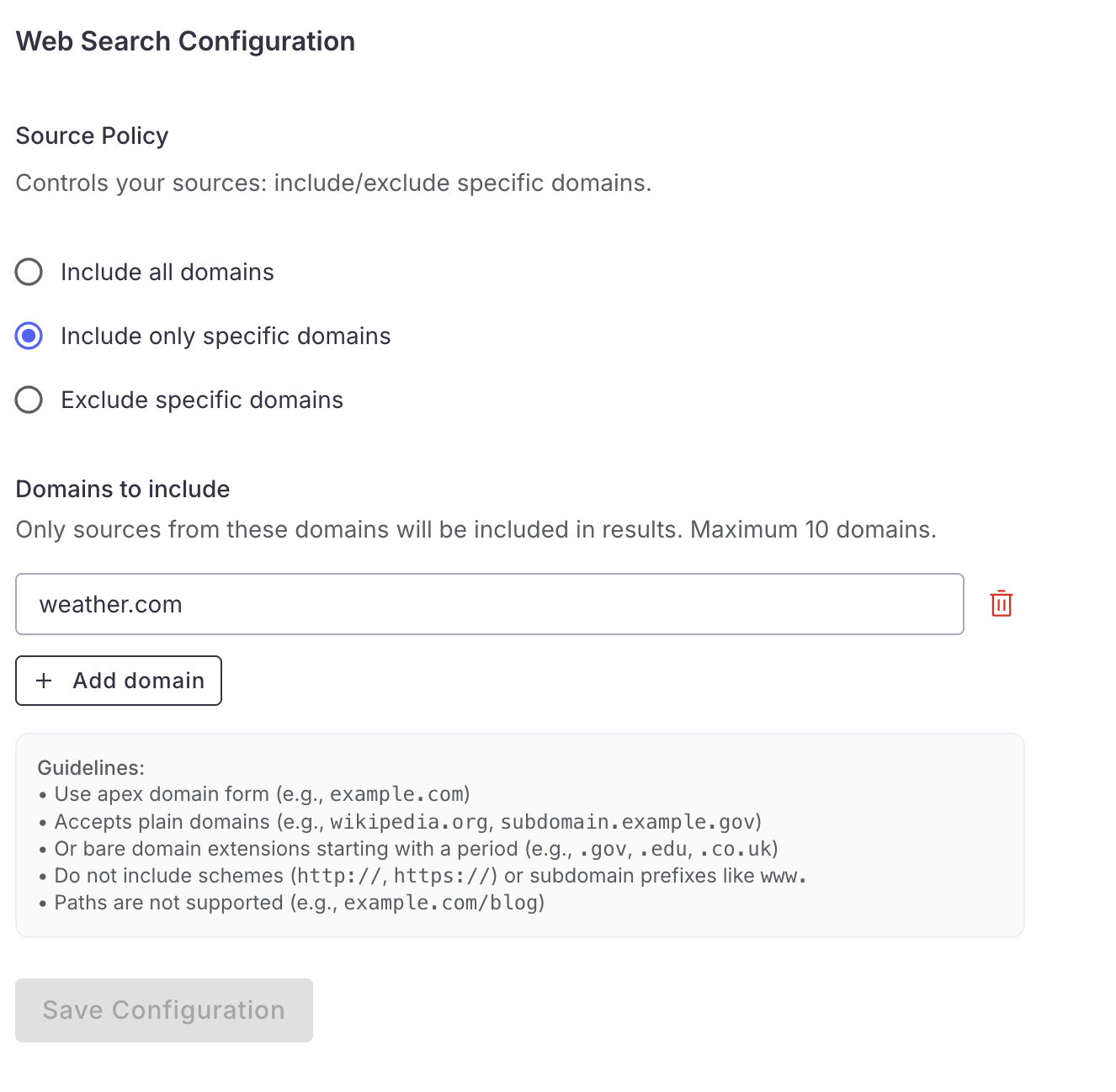 ### Domain format guidelines
When entering domains in the source policy, follow these rules:
* Use apex domain form: `example.com`, `wikipedia.org`
* Subdomains are supported: `subdomain.example.gov`
* Bare domain extensions starting with a period are allowed: `.gov`, `.edu`, `.co.uk`
* Do **not** include URL schemes (`http://`, `https://`)
* Do **not** include `www.` prefixes
* Paths are **not** supported (e.g., `example.com/blog` is invalid)
## How web search works in chat
WisdomAI uses two tools behind the scenes:
* **Web Search**: Searches the web for information relevant to a user's question, returning results with titles, URLs, and content excerpts.
* **Web Fetch**: Fetches and extracts content from specific web page URLs.
Web Search is an AI-driven tool. WisdomAI decides **when** to invoke web search or fetch based on the user's question. You do not need to explicitly request a web search — if the question benefits from external information, WisdomAI will automatically search the web.
When WisdomAI decides to use the web:
1. It calls the **web search** tool with a search objective and optional keyword queries.
2. Results are returned with titles, URLs, publish dates, and content excerpts.
3. If it needs more detail from a specific page, it calls the **web fetch** tool to extract the page content.
4. It synthesizes the web results into a response with **inline citations** and a **Sources** section listing all referenced URLs.
Web Fetch can only access publicly available pages. It **cannot** access content behind login walls, authentication gates, or private documents (e.g., private Google Docs).
## Next steps
Integrate unstructured data sources, such as documents or knowledge bases, to enrich your analysis.
Walk through the initial setup to connect a data source and run your first query.
Define relationships and context in your data to enable more powerful analysis.
### Domain format guidelines
When entering domains in the source policy, follow these rules:
* Use apex domain form: `example.com`, `wikipedia.org`
* Subdomains are supported: `subdomain.example.gov`
* Bare domain extensions starting with a period are allowed: `.gov`, `.edu`, `.co.uk`
* Do **not** include URL schemes (`http://`, `https://`)
* Do **not** include `www.` prefixes
* Paths are **not** supported (e.g., `example.com/blog` is invalid)
## How web search works in chat
WisdomAI uses two tools behind the scenes:
* **Web Search**: Searches the web for information relevant to a user's question, returning results with titles, URLs, and content excerpts.
* **Web Fetch**: Fetches and extracts content from specific web page URLs.
Web Search is an AI-driven tool. WisdomAI decides **when** to invoke web search or fetch based on the user's question. You do not need to explicitly request a web search — if the question benefits from external information, WisdomAI will automatically search the web.
When WisdomAI decides to use the web:
1. It calls the **web search** tool with a search objective and optional keyword queries.
2. Results are returned with titles, URLs, publish dates, and content excerpts.
3. If it needs more detail from a specific page, it calls the **web fetch** tool to extract the page content.
4. It synthesizes the web results into a response with **inline citations** and a **Sources** section listing all referenced URLs.
Web Fetch can only access publicly available pages. It **cannot** access content behind login walls, authentication gates, or private documents (e.g., private Google Docs).
## Next steps
Integrate unstructured data sources, such as documents or knowledge bases, to enrich your analysis.
Walk through the initial setup to connect a data source and run your first query.
Define relationships and context in your data to enable more powerful analysis.