> ## Documentation Index
> Fetch the complete documentation index at: https://docs.wisdom.ai/llms.txt
> Use this file to discover all available pages before exploring further.
# Connect to Amazon Redshift
WisdomAI allows you to connect to Amazon Redshift by choosing one of three methods:
1. [Direct Connection](#option-1%3A-direct-connection)
2. [Connect via an SSH Tunnel](#option-2%3A-connect-via-an-ssh-tunnel)
3. [Connect via VPC Peering](#option-3%3A-connect-via-vpc-peering)
This flexibility ensures you can establish a secure connection that matches your specific network architecture.
## Prerequisites
Before you begin, make sure you have the following:
* Your Amazon Redshift cluster endpoint, port, database name, and user credentials.
* Network access that allows WisdomAI to connect to your Redshift cluster. This may require configuring your firewall or AWS security groups.
* If using an SSH tunnel, you need the credentials for your bastion host.
* If using VPC peering, you need permissions to manage VPC settings in your AWS account.
## Option 1: Direct connection
Use this method if your Redshift cluster is publicly accessible or if you have allowlisted WisdomAI's CIDR blocks (`35.238.115.103/32` and `34.82.248.105/32`) in your security group.
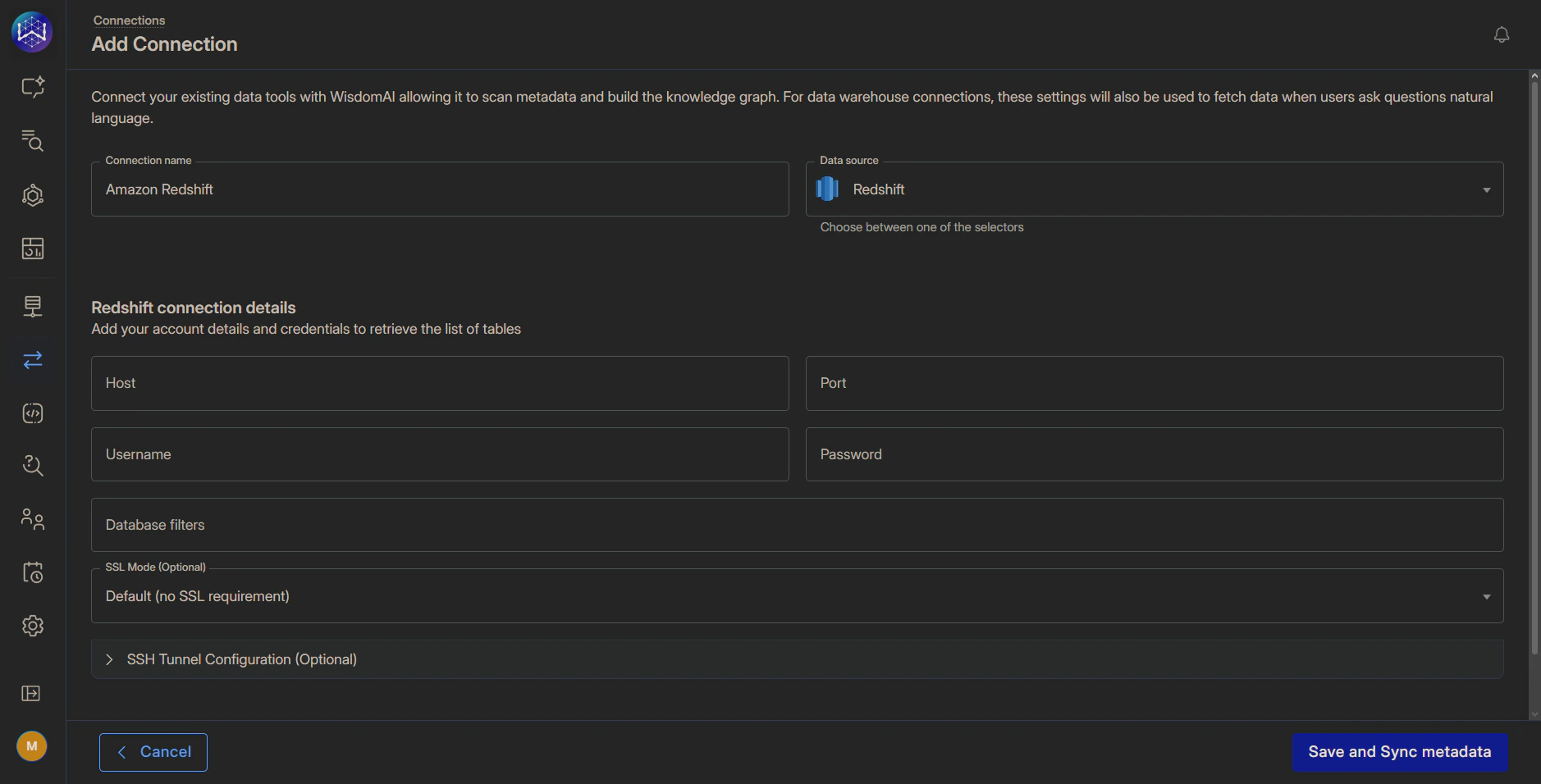
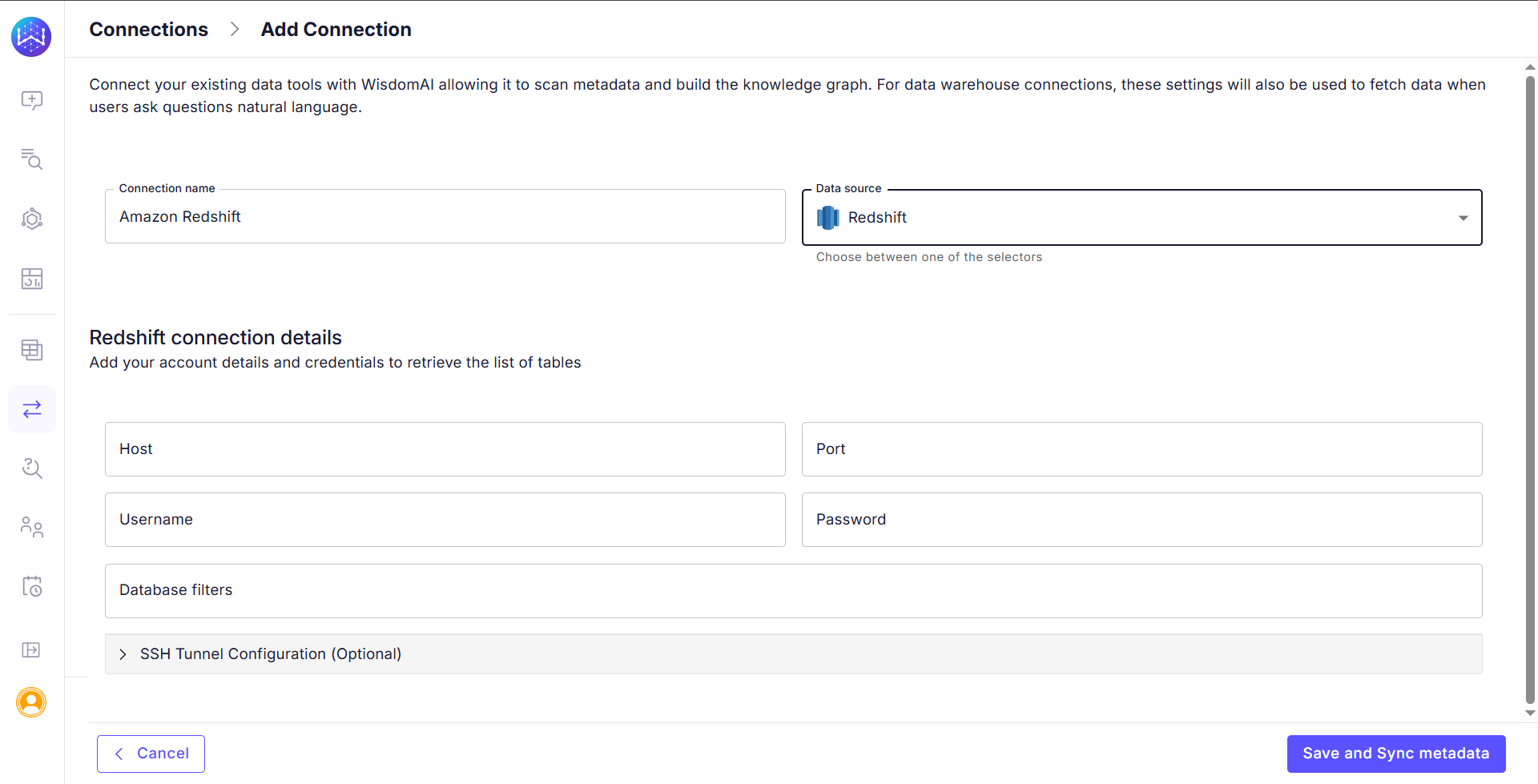
1. In WisdomAl, navigate to the **Connections** section and click **Add Connection**.
2. Select **Redshift** as the data source type.
3. Fill in the connection details in the **Redshift connection details** section:
| Requirement | Description |
| :--------------- | :----------------------------------------------- |
| Host | Redshift cluster endpoint |
| Port | Typically `5439` |
| Username | Database user with read access |
| Password | User password |
| Database Filters | Optionally restrict which databases are crawled. |
4. Click **Save and Sync metadata.** WisdomAl will use the provided credentials to connect to your Redshift account and scan the metadata of the specified databases and tables.
 ## Option 2: Connect via an SSH tunnel
Use this method to securely connect to a Redshift cluster that is not publicly accessible by routing traffic through a bastion host.
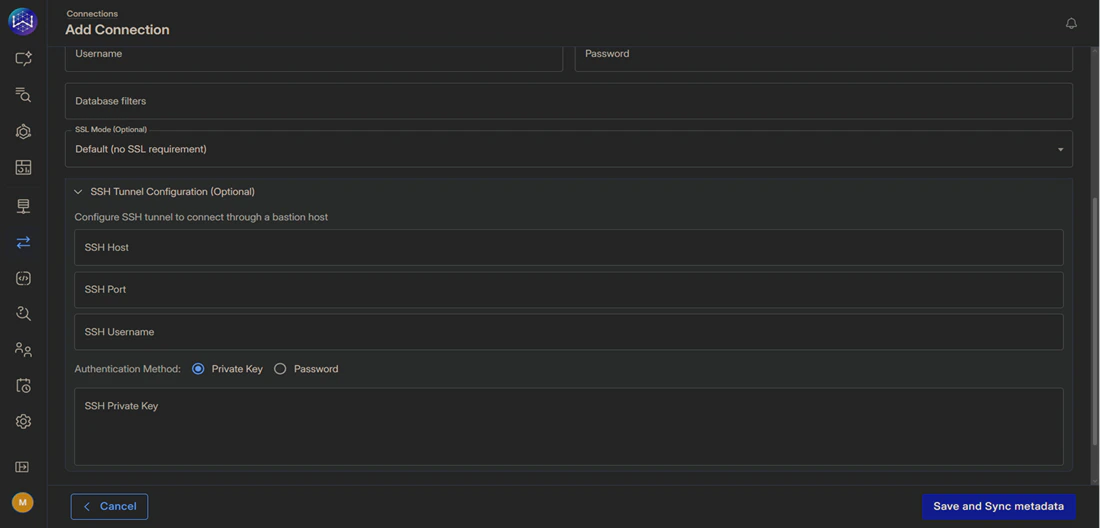
1. On the **Add Connection** page, fill in the direct connection details and expand the **SSH Tunnel Configuration** section.
2. Complete the **SSH Tunnel configuration fields**.
| Requirement | Description |
| :----------------------- | :------------------------------------------------------------ |
| SSH Host | Hostname or IP address of the bastion host |
| SSH Port | Port number on the SSH host (e.g., `22`) |
| SSH Username | The username required to log in to the bastion host |
| Authentication Method | Authenticate using either a **Private Key** or a **Password** |
| SSH Private Key/Password | The Private Key or Password for the SSH authentication |
3. Click **Save and Sync metadata.**
## Option 2: Connect via an SSH tunnel
Use this method to securely connect to a Redshift cluster that is not publicly accessible by routing traffic through a bastion host.
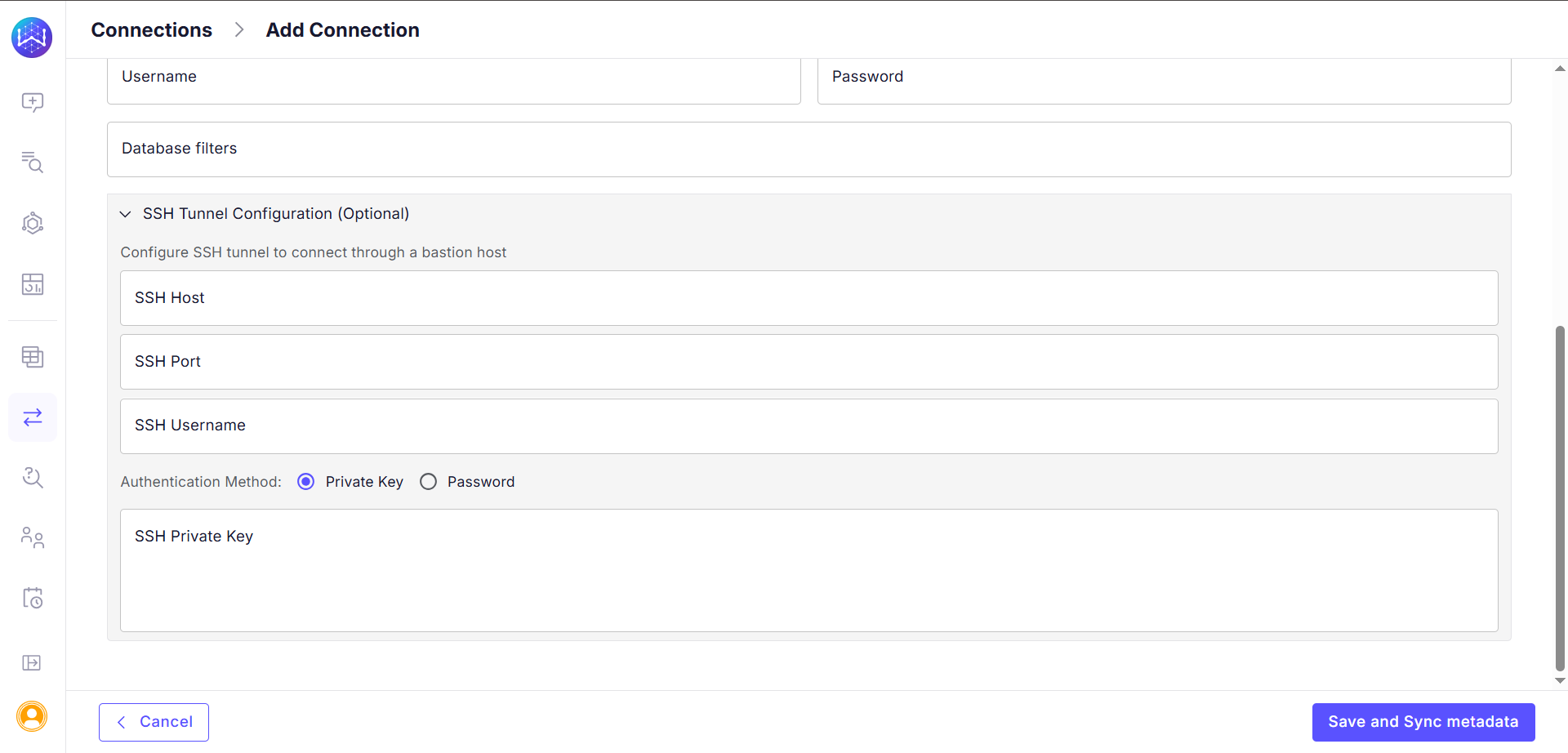
1. On the **Add Connection** page, fill in the direct connection details and expand the **SSH Tunnel Configuration** section.
2. Complete the **SSH Tunnel configuration fields**.
| Requirement | Description |
| :----------------------- | :------------------------------------------------------------ |
| SSH Host | Hostname or IP address of the bastion host |
| SSH Port | Port number on the SSH host (e.g., `22`) |
| SSH Username | The username required to log in to the bastion host |
| Authentication Method | Authenticate using either a **Private Key** or a **Password** |
| SSH Private Key/Password | The Private Key or Password for the SSH authentication |
3. Click **Save and Sync metadata.**
 ## Option 3: Connect via VPC peering
This method establishes a private and secure network connection between WisdomAI's AWS environment and your Amazon VPC, preventing exposure to the public internet.
This is a standardized procedure for all supported data sources hosted on AWS. For the complete, step-by-step instructions, please refer to our comprehensive guide: [Connect via AWS VPC Peering](https://docs.askwisdom.ai/getting-started/connect-data-sources/connect-aws-vpc-peering).
## Next steps
Connect to Databricks using a Client ID and Client Secret for authentication, enabling secure and controlled access to your data.
Connect to Google BigQuery using a Google Cloud Platform Service Account for secure and granular access to your data.
Walk through the initial setup to connect a data source and run your first query.
## Option 3: Connect via VPC peering
This method establishes a private and secure network connection between WisdomAI's AWS environment and your Amazon VPC, preventing exposure to the public internet.
This is a standardized procedure for all supported data sources hosted on AWS. For the complete, step-by-step instructions, please refer to our comprehensive guide: [Connect via AWS VPC Peering](https://docs.askwisdom.ai/getting-started/connect-data-sources/connect-aws-vpc-peering).
## Next steps
Connect to Databricks using a Client ID and Client Secret for authentication, enabling secure and controlled access to your data.
Connect to Google BigQuery using a Google Cloud Platform Service Account for secure and granular access to your data.
Walk through the initial setup to connect a data source and run your first query.