> ## Documentation Index
> Fetch the complete documentation index at: https://docs.wisdom.ai/llms.txt
> Use this file to discover all available pages before exploring further.
# Connect to an MCP Server
WisdomAI allows you to connect to any server that implements the [Model Knowledge Protocol (MCP)](https://modelcontextprotocol.io/docs/getting-started/intro). This integration enables WisdomAI to scan metadata, build a knowledge graph, and fetch real-time data to generate visualizations when users ask natural-language questions.
## Prerequisites
* [Admin access](/manage-account/access-management) to your WisdomAI Organization.
* The Server URL (for HTTP/SSE) or Command (for STDIO) of your MCP server.
* Authentication credentials (API Key or OAuth configuration), if required by your server.
## Connect an MCP Server
Follow these steps to register your MCP server as a data source in WisdomAI.
1. Navigate to **Connections** > **Add Connection**.
2. In the **Data source** dropdown, select **MCP Server**.
3. Enter a unique **Connection name** (e.g., "Linear MCP Server").
4. Select the **Transport Type** supported by your server:
* **Streamable HTTP**: Uses standard HTTP streaming for communication.
* **SSE**: Uses Server-Sent Events.
* **STDIO**: Runs the server as a local process via standard input/output.
5. Enter the **Server URL** (for HTTP/SSE) or connection details.
6. Select the **Authentication Type**:
* **None**: For public or internal servers without auth.
* **API Key**: Uses a static key for all requests.
* **OAuth**: Uses user-based authentication.
7. (Optional) Click **+ Add Header** to include custom headers required by your environment.
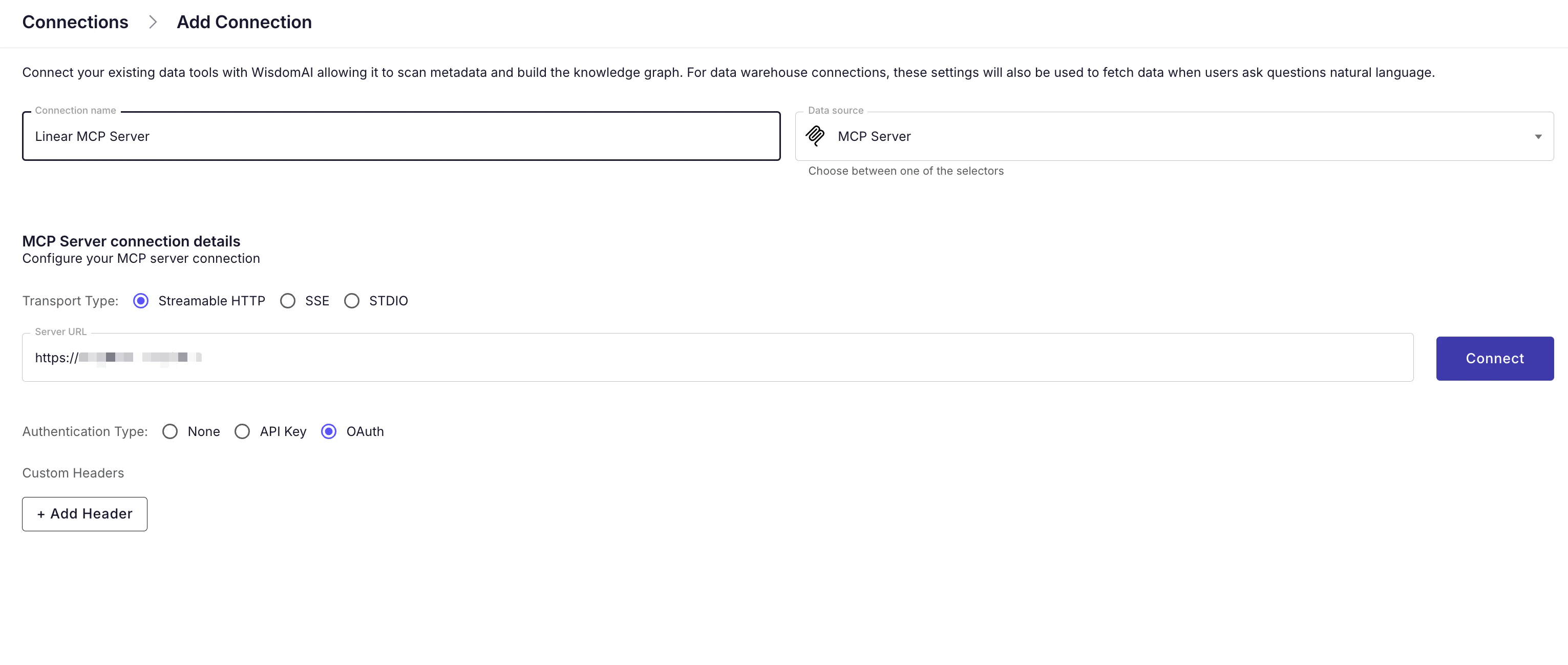
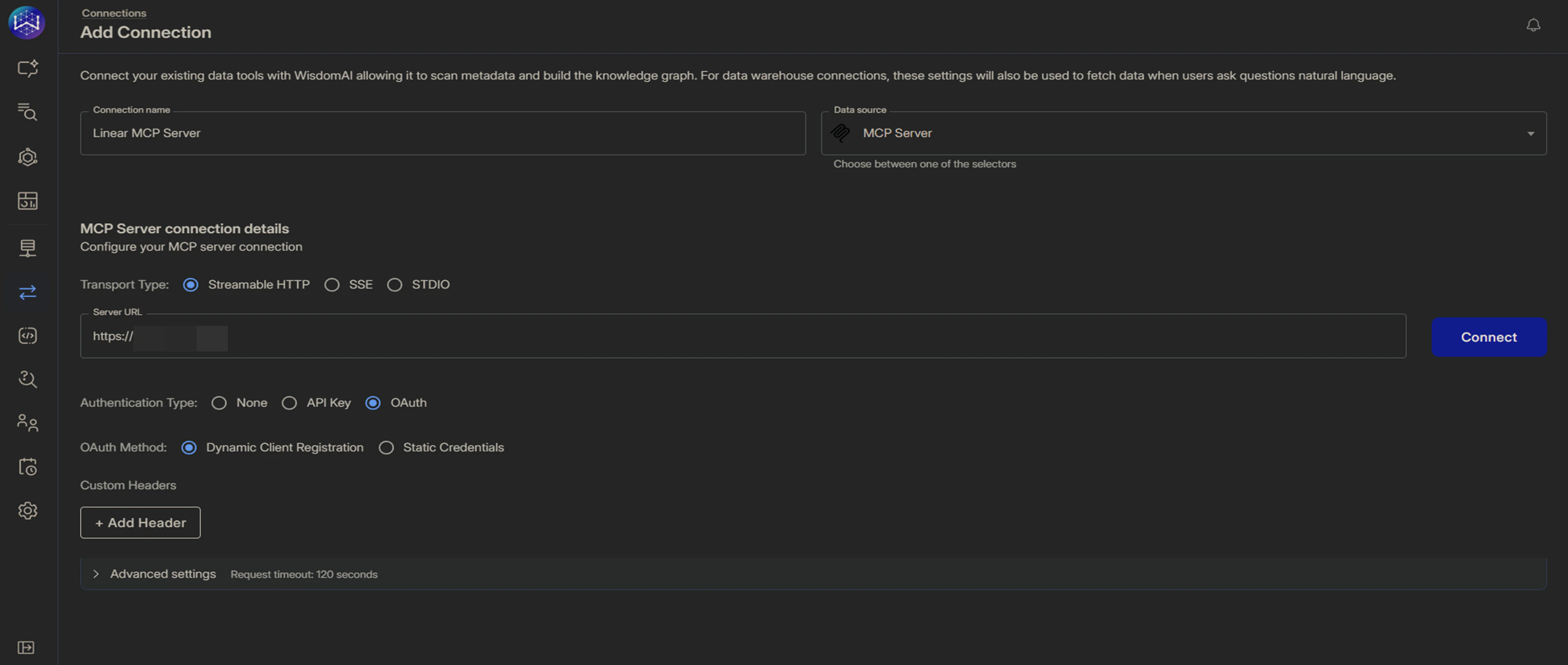 8. Click **Connect**. You may be prompted to authorize the connection to validate the setup.
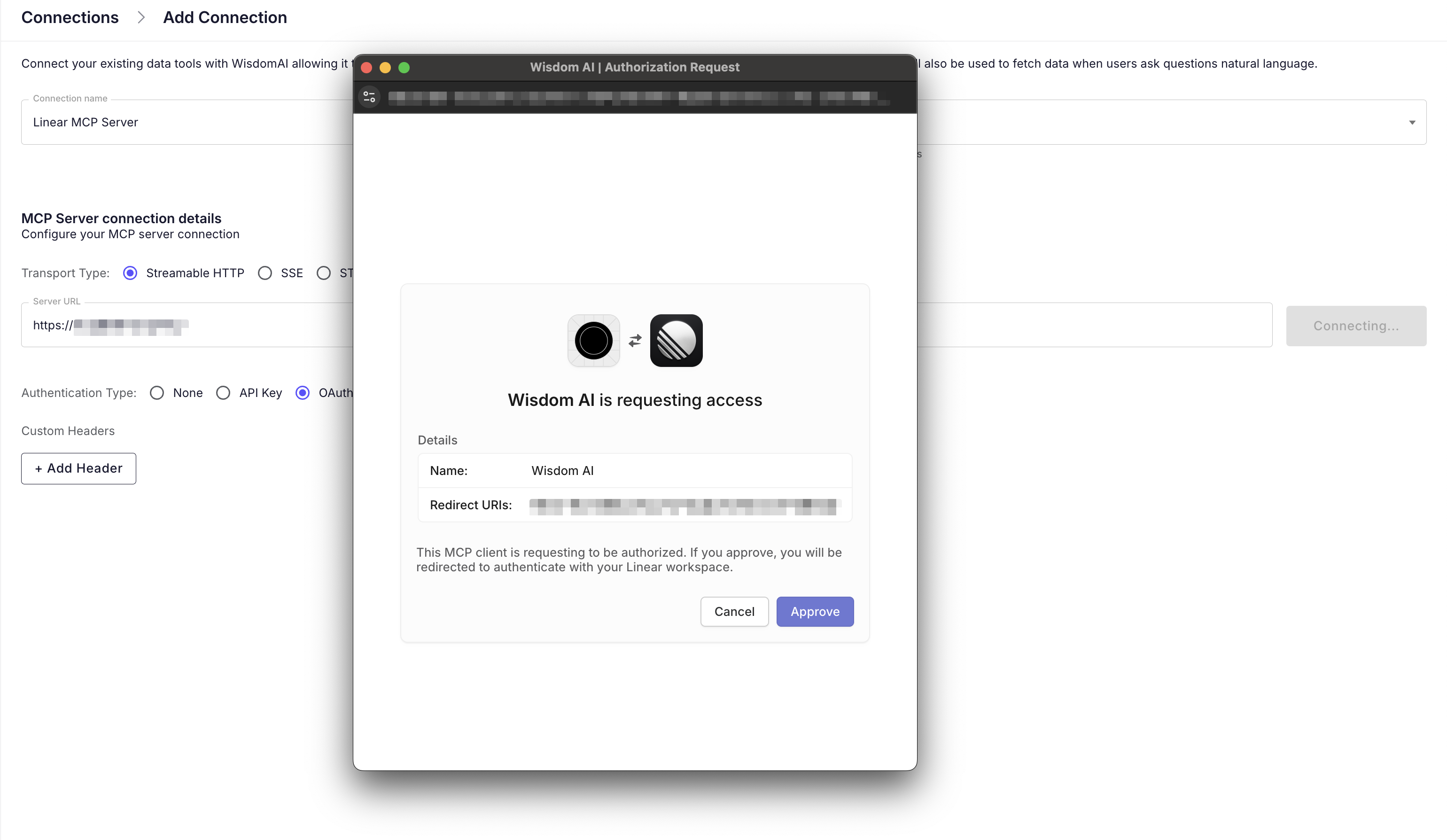
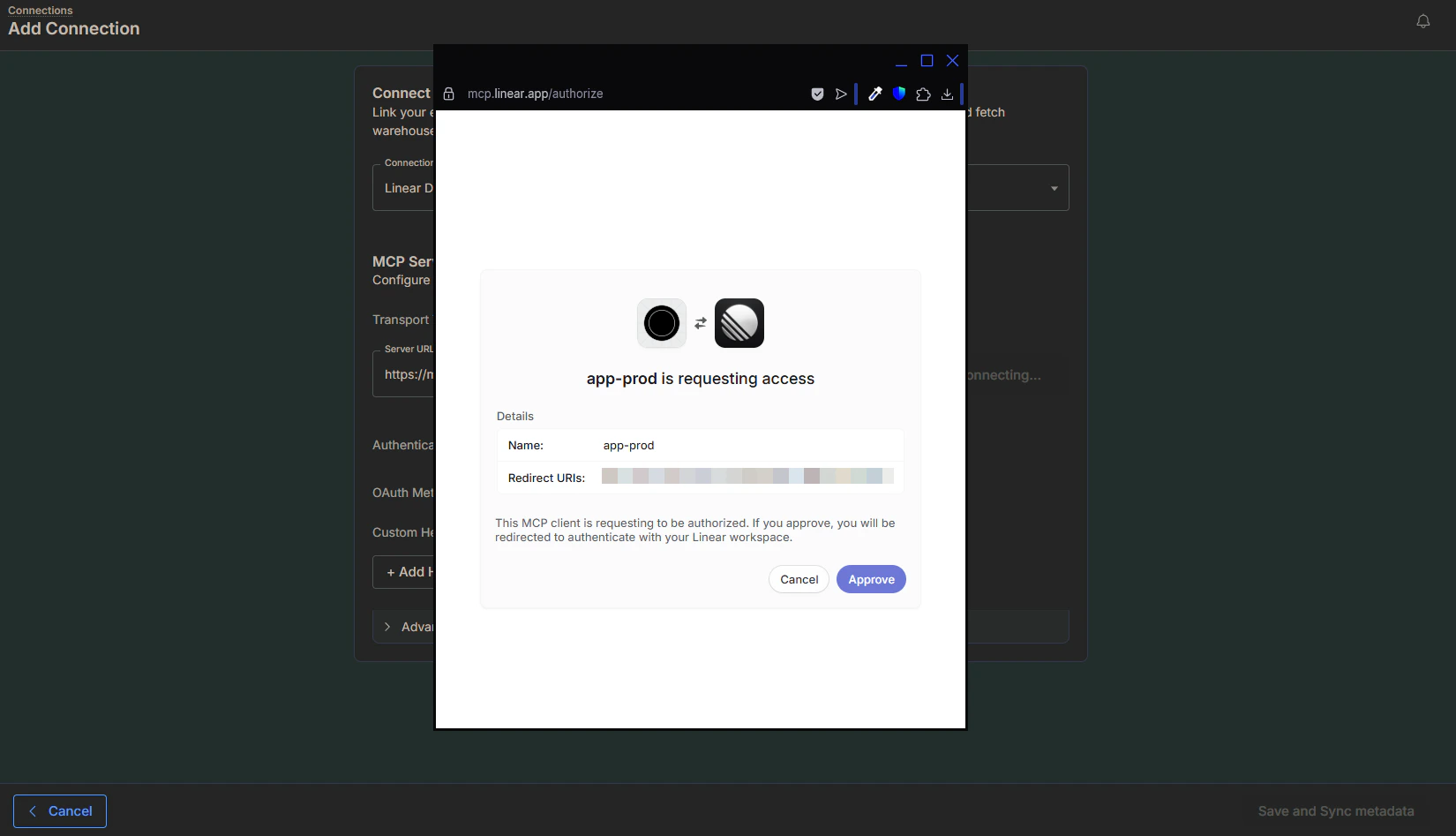 **User-based authentication**
If you select **OAuth**, authentication happens on a user-by-user basis. WisdomAI does not store a global credential. Instead, when a user asks a question that requires data from this server, WisdomAI will prompt them to authenticate via a secure pop-up during the chat session.
## Validate the connection
Once connected, you can verify the integration by asking a natural language question in the chat interface.
1. Start a **Chat**.
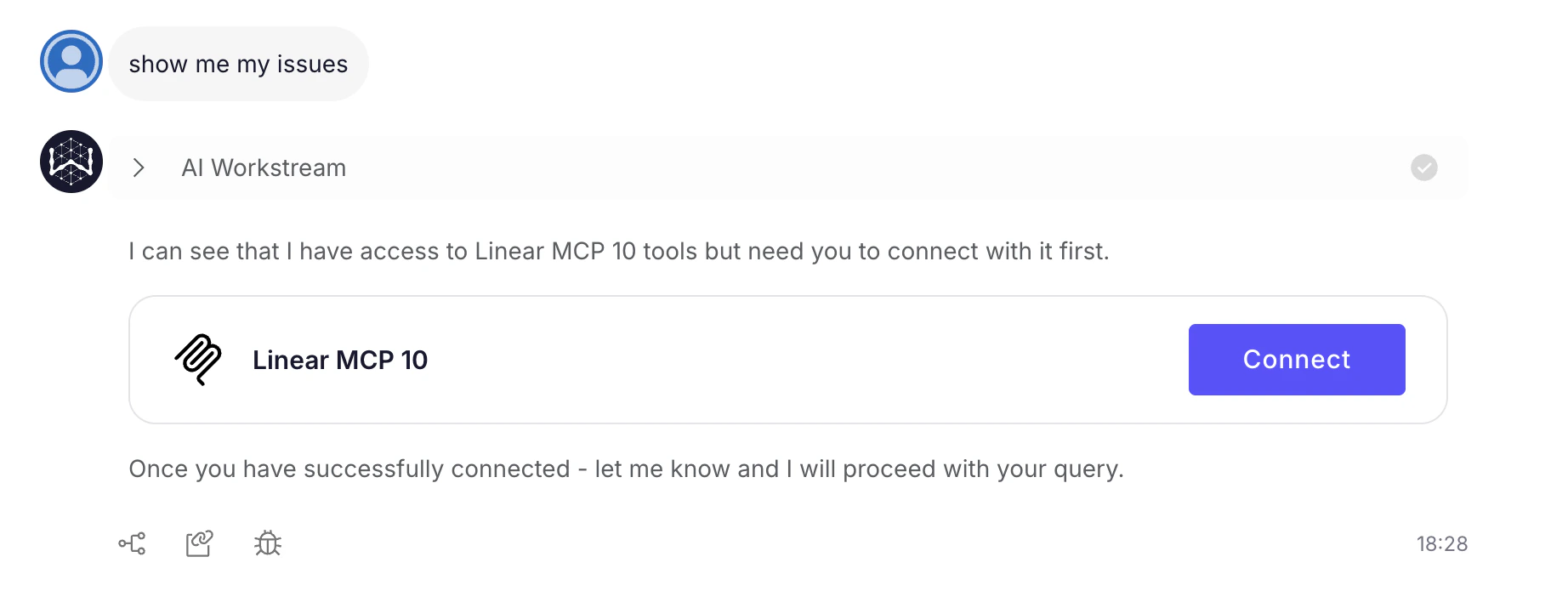
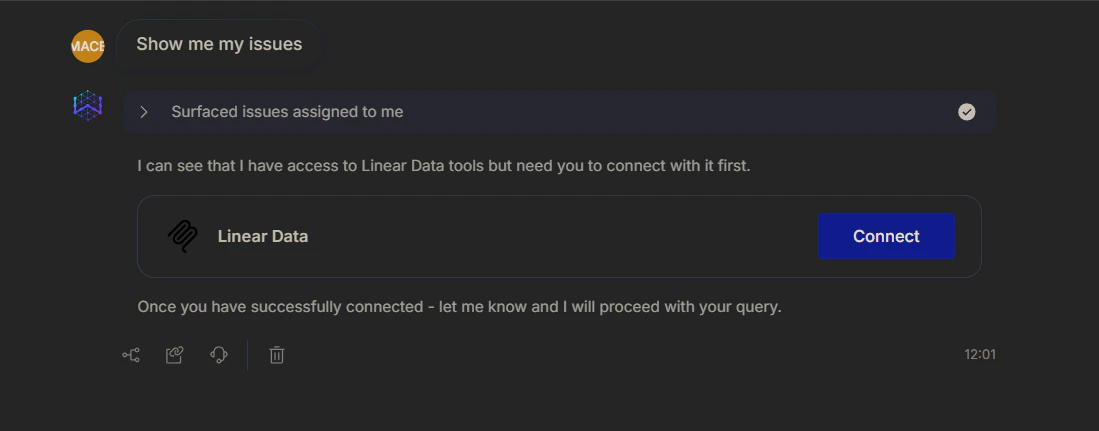
2. Ask a question relevant to the connected tool (e.g., "Show me my issues").
3. If using OAuth, and you haven't authenticated yet, WisdomAI will detect the need for authentication. Click **Connect** in the chat response and Authorize the request in the pop-up window. \
WisdomAI will pull the requested data and generate the appropriate visualization or text response.
**User-based authentication**
If you select **OAuth**, authentication happens on a user-by-user basis. WisdomAI does not store a global credential. Instead, when a user asks a question that requires data from this server, WisdomAI will prompt them to authenticate via a secure pop-up during the chat session.
## Validate the connection
Once connected, you can verify the integration by asking a natural language question in the chat interface.
1. Start a **Chat**.
2. Ask a question relevant to the connected tool (e.g., "Show me my issues").
3. If using OAuth, and you haven't authenticated yet, WisdomAI will detect the need for authentication. Click **Connect** in the chat response and Authorize the request in the pop-up window. \
WisdomAI will pull the requested data and generate the appropriate visualization or text response.
 ## Next steps
Connect to Databricks using a Client ID and Client Secret for authentication, enabling secure and controlled access to your data.
Connect to Google BigQuery using a Google Cloud Platform Service Account for secure and granular access to your data.
Connect to Amazon Redshift using three methods: Direct Connection, SSH Tunnel, or VPC Peering, according to your network architecture.
## Next steps
Connect to Databricks using a Client ID and Client Secret for authentication, enabling secure and controlled access to your data.
Connect to Google BigQuery using a Google Cloud Platform Service Account for secure and granular access to your data.
Connect to Amazon Redshift using three methods: Direct Connection, SSH Tunnel, or VPC Peering, according to your network architecture.