> ## Documentation Index
> Fetch the complete documentation index at: https://docs.wisdom.ai/llms.txt
> Use this file to discover all available pages before exploring further.
# Chat with a Dashboard
Chat with a Dashboard embeds a conversational AI copilot directly into dashboard pages. You can ask natural-language questions about your dashboard data, get AI-generated executive summaries, see what changed since your last visit, and add new widgets to the dashboard, all without leaving the page.
## Before you start
To use this feature, make sure you have a dashboard to chat with. If you haven't created one yet, see [Turn Answers into Dashboards](/using-wisdom-ai-everyday/turn-answers-into-dashboards) or [Build Dashboards](/improve-wisdom-ai-responses/build-dashboards).
## Ask a question about your dashboard data
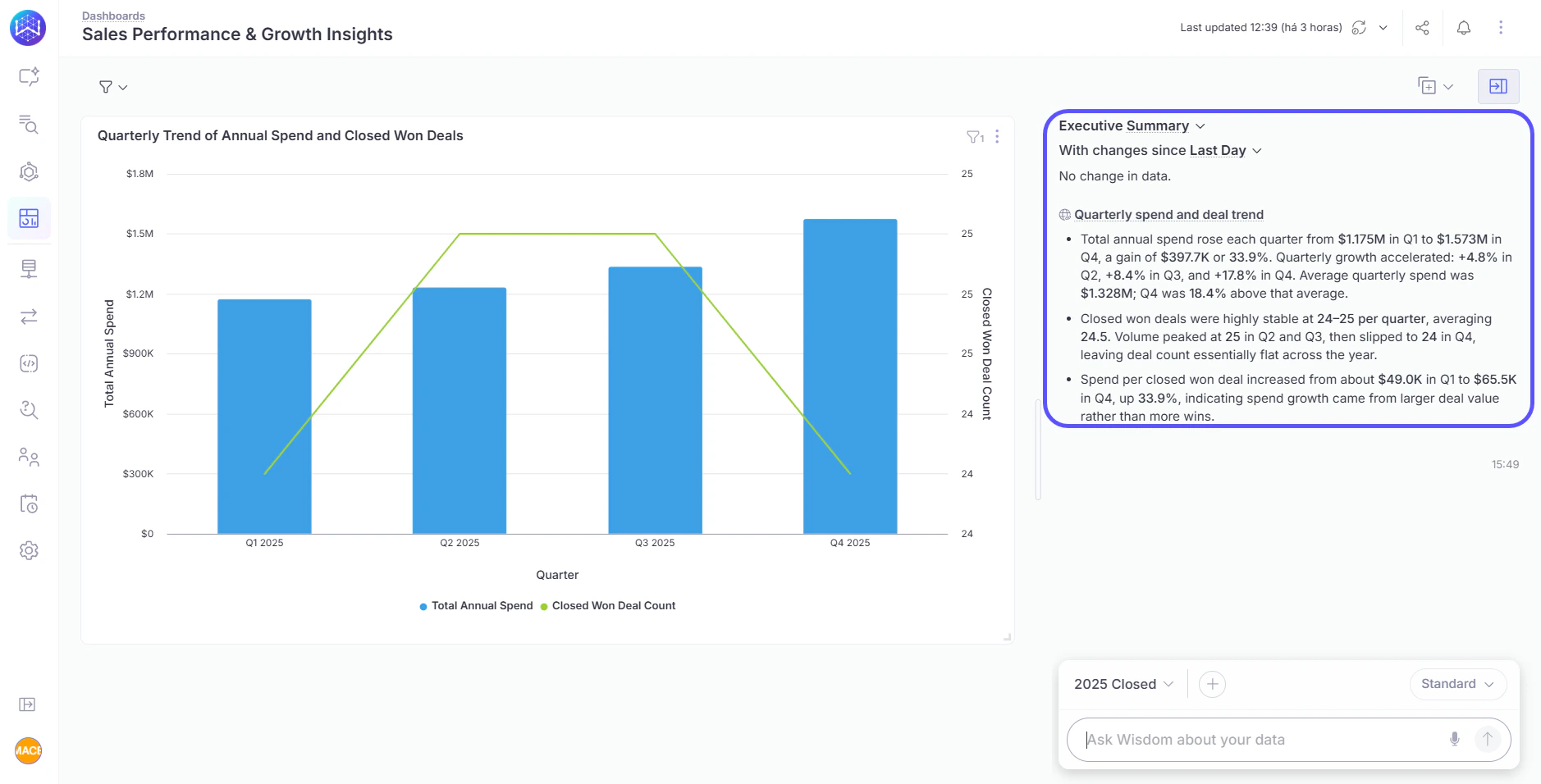
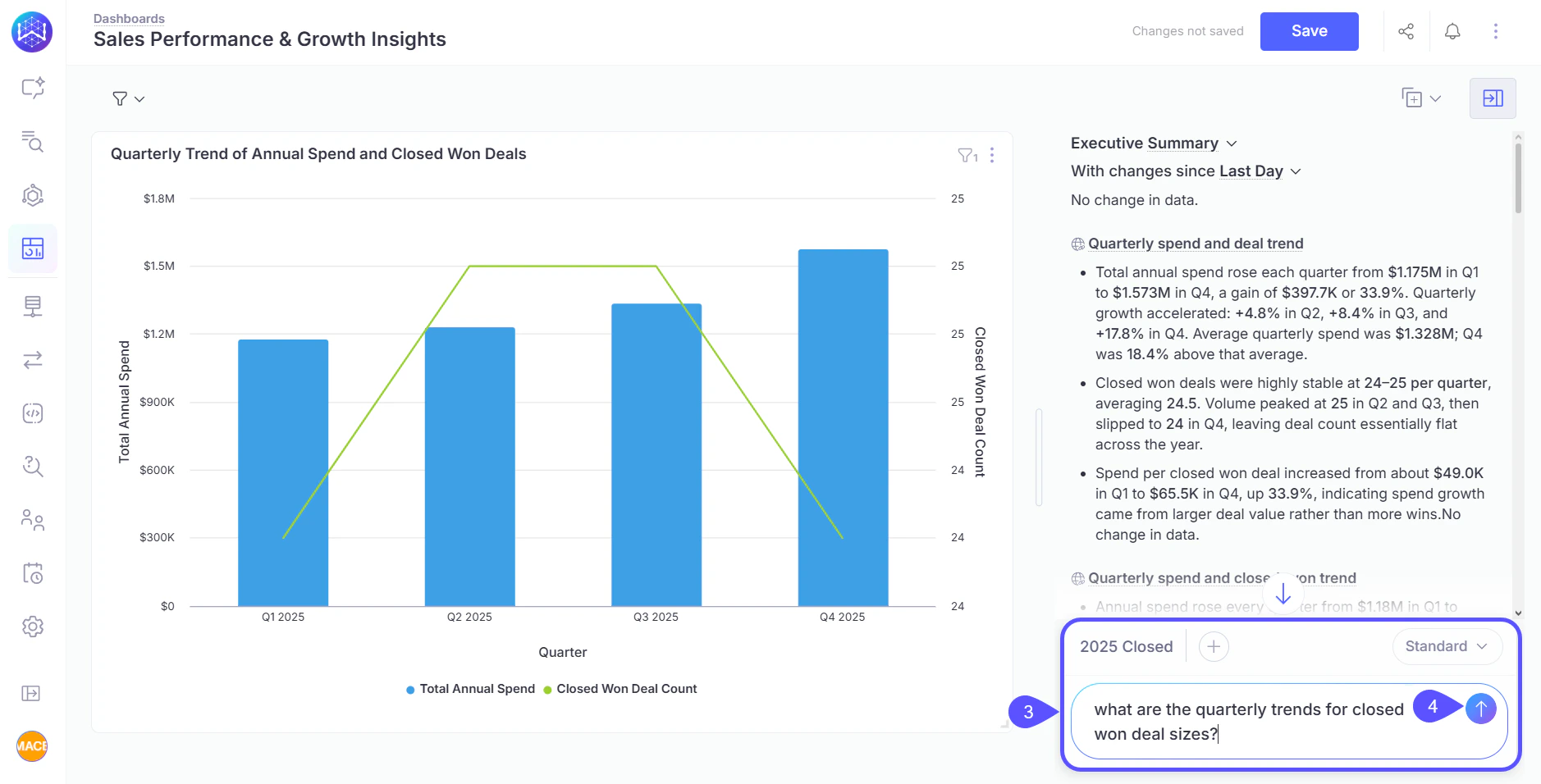
When you open a dashboard, the chat sidebar opens on the right side of the page, and two AI-generated tiles appear at the top:
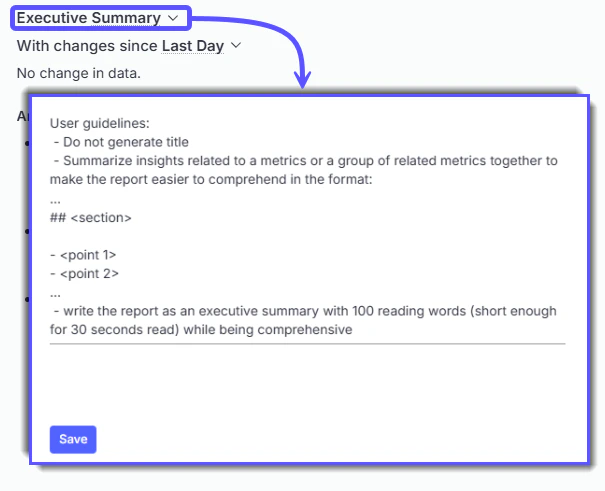
* **Executive Summary**: A streaming narrative summary of all data in the current dashboard.
The Executive Summary can be customized to focus on the metrics and dimensions most relevant to you and your team. Use the customization options on the tile to tailor the narrative to your audience.
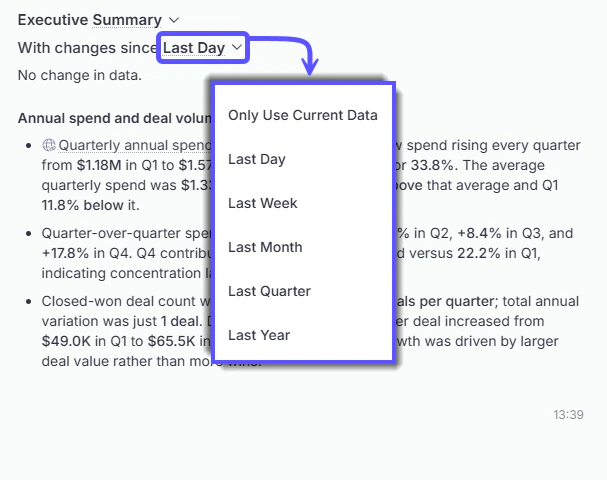
 * **With changes since**: A comparison highlighting differences since your last visit or a specific date. You can select what suits you best.
 These tiles load automatically. No action is required to generate them.
 To start a chat with a dashboard:
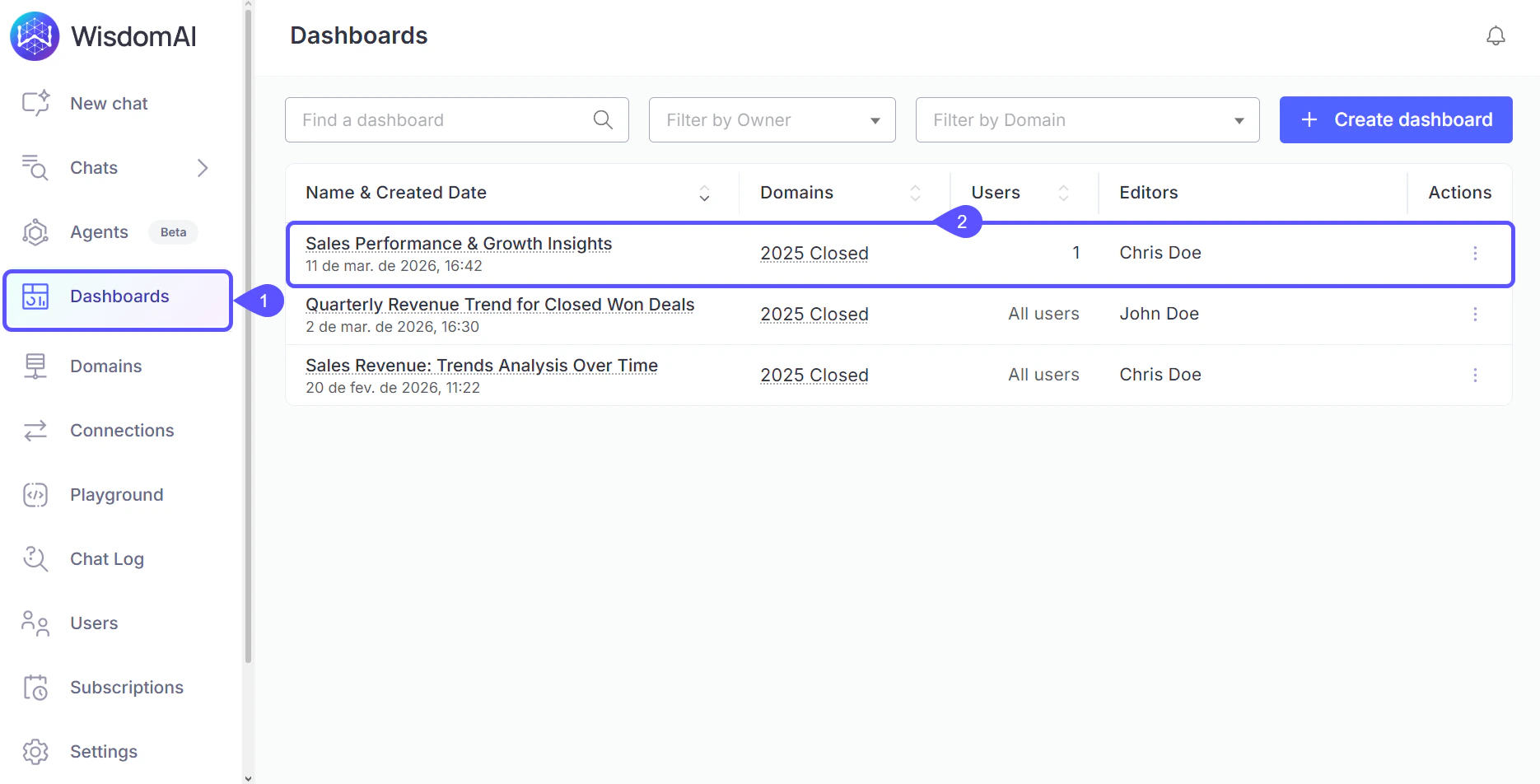
1. Click **Dashboards** on the sidebar.
2. Select the dashboard you want to chat with.
To start a chat with a dashboard:
1. Click **Dashboards** on the sidebar.
2. Select the dashboard you want to chat with.
 3. Click the chat input at the bottom of the sidebar and type a natural-language question about the data shown on the dashboard.
4. Press **Enter** or click the send button.
3. Click the chat input at the bottom of the sidebar and type a natural-language question about the data shown on the dashboard.
4. Press **Enter** or click the send button.
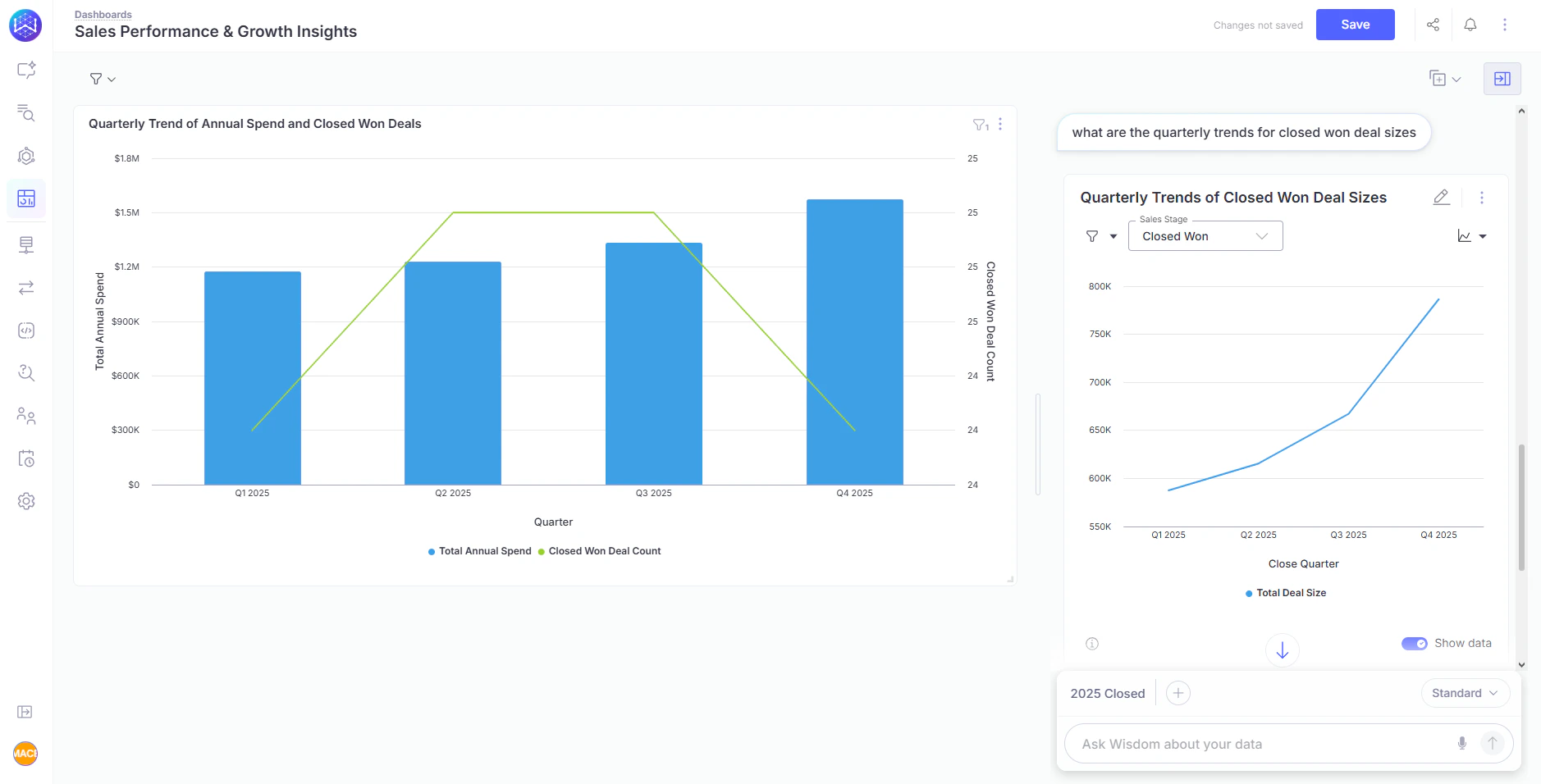
 The AI agent responds with data, tables, or charts scoped to the dashboard's domain.
 ## Add tiles to the dashboard
You can add new tiles to the dashboard directly from a chat response. Three tile types are available:
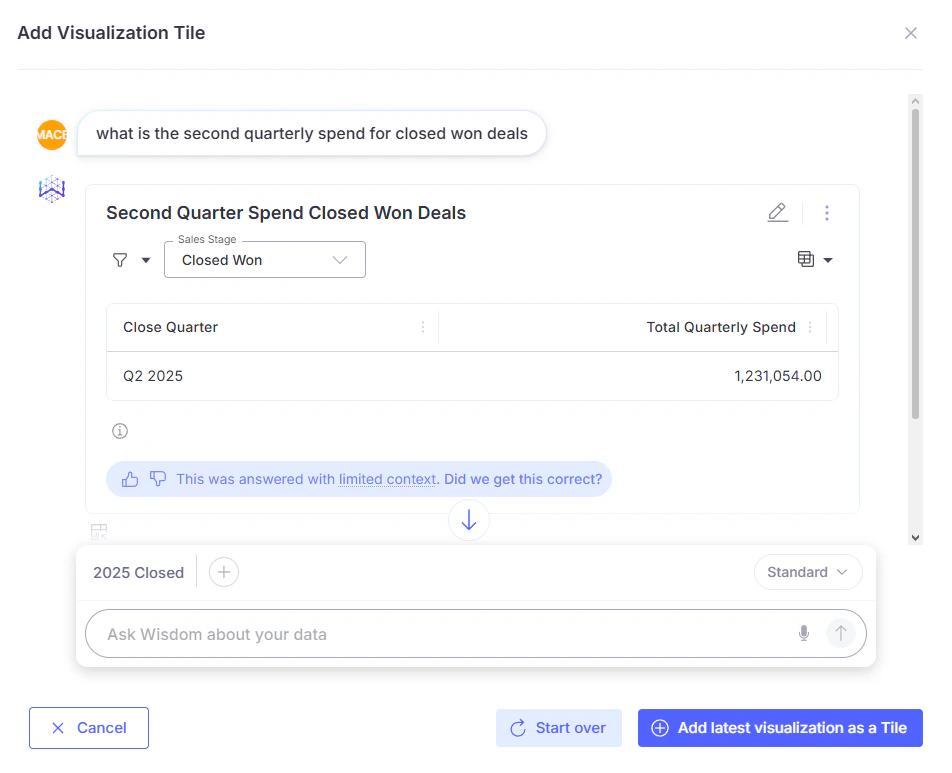
* **Visualization**: Wisdom queries your connected data source and returns an answer to your input. You can review the result, and once you're happy, click **Add latest visualization as a Tile** to lock it onto your dashboard. From then on, that metric is always visible without having to ask the question again.
## Add tiles to the dashboard
You can add new tiles to the dashboard directly from a chat response. Three tile types are available:
* **Visualization**: Wisdom queries your connected data source and returns an answer to your input. You can review the result, and once you're happy, click **Add latest visualization as a Tile** to lock it onto your dashboard. From then on, that metric is always visible without having to ask the question again.
 * **SQL query**: A tile that runs a custom SQL query directly against your data source. When you add a SQL tile, WisdomAI automatically generates the query based on your question. You can review and edit the query in the built-in SQL editor, give the tile a title, then click **Execute SQL** to preview the result. Once confirmed, click Add as Tile to pin it to your dashboard.
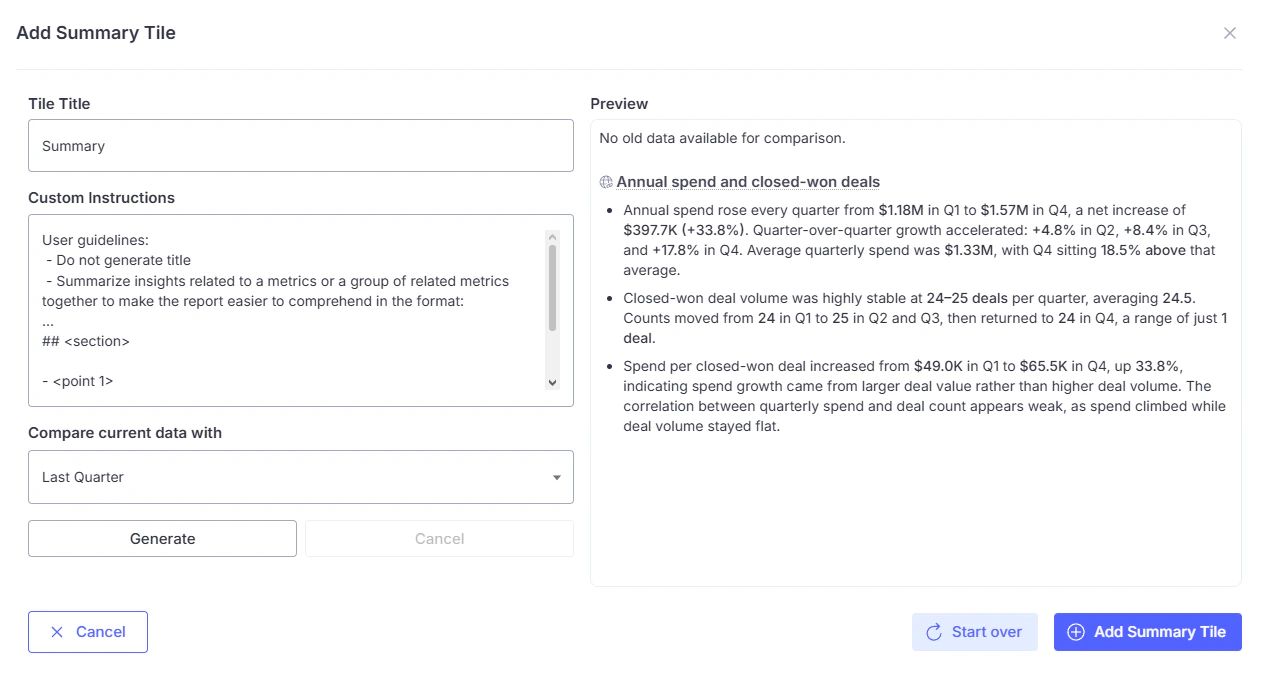
* **Summary**: A narrative text tile generated by WisdomAI that interprets and explains your dashboard data. When you add a summary tile, you can give it a title, write custom instructions to guide the format and focus of the summary.
* **SQL query**: A tile that runs a custom SQL query directly against your data source. When you add a SQL tile, WisdomAI automatically generates the query based on your question. You can review and edit the query in the built-in SQL editor, give the tile a title, then click **Execute SQL** to preview the result. Once confirmed, click Add as Tile to pin it to your dashboard.
* **Summary**: A narrative text tile generated by WisdomAI that interprets and explains your dashboard data. When you add a summary tile, you can give it a title, write custom instructions to guide the format and focus of the summary.
 ## Next steps
Set up automated notifications to keep stakeholders updated with the latest dashboard insights.
Learn how to share your dashboards with others and manage who can view or edit them.
## Next steps
Set up automated notifications to keep stakeholders updated with the latest dashboard insights.
Learn how to share your dashboards with others and manage who can view or edit them.