> ## Documentation Index
> Fetch the complete documentation index at: https://docs.wisdom.ai/llms.txt
> Use this file to discover all available pages before exploring further.
# Dashboard Chat Filters
Manage dashboard filters by describing what you want in the chat. The chat picks the right tables and columns, adds any joins a filter needs, and applies it across the dashboard, so you don't need to know the data model.
## Requirements and limitations
Before you start, be aware of the following:
* Available on dashboards using the current filters experience (Filters V2)
* Generally available and on by default for all customers
* Filters don't yet apply to Python-based visualizations
## How it works
Getting started takes two steps:
1. Open a dashboard.
2. Open the chat sidebar and type your request.
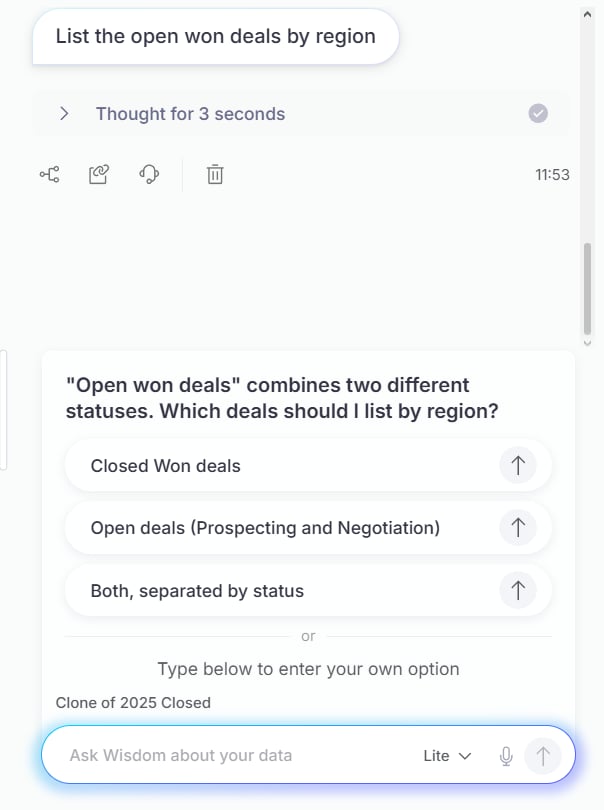
If the request is ambiguous, for example the value doesn't match your data, or more than one column could be the target, the chat asks a clarifying question instead of guessing.
 Edits are safe. Every chat edit lands in a dashboard draft. The dashboard refreshes after each edit so you can see the effect, and each chat turn stays anchored to the dashboard version you're viewing. Published dashboards, saved filters, and anything you've shared stay unchanged until you save the draft.
The manual filter flow remains fully available, and permissions are unchanged: chat edits respect the same dashboard edit rights as manual edits.
## Available actions
The full filter lifecycle works from the chat:
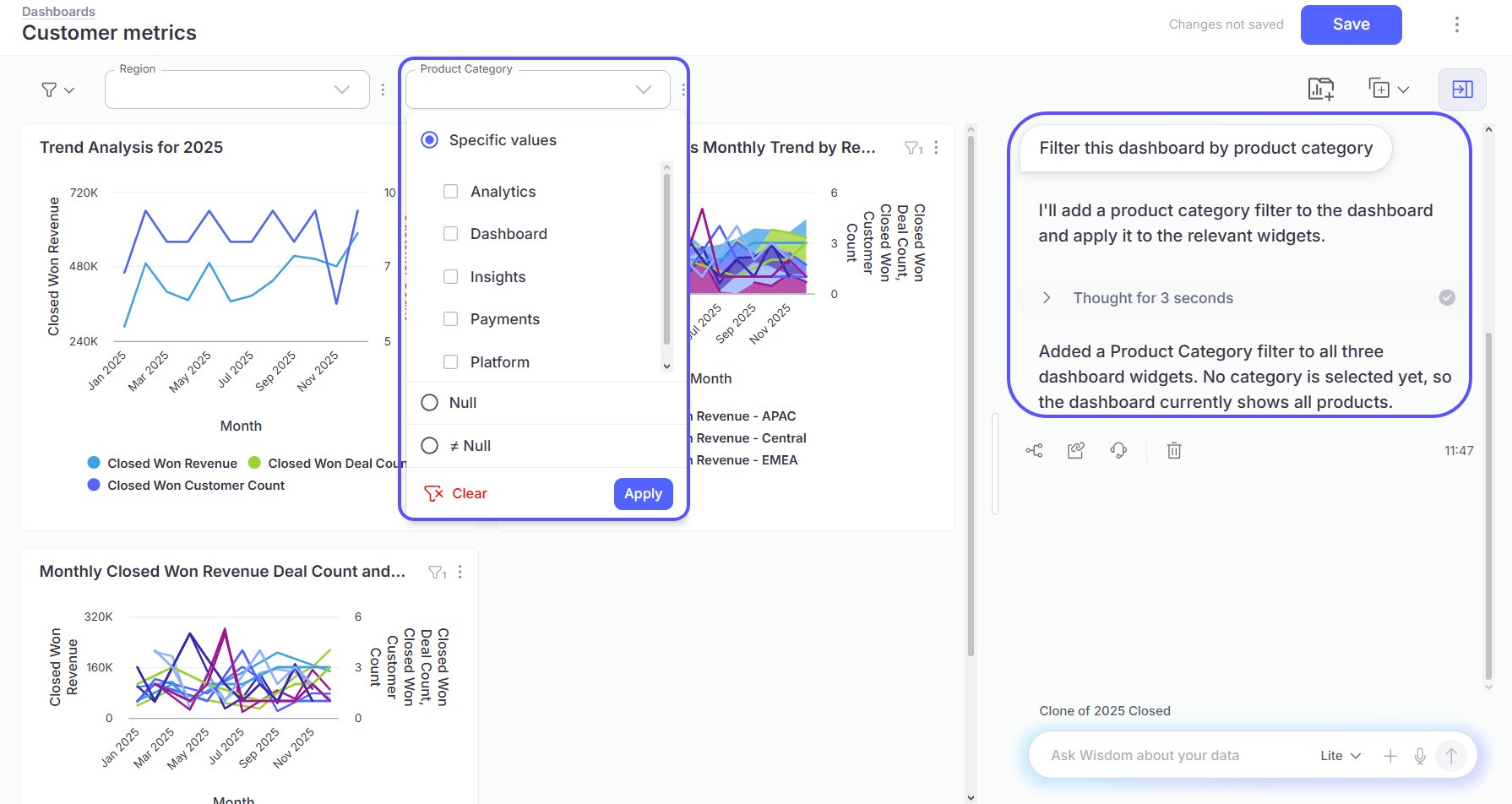
* **Add a filter**: Ask for what you want to filter by, for example: "add a region filter" or "filter this dashboard by product category." The chat resolves your request against the domain context, chooses the right columns, and applies the filter to the relevant widgets, including widgets whose queries need a new join to support it.
Edits are safe. Every chat edit lands in a dashboard draft. The dashboard refreshes after each edit so you can see the effect, and each chat turn stays anchored to the dashboard version you're viewing. Published dashboards, saved filters, and anything you've shared stay unchanged until you save the draft.
The manual filter flow remains fully available, and permissions are unchanged: chat edits respect the same dashboard edit rights as manual edits.
## Available actions
The full filter lifecycle works from the chat:
* **Add a filter**: Ask for what you want to filter by, for example: "add a region filter" or "filter this dashboard by product category." The chat resolves your request against the domain context, chooses the right columns, and applies the filter to the relevant widgets, including widgets whose queries need a new join to support it.
 * **Set or clear values**: Tell the chat what to set or clear, for example: "set the date range to last quarter," "filter to Acme," or "clear the region filter." Values are grounded against your actual data: "last 90 days" becomes a relative date range, and text values are matched exactly as they appear in the column.
* **Rename a filter**: For example: "rename the Company filter to Customer."
* **Delete a filter**: The chat deletes a filter only when no widget still uses it. If widgets still reference it, the chat removes the filter from those widgets first, then deletes it.
Filters created through the chat are more expressive than manual ones. They can pull in new joins, target formula fields, and correctly handle a table that appears more than once in a dashboard.
## Next steps
Narrow a results table in place without changing the underlying query.
Arrange widgets, add summaries, and prepare a dashboard for sharing.
* **Set or clear values**: Tell the chat what to set or clear, for example: "set the date range to last quarter," "filter to Acme," or "clear the region filter." Values are grounded against your actual data: "last 90 days" becomes a relative date range, and text values are matched exactly as they appear in the column.
* **Rename a filter**: For example: "rename the Company filter to Customer."
* **Delete a filter**: The chat deletes a filter only when no widget still uses it. If widgets still reference it, the chat removes the filter from those widgets first, then deletes it.
Filters created through the chat are more expressive than manual ones. They can pull in new joins, target formula fields, and correctly handle a table that appears more than once in a dashboard.
## Next steps
Narrow a results table in place without changing the underlying query.
Arrange widgets, add summaries, and prepare a dashboard for sharing.