> ## Documentation Index
> Fetch the complete documentation index at: https://docs.wisdom.ai/llms.txt
> Use this file to discover all available pages before exploring further.
# Manage Organizations
This guide explains how to use the Organizations manager to create and maintain isolated environments within your tenant. Organizations ensure full data separation, meaning that connections, domains, users, dashboards, and agents are kept entirely independent across different environments.
## Before you start
To perform these tasks, you must have **Site Administrator** permissions. Regular users or organization-level admins cannot access the global Organizations manager.
Read the [Access Management](/manage-account/access-management) guide to learn more about roles and permissions.
## Create a new organization
New organizations are provisioned by Site Administrators through the platform. To do this, follow the steps below:
1. Sign in to WisdomAI as a Site Administrator.
2. Click the **Organizations** icon in the left-hand navigation menu.
3. Click the **Add Organization** option.
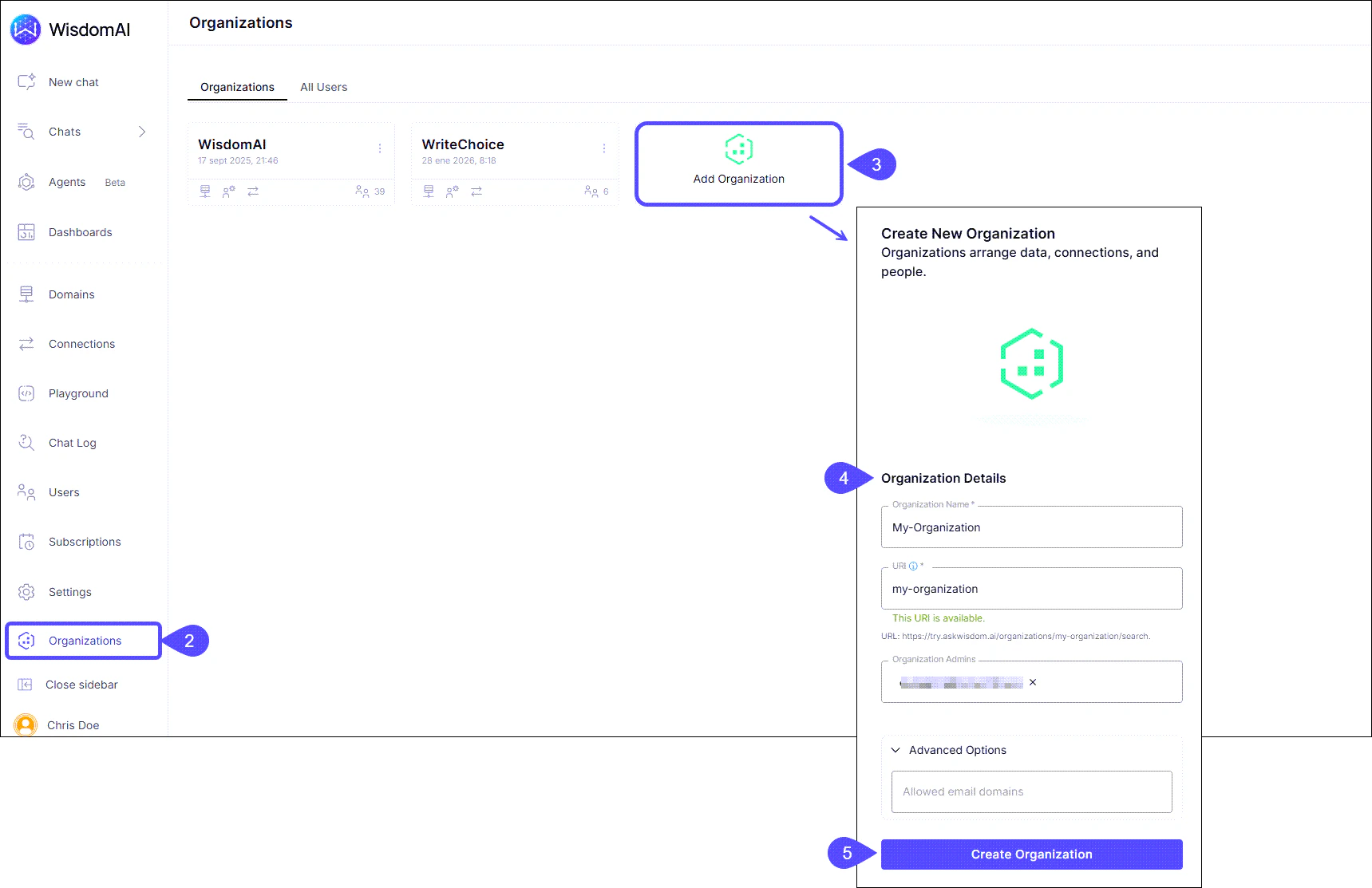 4. In the modal that opens, under **Organization Details**:
a. Enter the **Organization Name** (e.g., "Finance-Dept").
b. Define the **URI** (e.g., `finance`). This creates a unique access point: `https://try.askwisdom.ai/organizations/finance`.
c. Add **Organization Admins** by entering their email addresses.
d. (Optional) Expand **Advanced Options** to define **Allowed email domains**.
The **Allowed email domains** setting acts as a security gate. By specifying a domain (e.g., `company.com`), you ensure that only users with official company emails can be added to the organization, preventing accidental access by external or personal accounts.
5. Click **Create Organization**.
If you encounter any issues during provisioning, please contact [the WisdomAI support team](/manage-account/contact-support) for assistance.
## Manage existing organizations
Once created, you can manage organizations directly from the dashboard using quick-access icons.
### Modify settings and access
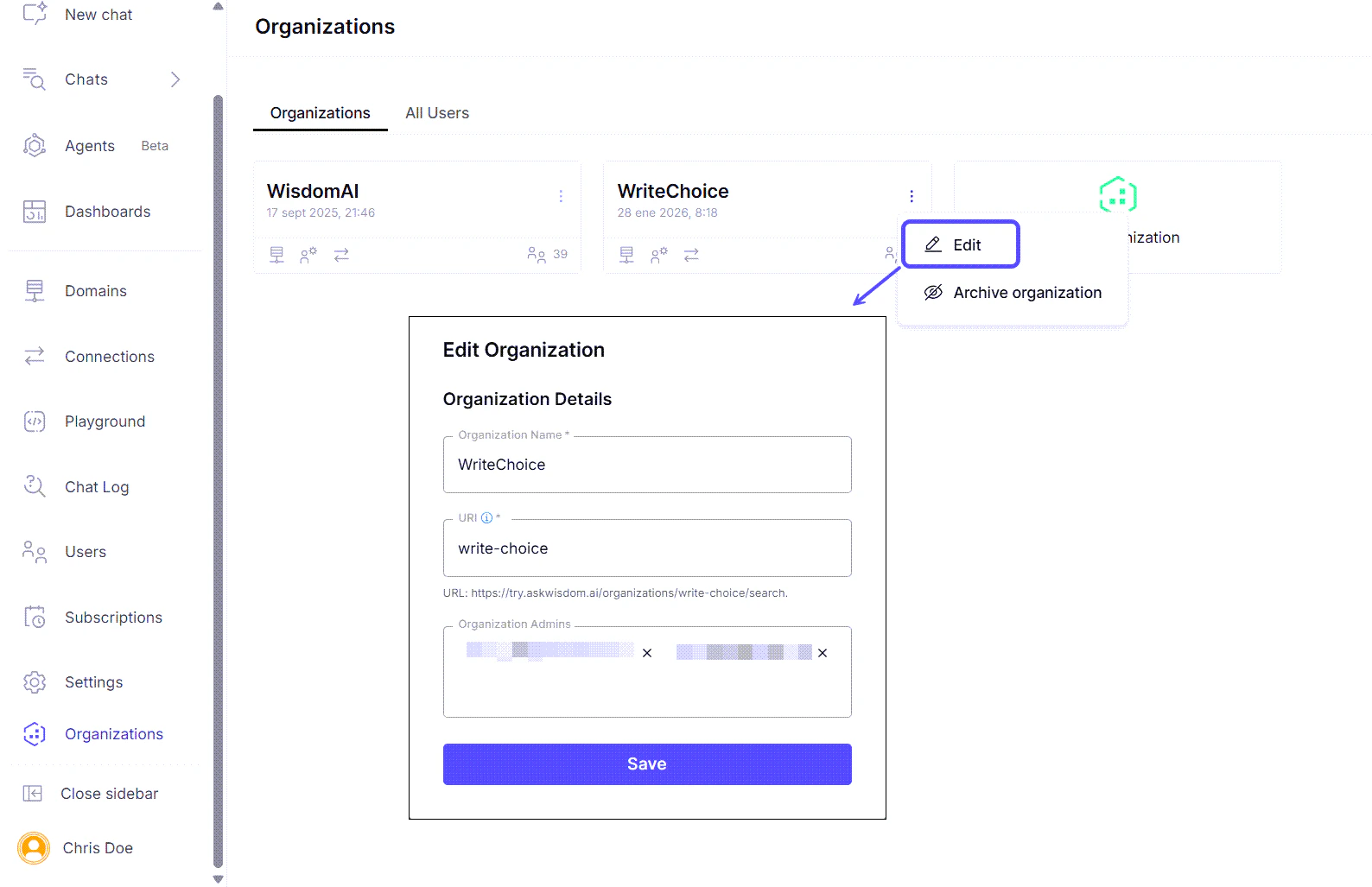
* **Edit Details**: Click the **three-dot menu (...)** on an organization tile and select **Edit** to update the name, URI, or administrative owners.
4. In the modal that opens, under **Organization Details**:
a. Enter the **Organization Name** (e.g., "Finance-Dept").
b. Define the **URI** (e.g., `finance`). This creates a unique access point: `https://try.askwisdom.ai/organizations/finance`.
c. Add **Organization Admins** by entering their email addresses.
d. (Optional) Expand **Advanced Options** to define **Allowed email domains**.
The **Allowed email domains** setting acts as a security gate. By specifying a domain (e.g., `company.com`), you ensure that only users with official company emails can be added to the organization, preventing accidental access by external or personal accounts.
5. Click **Create Organization**.
If you encounter any issues during provisioning, please contact [the WisdomAI support team](/manage-account/contact-support) for assistance.
## Manage existing organizations
Once created, you can manage organizations directly from the dashboard using quick-access icons.
### Modify settings and access
* **Edit Details**: Click the **three-dot menu (...)** on an organization tile and select **Edit** to update the name, URI, or administrative owners.
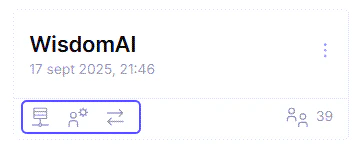
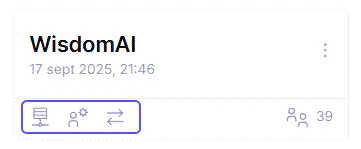
 * **Access Domains**: Click the **monitor icon** to configure AI domains specific to that organization.
* **Manage Connections**: Click the \*\*sync/connections \*\*(arrows)**icon** to set up or modify data source integrations for that environment.
* **Access Domains**: Click the **monitor icon** to configure AI domains specific to that organization.
* **Manage Connections**: Click the \*\*sync/connections \*\*(arrows)**icon** to set up or modify data source integrations for that environment.
 ### User administration
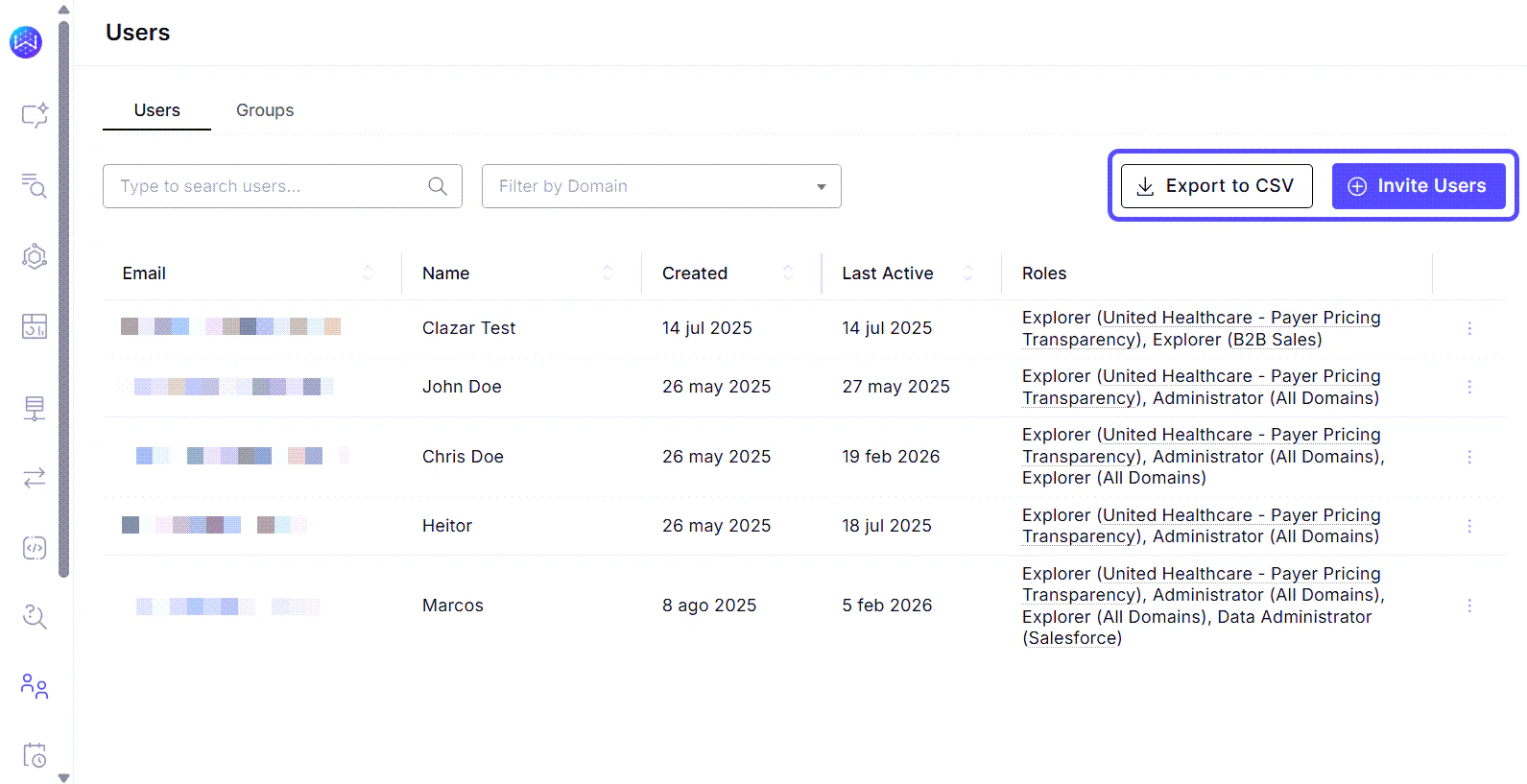
Click the **person icon** to open the user management view:
* **Invite Users**: Click **Invite Users** to grant access to the specific organization.
* **Export List**: Click **Export to CSV** to download a record of all users assigned to the organization.
### User administration
Click the **person icon** to open the user management view:
* **Invite Users**: Click **Invite Users** to grant access to the specific organization.
* **Export List**: Click **Export to CSV** to download a record of all users assigned to the organization.
 ### Archive an organization
If an environment is no longer needed, you can deactivate it to prevent further access.
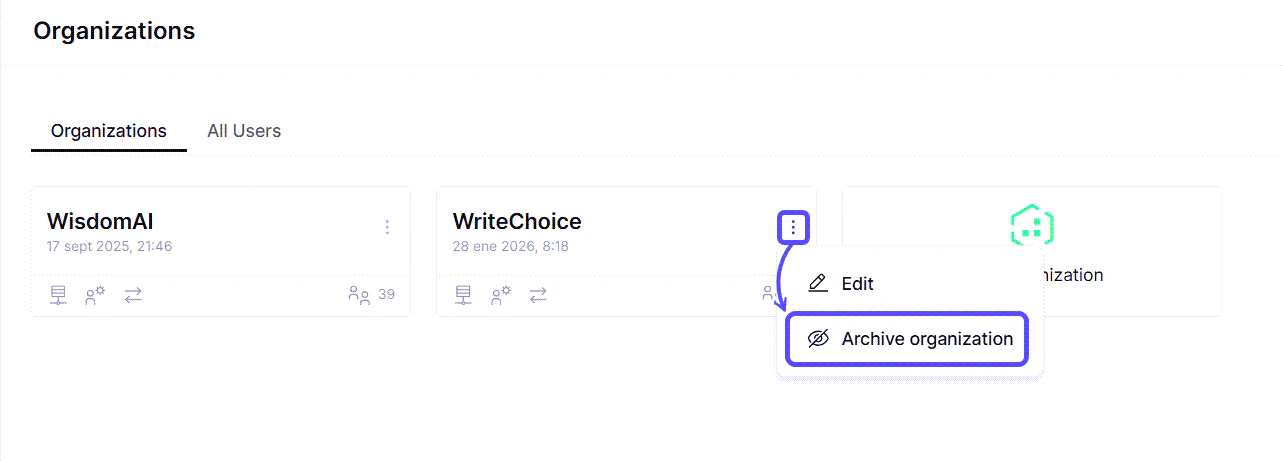
1. Click the **three-dot menu (...)** on the organization tile.
2. Select **Archive organization**.
3. Confirm the action in the dialog box.
### Archive an organization
If an environment is no longer needed, you can deactivate it to prevent further access.
1. Click the **three-dot menu (...)** on the organization tile.
2. Select **Archive organization**.
3. Confirm the action in the dialog box.
 Archiving deactivates the organization immediately, meaning users will no longer be able to log in. However, your data is **not deleted**; it remains securely stored in case you need to reactivate the environment in the future.
## Next steps
Learn how to restrict data access at the row level for specific users or roles.
Control user permissions and manage access to platform features and data.
Explore the full list of databases and platforms you can connect to the system.
Understand the core concepts and architecture behind the platform's data analysis capabilities.
Walk through the initial setup to connect a data source and run your first query.
Configure how WisdomAI accesses data, understands your business context, and evaluates response accuracy.
Archiving deactivates the organization immediately, meaning users will no longer be able to log in. However, your data is **not deleted**; it remains securely stored in case you need to reactivate the environment in the future.
## Next steps
Learn how to restrict data access at the row level for specific users or roles.
Control user permissions and manage access to platform features and data.
Explore the full list of databases and platforms you can connect to the system.
Understand the core concepts and architecture behind the platform's data analysis capabilities.
Walk through the initial setup to connect a data source and run your first query.
Configure how WisdomAI accesses data, understands your business context, and evaluates response accuracy.